
Introduzione
Thank you for choosing the MoKo Bluetooth AZERTY Keyboard. This manual provides detailed instructions to help you set up, operate, and maintain your keyboard, ensuring optimal performance with your Microsoft Surface Pro device. Please read this manual thoroughly before use.
Compatibilità
Questa tastiera è progettata specificamente per i seguenti modelli Microsoft Surface Pro:
- Surface Pro 7 Plus (2021)
- Surface Pro 7 (2019)
- Superficie Pro 6
- Surface Pro 5 (Pro 2017)
- Superficie Pro 4
- Superficie Pro 3
The keyboard dimensions are approximately 29.5 cm (11.6 inches) in length, 21.7 cm (8.54 inches) in width, and 0.6 cm (0.23 inches) in height, providing a similar typing experience to official Surface Pro keyboards.
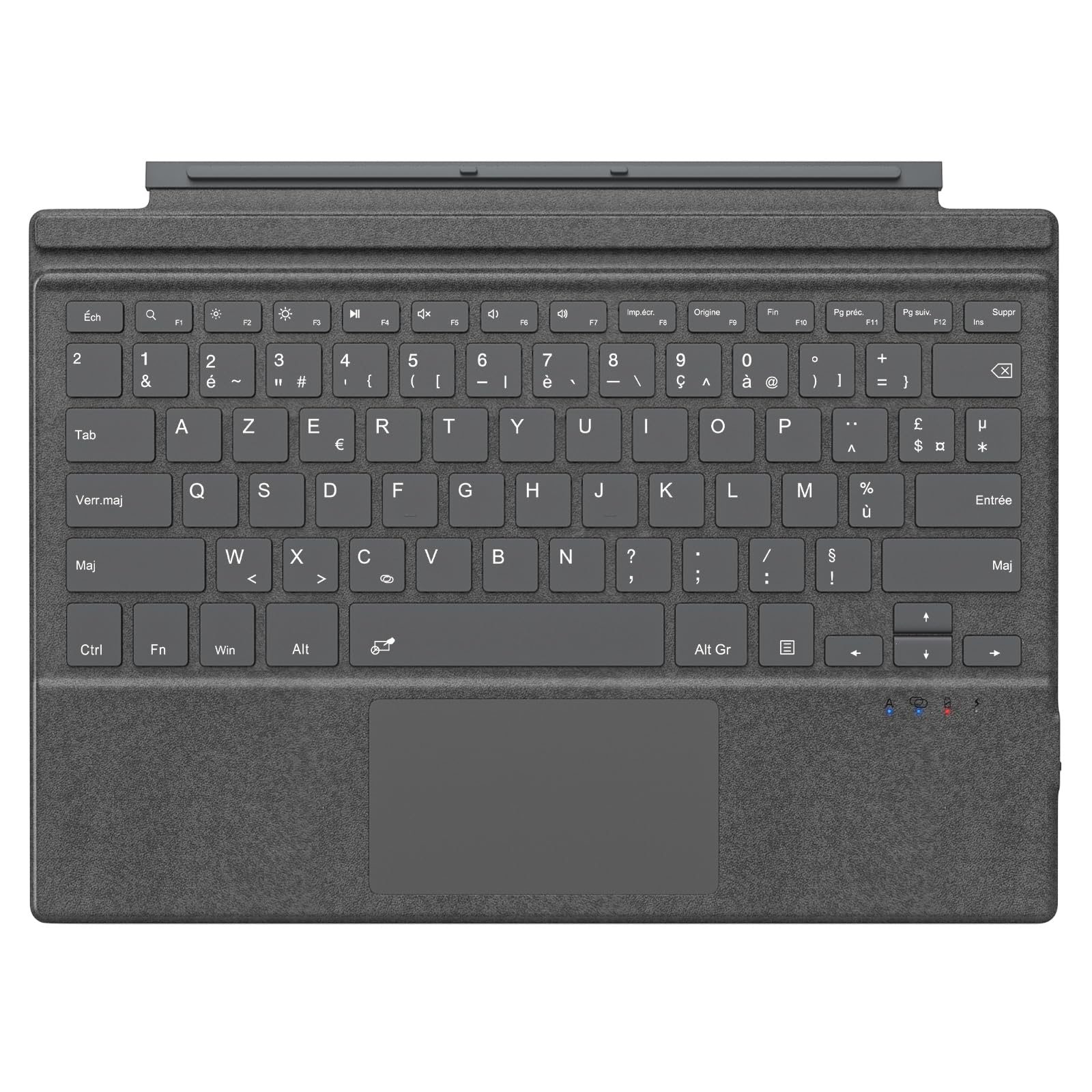
Image: The MoKo Bluetooth AZERTY Keyboard shown with several Microsoft Surface Pro models, illustrating compatibility.
Cosa c'è nella scatola
Dopo aver disimballato, assicurarsi che siano presenti tutti gli articoli:
- MoKo Bluetooth AZERTY Keyboard
- Cavo di ricarica USB
Impostare
1. Ricarica della tastiera
The keyboard is equipped with a built-in 520mAh lithium battery. Before initial use, or when the battery is low, charge the keyboard using the provided USB cable.
- Collegare l'estremità più piccola del cavo di ricarica USB alla porta di ricarica sulla tastiera.
- Connect the larger end of the USB cable to a USB power source (e.g., computer, wall adapter).
- La spia di carica si illuminerà. Una volta completata la carica, la spia potrebbe cambiare colore o spegnersi.
Una carica completa garantisce circa 25 ore di utilizzo continuo.

Immagine: un primo piano view of the keyboard's charging port with a USB cable connected, indicating the charging process.
2. Accoppiamento Bluetooth
To connect your keyboard to your Surface Pro:
- Assicurarsi che la tastiera sia carica e accesa.
- Sul tuo Surface Pro, vai a Impostazioni > Dispositivi > Bluetooth e altri dispositivi.
- Attiva il Bluetooth.
- Premere il tasto Fn chiave e la C key simultaneously on the keyboard to enter pairing mode. The Bluetooth indicator light on the keyboard will flash.
- On your Surface Pro, click Aggiungi Bluetooth o altro dispositivo > Bluetooth.
- Select "MoKo Keyboard" (or similar name) from the list of available devices.
- Seguire le istruzioni visualizzate sullo schermo per completare il processo di associazione. La spia Bluetooth sulla tastiera smetterà di lampeggiare una volta effettuata la connessione.
The keyboard can be used attached to your Surface Pro or detached for flexible positioning. The effective Bluetooth connection range is approximately 10 meters (33 feet).

Image: A Surface Pro tablet with the MoKo keyboard detached, illustrating the wireless Bluetooth connection capability.
Istruzioni per l'uso
Layout e tasti della tastiera
This keyboard features an AZERTY layout with 105 keys, providing a full-size typing experience. The keys utilize a scissor-switch mechanism for comfortable and responsive typing.

Immagine: Un dettaglio view of the keyboard's AZERTY layout, highlighting the scissor-switch keys and integrated trackpad.
Trackpad Functionality
The integrated trackpad allows for precise navigation and control of your Surface Pro. To activate or deactivate the trackpad, press the Fn chiave e la Barra spaziatrice simultaneamente.
Nota: Please remove any protective film from the trackpad surface before use to ensure proper functionality.
Angoli di digitazione regolabili
The keyboard's design allows for two different typing angles, providing an ergonomic and comfortable experience whether you are working on a desk, lap, or other surface.

Image: A Surface Pro with the keyboard attached, demonstrating the two possible ergonomic typing angles.
Gestione dell'alimentazione
Modalità di sospensione automatica
To conserve battery life, the keyboard will automatically enter sleep mode after 10 minutes of inactivity. The Bluetooth connection will automatically disconnect during this period.
Reconnecting After Sleep
To wake the keyboard and re-establish the Bluetooth connection, simply press any key. The keyboard will automatically attempt to reconnect to the last paired device.

Image: An illustration of the keyboard's power management, including automatic sleep mode and USB-C charging.
Manutenzione
To ensure the longevity and optimal performance of your MoKo keyboard, follow these maintenance guidelines:
- Pulizia: Utilizzare un panno morbido, asciutto e privo di lanugine per pulire la superficie della tastiera. Per lo sporco ostinato, leggermente dampPulire il panno con acqua o una soluzione detergente delicata. Evitare l'eccessiva umidità.
- Magazzinaggio: Quando non viene utilizzata, conservare la tastiera in un luogo fresco e asciutto, lontano dalla luce solare diretta e da temperature estreme.
- Evitare i liquidi: Do not expose the keyboard to liquids. It is not waterproof.
- Maneggiare con cura: Evitare di far cadere la tastiera o di sottoporla a forti urti.
Risoluzione dei problemi
Se riscontri problemi con la tastiera, fai riferimento alle seguenti soluzioni comuni:
| Problema | Soluzione |
|---|---|
| La tastiera non si accende | Assicurati che la tastiera sia carica. Collegala a una fonte di alimentazione tramite il cavo USB. |
| Impossibile effettuare l'associazione tramite Bluetooth | 1. Ensure the keyboard is in pairing mode (Fn + C). 2. Make sure Bluetooth is enabled on your Surface Pro. 3. Delete any previous keyboard pairings on your Surface Pro and try again. 4. Ensure the keyboard is within the 10-meter range. |
| La tastiera si disconnette frequentemente | 1. Assicurarsi che la tastiera sia carica. 2. Avoid placing obstacles between the keyboard and your Surface Pro. 3. Reconnect the Bluetooth connection manually if needed. |
| Il trackpad non risponde | 1. Ensure the trackpad is activated (Fn + Spacebar). 2. Remove any protective film from the trackpad surface. 3. Restart the keyboard and try again. |
| I tasti non rispondono | 1. Ensure the keyboard is properly connected via Bluetooth. 2. Check battery level and charge if necessary. 3. Restart your Surface Pro and the keyboard. |
Specifiche
| Caratteristica | Dettaglio |
|---|---|
| Marca | Moko |
| Nome del modello | Clavier Français |
| Numero di modello | B0CPLZXMFK |
| Tecnologia di connettività | Bluetooth |
| Descrizione della tastiera | Integrato |
| Caratteristica speciale | Ergonomic |
| Colore | Grigio |
| Disposizione della tastiera | AZZERTY |
| Numero di chiavi | 105 |
| Tipo di interruttore | Interruttore a forbice |
| Fonte di alimentazione | Battery Powered (520mAh Lithium) |
| Dimensioni del prodotto (L x P x A) | 29.5 cm x 21.7 cm x 0.6 cm (11.6 x 8.54 x 0.23 pollici) |
| Peso dell'articolo | 10.93 once |
| Materiale | ABS (acrilonitrile-butadiene-stirene) |
| Sistema operativo compatibile | Windows (Minimum Windows 10) |

Image: A technical diagram illustrating the precise dimensions of the MoKo Bluetooth AZERTY Keyboard.
Garanzia e supporto
For warranty information or technical support, please refer to the documentation provided with your purchase or contact MoKo customer service directly through their official websito o rivenditore presso cui è stato acquistato il prodotto.