
Introduzione
The Logitech Signature M550 Wireless Mouse is designed for enhanced productivity and comfort. Featuring an adaptive SmartWheel for precise and fast scrolling, SilentTouch technology for quiet clicks, and versatile connectivity options, this mouse is compatible with multiple operating systems and devices. This manual will guide you through its setup, operation, and maintenance.
Impostare
1. Installare la batteria
The Logitech Signature M550 mouse requires one AA battery, which is included. To install the battery:
- Individuare il vano batteria sul lato inferiore del mouse.
- Togliere il coperchio facendolo scorrere.
- Inserire la batteria AA, assicurandosi della corretta polarità (+/-).
- Riposizionare il coperchio del vano batterie.

Immagine: Lato inferiore view of the Logitech Signature M550 mouse, highlighting the battery compartment, on/off switch, and the Logi Bolt USB receiver storage slot.
2. Collega il tuo mouse
The Signature M550 offers two connection methods: Bluetooth Low Energy or the Logi Bolt USB receiver.
Utilizzo del ricevitore USB Logi Bolt:
- Rimuovere il ricevitore USB Logi Bolt dal vano batteria.
- Collega il ricevitore USB Logi Bolt a una porta USB-A disponibile sul tuo computer.
- Turn on the mouse using the on/off switch on the bottom. The mouse should connect automatically.
Utilizzo di Bluetooth Low Energy:
- Turn on the mouse using the on/off switch on the bottom.
- Press and hold the Easy-Switch button on the bottom of the mouse until the LED light starts blinking rapidly. This indicates pairing mode.
- On your device (computer, tablet, etc.), open Bluetooth settings and search for available devices.
- Select "Logi M550" from the list to complete the pairing process.
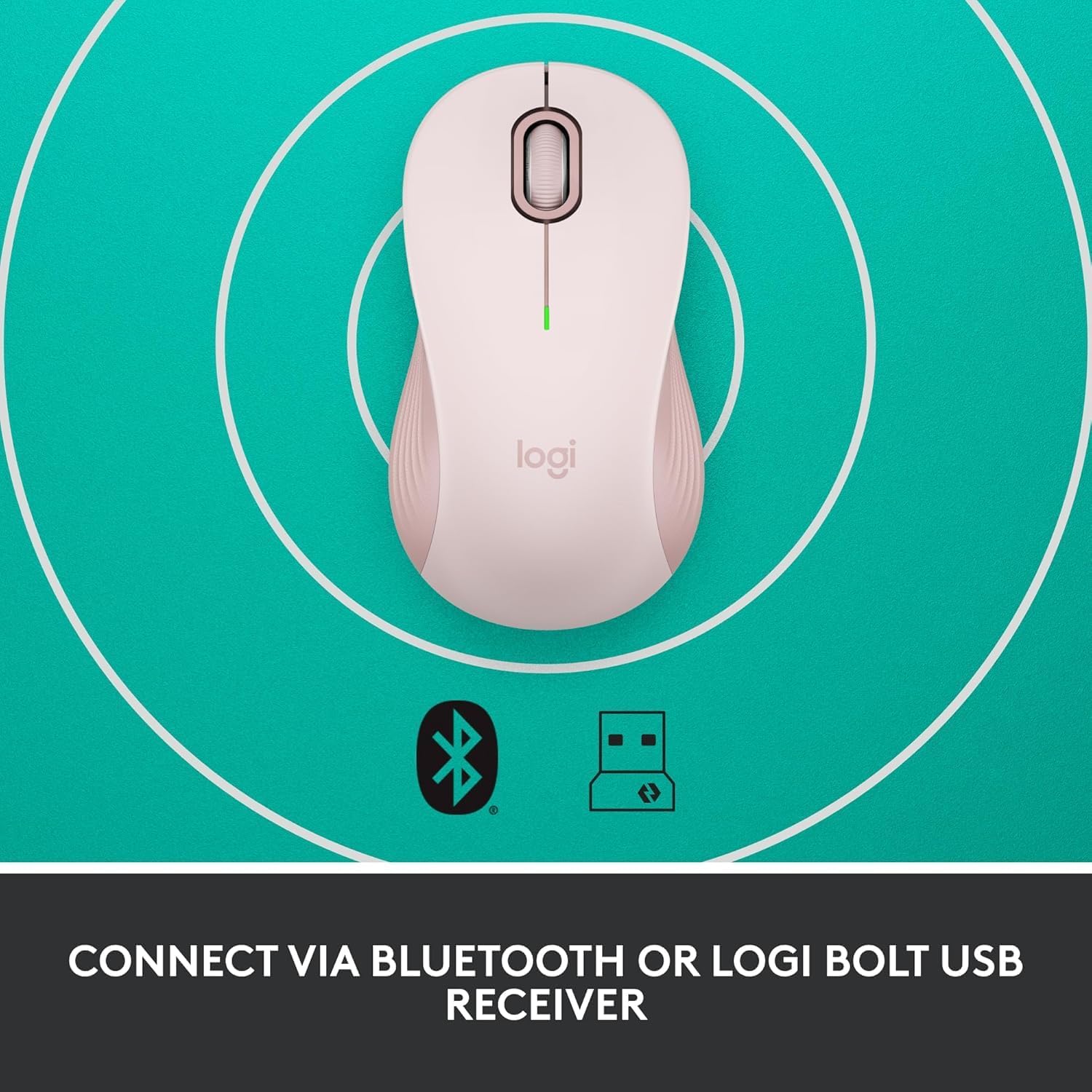
Image: The Logitech Signature M550 mouse on a teal background with icons for Bluetooth and the Logi Bolt USB receiver, illustrating its dual connectivity options.
Video: A demonstration of installing the battery and connecting the Logitech Signature M550 Wireless Mouse via Bluetooth or USB receiver.
Video: A user demonstrating the easy setup process of the Logitech Signature M550, including battery insertion and connectivity.
Istruzioni per l'uso
Scorrimento SmartWheel
The Signature M550 features an adaptive SmartWheel that allows for two modes of scrolling:
- Line-by-line precision: For detailed navigation in documents and spreadsheets.
- Super-fast free spin: Flick the wheel for rapid scrolling through long web pagine o documenti.

Image: A close-up of the Logitech Signature M550 mouse, highlighting the SmartWheel for precision and speed scrolling.
Video: A demonstration of the Logitech Signature M550's SmartWheel functionality, showcasing both precise and super-fast scrolling modes.
Clic silenziosi con tecnologia SilentTouch
Experience a quieter workspace with Logitech's SilentTouch technology, reducing click noise by 90% compared to traditional mice. This allows for focused work without distractions.

Image: A woman using the Logitech Signature M550 mouse at a desk, illustrating the benefit of 90% less clicking noise for a focused work environment.
Multi-Device and OS Compatibility
The Signature M550 offers seamless compatibility across various platforms:
- Windows (including Windows 11)
- sistema operativo macOS
- Linux
- Sistema operativo Chrome
- iPadOS
- Android
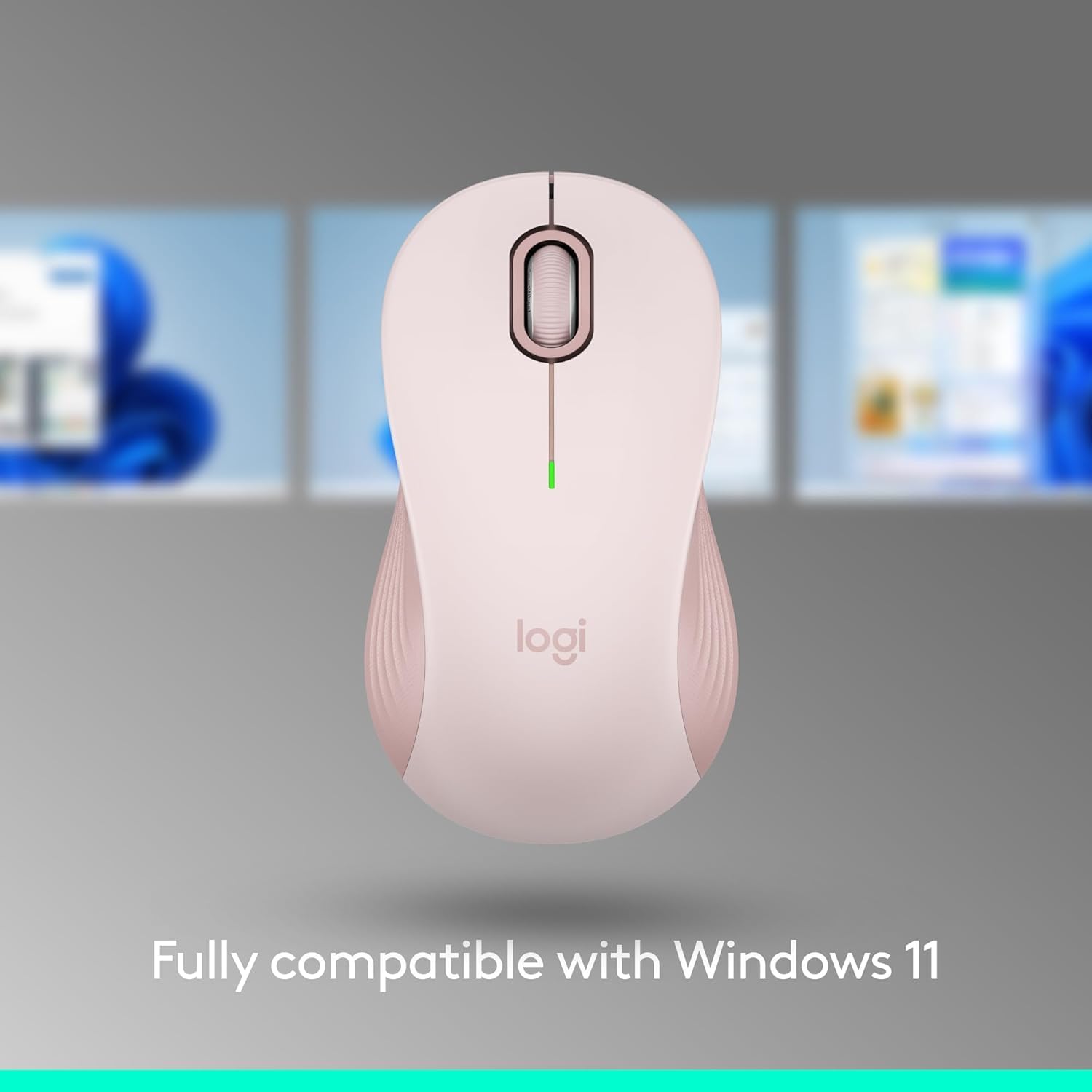
Image: The Logitech Signature M550 mouse displayed with a message confirming its full compatibility with Windows 11.
Manutenzione
Sostituzione della batteria
The mouse operates on a single AA battery with an average life of 24 months. When the battery is low, the LED indicator on the mouse will blink. To replace the battery, follow the steps outlined in the 'Install Battery' section.
Pulizia
Per mantenere prestazioni ottimali, pulire regolarmente il mouse con un panno morbido e asciutto. Evitare l'uso di prodotti chimici aggressivi o materiali abrasivi.
Risoluzione dei problemi
Problemi di connessione
- Il mouse non risponde: Ensure the mouse is turned on and the battery is correctly installed or replaced.
- Errore di associazione Bluetooth: Make sure your device's Bluetooth is enabled and the mouse is in pairing mode (blinking LED). Try restarting both the mouse and your device.
- USB receiver not detected: Ensure the Logi Bolt USB receiver is securely plugged into a working USB-A port. Try a different USB port.
- Interferenza: Avvicinare il mouse al dispositivo e allontanarlo da altri dispositivi wireless che potrebbero causare interferenze.
Specifiche
| Marca | Logitech |
| Serie | Numero di modello: M550 |
| Numero modello articolo | 910-006593 |
| Tecnologia di connettività | Bluetooth, USB |
| Tecnologia di rilevamento del movimento | Ottico |
| Caratteristiche speciali | Lightweight, Portable, Soundless, Wireless |
| Fonte di alimentazione | Alimentato a batteria |
| Batterie richieste | 1 batteria AA (inclusa) |
| Durata media della batteria | 24 mesi |
| Peso dell'articolo | 3.44 once |
| Dimensioni del pacco | 5.55 x 3.54 x 1.73 pollici |
| Piattaforma hardware | Linux, Mac, PC |
| Sistemi operativi supportati | Windows, macOS, Linux, Chrome OS, iPadOS, Android |
Informazioni sulla garanzia
For detailed warranty information regarding your Logitech Signature M550 Wireless Mouse, please refer to the official Logitech website or the warranty card included with your product. Logitech typically offers a limited hardware warranty for its products.
Supporto
If you encounter any issues or have questions about your Logitech Signature M550 Wireless Mouse, please visit the official Logitech support website for FAQs, troubleshooting guides, and contact information for customer service.