
1. Introduzione
This manual provides detailed instructions for the setup, operation, and maintenance of your Tera HW0015 Wireless Barcode Scanner. Please read this manual thoroughly before using the device to ensure proper functionality and to maximize its lifespan.
2. Contenuto della confezione
Verificare che tutti gli articoli siano presenti nel pacco:
- Lettore di codici a barre x1
- Dock di ricarica x1
- Cavo di ricarica x1
- Manuale utente x1

Image: Contents of the Tera HW0015 package, including the scanner, charging dock, charging cable, and user manual.
3. Configurazione e ricarica
3.1 Carica iniziale
Before first use, fully charge the barcode scanner. Connect the charging cable to the charging dock and a stable 5V/1A power source. Place the scanner into the charging dock. The scanner features a powerful 2600mAh battery for extended operation.
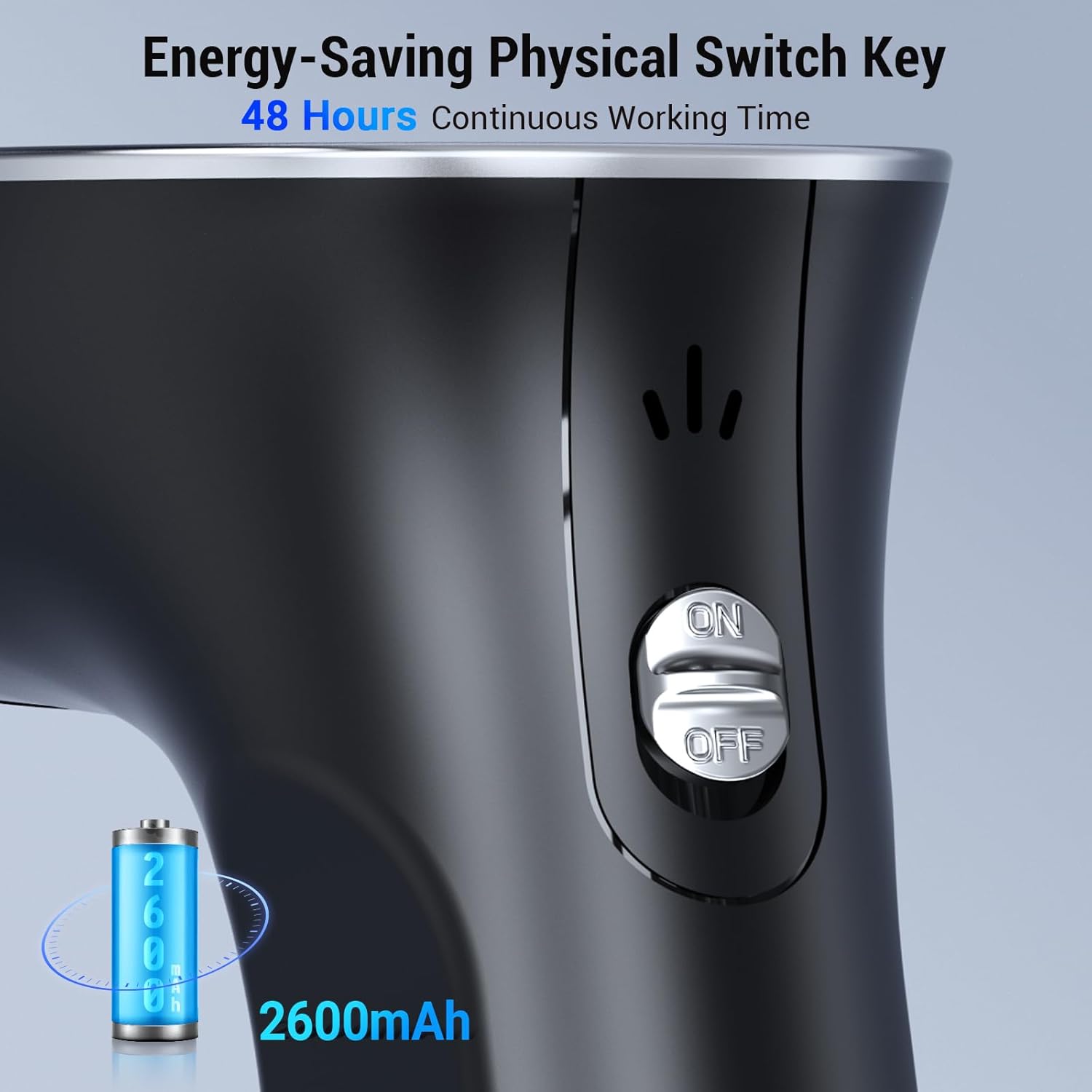
Image: Close-up of the Tera HW0015 scanner showing the physical ON/OFF power switch and a battery graphic indicating 2600mAh capacity.
3.2 Accensione/spegnimento
To power on the scanner, turn on the physical switch key located on the device. Press the scan button to activate the scanning function. To conserve energy and extend battery life, push down the switch key to deactivate the scanner when not in use.
4. Istruzioni per l'uso
4.1 Modalità di connessione
The Tera HW0015 supports multiple connection methods:
- Wireless 2.4G: Use the included USB dongle for wireless connection. Offers a transmission distance of up to 328ft in barrier-free environments and 164ft with obstacles.
- Bluetooth: Connettiti in modalità wireless ai dispositivi compatibili tramite Bluetooth.
- Cavo USB: Connect directly to a device using the USB cable for wired operation and charging.

Image: Illustration of the scanner's wireless connectivity options, including 2.4G and Bluetooth, with various compatible devices.
4.2 Screen Settings and Customization
The scanner features a digital screen and keypad for direct configuration. You can customize various settings directly on the device:
- Connection Modes (2.4G, Bluetooth HID, SPP, BLE)
- Sound and Vibration settings
- Encoding and Transport mode
- Sleep time and Transfer speed
- Key settings, Barcode hiding, Barcode terminal
- Case setting, Default setting, Clear total count, and Language

Image: The scanner's touchscreen interface showing options for connection modes, sound, and other customizable settings.

Image: The scanner's digital screen displaying options for language selection (English, Deutsch, Español, Français, Italian) and volume settings (High, Middle, Low, Mute, Frequency 2K).
4.3 Capacità di scansione
The Tera HW0015 utilizes CMOS imaging technology for rapid and accurate scanning of 1D and 2D barcodes. It can read barcodes from various surfaces and conditions, including:
- Standard paper labels
- Digital screens (smartphones, tablets, computers)
- Reflective materials
- Underwater (with appropriate protection)
- Damaged, blurry, or fuzzy barcodes

Image: Visual representation of the scanner's decoding ability across different barcode types and conditions.

Image: Chart illustrating the superior performance of image scanning (used by HW0015) compared to laser scanning for various barcode types and conditions.
4.4 Tipi di codici a barre supportati
Lo scanner supporta un'ampia gamma di simbologie di codici a barre 1D e 2D:
- Codici 2D: QR code, Data Matrix, PDF417, Aztec, Maxicode, Micro QR
- Codici 1D: UPC-A, UPC-E, EAN-8, EAN-13, Code 128, Code 39, Code 93, Code 11, Interleaved 2 of 5, Matrix 2 of 5, Standard 2 of 5, Coda bar, MSI Plessey, RSS
4.5 Modalità di scansione
The Tera HW0015 offers flexible scanning modes to suit different operational needs:
- Manual-Trigger Mode: Premere il pulsante di scansione per ogni scansione.
- Modalità di scansione continua: The scanner continuously reads barcodes without needing to press the trigger for each item.
- Modalità Auto-Sense: Lo scanner rileva e scansiona automaticamente i codici a barre quando questi vengono presentati nel suo raggio di scansione.

Image: The scanner in Manual-Trigger mode, being held and used to scan a barcode.

Image: The scanner in Continuous Scan mode, scanning items on a production line.

Image: The scanner in Auto-Sense mode, automatically scanning a barcode from its cradle.
5. Archiviazione dei dati
The Tera HW0015 is equipped with a 16MB memory capacity, allowing it to store over 100,000 barcodes. This feature is ideal for high-volume data collection when offline.

Image: The scanner's display indicating its high-capacity data storage capability.
6. Compatibilità
The Tera HW0015 barcode scanner is compatible with a wide range of devices and operating systems, ensuring versatile integration into various work environments.
- Dispositivi compatibili: Smartphones, computers (desktops, laptops), POS systems, tablets.
- Sistemi operativi compatibili: Windows 11/10/8/7/XP, Mac OS, iOS, Android, Linux.

Image: The scanner demonstrating compatibility with various operating systems and devices.

Image: An infographic summarizing the scanner's wireless capabilities, barcode decoding strengths, and broad operating system compatibility.
7. Manutenzione
To ensure optimal performance and longevity of your Tera HW0015 barcode scanner, follow these maintenance guidelines:
- Pulizia: Utilizzare un panno morbido e asciutto per pulire l'esterno dello scanner. Per la finestra di scansione, utilizzare un panno per la pulizia delle lenti e, se necessario, una soluzione detergente delicata. Evitare materiali abrasivi o sostanze chimiche aggressive.
- Magazzinaggio: Conservare lo scanner in un luogo fresco e asciutto, lontano dalla luce solare diretta e da temperature estreme.
- Cura della batteria: Avoid fully discharging the battery frequently. Charge the scanner regularly, especially if it will be stored for an extended period.
- Protezione fisica: While the scanner is designed to be durable (IK08, IP54, 6.6ft/2m drop test passed), avoid unnecessary drops or impacts.

Image: The scanner's durability features, including impact protection (IK08), dust and water resistance (IP54), and drop test rating (6.6ft/2m).
8. Risoluzione Dei Problemi
Se riscontri problemi con lo scanner di codici a barre Tera HW0015, fai riferimento ai seguenti passaggi comuni per la risoluzione dei problemi:
- Lo scanner non risponde: Ensure the scanner is powered on and fully charged. If unresponsive, try resetting the device (refer to the full user manual for specific reset instructions).
- Problemi di connessione: Verify that the correct connection mode (2.4G or Bluetooth) is selected on the scanner and your host device. For 2.4G, ensure the USB dongle is properly inserted. For Bluetooth, ensure the device is discoverable and paired correctly.
- Impossibile scansionare i codici a barre: Check if the barcode is damaged or poorly printed. Ensure the scanning window is clean. Adjust the distance and angle of the scanner to the barcode. Confirm that the barcode type is supported by the scanner.
- Output dati errati: Check the encoding settings on the scanner. Ensure the host device's keyboard layout matches the scanner's settings if applicable.
For more detailed troubleshooting or persistent issues, please consult the comprehensive user manual or contact Tera customer support.
9. Specifiche
| Caratteristica | Dettaglio |
|---|---|
| Numero di modello | HW0015 |
| Marca | Terra |
| Tecnologia di connettività | Wireless 2.4G, Bluetooth, cavo USB |
| Dispositivi compatibili | Desktop, Laptop, Smartphone, Tablet |
| Fonte di alimentazione | Alimentato a batteria (1 batteria agli ioni di litio inclusa) |
| Capacità della batteria | 2600mAh |
| Frequenza di scansione | 500 scansioni/s |
| Capacità di memoria | 16 MB (memorizza oltre 100,000 codici a barre) |
| Dimensioni dell'articolo (P x L x A) | 3.3"P x 4.7"L x 7.08"A |
| Massima temperatura di conservazione | 158 gradi Fahrenheit |
10. Garanzia e supporto
The Tera HW0015 Barcode Scanner comes with a Garanzia di 1 anno dalla data di acquisto.
For technical support, warranty claims, or any questions regarding your product, please refer to the contact information provided in the full user manual or visit the official Tera websito.
11. Video del prodotto
Video: Un oltreview of the Tera HW0015 Scanner, highlighting its digital screen and physical power switch features.