
1. Introduzione
This manual provides detailed instructions for the installation, operation, and maintenance of your MekedeTech Android Car Radio Stereo GPS Navigation system. This unit is designed for Ford Fiesta models from 2008 to 2017, offering an upgraded in-car entertainment and navigation experience with advanced features like 4G LTE, Wireless CarPlay, and Android Auto.
Si prega di leggere attentamente questo manuale prima dell'installazione e dell'uso per garantire il corretto funzionamento e ottimizzare l'esperienza con il dispositivo.
2. Caratteristiche principali
- Compatibilità: Specifically designed for Ford Fiesta 2008-2017 models.
- Sistema operativo: Sistema operativo Android 12.
- Processore: 8-Core A53 1.8GHz CPU for fast performance.
- Memoria: 4GB RAM and 32GB ROM for smooth operation and storage.
- Display: 9-inch IPS touch screen with 1280x720 resolution.
- Connettività: Built-in 4G LTE module (SIM card slot), Wi-Fi, and Bluetooth 5.0.
- Integrazione smartphone: Supporto per CarPlay wireless e Android Auto cablato.
- Navigazione: Navigazione GPS integrata con mappe preinstallate.
- Audio: Built-in DSP sound system for enhanced audio quality, 4*50W power output.
- Controllo del volante: Supports original steering wheel control functions.
- Supporto multimediale: Wide range of audio (APE/FLAC/WAV/MP3/WMA) and video (MKV/RMVB/AVI/MP4/MDV) formats.
3. Contenuto della confezione
The package includes all necessary accessories for installation. Please verify that all items are present before proceeding with installation:
- MekedeTech Android Car Radio Stereo Head Unit
- Dash Kit (specific to Ford Fiesta 2008-2017)
- Cavo di alimentazione
- RCA
- Cavo della telecamera di retromarcia (se incluso nel modello specifico)
- Cavi USB
- Antenna GPS
- Antenna 4G
- Microfono esterno (se incluso)
- Manuale dell'utente (questo documento)
4. Guida all'installazione
Si raccomanda l'installazione da parte di un professionista. Assicurarsi che la batteria del veicolo sia scollegata prima di iniziare l'installazione.
4.1 Preparazione per l'installazione
Before beginning, ensure you have all the necessary tools and components. Familiarize yourself with your vehicle's dashboard layout.

Image 1: Comparison of the Ford Fiesta dashboard before and after the installation of the MekedeTech Android Car Radio Stereo. The left panel shows the original car radio, and the right panel shows the new Android head unit seamlessly integrated.
4.2 Connecting the Cooling Fan (If Applicable)
Some models include an optional cooling fan to manage internal temperatures, especially during prolonged use or in hot climates. Connect the cooling fan as shown in the diagram below.
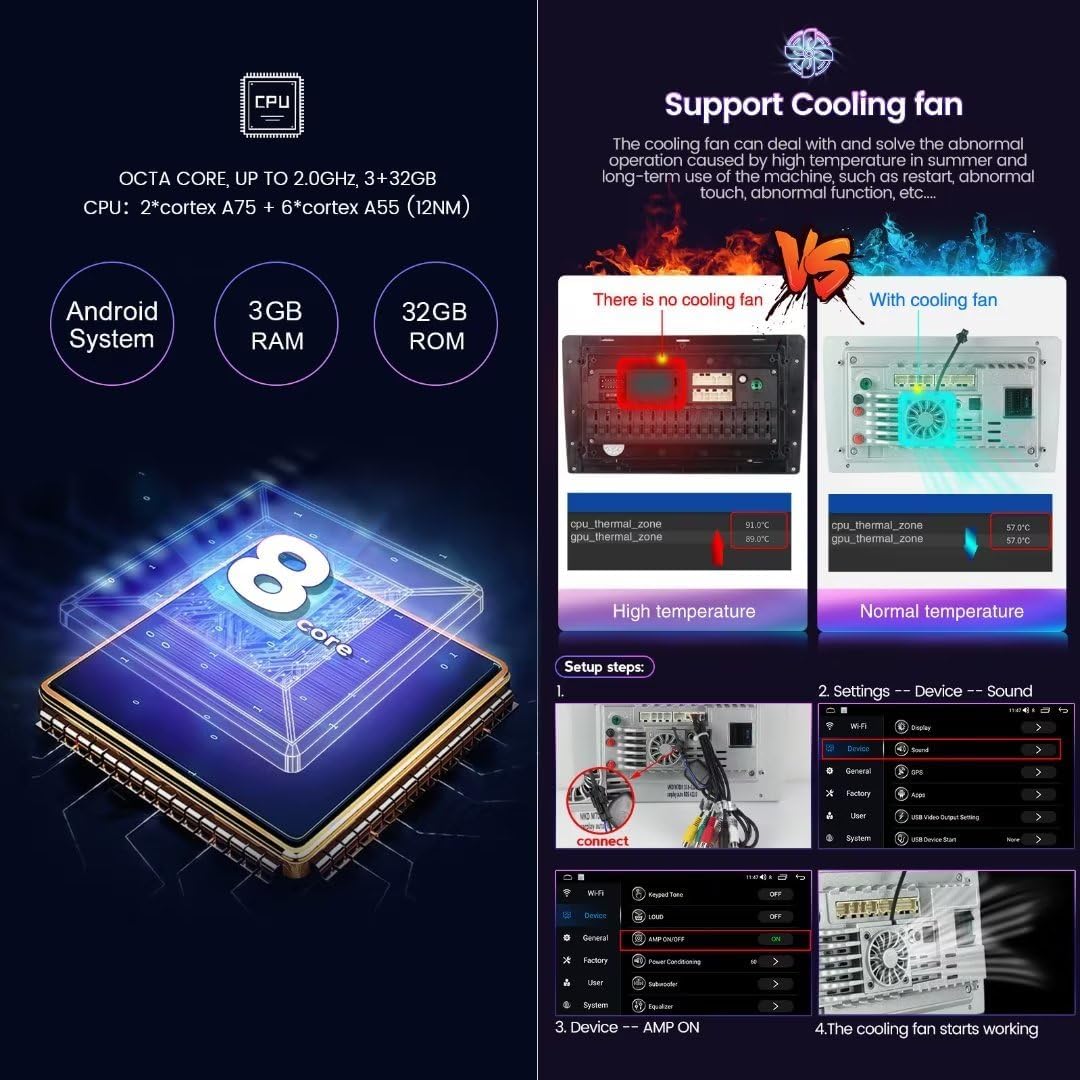
Immagine 2: Dettagliata view of the internal components, highlighting the 8-core CPU and the cooling fan. The image also illustrates the setup steps for connecting the cooling fan and accessing device sound settings.
- Connect Cooling Fan: Locate the cooling fan connector on the back of the head unit and securely attach the fan cable.
- Verifica operazione: After installation, navigate to the device settings to confirm the cooling fan is recognized and operating correctly. (Settings > Device > Sound)
4.3 Collegamenti di cablaggio
Connect the power cable, RCA cables, USB cables, and other necessary wiring to the corresponding ports on the head unit and your vehicle's harness. Ensure all connections are secure to prevent intermittent issues.
- Cavo di alimentazione: Collegare il cablaggio di alimentazione principale.
- Cavi RCA: Per l'esterno ampamplificatori, subwoofer o ingressi/uscite video ausiliari.
- Cavi USB: Per collegare dispositivi USB o per Android Auto cablato.
- Antenna GPS: Montare l'antenna GPS in una posizione con una vista libera view del cielo, in genere sul cruscotto.
- Antenna 4G: Mount the 4G antenna for optimal signal reception.
- Telecamera per la retromarcia: If installing a reversing camera, connect its video and power cables as per the camera's instructions.
4.4 Finalizzazione dell'installazione
Once all connections are made, carefully reassemble the dashboard components. Reconnect the vehicle's battery and test the unit's functionality.
5. Configurazione iniziale
After successful installation, power on the unit and follow these steps for initial configuration.
5.1 Lingua e ora del sistema
Upon first boot, you may be prompted to select your preferred language and set the correct time zone. If not, navigate to Settings > System to adjust these options.
5.2 Connessione Wi-Fi
To access online features, connect the unit to a Wi-Fi network.
- Vai a Impostazioni > Rete e Internet > Wifi.
- Attiva il Wi-Fi e seleziona la rete desiderata dall'elenco.
- Se richiesto, inserisci la password e connettiti.
5.3 4G LTE Connection
The unit supports 4G LTE connectivity via a SIM card. This allows internet access without a Wi-Fi hotspot.

Image 3: Illustration of the built-in 4G LTE module with a SIM card slot, and a visual representation of the Digital Sound Processor (DSP) for enhanced audio.
- Inserire la carta SIM: Locate the 4G SIM card slot (one on the back of the main unit, one on the RCA cable) and insert a compatible 4G SIM card.
- Enable Mobile Data: Vai a Impostazioni > Rete e Internet > Rete mobile e assicurati che i dati mobili siano abilitati.
- Impostazioni APN: If internet access is not automatic, you may need to configure APN settings manually. Refer to your mobile carrier for the correct APN details.
5.4 Associazione Bluetooth
Pair your smartphone or other Bluetooth devices for hands-free calling and audio streaming.
- Vai a Impostazioni > Dispositivi connessi > Associa nuovo dispositivo.
- Sul tuo dispositivo mobile, attiva il Bluetooth e cerca i dispositivi disponibili.
- Select the car stereo's Bluetooth name (e.g., "MekedeTech Car Stereo") from your phone's list and confirm the pairing code.
6. Istruzioni per l'uso
6.1 Navigazione nella schermata iniziale
The home screen provides access to all main functions. Swipe left or right to navigate between screens, and tap icons to open applications.
6.2 Navigazione GPS
The unit comes with built-in GPS navigation and pre-installed maps. Tap the "Navigation" or "Maps" icon to launch the application. Ensure the GPS antenna is properly installed for accurate positioning.
6.3 CarPlay wireless / Android Auto
Connect your iPhone or Android smartphone for seamless integration of apps, navigation, music, and calls.

Image 4: Visual guide demonstrating the user interfaces for Wireless CarPlay (iOS system) and Wireless Android Auto (Android system), along with their respective connection steps.
6.3.1 CarPlay wireless (sistema iOS)
- Connetti Bluetooth: Ensure your iPhone is paired with the car stereo via Bluetooth.
- Open Car Link App: On the car stereo, open the "Car Link" or similar application.
- Attendi la connessione: The system will automatically connect to CarPlay. (Wired connection via USB is also supported if wireless fails or is preferred).
6.3.2 Android Auto wireless (sistema Android)
- Connetti Bluetooth: Ensure your Android phone is paired with the car stereo via Bluetooth.
- Open Car Link App: On the car stereo, open the "Car Link" or similar application.
- Attendi la connessione: The system will automatically connect to Android Auto. (Wired connection via USB is also supported if wireless fails or is preferred).
6.4 Riproduzione multimediale
Access various multimedia functions:
- Radio: Tune into FM/AM stations.
- Musica: Riproduci audio files from internal storage, USB drives, or streaming apps.
- Video: Riproduci video filedalla memoria interna o dalle unità USB.
- Musica Bluetooth: Riproduci in streaming l'audio dal tuo smartphone associato.
6.5 Comandi al volante
The unit retains your vehicle's original steering wheel control functions. This allows you to adjust volume, change tracks/channels, and answer calls without taking your hands off the steering wheel.
7. Manutenzione
To ensure the longevity and optimal performance of your MekedeTech car stereo, follow these maintenance guidelines:
- Pulizia dello schermo: Utilizzare un panno morbido e privo di lanugine per pulire delicatamente il touchscreen. Evitare detergenti abrasivi o solventi.
- Aggiornamenti software: Controllare periodicamente la presenza di aggiornamenti del software di sistema e installarli per garantire le funzionalità e le patch di sicurezza più recenti.
- Evitare temperature estreme: Non esporre l'unità a temperature estreme, sia calde che fredde, per periodi prolungati.
- Connessioni sicure: Controllare periodicamente tutti i collegamenti elettrici per accertarsi che siano sempre saldi.
8. Risoluzione Dei Problemi
Se riscontri problemi con l'autoradio, fai riferimento ai seguenti problemi comuni e alle relative soluzioni:
| Problema | Possibile causa | Soluzione |
|---|---|---|
| L'unità non si accende. | Collegamento elettrico allentato, fusibile bruciato, problema alla batteria del veicolo. | Controllare i collegamenti dei cavi di alimentazione. Ispezionare i fusibili del veicolo. Assicurarsi che la batteria del veicolo sia carica. |
| Nessun suono. | Volume troppo basso, disattivazione audio attivata, problema di cablaggio degli altoparlanti, impostazioni di uscita audio errate. | Aumentare il volume. Verificare che la modalità mute sia attiva. Verificare il cablaggio degli altoparlanti. Controllare le impostazioni audio del sistema. |
| Segnale GPS perso o impreciso. | Antenna GPS installata in modo errato o ostruita. | Assicurarsi che l'antenna GPS abbia una visuale libera view del cielo. Controllare il collegamento dell'antenna. |
| Il Bluetooth non si connette. | Bluetooth off on either device, incorrect pairing process, interference. | Assicurati che il Bluetooth sia abilitato su entrambi i dispositivi. Riprova l'associazione. Cancella le associazioni precedenti. |
| CarPlay/Android Auto non si avvia. | Incorrect connection steps, phone compatibility issues, app not updated. | Follow connection steps carefully. Ensure phone OS and apps are updated. Try wired connection. |
| Il touch screen non risponde. | Blocco del sistema, problema software temporaneo. | Restart the unit (if possible, refer to system reset instructions). If persistent, contact support. |
9. Specifiche
| Caratteristica | Dettaglio |
|---|---|
| Marca | MekedeTech |
| Modello | 8 core 4+32G |
| Tipo di veicolo compatibile | Ford Fiesta (2008-2017) |
| Sistema operativo | Androide 12 |
| processore | 8-Core A53 1.8GHz |
| Memoria (RAM) | 4 GB |
| Memoria (ROM) | 32 GB |
| Dimensioni dello schermo | 9 pollici |
| Tipo di visualizzazione | Schermo LCD IPS |
| Risoluzione | 1280x720 |
| Tipo di schermo tattile | Capacitivo |
| Tecnologia di connettività | Wireless (Wi-Fi, Bluetooth, Cellular) |
| Connectivity Protocols | Bluetooth 5.0, Cellular (4G LTE), Wi-Fi |
| Caratteristiche speciali | 4G LTE, Bluetooth, Touchscreen, Wireless Android Auto, Wireless CarPlay, Built-in GPS, DSP Sound System |
| Modalità di uscita audio | Stereo |
| Potenza in uscita | 4*50W |
| Formati audio supportati | APE, FLAC, WAV, MP3, WMA, ecc. |
| Formati video supportati | MKV, RMVB, AVI, MP4, MDV, ecc. |
| Tipo di mappa | In tutto il mondo |
| Input dell'interfaccia umana | Touchscreen, Steering Wheel Controls |
10. Garanzia e supporto
This MekedeTech Android Car Radio Stereo GPS Navigation system comes with a Garanzia di 1 anno dalla data di acquisto.
La garanzia copre difetti di fabbricazione e malfunzionamenti dovuti a normale utilizzo. Non copre danni causati da installazione impropria, uso improprio, incidenti o modifiche non autorizzate.
For technical support, warranty claims, or further assistance, please contact MekedeTech customer service through the retailer where the product was purchased or visit the official MekedeTech websito per le informazioni di contatto.
Si prega di conservare la prova d'acquisto ai fini della garanzia.