
1. Introduzione
Thank you for choosing the Maxfree P1S 12-inch FHD Portable Monitor. This manual provides essential information for setting up, operating, and maintaining your new portable display. Designed for versatility and portability, the P1S monitor enhances your productivity and entertainment experience across various devices.
The Maxfree P1S features a 12-inch FHD IPS panel, offering a clear and vibrant visual experience with wide viewing angles. Its lightweight and slim design, coupled with a smart cover, makes it an ideal companion for travel, remote work, or expanding your desktop workspace. Enjoy seamless connectivity with USB-C and Mini HDMI ports, supporting a wide range of devices including laptops, smartphones, gaming consoles, and more.

Image: Maxfree P1S Portable Monitor demonstrating multiple applications, such as extending a laptop display, connecting to a smartphone, and enhancing a gaming setup.
2. Contenuto della confezione
Si prega di verificare che tutti gli articoli siano presenti nel pacco:
- Maxfree P1S 12-inch Portable Monitor
- Smart Protective Cover
- Cavo da USB-C a USB-C (completo di funzionalità)
- Cavo da mini HDMI a HDMI
- Cavo di alimentazione da USB-A a USB-C
- Manuale dell'utente (questo documento)
3. Prodotto finitoview
Familiarize yourself with the ports and buttons on your Maxfree P1S portable monitor:

Immagine: dettagliata view of the Maxfree P1S monitor's side, highlighting two USB-C ports, one Mini HDMI port, and control buttons (Menu -, Menu +, Power).
- Porte USB-C (x2): For power and video signal transmission. One port is typically full-featured (power, video, data), while the other might be for power only or specific functions. Refer to your device's compatibility.
- Mini porta HDMI: Per l'ingresso del segnale video da dispositivi che supportano l'uscita HDMI.
- Menu - Button: Navigates down in the OSD menu or decreases values.
- Menu + Button: Navigates up in the OSD menu or increases values.
- Pulsante di accensione: Turns the monitor on/off and confirms selections in the OSD menu.
4. Configurazione e connettività
The Maxfree P1S monitor offers flexible connectivity options. Ensure your device has the necessary ports for optimal performance.
4.1 Connecting via USB-C (Full-featured)
If your laptop, smartphone, or tablet has a full-featured USB-C port (which supports DisplayPort Alternate Mode and power delivery), you can connect the monitor with a single USB-C to USB-C cable for both power and video signal.
- Connect one end of the USB-C to USB-C cable to your device's full-featured USB-C port.
- Connect the other end to one of the USB-C ports on the Maxfree P1S monitor.
- Il monitor dovrebbe rilevare automaticamente il segnale e accendersi.

Image: A Maxfree P1S monitor connected to a laptop using a single USB-C cable, demonstrating a streamlined setup.
4.2 Connecting via Mini HDMI and USB-A (for power)
If your device does not have a full-featured USB-C port, or if you prefer to use HDMI, you will need two cables: one for video and one for power.
- Collegare un'estremità del cavo Mini HDMI-HDMI alla porta Mini HDMI del monitor.
- Connect the other end of the HDMI cable to your device's HDMI port.
- Connect the USB-C end of the USB-A to USB-C power cable to a USB-C port on the monitor.
- Connect the USB-A end of the power cable to a USB-A port on your device or a compatible power adapter (5V/2A or higher, not included).
- The monitor should power on and display the signal.

Image: A Maxfree P1S monitor connected to a laptop using separate HDMI and USB-A cables for video and power, respectively.
4.3 Connecting to Gaming Consoles (Xbox, PlayStation, Switch)
The Maxfree P1S is compatible with various gaming consoles. Use the Mini HDMI to HDMI cable for video and the USB-A to USB-C power cable for power.
- Connect the Mini HDMI to HDMI cable from the monitor to your gaming console.
- Connect the USB-A to USB-C power cable from the monitor to a USB port on your console or a power adapter.
- Ensure the console is powered on and configured to output video via HDMI.

Image: The Maxfree P1S monitor set up for gaming, showcasing compatibility with Xbox, PlayStation, and Nintendo Switch consoles.
4.4 Connecting to Smartphones
For smartphones with full-featured USB-C ports, a single USB-C to USB-C cable can provide both power and video. For other phones, an adapter (not included) may be required.
- Connect your smartphone to the monitor using a full-featured USB-C to USB-C cable.
- The phone's display should mirror or extend to the monitor.
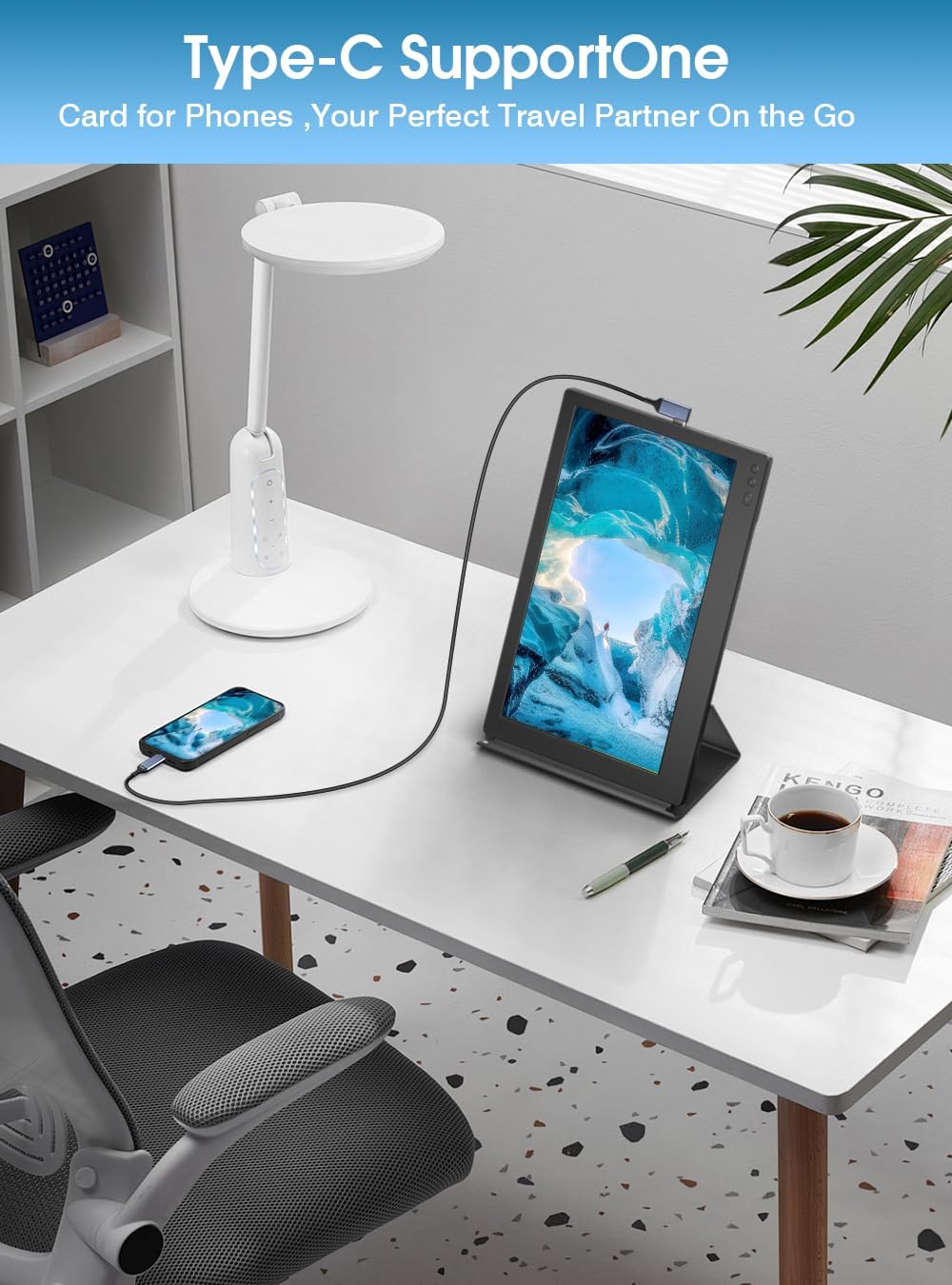
Image: A Maxfree P1S monitor connected to a smartphone via a USB-C cable, demonstrating its use as an extended display for mobile devices.
5. Istruzioni per l'uso
5.1 Accensione/spegnimento
- To power on: Press the Power button.
- Per spegnere: tenere premuto il pulsante di accensione per 3 secondi.
5.2 Display Modes (Windows/macOS)
Once connected, you can configure the display mode on your operating system:
- Modalità estesa: Allows you to have separate applications open on each screen, increasinil tuo spazio di lavoro.
- Modalità specchio: Duplicates your primary screen's content onto the portable monitor, ideal for presentations or sharing content.
- Modalità ritratto: The smart cover allows the monitor to be used in portrait orientation, which can be configured in your device's display settings.

Image: The Maxfree P1S monitor used in a business setting for screen sharing, displaying charts and data alongside a laptop.

Image: The Maxfree P1S monitor positioned vertically next to a laptop, demonstrating its flexible orientation capabilities.
5.3 Menu di visualizzazione su schermo (OSD)
Use the Menu -, Menu +, and Power buttons to navigate and adjust settings in the OSD menu.
- To enter OSD: Press the Power button briefly when the monitor is on.
- Navigazione: Use Menu - and Menu + to move through options.
- Selezione/Conferma: Press the Power button to select an option or confirm a setting.
- Exit OSD: Navigate to the 'Exit' option or wait for the menu to time out.
Le impostazioni OSD più comuni includono:
- Luminosità/Contrasto: Regola i livelli di luminosità e contrasto del display.
- Impostazioni colore: Modifica la temperatura del colore, la tonalità e la saturazione.
- Sorgente di input: Seleziona manualmente tra gli ingressi USB-C e Mini HDMI.
- Filtro luce blu: Activate the blue light protection technology to reduce eye strain during prolonged use.
- Proporzioni: Regola il rapporto di aspetto dello schermo (ad esempio, 16:9).
6. Manutenzione
6.1 Pulizia del monitor
- Always power off the monitor and disconnect all cables before cleaning.
- Utilizzare leggermente un panno morbido e privo di lanugine dampcon acqua o con un detergente per schermi non abrasivo.
- Do not spray liquid directly onto the screen or frame.
- Evitare l'uso di alcol, ammoniaca o detergenti abrasivi, poiché potrebbero danneggiare la superficie dello schermo.
6.2 Conservazione e manipolazione
- When not in use, keep the monitor protected by its smart cover.
- Conservare in un luogo fresco e asciutto, lontano dalla luce solare diretta e dalle temperature estreme.
- Evitare di posizionare oggetti pesanti sul monitor.
- Maneggiare con cura per evitare cadute o urti.
7. Risoluzione Dei Problemi
If you encounter issues with your Maxfree P1S monitor, please refer to the following common solutions:
- Nessun segnale:
- Assicurarsi che tutti i cavi siano collegati saldamente sia al monitor che al dispositivo.
- Verify that your device's output settings are configured correctly (e.g., extended or duplicate display).
- If using USB-C, confirm your device's USB-C port supports video output (DisplayPort Alternate Mode).
- Try selecting the input source manually via the OSD menu.
- Nessun potere:
- Ensure the power cable is connected and receiving power from a sufficient source (laptop USB port or power adapter).
- If using a single USB-C cable, ensure your device can provide enough power. Some devices may require an external power source for the monitor.
- Prova una porta USB-C diversa o un adattatore di alimentazione diverso.
- Visualizzazione di immagini tremolanti o instabili:
- Controllare che i collegamenti dei cavi non siano allentati o danneggiati.
- Assicurati che i driver grafici del tuo dispositivo siano aggiornati.
- Reduce the display resolution or refresh rate on your device if necessary.
- Incorrect Color or Brightness:
- Regola le impostazioni di luminosità, contrasto e colore tramite il menu OSD.
- Reset display settings to factory defaults in the OSD menu.
For further assistance, please contact Maxfree customer support.
8. Specifiche
| Caratteristica | Specificazione |
|---|---|
| Numero di modello | P1S |
| Dimensioni dello schermo | 12 pollici |
| Risoluzione dello schermo | Risoluzione 1366 x 768 (Full HD) |
| Tipo di pannello | Informazione pubblica |
| Frequenza di aggiornamento | Frequenza 60 Hz |
| Tempo di risposta | 1 millisecondo |
| Luminosità | 300 lendini |
| Rapporto di contrasto | 1000:1 |
| Viewangolo di ing | 178 gradi |
| Proporzioni | 16:9 |
| Superficie dello schermo | Lucido |
| Connettività | 2x USB Type-C, 1x Mini HDMI |
| Caratteristiche speciali | Blue Light Protection, Height Adjustment (via smart cover) |
| Dimensioni (L x P x A) | 29.3 x 18.3 x 1.3 cm (circa) |
| Peso | 0.6 kg (1.3 libbre) |
9. Garanzia e supporto
The Maxfree P1S Portable Monitor comes with a garanzia di un anno from the date of purchase. Additionally, we offer a Politica di reso senza problemi entro 30 giorni.
Should you encounter any issues related to connectivity, compatibility, or product quality, our dedicated customer support team is available to provide prompt and efficient technical assistance.
For warranty claims, technical support, or general inquiries, please contact Maxfree customer service through the platform where you purchased the product or visit our official websito per le informazioni di contatto.