
Introduzione
The NEWYES SyncPen 4 is an innovative smart digital pen designed to seamlessly transfer your handwritten notes and drawings from a specialized notebook directly to your digital devices. This manual provides essential information for setting up, operating, maintaining, and troubleshooting your SyncPen 4 to ensure optimal performance.
Contenuto della confezione
Si prega di verificare che tutti gli articoli siano presenti nel pacco:
- NEWYES SyncPen 4 Smart Digital Pen
- Smart Notebook (unerasable)
- Cavo di ricarica USB
- Ink Refills (3x)
- Guida rapida

Prodotto finitoview
The SyncPen 4 combines the tactile experience of traditional writing with the convenience of digital technology. It features an integrated camera that captures every stroke, digitizing your notes in real-time or storing them for later synchronization. The specialized notebook works in conjunction with the pen to enable these advanced functionalities.

Impostare
1. Installazione dell'app
- Locate the QR code on the back page of your Smart Notebook.
- Scan the QR code with your smartphone or tablet to download the NEWYES app.
- Installa l'app sul tuo dispositivo.
2. Pen Charging
- Gently flip open the rubber cap at the very end of the SyncPen 4 to reveal the charging port.
- Connect the provided USB charging cable to the pen and a power source.
- The LED indicator on the pen will show charging status.
3. Pen Activation
The SyncPen 4 automatically turns on when you remove the pen cap and turns off when the cap is replaced.
4. Accoppiamento Bluetooth
- Assicurati che il Bluetooth sia abilitato sul tuo smartphone o tablet.
- Apri l'app NEWYES.
- Remove the pen cap to turn on the SyncPen 4.
- In the app, navigate to the connection settings and select your SyncPen 4 from the list of available devices. The pen's MAC address will be displayed for identification.
- Confirm the connection. The LED indicator on the pen will confirm successful pairing.
Funzionamento di base
1. Writing and Synchronization
Once connected, any notes or drawings you create in the Smart Notebook will be simultaneously transmitted and displayed in real-time on the NEWYES app. The pen captures the writing track, allowing you to review the creation process later.
2. Changing Ink Color and Thickness
The Smart Notebook features controls at the bottom of each page that allow you to change the digital ink color (red, green, blue, black) and thickness (thin, thick) directly from the notebook. Simply tap the desired option with your SyncPen 4, and the change will be reflected in the app.
3. Navigazione della pagina
The SyncPen 4 automatically recognizes when you turn a page in the Smart Notebook, and the app will switch to the corresponding digital page, ensuring your notes are always organized correctly.
Funzionalità avanzate
1. OCR Handwriting Recognition
The NEWYES app utilizes Optical Character Recognition (OCR) technology to transcribe your handwritten notes into editable digital text. It supports recognition of 73 languages, as well as text, shapes, math elements, and music with Myscript technology.

2. Voice Recording with Notes
The app allows you to record audio simultaneously while taking notes. This feature is ideal for lectures or meetings, enabling you to revisit your notes and listen to the corresponding audio in real-time for comprehensive review.
3. Notes Classification and Search
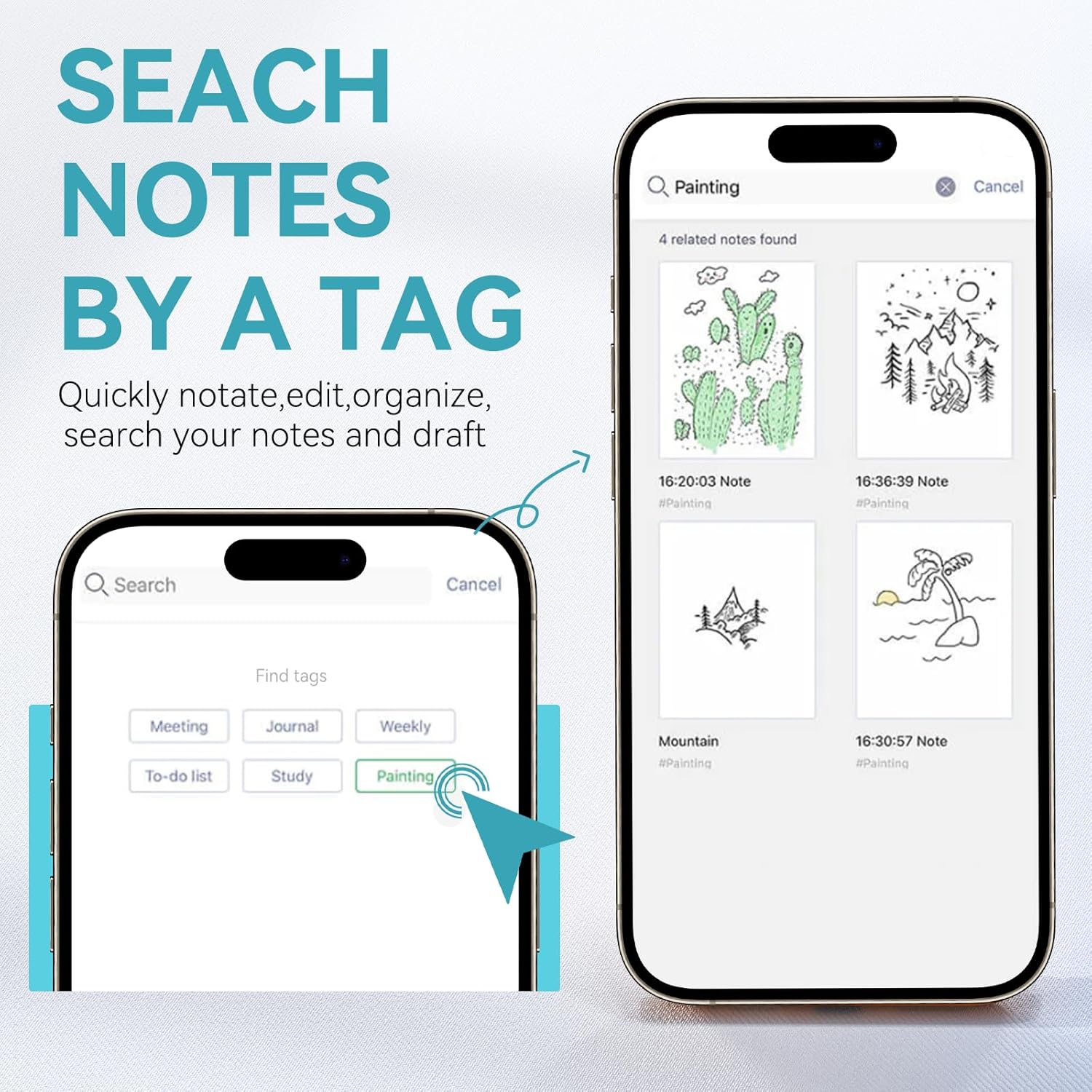
Organize your notes efficiently by adding tags. The app allows for quick notation, editing, and searching of your notes and drafts. Notes can be sorted by modification time or creation time, and you can search them by keywords or tags.
4. Offline Mode
The SyncPen 4 supports both online and offline modes. If the pen is not connected to your device, it will save the content you write internally. Once reconnected, the saved notes will automatically upload to the NEWYES app.
5. Sharing Notes
Convert your notes into various formats such as .doc, PDF, or JPG directly from the app. You can then easily share them with others via email or social media platforms.
Manutenzione
Changing Pen Refills
To replace an ink cartridge, gently pull out the existing refill from the pen tip. Insert a new refill firmly until it clicks into place. Ensure the refill is properly seated to maintain writing accuracy.

Risoluzione dei problemi
- La penna non si connette all'app: Ensure Bluetooth is on, the pen is charged, and the pen cap is removed. Try restarting the app and your device.
- Notes not syncing: Check your internet connection if in online mode. If in offline mode, ensure the pen is reconnected to the app to upload saved notes.
- Inaccurate OCR recognition: Ensure your handwriting is clear and legible. The pen performs best with distinct characters.
- La penna non scrive: Check if the ink refill needs replacement. Ensure the pen is turned on (cap removed).
Specifiche
| Caratteristica | Dettaglio |
|---|---|
| Marca | NUOVOSI |
| Numero di modello | SyncPen3 (AP1601-1213) |
| Colore | Nero |
| Materiale | Metallo |
| Peso dell'articolo | 1 Kilogram (Pen and Notebook Set) |
| Dimensioni articolo (L x P x A) | 3.94 x 1.97 x 1.18 pollici |
| Batterie | 1 batteria agli ioni di litio (inclusa) |
| Dispositivi compatibili | Smartphone (iOS, Android) |
| Sistema operativo minimo richiesto | Versione Android 13.0, iOS 16 |
Garanzia e supporto
The NEWYES SyncPen 4 comes with a 1-year limited warranty. For technical support, warranty claims, or further assistance, please visit the official NEWYES websito o contattare direttamente il servizio clienti. Consultare la Guida rapida per informazioni di contatto specifiche.