
Introduzione
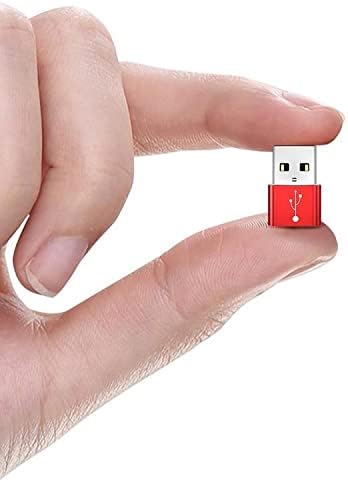
The BoxWave USB-A to C PortChanger adapter is designed to convert a traditional USB Type-A port into a modern USB Type-C port. This allows for compatibility with newer USB-C devices and accessories, enabling both charging and data transfer functionalities. The adapter features a USB-A male connector and a USB-C female port, providing a versatile solution for various connectivity needs.
This compact and durable adapter is constructed from high-grade aluminum alloy, ensuring long-lasting usage. It supports On-The-Go (OTG) functionality, facilitating data transmission and the use of USB Type-C accessories on devices with USB Type-A ports.

Impostare
The BoxWave USB-A to C PortChanger adapter is designed for plug-and-play operation, requiring no additional drivers or software installation.
- Identify the USB-A Port: Locate an available USB Type-A port on your host device (e.g., computer, laptop, wall charger, car charger, USB hub).
- Inserisci l'adattatore: Plug the USB-A male end of the PortChanger adapter firmly into the USB Type-A port of your host device.
- Connect Your USB-C Device: Insert your USB Type-C cable or accessory into the USB-C female port of the PortChanger adapter.
The adapter is now ready for use, enabling charging or data transfer depending on your connected device and its capabilities.

Istruzioni per l'uso
The PortChanger adapter facilitates two primary functions: charging and data transfer.
Dispositivi di ricarica
To charge a USB Type-C device using a USB Type-A power source:
- Connect the USB-A male end of the PortChanger adapter into a USB Type-A wall charger, power bank, or computer port.
- Plug your USB Type-C charging cable into the USB-C female port of the adapter.
- Connect the other end of your USB Type-C cable to your device (e.g., smartphone, tablet).
Your device should begin charging. Charging speed may vary depending on the power output of the USB-A source and the capabilities of your device.

Data Transfer (OTG Functionality)
The adapter supports On-The-Go (OTG) functionality, allowing for data transfer between devices.
- Connect the USB-A male end of the PortChanger adapter into a USB Type-A port on your computer or other host device.
- Plug your USB Type-C accessory (e.g., flash drive, external hard drive, or a USB-C cable connected to another device) into the USB-C female port of the adapter.
- Your host device should recognize the connected USB-C accessory, allowing you to transfer data as usual.
Ensure that both your host device and the connected USB-C accessory support OTG or data transfer functionality for optimal performance.

Manutenzione
To ensure the longevity and optimal performance of your BoxWave USB-A to C PortChanger adapter, follow these simple maintenance guidelines:
- Pulizia: Gently wipe the adapter with a soft, dry, lint-free cloth. Avoid using liquid cleaners, solvents, or abrasive materials, as these can damage the metallic finish or internal components.
- Magazzinaggio: Conservare l'adattatore in un luogo fresco e asciutto, al riparo dalla luce solare diretta e da temperature estreme. Quando non lo si utilizza, si consiglia di riporlo in una custodia protettiva per evitare graffi o danni ai connettori.
- Gestione: Avoid bending or twisting the adapter excessively, especially at the connection points. Always pull from the adapter body, not the cable, when disconnecting.
Risoluzione dei problemi
If you encounter issues with your PortChanger adapter, try the following troubleshooting steps:
- Adattatore non riconosciuto:
- Assicurarsi che l'adattatore sia completamente inserito nella porta USB-A del dispositivo host.
- Try connecting the adapter to a different USB-A port on your device.
- Test the adapter with a different USB-C cable or accessory to rule out issues with the connected item.
- Restart your host device (computer, smartphone) and try again.
- Dispositivo non in carica:
- Verify that the USB-A power source (wall charger, power bank) is functional and providing power.
- Ensure your USB-C charging cable is not damaged and is properly connected to both the adapter and your device.
- Verifica che la porta di ricarica del tuo dispositivo sia pulita e priva di detriti.
- Problemi di trasferimento dati:
- Check if your host device's operating system requires specific drivers for the USB-C accessory you are trying to connect (though typically not needed for the adapter itself).
- Ensure the USB-C accessory is functioning correctly when connected directly to a native USB-C port (if available).
- Per grandi file transfers, ensure the host device has sufficient free storage space.
Se questi passaggi non risolvono il problema, consultare la sezione Supporto per ulteriore assistenza.
Specifiche
| Caratteristica | Dettaglio |
|---|---|
| Nome del prodotto | USB-A to C PortChanger Adapter |
| Tipo USB | USB 2.0 Male (Type-A) to Female (Type-C) |
| Materiale | Lega di alluminio |
| Funzione | Data Transfer and Charging (OTG) |
| Applicazione | Laptops, Smartphones, USB-A enabled devices |
| Colore | Argento metallizzato |
| Dimensioni (L x P x A) | 20 mm x 14 mm x 7 mm (circa 0.79 x 0.55 x 0.28 pollici) |
| Peso | 0.3 once (circa 4 grammi) |

Garanzia e supporto
For product support or inquiries regarding your BoxWave USB-A to C PortChanger adapter, please contact BoxWave Corporation directly through their official channels. While this adapter is compatible with devices like the Energizer U683S, BoxWave is not affiliated with or endorsed by Energizer. Any specific technical support for third-party devices, such as the Energizer U683S, is limited to general compatibility guidance and not device-specific troubleshooting.
Please refer to the original purchase documentation or the BoxWave website for detailed warranty information and customer service contact options.