
Introduzione
Thank you for choosing the AZDOME M550 Pro 3 Channel Dash Cam. This manual provides detailed instructions for the installation, operation, and maintenance of your device. Please read this manual carefully before using the product to ensure proper functionality and safety. Keep this manual for future reference.
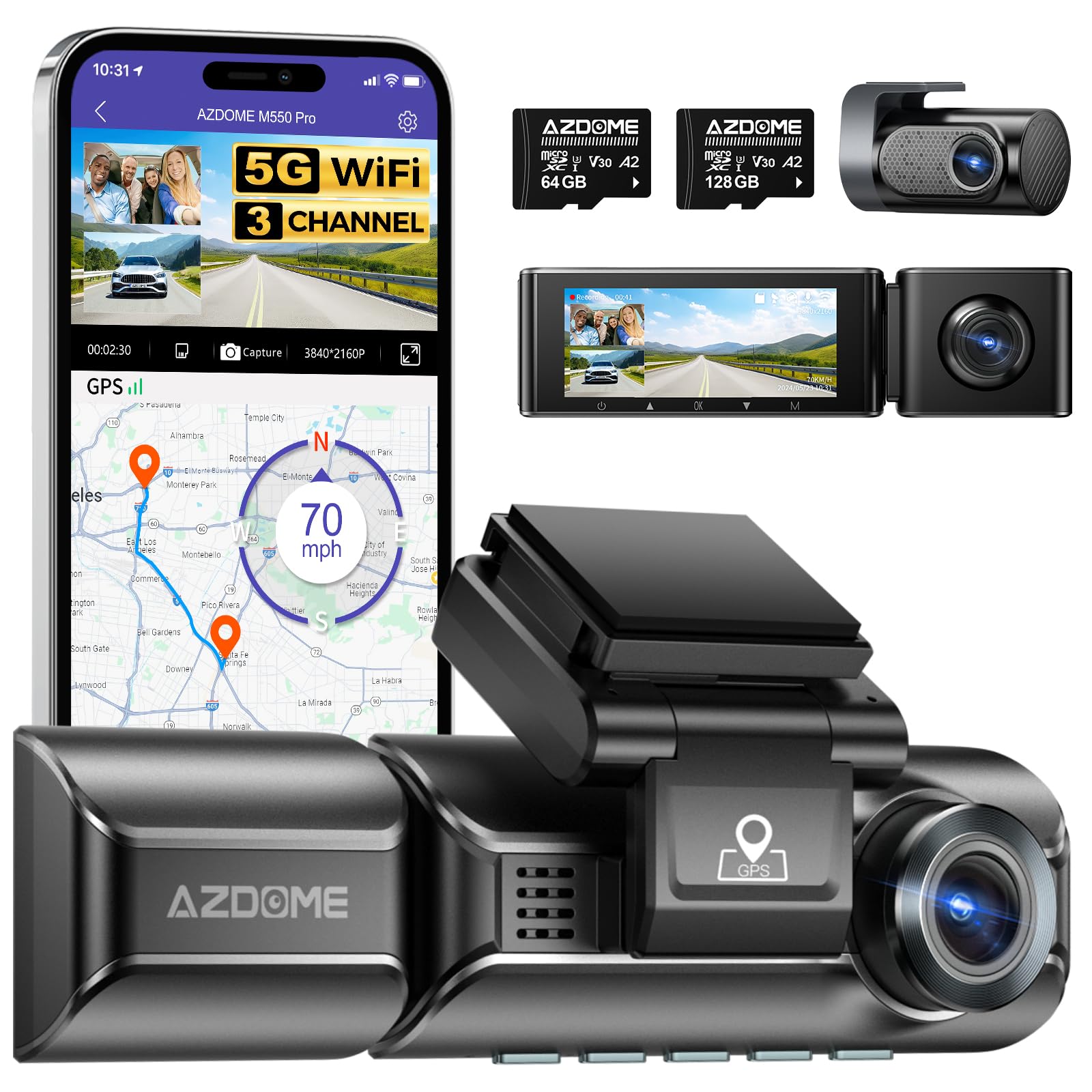
Image: The AZDOME M550 Pro dash cam, showing the main unit, interior camera, rear camera, and a smartphone displaying the companion app interface with GPS and video playback.
Contenuto della confezione
Si prega di controllare il contenuto della confezione al momento del disimballaggio. Se qualche articolo risulta mancante o danneggiato, contattare l'assistenza clienti.
- AZDOME M550 Pro Dash Cam (unità principale)
- Telecamera interna
- Telecamera posteriore
- AZDOME 128GB TF Card (Memory Card)
- Cavo di alimentazione (caricabatteria da auto)
- Staffa di fissaggio
- Manuale d'uso

Image: A close-up of the AZDOME 128GB MicroSD TF Card, included with the dash cam.
Prodotto finitoview
The AZDOME M550 Pro is a 3-channel dash cam system designed to record video from the front, interior, and rear of your vehicle. It features a 3.19-inch IPS screen, built-in 5.8G WiFi, GPS, and various parking monitoring modes.
Main Unit (Front Camera)
- Front Lens: Records the road ahead in up to 4K resolution.
- Display Screen: 3.19-inch IPS screen for live view e riproduzione.
- Control Buttons: For menu navigation and settings.
- GPS Module: Integrated for location and speed data.
- MicroSD Card Slot: For memory card insertion.
Telecamera interna
- Records the vehicle's interior in 1080P.
- Equipped with 6 IR LEDs for enhanced night vision inside the cabin.
- Removable (Type-C Port) for flexible installation.
Telecamera posteriore
- Registra la parte posteriore view of the vehicle in 1080P.
- Connects to the main unit via a dedicated cable.
Impostare
1. Inserimento della scheda MicroSD
- Assicurarsi che la dash cam sia spenta.
- Locate the MicroSD card slot on the main unit.
- Insert the 128GB TF card with the gold contacts facing the back of the dash cam until it clicks into place.
- Per rimuoverla, spingere delicatamente la scheda finché non scatta fuori.
2. Montaggio della Dash Cam
- Pulisci la zona del parabrezza dove intendi montare la dash cam.
- Fissare la staffa di montaggio alla dash cam.
- Secure the dash cam with the bracket to the windshield, ensuring a clear view of the road. Adjust the lens angle as needed.
3. Collegamento dell'alimentazione
- Collegare il caricabatteria per auto alla porta di ingresso dell'alimentazione della dash cam.
- Collegare l'altra estremità del caricabatteria per auto alla presa accendisigari del veicolo.
- Instradare il cavo di alimentazione ordinatamente lungo il parabrezza e il cruscotto per evitare di ostruire il view.
4. Installing the Interior and Rear Cameras
- Connect the interior camera to its dedicated port on the main unit. Mount it to capture the cabin view.
- Connect the rear camera to its dedicated port on the main unit. Mount it on the rear windshield, ensuring a clear view. Route the cable discreetly.
5. Accensione iniziale e impostazioni
- Una volta accesa, la dash cam si accenderà automaticamente e inizierà a registrare.
- Access the menu to set the correct date and time.
- It is recommended to format the MicroSD card within the dash cam's settings before first use and periodically thereafter to ensure optimal performance.
Istruzioni per l'uso
1. 3 Channel Recording
The M550 Pro supports simultaneous recording from three cameras: front, interior, and rear. You can configure recording resolutions:
- Solo anteriore: 4K (3840x2160P)
- Fronte retro: 4K+1080P
- Front and Interior: 2K (2560x1440P) + 1080P
- Front, Interior, and Rear: 2K + 1080P + 1080P
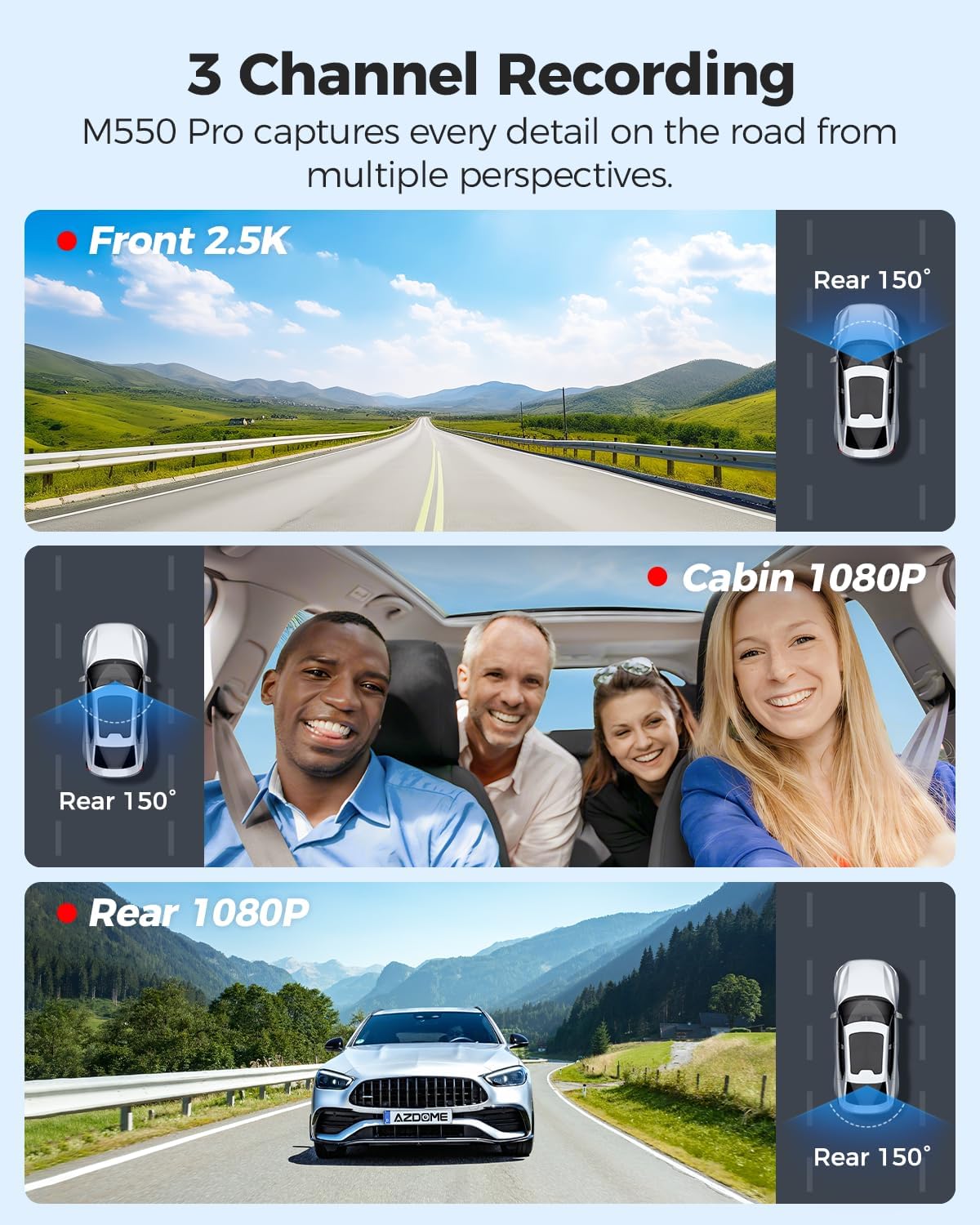
Immagine: rappresentazione visiva della capacità di registrazione a 3 canali, che mostra viewdalle telecamere anteriori (2.5K), dall'abitacolo (1080P) e da quelle posteriori (1080P).
2. Registrazione in loop
La dash cam registra video in loop continuo. Quando la scheda di memoria è piena, la registrazione più vecchia viene sbloccata. fileLe registrazioni vengono automaticamente sovrascritte dalle nuove registrazioni. Ciò garantisce una registrazione continua senza interventi manuali.
3. Sensore G (rilevamento collisioni)
The built-in G-sensor detects sudden impacts or collisions. When triggered, it automatically locks the current video segment, preventing it from being overwritten by loop recording. The sensitivity of the G-sensor can be adjusted in the settings.
4. Monitoraggio del parcheggio 24 ore su 24
The M550 Pro offers two modes for 24-hour parking monitoring. A 3-lead hardwire kit (not included, ASIN: B096G6FKZP) is required for this feature.
- Modalità parcheggio rilevamento collisione: The G-sensor detects impacts and automatically records and locks video segments.
- Modalità parcheggio time-lapse: The dash cam records continuously at a low frame rate (e.g., 1 FPS) for 24 hours, compressing long periods into short videos.

Image: Illustration of the 24-hour parking mode, detailing collision detection and time-lapse recording options, with a car parked under a protective shield icon.
5. Built-in 5.8G WiFi and App Usage
The dash cam features built-in 5.8G WiFi for faster data transfer. Download the AZDOME app on your smartphone to connect to the dash cam.
- Scarica l'app AZDOME dal Google Play Store o dall'Apple App Store.
- Enable WiFi on your dash cam and smartphone.
- Connect your smartphone to the dash cam's WiFi network (SSID and password displayed on the dash cam screen).
- Usa l'app per vivere view, video playback, downloading recorded files, and adjusting settings. 5.8GHz WiFi allows for downloading 800MB video within 10 seconds.
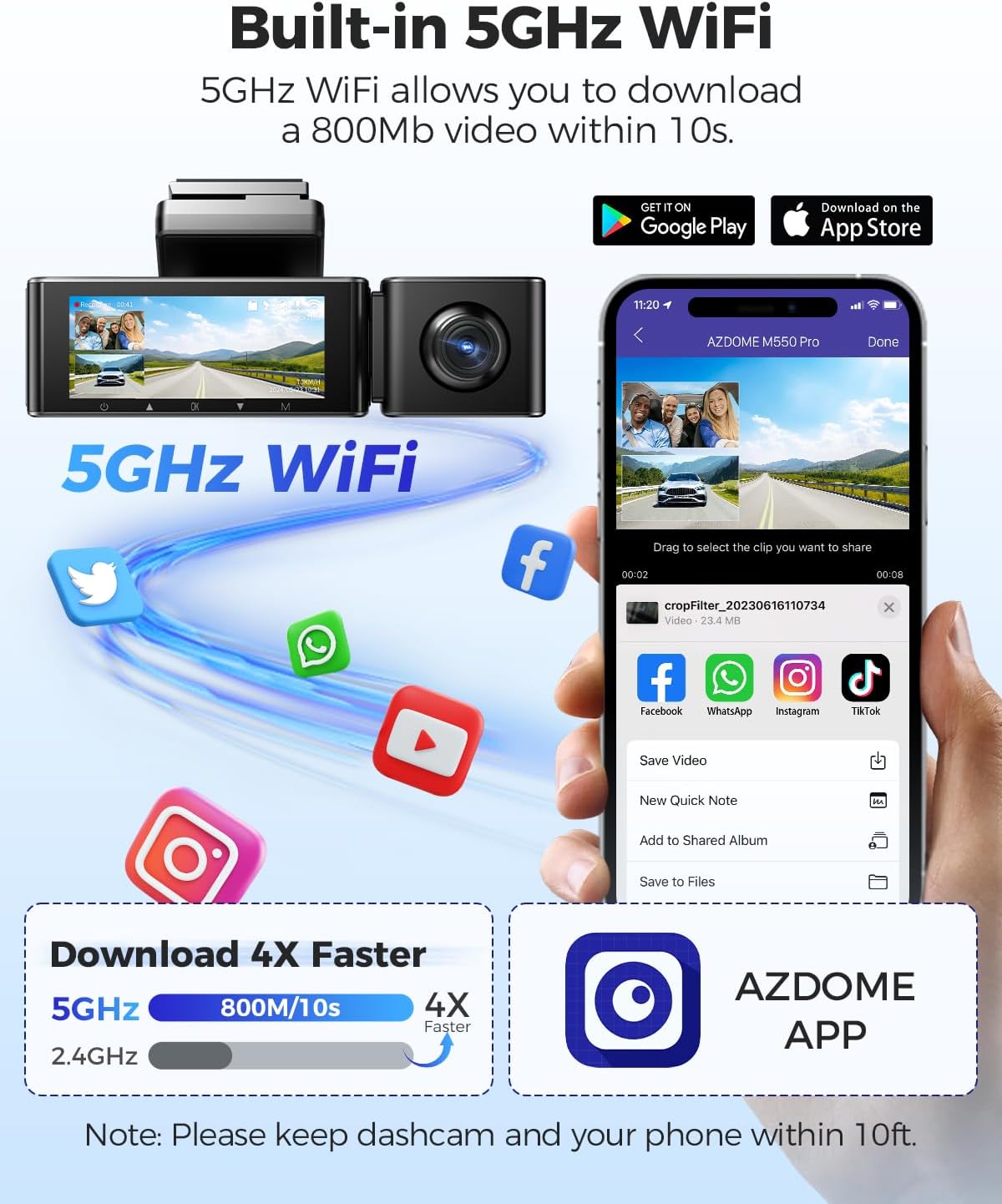
Image: Diagram showing the dash cam connecting to a smartphone via 5GHz WiFi, highlighting faster download speeds for videos through the AZDOME app.
6. Built-in GPS Functionality
Il modulo GPS integrato registra i dati relativi al percorso di guida, alla velocità, alla latitudine e alla longitudine. Queste informazioni possono essere viewed using the AZDOME GPS Player software on a computer.
- Download the AZDOME GPS Player software from the official AZDOME websito.
- Trasferisci video registrati filesul tuo computer.
- Apri il video files with the AZDOME GPS Player to view synchronized video, map, and driving data.

Image: A laptop screen displaying the AZDOME GPS Player, showing video playback alongside a map with the driving route, speed, and location details.
7. Visione notturna
The interior camera is equipped with 6 IR LEDs and a Starvis Sensor to provide clear recordings in low-light conditions inside the vehicle. The front camera also features a 6-glass lens and F=1.8 aperture for improved low-light performance.
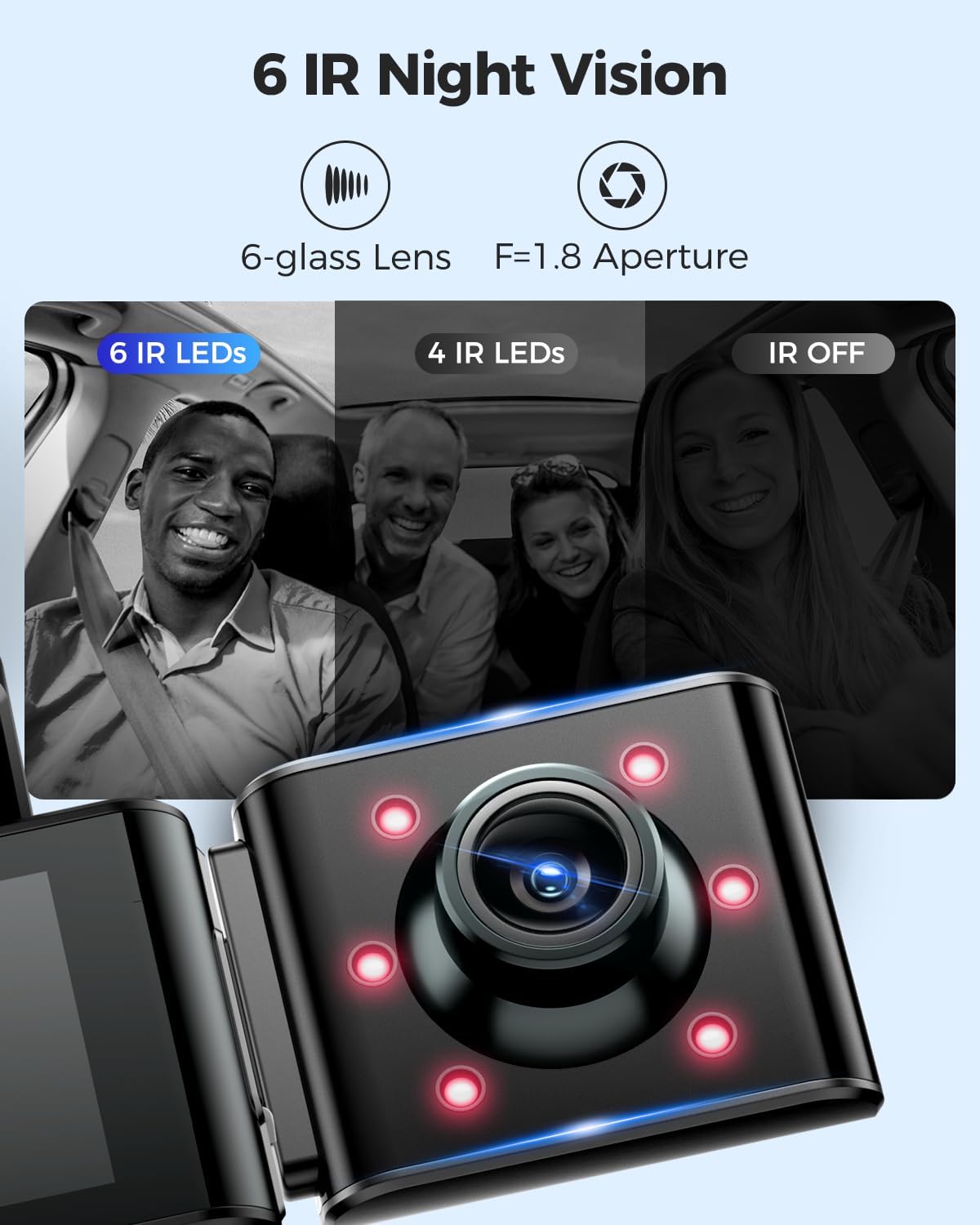
Image: A visual comparison demonstrating the effectiveness of 6 IR LEDs for night vision in the interior camera, showing clearer images compared to 4 IR LEDs or IR off.
Manutenzione
1. Cura della scheda di memoria
- Regularly format the MicroSD card (at least once a month) through the dash cam's settings to prevent data corruption and ensure optimal recording performance.
- Use high-quality, high-endurance MicroSD cards (Class 10 or U3 recommended) for reliable operation.
- Avoid removing or inserting the MicroSD card while the dash cam is powered on to prevent damage to the card or device.
2. Pulizia del dispositivo
- Use a soft, dry cloth to clean the dash cam's body and screen.
- For camera lenses, use a lens cleaning cloth and specialized lens cleaning solution to avoid scratches and ensure clear video quality.
- Non utilizzare detergenti abrasivi o solventi, poiché potrebbero danneggiare il dispositivo.
Risoluzione dei problemi
- La Dash Cam non si accende: Check the power connection. Ensure the car charger is properly plugged into both the dash cam and the vehicle's power outlet. Test the power outlet with another device.
- La Dash Cam interrompe la registrazione: Ensure the MicroSD card is inserted correctly and has sufficient free space. Format the card. If the issue persists, try a different MicroSD card.
- Video files are corrupted or unplayable: Format the MicroSD card. Ensure the card is a high-quality, high-endurance type.
- Problemi di connessione WiFi: Ensure the dash cam's WiFi is enabled. Keep your smartphone within 10 feet of the dash cam for optimal connection. Restart both the dash cam and your phone.
- Il GPS non funziona: Assicurati che la dash cam abbia una visuale libera view of the sky. GPS signal acquisition may take a few minutes, especially after initial setup or in areas with poor signal.
- Il monitor di parcheggio non funziona: Ensure the 3-lead hardwire kit is correctly installed and connected. Check parking monitor settings in the menu.
Specifiche
Below are the key specifications for the AZDOME M550 Pro Dash Cam:
| Caratteristica | Specificazione |
|---|---|
| Modello | M550 Pro |
| Dimensioni dello schermo | Schermo IPS da 3.19" |
| Risoluzione video (massima) | Front: 4K (3840x2160P) |
| 3-Channel Resolution | 2K(F)+1080P(I)+1080P(R) |
| Tecnologia di connettività | 5.8G Wi-Fi |
| Caratteristica speciale | Parking Monitor (Collision Detection, Time-lapse) |
| GPS integrato | SÌ |
| Telecamera interna | Removable (Type-C Port), 6 IR LEDs, Starvis Sensor |
| campo di View | 170 gradi (anteriore) |
| Metodo di controllo | Applicazione |
| Tipo di memoria flash | TF (MicroSD) |
| Componenti inclusi | Memory Card (128GB) |

Image: A detailed comparison table highlighting features and specifications of the M550 Pro against other AZDOME models, including display size, video resolution, WiFi, and parking modes.
Garanzia e supporto
Informazioni sulla garanzia
I prodotti AZDOME sono generalmente coperti dalla garanzia standard del produttore. Consultare la scheda di garanzia inclusa nella confezione o visitare il sito ufficiale AZDOME. websito per termini e condizioni di garanzia specifici. Conservare la prova d'acquisto per eventuali reclami in garanzia.
Assistenza clienti
For technical assistance, troubleshooting, or any questions regarding your AZDOME M550 Pro Dash Cam, please contact AZDOME customer support. Contact information can usually be found on the official AZDOME websito o sulla scheda di garanzia.