
Natec SH4F
Manuale utente del case per PC Natec FURY SHOBO SH4F RGB MIDI TOWER
Model: SH4F | Brand: Natec
1. Introduzione
Welcome to the user manual for your Natec FURY SHOBO SH4F RGB MIDI TOWER PC Case. This guide provides essential information for the proper assembly, installation, operation, and maintenance of your new computer chassis. Please read this manual thoroughly before beginning installation to ensure optimal performance and longevity of your components.
2. Linee guida di sicurezza
- Scollegare sempre l'alimentatore dalla presa a muro prima di installare o rimuovere qualsiasi componente all'interno del case del PC.
- Maneggiare i componenti con cura per evitare danni causati da scariche elettrostatiche (ESD). Si consiglia di utilizzare un braccialetto antistatico.
- Tenere le parti di piccole dimensioni, come le viti, lontano dalla portata dei bambini.
- Assicurare una corretta ventilazione attorno al case del PC per evitare il surriscaldamento.
- Do not expose the case to extreme temperatures, humidity, or direct sunlight.
- Evitare di posizionare oggetti pesanti sopra la custodia.
3. Contenuto della confezione
Si prega di verificare che tutti gli articoli siano presenti nel pacco:
- Natec FURY SHOBO SH4F RGB MIDI TOWER PC Case
- Accessory box (containing screws, cable ties, and other small parts)
- Manuale dell'utente (questo documento)
4. Prodotto finitoview
The Natec FURY SHOBO SH4F is a MIDI TOWER PC case designed for gaming and general-purpose computing, offering ample space for components and efficient cooling. It features a modern design with RGB lighting.
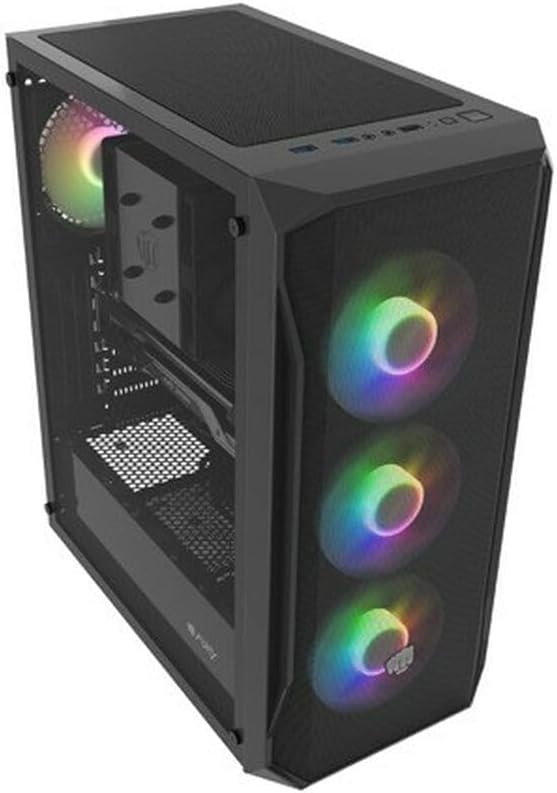
Figura 4.1: Un angolo view of the Natec FURY SHOBO SH4F RGB MIDI TOWER PC Case, showcasing its black metal and tempered glass construction. The front panel features a mesh design with three illuminated RGB fans, and a single RGB fan is visible at the rear exhaust. The top panel includes I/O ports and a mesh filter.
4.1 Pannello I/O frontale
- Pulsante di accensione
- Pulsante di reset
- Porta USB 2.0 (x1)
- Audio Jacks (Headphone/Microphone)
- RGB Control Button (if applicable)
4.2 Disposizione interna
The case supports Micro ATX and Mini ATX motherboards and features a bottom-mounted power supply bay. It includes dedicated areas for storage drives and efficient cable management.
5. Configurazione e installazione dei componenti
Follow these steps to install your PC components into the FURY SHOBO SH4F case.
5.1 Preparazione del caso
- Posizionare la custodia su una superficie piana e stabile.
- Remove the side panels. Typically, the tempered glass side panel is secured with thumbscrews.
5.2 Installazione della scheda madre
- Installare la schermatura I/O (se non preinstallata sulla scheda madre) nell'apertura posteriore del case.
- Ensure the motherboard standoffs are correctly aligned for your Micro ATX or Mini ATX motherboard. Adjust or install additional standoffs if necessary.
- Posizionare con attenzione la scheda madre sui distanziatori, allineando i fori delle viti.
- Fissare la scheda madre con le viti fornite. Non serrare eccessivamente.
5.3 Installazione dell'alimentatore
- Locate the power supply bay at the bottom rear of the case.
- Slide your power supply unit (PSU) into the bay from the rear of the case, ensuring the fan faces downwards (if the case has a bottom vent) or upwards.
- Fissare l'alimentatore con le viti dalla parte posteriore del case.
5.4 Installazione dell'unità di archiviazione
Refer to your case's specific drive bay design for 2.5" SSDs and 3.5" HDDs. Typically, these involve trays or direct screw mounting.
5.5 Installazione della scheda di espansione (ad esempio, scheda grafica)
- Rimuovere le coperture degli slot PCI-E necessari dalla parte posteriore del case.
- Insert your expansion card into the corresponding PCI-E slot on the motherboard.
- Secure the card with a screw or the case's retention mechanism.
5.6 Gestione dei cavi
Utilizzate i fori e i punti di fissaggio dietro il vassoio della scheda madre per instradare e fissare i cavi. Questo migliora il flusso d'aria e l'estetica.
5.7 Connecting RGB Fans
The pre-installed RGB fans typically connect to a central RGB controller or directly to your motherboard's RGB headers. Consult your motherboard manual for specific RGB header locations and software control. Ensure all fan power cables are connected to appropriate fan headers on the motherboard or a fan hub.
6. Utilizzo del case del PC
6.1 Accensione/Spegnimento
After all components are installed and cables connected, plug your power supply into a wall outlet. Press the power button on the front I/O panel to turn on your system. To turn off, use the operating system's shutdown function or press and hold the power button for several seconds.
6.2 Controllo dell'illuminazione RGB
If your case features an RGB control button on the front I/O panel, press it to cycle through various lighting modes and colors. For advanced customization, use your motherboard's RGB software (e.g., ASUS Aura Sync, MSI Mystic Light, Gigabyte RGB Fusion) if the fans are connected to compatible headers.
7. Manutenzione
Una manutenzione regolare aiuta a garantire prestazioni ottimali e prolunga la durata dei componenti del PC.
7.1 Pulizia del filtro antipolvere
The FURY SHOBO SH4F case includes dust filters (e.g., on the top and bottom). Periodically remove and clean these filters by rinsing them with water and allowing them to dry completely before re-installing. This prevents dust buildup and maintains airflow.
7.2 Pulizia esterna
Pulisci l'esterno della custodia con un panno morbido eamp panno. Evitare detergenti abrasivi o solventi che potrebbero danneggiare la finitura o il vetro temperato.
8. Risoluzione Dei Problemi
In caso di problemi, fare riferimento ai seguenti passaggi comuni per la risoluzione dei problemi:
- Nessun potere: Ensure the power supply is properly connected to the wall outlet and the motherboard. Check all internal power cables (24-pin ATX, 8-pin CPU, GPU power). Verify the power button cable is correctly connected to the motherboard's front panel header.
- I ventilatori non girano: Check if fan power cables are securely connected to the motherboard or fan hub. Ensure the power supply is functioning.
- Illuminazione RGB non funzionante: Verify RGB cables are correctly connected to the RGB controller or motherboard header. If using a button, try cycling through modes. If using software, ensure it's installed and configured correctly.
- Surriscaldamento: Ensure all fans are spinning correctly and oriented for proper airflow (intake/exhaust). Clean dust filters and internal components. Verify CPU cooler and GPU cooler are properly installed.
9. Specifiche
| Marca | Natec |
| Serie | Modello SH4F |
| Numero di modello | NFO-2154 |
| Tipo di caso | Torre Midi |
| Compatibilità della scheda madre | Micro ATX, Mini ATX |
| Colore | Nero |
| Materiale | Metallo |
| Dimensioni del prodotto (LxWxH) | 19.69 x 16.93 x 9.84 pollici (50 x 43 x 25 cm) |
| Peso dell'articolo | 9.46 libbre (4.3 chilogrammi) |
| Tipo di montaggio dell'alimentatore | Montaggio inferiore |
| Metodo di raffreddamento | Aria |
| Numero di porte USB 2.0 | 1 |
10. Garanzia e supporto
Natec products are manufactured to high-quality standards. For information regarding warranty terms and conditions, please refer to the warranty card included with your product or visit the official Natec website. If you encounter any issues not covered in this manual or require further assistance, please contact Natec customer support through their official channels.
Produttore: Natec
Ask a question about this manual
Ask about setup, troubleshooting, compatibility, parts, safety, or missing instructions. Manuals+ will review the question and use this page’s manual context to help answer it.