
MAXHUB MaxHub Interactive Flat Panel 75" | OPS
Manuale utente del pannello piatto interattivo MAXHUB da 75"
Model: MaxHub Interactive Flat Panel 75" | OPS
1. Introduzione
This manual provides comprehensive instructions for the setup, operation, maintenance, and troubleshooting of your MAXHUB Interactive Flat Panel 75". Please read this manual thoroughly before using the product to ensure proper functionality and safety.

Figura 1.1: Fronte view of the MAXHUB Interactive Flat Panel 75". This image shows the large display screen with a digital clock and icons for folders, settings, notes, and more, indicating its interactive capabilities.
2. Informazioni sulla sicurezza
Per evitare danni al prodotto o lesioni a se stessi e agli altri, attenersi sempre alle seguenti linee guida di sicurezza:
- Do not expose the panel to water or excessive humidity.
- Ensure proper ventilation around the panel.
- Utilizzare solo l'alimentatore fornito con il dispositivo.
- Avoid placing heavy objects on the panel.
- Scollegare l'alimentazione prima di effettuare la pulizia o la manutenzione.
3. Componenti e caratteristiche del prodotto
The MAXHUB Interactive Flat Panel 75" is designed with several key features for enhanced usability and durability.
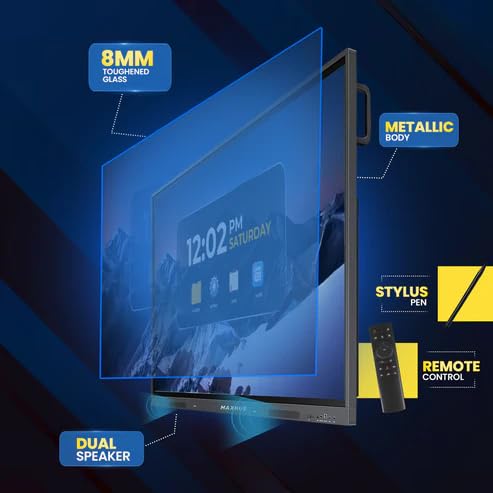
Figura 3.1: Esploso view diagram highlighting key components. This image illustrates the 8mm toughened glass, metallic body, dual speakers, stylus pen, and remote control that come with the interactive flat panel.
- 8mm Toughened Glass: Provides durability and protection for the display.
- Corpo metallico: Ensures structural integrity and a premium finish.
- Doppi altoparlanti: Fornisce un'uscita audio nitida.
- Penna stilografica: For precise interaction and writing on the screen.
- Telecomando: Per un comodo utilizzo a distanza.
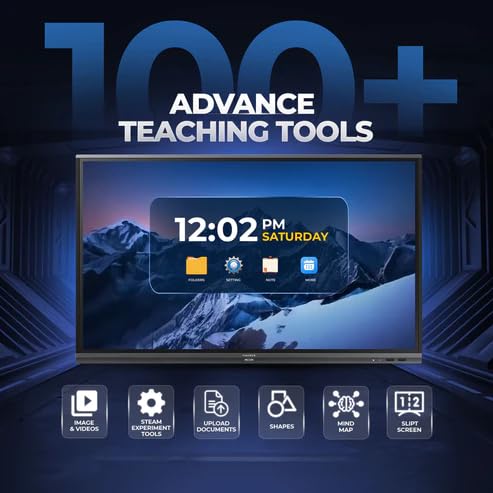
Figura 3.2: lato view detailing connectivity options. This image shows the power supply input, VGA connection, OPS slot, connecting port, and front connectors for easy access.
- Slot OPS: For integrating an optional OPS (Open Pluggable Specification) module.
- Connessione VGA: For traditional video input.
- Alimentazione elettrica: Ingresso alimentazione principale.
- Connettori anteriori: Easily accessible ports for peripherals.
4. Configurazione e installazione
Follow these steps for proper installation of your MAXHUB Interactive Flat Panel:
- Disimballaggio: Carefully remove the panel from its packaging. Retain all packaging materials for future transport or storage.
- Montaggio: Securely mount the panel using a compatible VESA wall mount or floor stand (sold separately). Ensure the mounting surface can support the weight of the panel.
- Collegamento dell'alimentazione: Connect the power cable to the panel's power input and then to a grounded electrical outlet.
- Collegamento di periferiche: Connect any necessary peripherals such as computers, cameras, or external storage devices to the appropriate ports (HDMI, USB, USB Type-C). The versatile USB Type-C integrates 65-watt power charge, video, audio, touch, and internet access features into one interface.
- Accensione iniziale: Press the power button on the panel or remote control to turn on the device.
5. Istruzioni per l'uso
The MAXHUB Interactive Flat Panel offers a user-friendly interface and advanced features for various applications.
5.1 Funzionamento di base
- Accensione/spegnimento: Use the power button on the panel or remote.
- Selezione della fonte: Navigate through input sources (HDMI, VGA, OPS) using the input button on the remote or on-screen menu.
- Interazione touch: Use your finger or the provided stylus for direct interaction with the screen. The panel features less than 40ms writing latency for a natural writing experience.
5.2 Funzionalità avanzate
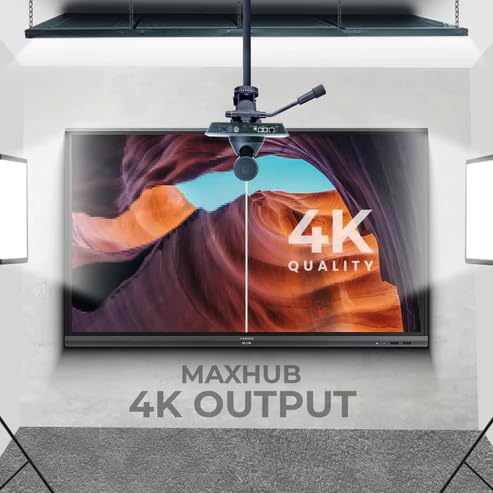
Figure 5.1: Display showing a variety of advanced teaching tools. This image highlights features like image and video integration, STEAM experiment tools, document upload, shapes, mind mapping, and split screen functionality.
- Professional 4K Display: Experience high color accuracy (AE≤2) and NTSC 72% wide color gamut for vivid visuals.
- Pre-installed Course Delivery Apps: Utilize built-in applications and widgets for productive teaching and presentations.
- Tecnologia per la cura degli occhi: Features TUV Low Blue light and TUV Flicker-free with an ambient light sensor and anti-glare glass to reduce eye strain.
- Responsive Hardware: Equipped with a powerful built-in 2.0Ghz quad-core CPU and 4GB RAM, along with a high-speed 1000Base-T network adapter for smooth performance.
- Design igienico: Incorporates SGS-certified antibacterial components for a cleaner environment.

Figure 5.2: The interactive flat panel being used in a hybrid teaching environment. This image demonstrates its suitability for both in-person and online educational settings.
6. Manutenzione e cura
Regular maintenance ensures the longevity and optimal performance of your interactive flat panel.
- Pulizia dello schermo: Utilizzare un panno morbido e privo di lanugine leggermente dampened with a non-abrasive, screen-safe cleaner. Do not spray cleaner directly onto the screen.
- Pulizia del corpo: Wipe the exterior with a dry, soft cloth. Avoid harsh chemicals.
- Ventilazione: Ensure ventilation slots are clear of dust and debris to prevent overheating.
- Aggiornamenti software: Controllare periodicamente la presenza di aggiornamenti software e installarli per garantire prestazioni e sicurezza ottimali.
7. Risoluzione Dei Problemi
This section addresses common issues you might encounter with your MAXHUB Interactive Flat Panel.
| Problema | Possibile causa | Soluzione |
|---|---|---|
| Nessun potere | Cavo di alimentazione scollegato; problema con la presa di corrente. | Controllare il collegamento del cavo di alimentazione; provare una presa diversa. |
| Nessuna visualizzazione | Incorrect input source selected; Cable connection issue. | Verify input source; Check HDMI/VGA/USB-C cable connections. |
| Touchscreen non responsivo | Calibration needed; Software glitch. | Recalibrate touchscreen via settings; Restart the panel. |
| Scarsa qualità dell'immagine | Resolution mismatch; Dirty screen. | Adjust display resolution on connected device; Clean the screen. |
8. Specifiche tecniche
| Caratteristica | Specificazione |
|---|---|
| Marca | MAXHUB |
| Numero di modello | MaxHub Interactive Flat Panel 75" | OPS |
| Dimensioni dello schermo | 75 pollici |
| Tecnologia di visualizzazione | LCD |
| Risoluzione dello schermo | Risoluzione 3840 x 2160 (4K UHD) |
| Tempo di risposta | 40 millisecondi |
| processore | 2.0Ghz Quad-core |
| Memoria RAM | 4 GB |
| Connettività | Wi-Fi, USB Type-C, HDMI, USB 3.0 |
| Caratteristiche speciali | Ultrawide Screen, TUV Low Blue Light, TUV Flicker-free, Anti-glare glass, SGS-certified antibacterial components |
| Dimensioni del pacco | Dimensioni: 180 x 114 x 20 cm |
9. Informazioni sulla garanzia
The MAXHUB Interactive Flat Panel 75" comes with a standard manufacturer's warranty. Please refer to the warranty card included with your product for specific terms and conditions, including coverage duration and limitations.
An extended warranty option may be available. For details, please contact your retailer or visit the official MAXHUB websito.
10. Assistenza clienti
For technical assistance, service, or further inquiries, please contact MAXHUB customer support through the following channels:
- Websito: Visita il MAXHUB ufficiale websito per FAQ, driver e risorse di supporto.
- E-mail: Per l'indirizzo email di supporto, fare riferimento alla documentazione del prodotto.
- Telefono: Contact the customer service hotline provided in your product's packaging.
When contacting support, please have your product model number (MaxHub Interactive Flat Panel 75" | OPS) and serial number ready.
Ask a question about this manual
Ask about setup, troubleshooting, compatibility, parts, safety, or missing instructions. Manuals+ will review the question and use this page’s manual context to help answer it.