
1. Introduzione
This manual provides comprehensive instructions for the setup, operation, and maintenance of your A4tech FGK21C 2.4G Wireless Numeric Keypad. Please read this manual thoroughly before using the device to ensure proper functionality and longevity.
2. Contenuto della confezione
Verificare che tutti gli articoli siano presenti nel pacco:
- A4tech FGK21C Wireless Numeric Keypad
- Ricevitore USB 2.4G
- Cavo di ricarica USB di tipo C.
- Manuale dell'utente (questo documento)
3. Prodotto finitoview
The A4tech FGK21C is a 2.4G wireless numeric keypad designed for enhanced productivity, featuring ultra-slim keycaps, a rechargeable battery, and dual-mode Num Lock functionality. It is compatible with Windows operating systems.

Immagine 3.1: Davanti view of the A4tech FGK21C numeric keypad, showing all keys and the FSTYLER branding.

Immagine 3.2: Fronte angolato view of the A4tech FGK21C numeric keypad, highlighting its ergonomic design.
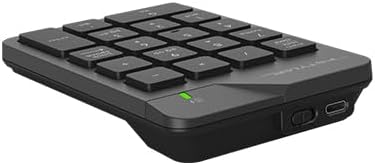
Immagine 3.3: Lato view of the A4tech FGK21C numeric keypad, displaying the USB Type-C charging port and the power switch.
4. Impostazione
4.1. Ricarica della tastiera
- Connect the supplied USB Type-C charging cable to the charging port on the keypad.
- Collegare l'altra estremità del cavo a una fonte di alimentazione USB (ad esempio, una porta USB del computer, un adattatore USB da parete).
- The charging indicator light will illuminate. Once fully charged, the light may change color or turn off, depending on the keypad's design.
4.2. Collegamento della tastiera
- Locate the 2.4G USB receiver. It is typically stored in a compartment on the keypad itself or included separately in the packaging.
- Plug the USB receiver into an available USB-A port on your computer. If your computer only has USB-C ports, use a USB-C to USB-A adapter (not included unless specified).
- Turn on the keypad using the power switch, usually located on the side or back of the device.
- The keypad should automatically connect to your computer. No additional drivers are typically required for Windows operating systems.
5. Istruzioni per l'uso
5.1. Basic Keypad Usage
The numeric keypad functions like a standard 10-key pad. Simply press the desired number or operator keys to input data into your applications.
5.2. Dual Mode Num Lock
The FGK21C features a dual-mode Num Lock function. This means the Num Lock key on the keypad operates independently of your main keyboard's Num Lock. This allows you to use the numeric keypad for number input while your main keyboard's Num Lock is off, or vice-versa.
- Premere il tasto Num Lock / Clear key once to activate or deactivate the numeric input mode.
- When Num Lock is active, the numeric keys (0-9) will input numbers.
- When Num Lock is inactive, the keys will function as navigation keys (e.g., Home, End, Pg Up, Pg Dn, Insert, Delete) as indicated by the secondary legends on the keycaps.
6. Manutenzione
6.1. Pulizia
Per pulire la tastiera, strofinare delicatamente la superficie con un panno morbido eamp cloth. Avoid using harsh chemicals or abrasive materials, as these can damage the finish or keycap legends. Ensure the keypad is powered off before cleaning.
6.2. Cura della batteria
The keypad contains a built-in rechargeable lithium-ion battery. To prolong battery life:
- Evitare di scaricare completamente la batteria frequentemente.
- Conservare la tastiera in un luogo fresco e asciutto quando non viene utilizzata per lunghi periodi.
- Charge the keypad regularly, even if not used daily.
7. Risoluzione Dei Problemi
7.1. Keypad Not Responding
- Assicurarsi che la tastiera sia accesa.
- Verificare che il ricevitore USB sia collegato saldamente a una porta USB funzionante del computer.
- Verify that the keypad's battery is charged. Connect it to a power source using the USB Type-C cable.
- Prova a collegare il ricevitore USB a un'altra porta USB.
- Riavvia il computer.
7.2. Connessione intermittente
- Ensure the keypad is within the effective range (up to 10-15 meters) of the USB receiver.
- Minimize obstructions between the keypad and the receiver, such as large metal objects.
- Evitare di posizionare il ricevitore vicino ad altri dispositivi wireless che potrebbero causare interferenze (ad esempio, router Wi-Fi, telefoni cordless).
7.3. Num Lock Not Working as Expected
- Remember that the keypad's Num Lock operates independently. Press the Num Lock / Clear key on the numeric keypad to toggle its state.
- Ensure the keypad is properly connected and powered on.
8. Specifiche

Immagine 8.1: Diagram showing the dimensions of the A4tech FGK21C numeric keypad (124mm width, 187mm length, 24mm thickness).
| Caratteristica | Dettaglio |
|---|---|
| Nome del modello | Modello FGK21C |
| Marca | A4tech |
| Tecnologia di connettività | 2.4 GHz Wireless (USB-A, USB-C Adaptor) |
| Dispositivi compatibili | PC (finestre) |
| Descrizione della tastiera | Membrane, Ultra-Slim Keycaps |
| Caratteristiche speciali | Ergonomic, Rechargeable, Dual Mode Num Lock |
| Fonte di alimentazione | 1 batteria agli ioni di litio (inclusa, integrata) |
| wireless Range | 10-15 metri |
| Peso dell'articolo | 4.8 once |
| Dimensioni del pacco | 7.25 x 5.5 x 1.5 pollici |
| Data prima disponibilità | 23 maggio 2024 |
9. Garanzia e supporto
Per informazioni sulla garanzia e supporto tecnico, fare riferimento alla documentazione fornita con l'acquisto o visitare il sito ufficiale A4tech websito. Conservare la prova d'acquisto per eventuali reclami in garanzia.