
1. Introduzione
This manual provides instructions for the Varmilo Koi 73 JIS Keyboard with Sakura Switches (Model: VMMA73A039SAKURA). This keyboard features a unique design inspired by traditional Chinese Koi fish and water elements, combined with a modern aesthetic. It is a compact 65% size keyboard with a Japanese Industrial Standard (JIS) layout, designed for both functionality and portability. The keyboard is equipped with Cherry-style stabilizers for a stable typing experience.
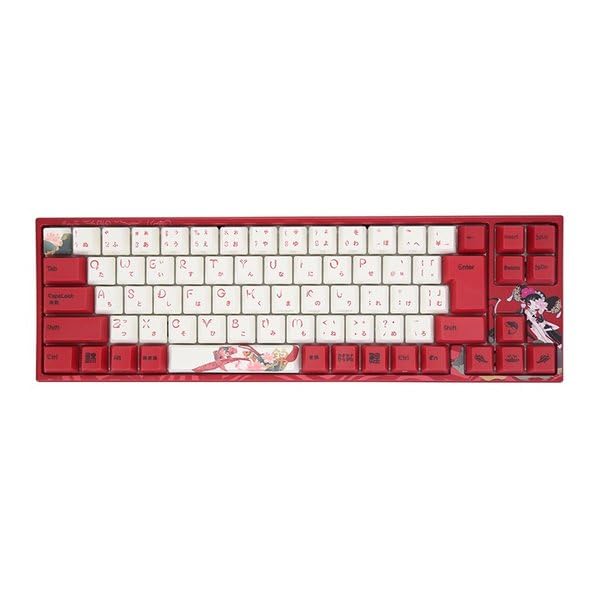
Image: Varmilo Koi 73 JIS Keyboard overview.
2. Caratteristiche principali
- Unique Koi Design: Features vibrant koi fish illustrations and a red aesthetic, developed in collaboration with illustrator Li Huan.
- JIS Layout: 73-key Japanese Industrial Standard layout for specific regional input needs.
- Compact 65% Size: Optimizes desk space while retaining essential function and arrow keys.
- Customizable Switches: Offers a choice of Varmilo mechanical electrostatic capacity switches to suit individual typing preferences.
- Cherry-Style Stabilizers: Ensures consistent and stable key presses, especially for larger keys.
- Connettività USB: Reliable wired connection for stable performance.
3. Guida all'installazione
3.1 Contenuto della confezione
Prima di iniziare, assicurati che tutti gli articoli siano presenti nel pacco:
- Varmilo Koi 73 JIS Keyboard
- Cavo USB
- Manuale dell'utente (questo documento)
3.2 Collegamento della tastiera
To connect your Varmilo Koi 73 keyboard to your computer, follow these steps:
- Individuare la porta USB-C sul retro della tastiera.
- Collegare un'estremità del cavo USB in dotazione alla porta USB-C della tastiera.
- Collegare l'altra estremità del cavo USB a una porta USB disponibile sul computer.
- La tastiera dovrebbe essere riconosciuta automaticamente dal sistema operativo.
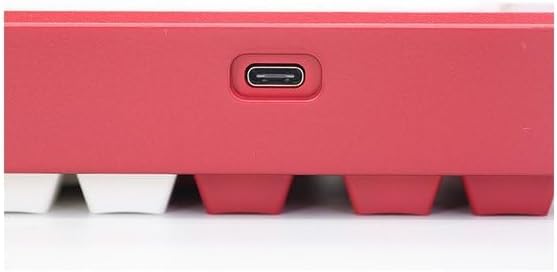
Image: USB-C port for keyboard connection.
3.3 Installazione del driver (facoltativa)
For advanced customization and optimal performance, it is recommended to install the Varmilo driver software. This software allows you to remap keys, adjust performance settings, and customize lighting effects.
Video: This video demonstrates the driver installation process and software usage for Varmilo keyboards. While it features the Muse65 model, the steps for driver installation and basic software navigation are generally applicable to other Varmilo keyboards like the Koi 73.
Please visit the official Varmilo website for the latest driver downloads specific to your keyboard model. Follow the on-screen instructions during installation.
4. Istruzioni per l'uso
4.1 Funzioni base dei tasti
The Varmilo Koi 73 keyboard features a standard JIS layout. Most keys function as labeled. For special functions, refer to the combination keys below.
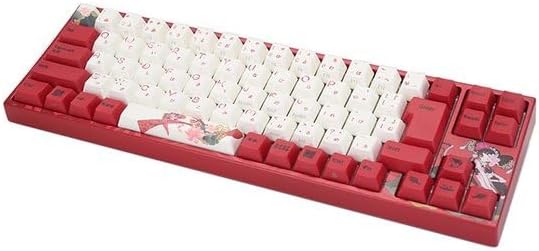
Immagine: Oltreview of the Varmilo Koi 73 JIS Keyboard layout.
4.2 Combinazioni di tasti funzione (Fn)
Since this is a 73-key layout, some functions are accessed via the Fn key. Hold down the Fn key and press the corresponding key to activate its secondary function. Common Fn combinations include:
- Fn + F1-F12: Controlli multimediali (ad esempio, volume, riproduzione/pausa).
- Fn + tasti freccia: Page Up/Down, Home/End (specific to model, refer to keycap legends).
- Fn + Win Key: Blocca/sblocca il tasto Windows.

Image: Left side keys, often used with Fn for additional functions.
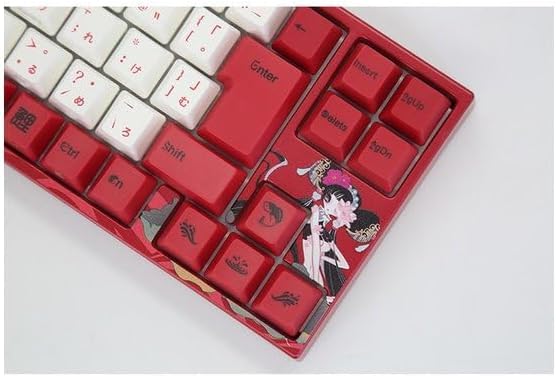
Image: Right side keys, including navigation and utility keys.
4.3 Effetti di luce
The Varmilo Koi 73 keyboard supports various RGB lighting effects. You can cycle through different modes and adjust brightness using specific key combinations. Refer to your keyboard's specific keycap legends or the driver software for detailed lighting controls.
Video: This video showcases various RGB lighting effects on a Varmilo keyboard. While the model shown is Muse65, it provides a general idea of the dynamic lighting capabilities available on Varmilo keyboards, including the Koi 73.
5. Manutenzione e cura
Proper maintenance ensures the longevity and optimal performance of your Varmilo Koi 73 keyboard.
- Pulizia dei tasti: Gently remove keycaps using a keycap puller. Clean the keycaps with a soft cloth dampcon acqua e sapone neutro. Assicurarsi che siano completamente asciutti prima di riattaccarli.
- Pulizia del corpo della tastiera: Utilizzare un panno morbido e asciutto per pulire il corpo della tastiera. Per lo sporco ostinato, un panno leggermenteamp cloth with a small amount of isopropyl alcohol can be used. Avoid excessive moisture.
- Rimozione della polvere: Utilizzare aria compressa per rimuovere polvere e detriti dagli spazi tra i tasti.
- Evitare i liquidi: Per evitare danni, tenere i liquidi lontani dalla tastiera.
- Cura del cavo: Non piegare o schiacciare eccessivamente il cavo USB.
6. Risoluzione Dei Problemi
If you encounter issues with your Varmilo Koi 73 keyboard, try the following solutions:
- La tastiera non risponde:
- Assicurarsi che il cavo USB sia collegato saldamente sia alla tastiera che al computer.
- Prova a collegare la tastiera a una porta USB diversa del computer.
- Riavvia il computer.
- Se si utilizza un hub USB, provare a collegarlo direttamente al computer.
- Chiavi non registrate:
- Controllare che non ci siano detriti o oggetti estranei sotto i tasti.
- If specific keys are not working, consider reinstalling the keyboard driver.
- Problemi di illuminazione:
- Ensure the keyboard driver is installed and up to date.
- Use the Fn key combinations or driver software to adjust lighting modes and brightness.
- Tasto Windows bloccato:
- Premere Tasto Fn + Win per attivare/disattivare il blocco del tasto Windows.
If the problem persists, please contact Varmilo customer support for further assistance.
7. Specifiche
| Marca | Varmilo |
| Numero di modello | VMMA73A039SAKURA |
| Disposizione della tastiera | 73-key JIS (Japanese Industrial Standard) |
| Connettività | USB cablato |
| Tipo di interruttore | Mechanical (Linear) |
| Dispositivi compatibili | Computer portatile |
| Dimensioni del prodotto | 34.2 cm (L) x 34.2 cm (L) x 5.1 cm (A) |
| Componenti inclusi | Cavo USB |
8. Garanzia e supporto
Varmilo products typically come with a manufacturer's warranty. Please refer to the warranty card included with your product or visit the official Varmilo websito per termini e condizioni di garanzia dettagliati.
For technical support, driver downloads, or further inquiries, please visit the official Varmilo support page or contact their customer service.
Official Varmilo Websito: www.varmilo.com