
Introduzione
This manual provides detailed instructions for the GAMFAMI TERIOS Wireless Controller. Please read this manual carefully before using the product to ensure proper operation and to maximize your gaming experience. This controller is designed for use with PlayStation 4, PS4 Pro, and PS4 Slim consoles.
Caratteristiche del prodotto
- Joystick ad effetto Hall: Equipped with Hall joysticks to prevent drift and ensure a longer lifespan with smooth, precise control.
- Programmazione Macro: Two programmable back buttons (M1, M2) allow mapping of various inputs (X, O, Triangle, Square, Up, Down, Left, Right, L3, R3, L1, R1, L2, R2) for enhanced gameplay.
- Connettività wireless: Enjoy a seamless wireless gaming experience with Bluetooth technology.
- Vibrazione Dual Shock: Enhanced dual shock motors provide immersive haptic feedback for a realistic gaming experience.
- Funzione Turbo: Activate the Turbo feature for rapid, repeated button presses, offering a competitive advantage.
- Batteria a lunga durata: Features a 1000mAh rechargeable battery for extended play sessions.
- Design ergonomico: Lightweight and durable ABS construction with textured grips for comfortable handling.
- Built-in Speaker & 3.5mm Audio Jack: Provides high-quality audio directly from the controller and supports headset connection.
Contenuto della confezione
Si prega di controllare il contenuto della confezione dopo averla disimballata:
- GAMFAMI TERIOS Wireless Controller
- Cavo di ricarica USB
- Manuale di istruzioni
Layout del controller
Familiarize yourself with the buttons and features of your GAMFAMI TERIOS Wireless Controller.
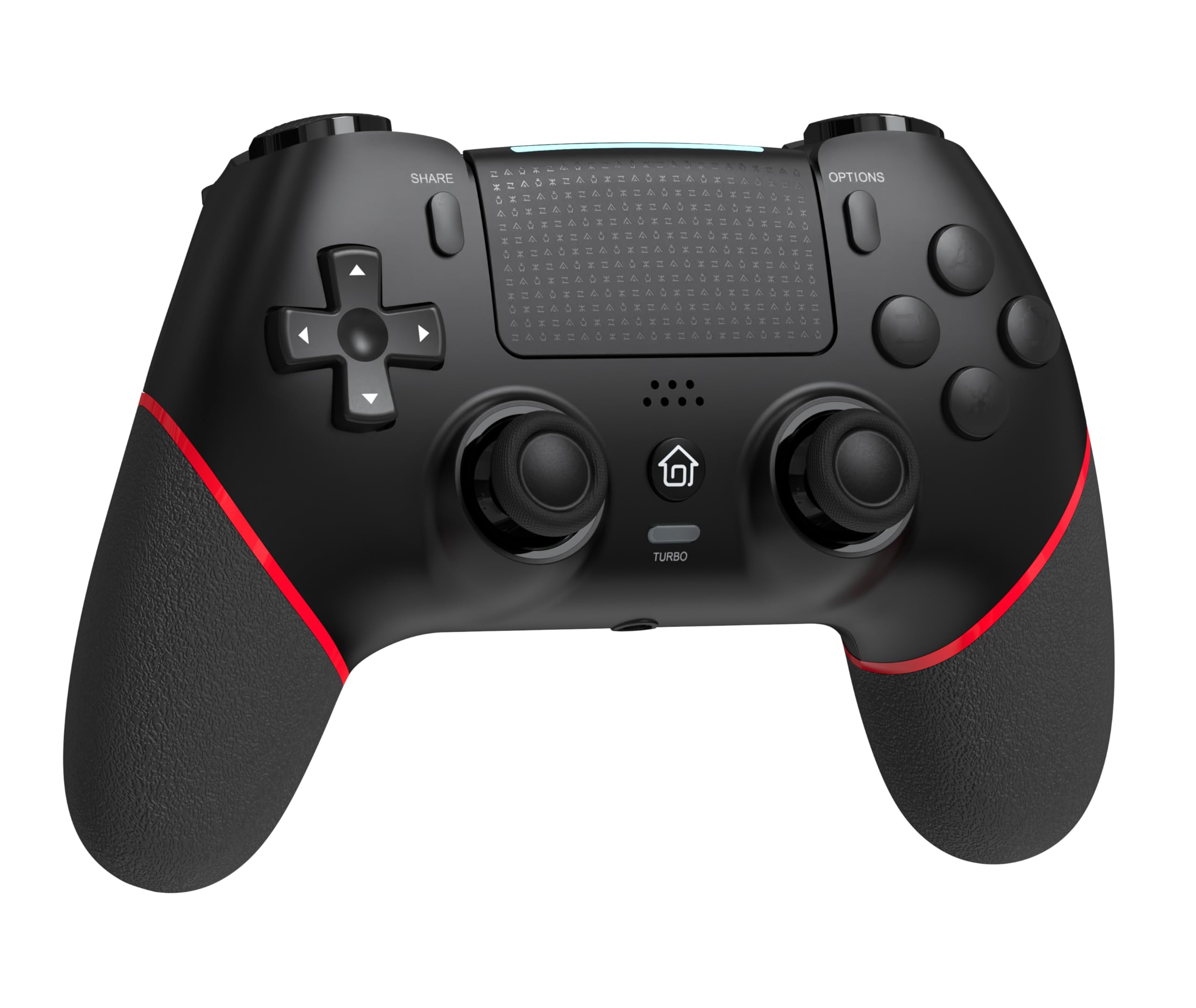
Davanti view of the GAMFAMI TERIOS Wireless Controller, showing the joysticks, D-pad, action buttons, Share, Options, Home, and Turbo buttons, and the touchpad.
- Pad direzionale (D-Pad): Per input direzionali.
- Pulsanti di azione (triangolo, cerchio, croce, quadrato): Standard PlayStation action buttons.
- Stick analogici sinistro/destro: For precise movement and camera control. Features Hall Effect technology.
- Pulsante CONDIVIDI: Per condividere contenuti di gioco.
- Pulsante OPZIONI: Per i menu e le opzioni del gioco.
- Pulsante PS (pulsante Home): To access the PS4 system menu.
- Pulsanti L1/R1: Bottoni sulle spalle.
- Trigger L2/R2: Trigger analogici.
- Touchpad: Multi-touch input area.
- Pulsanti M1/M2: Pulsanti posteriori programmabili.
- Pulsante TURBO: Attiva/disattiva la funzione turbo.
- Jack per cuffie da 3.5 mm: Per collegare un auricolare compatibile.
- Porta USB-C: Per la ricarica e la connessione cablata.

Indietro view of the controller, highlighting the M1 and M2 programmable buttons and product information.
Impostazione e connessione
Pairing with PS4/PS4 Pro/PS4 Slim
- Assicurati che la tua console PS4 sia accesa.
- Connect the controller to your PS4 console using the included USB charging cable.
- Press the PS button on the controller. The light bar will flash, indicating it is pairing.
- Once the light bar turns solid, the controller is successfully paired and ready for use.
- You can now disconnect the USB cable for wireless play.
Reconnecting to PS4
After initial pairing, simply press the PS button on the controller to reconnect wirelessly to your PS4 console.
Istruzioni per l'uso
Utilizzo della funzione Turbo
- Premere e tenere premuto il tasto Turbosoffiante pulsante.
- Mentre si tiene Turbosoffiante, press the action button (e.g., Cross, Circle, Square, Triangle, L1, R1, L2, R2) you wish to apply the turbo function to.
- Release both buttons. The selected action button will now rapidly repeat its input when held down.
- Per disattivare il turbo per un pulsante specifico, ripetere il processo: tenere premuto Turbosoffiante and press the turbo-enabled action button.
- To disable turbo for all buttons, press and hold the Turbosoffiante pulsante per 5 secondi.
Macro Programming (M1/M2 Buttons)
The M1 and M2 buttons on the back of the controller can be programmed to replicate other button inputs.
- Premere e tenere premuto il tasto CONDIVIDERE pulsante e il M1 or M2 button simultaneously for 3 seconds until the light bar flashes rapidly. This indicates macro programming mode.
- Press the button(s) you wish to map to M1 or M2 (e.g., X, O, Triangle, Square, Up, Down, Left, Right, L3, R3, L1, R1, L2, R2). You can map a single button or a sequence of buttons.
- Premere il tasto M1 or M2 button again to save the macro. The light bar will stop flashing rapidly and return to its normal state.
- To clear a macro, repeat step 1, then press the M1 or M2 button twice without pressing any other buttons.

Illustration of the advanced buttons and their programming capabilities.
Ricarica e gestione della batteria
Il controller è dotato di una batteria ricaricabile da 1000 mAh.
Caricamento del controller
- Connect the included USB charging cable to the USB-C port on the controller.
- Connect the other end of the cable to a USB port on your PS4 console (when powered on or in rest mode) or a compatible USB wall adapter (5V/1A recommended).
- The light bar on the controller will slowly pulse orange while charging.
- Una volta completamente carica, la barra luminosa si spegnerà.
Indicazione del livello della batteria
The controller's light bar will indicate battery status. A low battery will cause the light bar to flash red. It is recommended to charge the controller when this occurs.
Manutenzione
- Pulizia: Utilizzare un panno morbido e asciutto per pulire il controller. Non utilizzare prodotti chimici aggressivi o materiali abrasivi.
- Magazzinaggio: Conservare il controller in un luogo fresco e asciutto, lontano dalla luce solare diretta e da temperature estreme.
- Evitare gocce: Proteggere il controller da cadute e urti che potrebbero danneggiare i componenti interni.
Risoluzione dei problemi
| Problema | Soluzione |
|---|---|
| Il controller non si connette/associa. |
|
| Controller experiences input lag or disconnection. |
|
| Joysticks exhibit drift. |

Illustration of Hall Effect joystick technology, designed to prevent drift. |
| Il controller non si carica. |
|
Specifiche
| Nome del modello | TERIOS |
| Marca | GAMFAMI |
| Dispositivi compatibili | PS4, PS4 Pro, PS4 Slim |
| Tipo di controllore | Controllo di gioco |
| Tecnologia di connettività | Bluetooth (senza fili) |
| Fonte di alimentazione | Alimentato a batteria |
| Capacità della batteria | 1000mAh |
| Peso dell'articolo | 0.37 chilogrammi |
| Colore | Nero Rosso |
Garanzia e supporto
For warranty information and technical support, please refer to the documentation included with your purchase or visit the official GAMFAMI websito. Conservare la ricevuta d'acquisto come prova d'acquisto per eventuali reclami in garanzia.
For further assistance, please contact GAMFAMI customer service through their official channels.