
1. Introduzione
Welcome to the UGREEN NASync DXP480T Plus User Manual. This document provides detailed instructions for setting up, operating, maintaining, and troubleshooting your new 4-Bay All-Flash SSD NAS. Please read this manual thoroughly before using the device to ensure optimal performance and longevity.

Figure 1.1: UGREEN NASync DXP480T Plus Front View
2. Prodotto finitoview
The UGREEN NASync DXP480T Plus is a high-performance Network Attached Storage (NAS) device designed for ultra-fast data access and robust storage solutions. It is equipped with advanced hardware and software features to meet the demands of professionals and home users alike.
2.1 Caratteristiche principali
- Processore potente: Features an Intel Core i5 12th generation 10-Core, 12-thread processor for unparalleled processing performance.
- Rete ad alta velocità: Includes a 10GbE network port for peak speeds of 1250 MB/s and integrated Wi-Fi 6 for flexible wireless connectivity.
- All-Flash Storage: Four M.2 NVMe SSD slots support up to 32TB of all-flash storage, offering incredibly fast read/write speeds. Supports RAID levels JBOD/Basic/RAID0/RAID1/RAID5/RAID6/RAID10.
- Memoria espandibile: Comes with 8GB DDR5 RAM, expandable up to 64GB for demanding software and multitasking.
- Connettività versatile: Equipped with HDMI 8K output and two Thunderbolt 4 ports for ultra-fast data transmission.
- Unified Operating System: The NAS app integrates Storage Manager, File, Photos, and other functions into a single, convenient interface (UGOS Pro).
- Sicurezza professionale dei dati: Offers robust local data storage, professional encryption, and multi-factor authentication to protect your data.
2.2 Componenti
Familiarize yourself with the main components and ports of your NAS device.
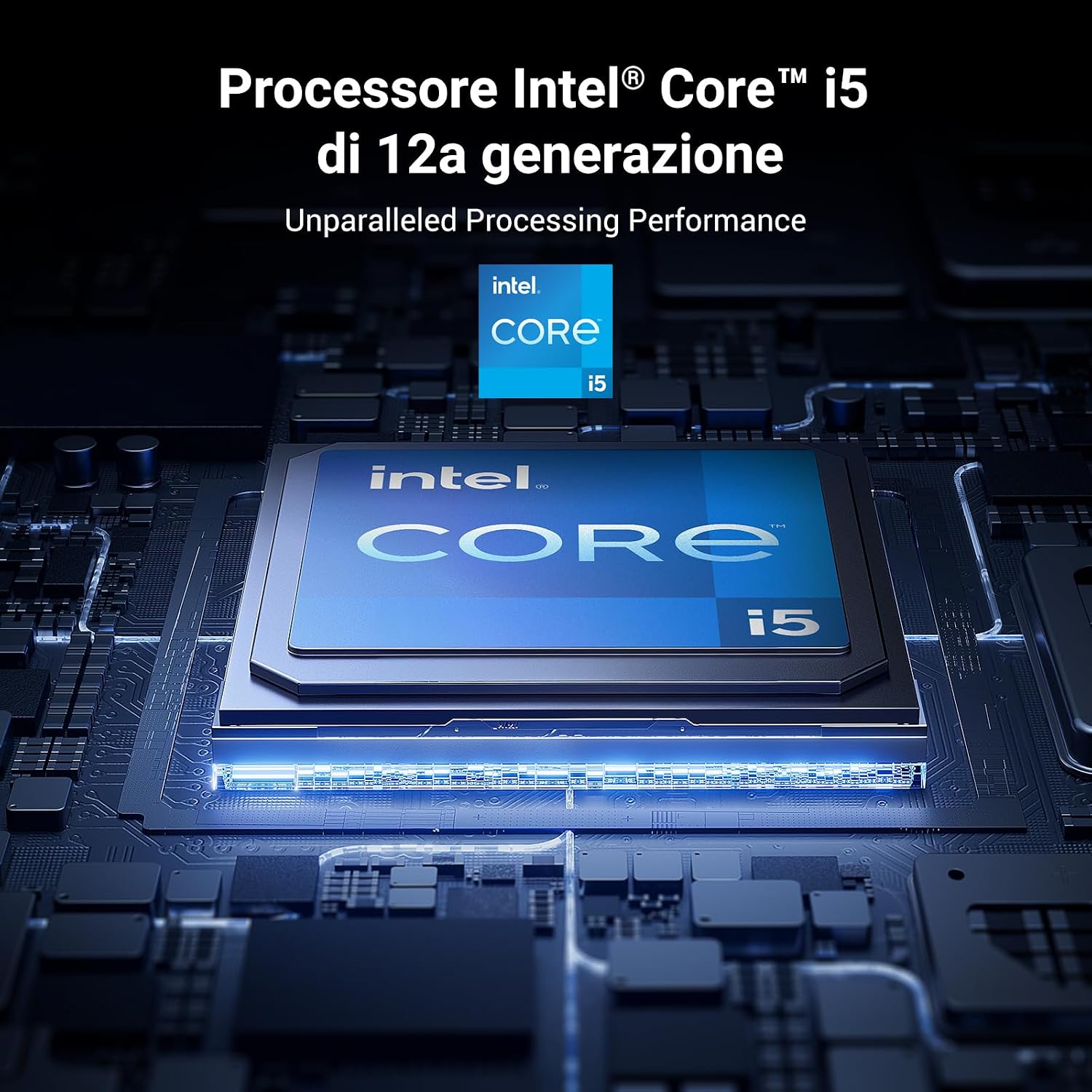
Figure 2.1: Rear Panel Connectivity (10GbE, HDMI, USB, Thunderbolt 4, Power)

Figura 2.2: Processore Intel Core i5 di decima generazione

Figure 2.3: DDR5 Expandable Memory
3. Guida all'installazione
3.1 Contenuto della confezione
Prima di procedere, verificare che tutti gli elementi siano presenti nella confezione:
- UGREEN NASync DXP480T Plus Unit
- Manuale d'uso
- Scheda di assistenza clienti
- Cavo di alimentazione
- Cavo Ethernet (CAT7)
- SSD Silicone Pads (x4)
- Viti e cacciavite

Figura 3.1: Contenuto della confezione
3.2 Hardware Installation (SSD/NVMe Drives)
The DXP480T Plus supports four M.2 NVMe SSDs. Follow these steps to install your drives:
- Carefully open the NAS enclosure to access the M.2 slots.
- Insert each M.2 NVMe SSD into its designated slot.
- Secure the SSDs with the provided screws and use the silicone pads if necessary for proper fit and heat dissipation.
- Close the NAS enclosure securely.

Figure 3.2: M.2 NVMe SSD Installation
3.3 Connecting the NAS
- Connect the NAS to your network using the provided Ethernet cable. For optimal performance, use the 10GbE port with a compatible network infrastructure.
- Connect the power adapter to the NAS and then to a power outlet.
- Premere il pulsante di accensione per accendere il dispositivo.

Figure 3.3: Network Connection via 10GbE Port
3.4 Configurazione iniziale del software
Once powered on, access the NAS through your web browser or the dedicated UGREEN NAS app. Follow the on-screen instructions to initialize the system, create storage pools, and configure user accounts. Ensure you update the firmware for the best experience.

Figure 3.4: UGOS Pro Operating System Overview
4. Istruzioni per l'uso
4.1 File Gestione e condivisione
Utilizzare l'integrato File Manager within the UGOS Pro interface to organize, upload, download, and share your files. You can create shared folders and manage access permissions for different users.

Figure 4.1: Efficient File e Footage Gestione
4.2 Data Protection (RAID)
The NAS supports various RAID configurations (JBOD, Basic, RAID0, RAID1, RAID5, RAID6, RAID10) to protect your data against drive failure. Configure your preferred RAID level during initial setup or via the Storage Manager.
4.3 Funzionalità multimediali
Transform your NAS into a home media library. Stream movies, music, and photos to your phones, tablets, PCs, and smart TVs using the built-in multimedia applications.

Figure 4.2: Multimedia Streaming Capabilities
4.4 Accesso remoto
Accedi al tuo files and synchronize photos in real-time from anywhere using the remote access features. The unified app simplifies this process across various devices.

Figure 4.3: Remote Access Functionality
4.5 App Center and Docker
The App Center provides various utilities for system management and entertainment. The NAS also supports Docker, allowing you to deploy and manage containerized applications.

Figura 4.4: Supporto Docker
5. Manutenzione
5.1 Aggiornamenti di sistema
Regularly check for and install firmware updates through the UGOS Pro interface to ensure your NAS has the latest features, security patches, and performance improvements.
5.2 Cooling Management
The NAS features an intelligent cooling fan system with multiple modes (Default, Silent, Fast) to maintain optimal operating temperatures. Ensure proper ventilation around the device.

Figure 5.1: Intelligent Cooling Fan System
5.3 Hardware Checks
Periodically inspect the physical connections (power, network, Thunderbolt) and ensure all SSDs are securely seated. Avoid exposing the device to extreme temperatures or humidity.
6. Risoluzione Dei Problemi
If you encounter issues with your UGREEN NASync DXP480T Plus, refer to the following common solutions:
- Il dispositivo non si accende: Controllare il collegamento del cavo di alimentazione e la presa di corrente. Assicurarsi che l'adattatore di alimentazione funzioni correttamente.
- Nessun accesso alla rete: Verify the Ethernet cable connection to both the NAS and your router/switch. Check network settings in UGOS Pro. Ensure your router is assigning an IP address.
- Prestazioni lente: Check network bandwidth, especially if using a 1GbE connection instead of 10GbE. Monitor CPU and RAM usage through the UGOS Pro interface. Ensure SSDs are healthy and not overloaded.
- Unità non rilevata: Power off the NAS, re-seat the M.2 NVMe SSDs, and power on again. Check the Storage Manager in UGOS Pro to see if the drives are recognized.
- Problemi software: Try restarting the NAS. If problems persist, check for firmware updates. For persistent software issues, consider contacting UGREEN support.
For more detailed troubleshooting steps, consult the online knowledge base or contact UGREEN customer support.
7. Specifiche
| Caratteristica | Dettaglio |
|---|---|
| Marca | Non verde |
| Numero di modello | DXP480T Plus |
| Processore | Intel Core i5 1235u (10-Core, 12-thread) |
| Memoria RAM | 8 GB DDR5 (expandable up to 64 GB) |
| Memoria interna | 4 x M.2 NVMe SSD slots (up to 32 TB total) |
| Interfaccia di rete | 1 x 10GbE Port, Wi-Fi 6 |
| Uscita video | Cavo HDMI 8K |
| Altre porte | 2 x Thunderbolt 4, USB 3.2 |
| Supporto RAID | JBOD/Basic/RAID0/RAID1/RAID5/RAID6/RAID10 |
| Sistema operativo | UGOS Pro |
| Dimensioni (PxWxH) | 17.9P x 5.2l x 14.2H cm (Product), 10cm x 10cm x 10cm (Size) |
| Peso | 2 chilogrammi |
| Materiale | Metallo |
| Dispositivi compatibili | Server, Desktop, Laptop |
8. Garanzia e supporto
8.1 Informazioni sulla garanzia
Your UGREEN NASync DXP480T Plus comes with a standard manufacturer's warranty. Please refer to the warranty card included in your package or visit the official UGREEN websito per termini e condizioni di garanzia dettagliati. Conservare la prova d'acquisto per eventuali reclami in garanzia.
8.2 Assistenza clienti
For technical assistance, troubleshooting, or any product-related inquiries, please contact UGREEN customer support. Contact information can be found on the customer support card included in your package or on the official UGREEN websito.