
1. Introduzione
This manual provides essential information for setting up, operating, and maintaining your Tibuta A70W 10.1-inch Kids Tablet. Designed specifically for children, this tablet features a durable design, parental controls, and a user-friendly Android 13 operating system. Please read this manual thoroughly to ensure proper use and to maximize your child's learning and entertainment experience.

Image: The Tibuta 10.1-inch Kids Tablet, highlighting its 1280x800 display, Android 13 OS, Quad-core 1.8GHz processor, 4GB+32GB memory, 2MP+5MP cameras, and 5000mAh battery.
2. Prodotto finitoview
2.1 Caratteristiche principali
- Display: 10.1-inch 1280x800 IPS Full HD touchscreen.
- Sistema operativo: Android 13 with GMS certification.
- Processore: 1.8 GHz Quad-core.
- Memoria: 4GB RAM (2+2GB), 32GB ROM, expandable up to 128GB via Micro SD.
- Telecamere: Dual cameras (Front 2MP, Rear 5MP).
- Batteria: 5000 mAh for extended use.
- Connettività: Wi-Fi (802.11b/g/n) and Bluetooth.
- Durata: Food-grade silicone shockproof case with an integrated stand.
- Controllo genitori: Built-in features for screen time limits and content filtering.
- App preinstallate: Includes YouTube, Kids Space, and more.
2.2 Componenti del tablet
Prendi familiarità con i componenti fisici del tuo tablet:

Image: A diagram illustrating the tablet's functional details, including the front camera, speakers, power ON/OFF button, volume buttons, reset button, rear camera, 3.5mm headphone port, TF Card slot, and USB 2.0 OTG port.
- Fotocamera frontale: Per videochiamate e selfie.
- Relatori: Per l'uscita audio.
- Pulsante di accensione/spegnimento: To turn the tablet on or off, or to put it to sleep.
- Pulsanti del volume: Per regolare il livello del suono.
- Pulsante di reset: For system reset in case of unresponsiveness (use a pin).
- Telecamera posteriore: Per scattare foto e registrare video.
- Porta per cuffie da 3.5 mm: Per collegare le cuffie.
- Slot per schede TF: Per inserire una scheda Micro SD per espandere la memoria.
- USB 2.0 OTG Port: Per la ricarica e il trasferimento dei dati.
3. Impostazione
3.1 Carica iniziale
Before first use, fully charge the tablet. Connect the provided USB-C cable to the tablet's USB port and the other end to a power adapter. The battery indicator on the screen will show charging status.
3.2 Accensione/Spegnimento
- Per accendere: Tenere premuto il pulsante di accensione/spegnimento finché lo schermo non si illumina.
- Per spegnere: Press and hold the Power ON/OFF button, then select "Power off" from the options.
- Per dormire/svegliarsi: Briefly press the Power ON/OFF button.
3.3 Configurazione iniziale
Al primo avvio, seguire le istruzioni visualizzate sullo schermo per configurare le impostazioni di base:
- Seleziona la lingua preferita.
- Connettersi a una rete Wi-Fi.
- Accedi con il tuo account Google o creane uno nuovo. Questa operazione è necessaria per scaricare app dal Google Play Store.
- Set up parental controls as desired (refer to Section 5 for details).
3.4 Inserimento di una scheda Micro SD
To expand storage, insert a Micro SD card (up to 128GB) into the TF Card slot. Ensure the tablet is powered off before inserting or removing the card.
4. Istruzioni per l'uso
4.1 Navigazione di base
- Rubinetto: Per selezionare un elemento o aprire un'app.
- Scorri: Per scorrere schermate o elenchi.
- Pizzico: Per ingrandire o rimpicciolire le immagini e web pagine.
- Premere a lungo: Per accedere ai menu contestuali o spostare le icone.
4.2 Connessione Wi-Fi
- Vai a Impostazioni > Rete e Internet > Wifi.
- Attiva il Wi-Fi.
- Seleziona la rete desiderata dall'elenco e inserisci la password se richiesta.
4.3 Download delle applicazioni
The tablet runs on Android 13 and supports the Google Play Store. You can download a wide range of educational and entertainment apps.

Image: The tablet screen displaying the Google Android 13 interface with various app icons, indicating access to a wide range of applications from the Google Play Store.
- Aprire il Negozio Google Play applicazione.
- Cercare l'app desiderata.
- Tocca "Installa" per scaricare e installare l'app.
4.4 Utilizzo delle telecamere
Il tablet è dotato di una fotocamera frontale (2MP) e posteriore (5MP).
- Aprire il Telecamera applicazione.
- Tocca l'icona di commutazione della fotocamera per passare dalla fotocamera anteriore a quella posteriore e viceversa.
- Tocca il pulsante di scatto per scattare una foto o avviare/interrompere la registrazione video.
4.5 Gestione della batteria
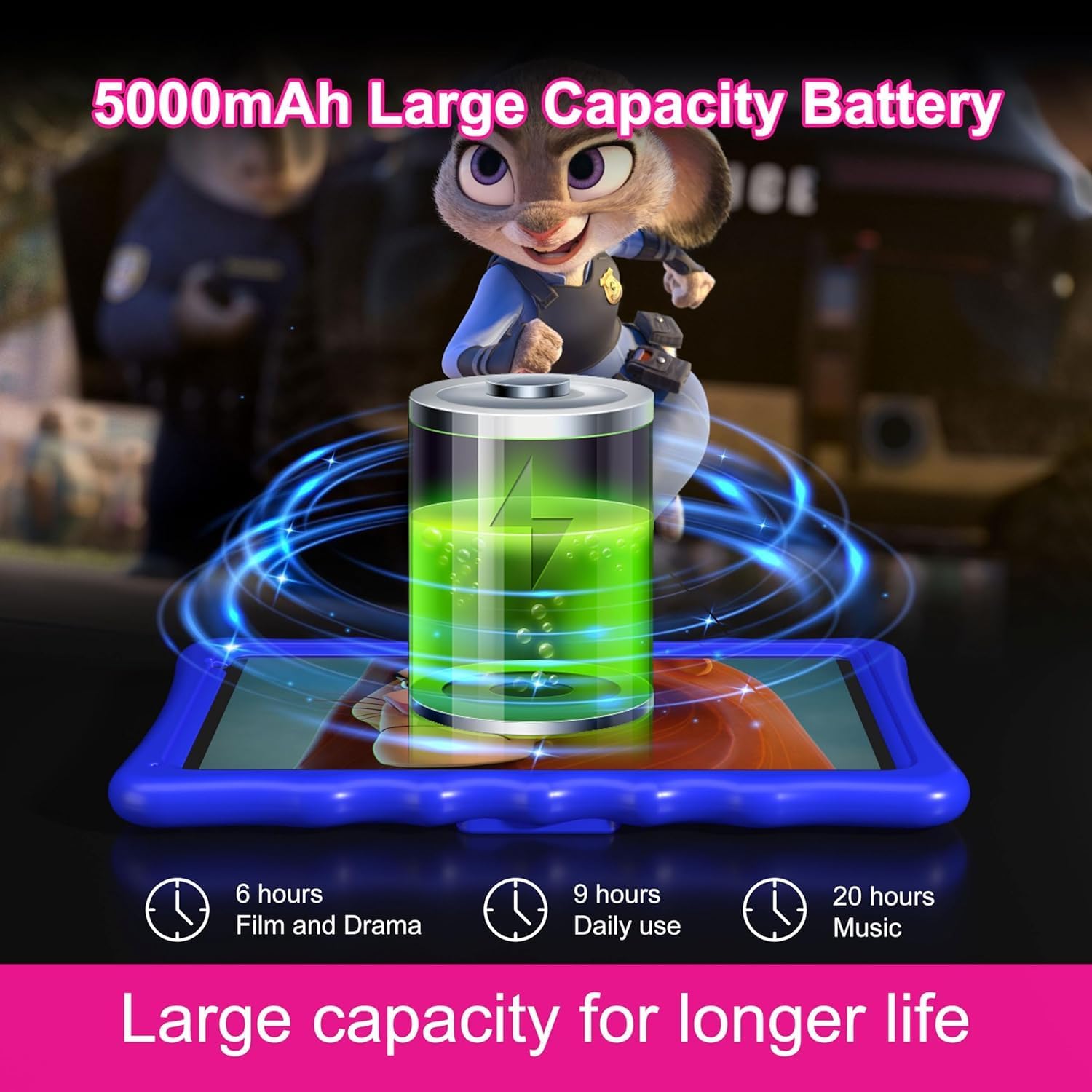
Image: An illustration of the tablet's 5000mAh battery capacity, showing estimated usage times: 6 hours for film/drama, 9 hours for daily use, and 20 hours for music.
La batteria da 5000 mAh garantisce un utilizzo prolungato. Per ottimizzare la durata della batteria:
- Ridurre la luminosità dello schermo.
- Disattivare il Wi-Fi e il Bluetooth quando non vengono utilizzati.
- Chiudere le applicazioni non utilizzate in esecuzione in background.
- Caricare regolarmente il tablet, evitando che si scarichi completamente.
5. Controllo parentale
The Tibuta A70W tablet includes robust parental control features to ensure a safe and educational environment for children. You can switch between normal and child modes.
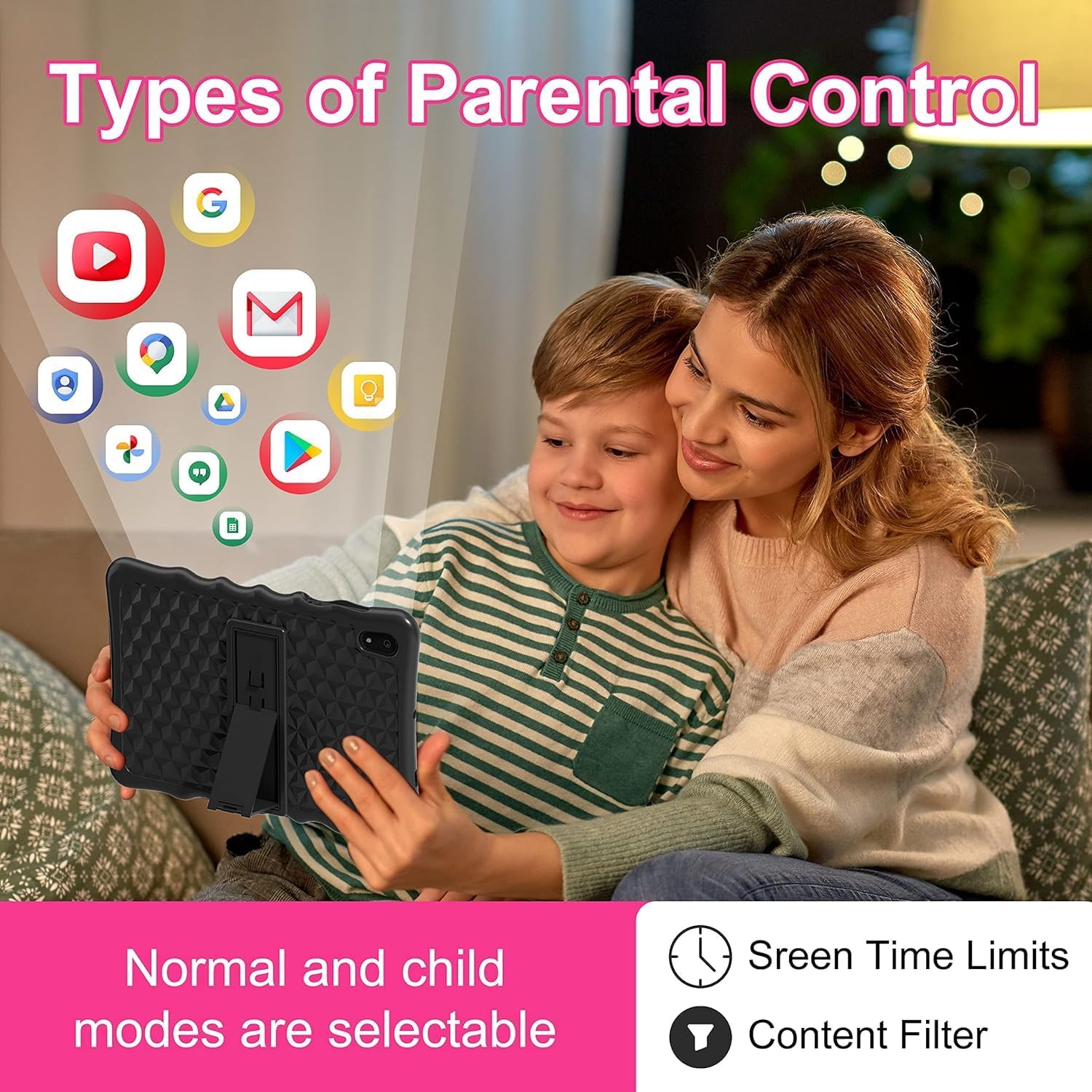
Image: A visual representation of parental control features, including options for setting screen time limits and applying content filters, with various app icons floating above the tablet.
5.1 Impostazione del controllo genitori
Access parental control settings through the dedicated "Kids Space" app or via the tablet's main settings menu. Here you can:
- Imposta limiti di tempo sullo schermo: Define daily usage limits for the tablet.
- Manage Content: Filter inappropriate content and approve specific apps, websiti e video.
- Control App Access: Seleziona le applicazioni che tuo figlio può utilizzare.
- Monitorare l'attività: Review your child's tablet usage.

Image: The tablet displaying the interface for pre-installed Kids Apps like YouTube and Kids Space, showing various educational and entertainment content categories within Google Kids Space.
The tablet comes with pre-installed educational apps and access to Google Kids Space, offering a curated selection of age-appropriate content.
6. Manutenzione
6.1 Pulizia del tablet
- Per pulire lo schermo e il corpo, utilizzare un panno morbido e privo di lanugine.
- Evitare l'uso di prodotti chimici aggressivi o materiali abrasivi.
- Prima di procedere alla pulizia, assicurarsi che il tablet sia spento.
6.2 Aggiornamenti software
Controllare periodicamente la presenza di aggiornamenti software per garantire prestazioni e sicurezza ottimali. Vai a Impostazioni > Sistema > Aggiornamento del sistema.
6.3 Shockproof Case Care
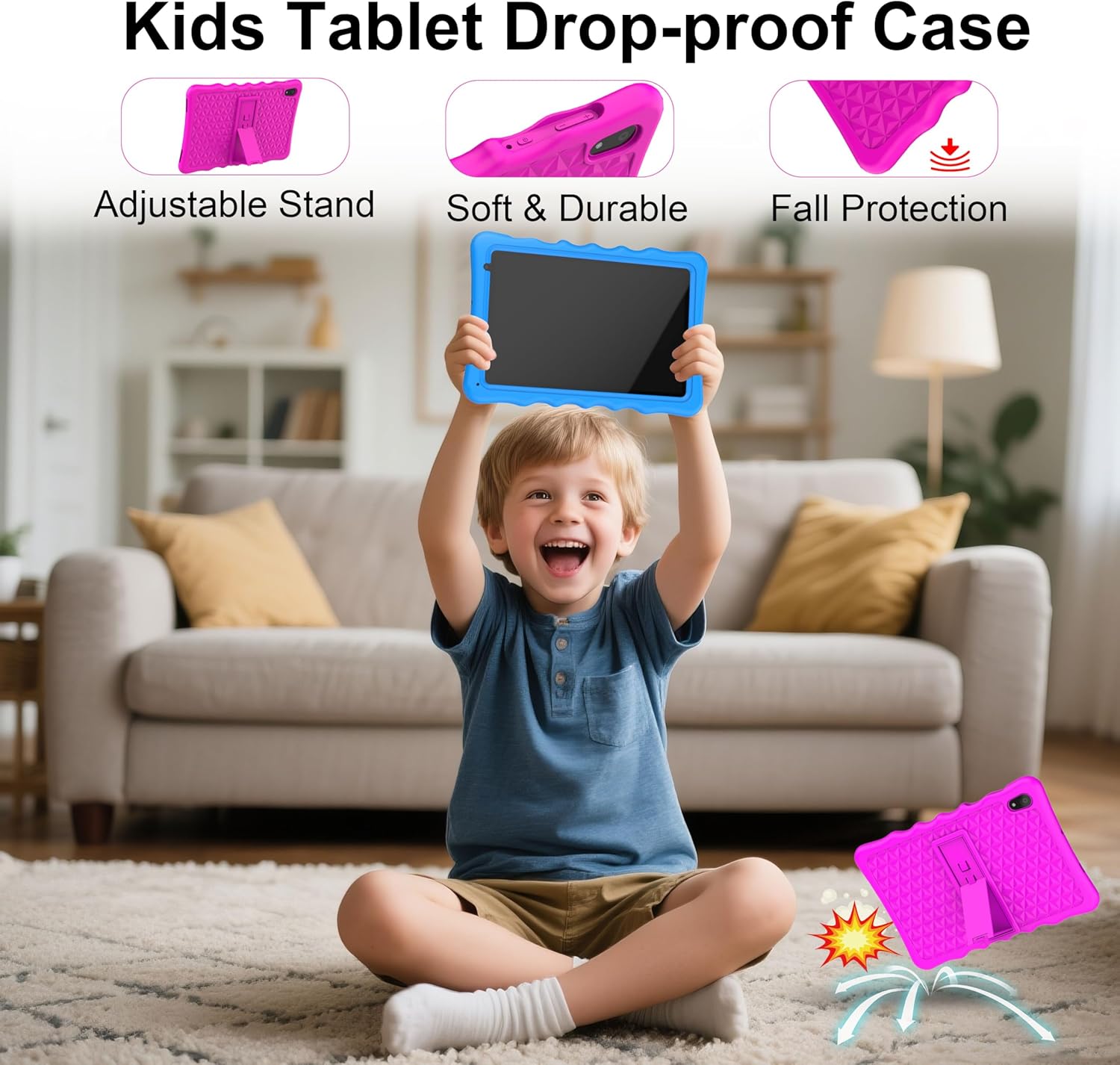
Image: A child happily holding the tablet in its blue shockproof case, with insets illustrating the case's adjustable stand, soft and durable material, and fall protection features.
The food-grade silicone case provides protection. Clean it with mild soap and water if necessary. Ensure it is completely dry before reattaching it to the tablet.
7. Risoluzione Dei Problemi
| Problema | Possibile causa | Soluzione |
|---|---|---|
| Il tablet non si accende. | Batteria scarica; crash del sistema. | Charge the tablet for at least 30 minutes. If unresponsive, press the reset button with a pin. |
| Problemi di connessione Wi-Fi. | Password errata; fuori portata; problema con il router. | Verify password. Move closer to the router. Restart the router and tablet. |
| Le applicazioni sono lente o si bloccano. | Troppe app in esecuzione; spazio di archiviazione insufficiente; app obsoleta. | Close background apps. Clear app cache. Update apps. Free up storage. |
| Lo schermo non risponde. | Problema temporaneo del software. | Perform a soft reset by holding the power button for 10-15 seconds, or use the reset pinhole. |
| Il controllo parentale non funziona come previsto. | Incorrect settings; app not configured. | Review parental control settings in the Kids Space app or tablet settings. Ensure all apps are managed. |
8. Specifiche
| Caratteristica | Dettaglio |
|---|---|
| Marca | Tibuta |
| Numero di modello | A70W |
| Sistema operativo | Androide 13 |
| Marca del processore | Vincitore assoluto |
| Velocità del processore | 1.5 GHz (Note: Feature bullets state 1.8 GHz, using 1.5 GHz from specifications for consistency) |
| Dimensioni dello schermo | 10.1 pollici |
| Risoluzione dello schermo | 1280 x 800 pixel |
| Dimensione RAM installata | 4 GB |
| Capacità di archiviazione della memoria | 32 GB (espandibile fino a 128 GB tramite Micro SD) |
| Marchio del chipset grafico | PowerVR GE8300 |
| Tipo di connettività | Bluetooth, Wi-Fi (802.11b/g/n) |
| Batteria | 1 Lithium-polymer (included) - 5000 mAh |
| Dimensioni articolo (L x P x A) | Dimensioni: 24.2 x 16.1 x 0.84 cm |
| Peso dell'articolo | 1.04 chilogrammi |
| Caratteristiche speciali | Shockproof case, pre-installed educational apps, parental control |
9. Garanzia
The Tibuta A70W Kids Tablet comes with a Garanzia del produttore di 1 anniLa presente garanzia copre i difetti di materiali e fabbricazione in condizioni di normale utilizzo. Si prega di conservare la prova d'acquisto per eventuali reclami in garanzia.
Per i termini e le condizioni di garanzia dettagliati, fare riferimento alla documentazione inclusa nel prodotto o contattare l'assistenza clienti.
10. Assistenza clienti
If you encounter any problems with your Tibuta A70W Kids Tablet or require technical assistance, please do not hesitate to contact us. Our support team is ready to help.
- Metodo di contatto: You can reach us via our official store email or through Amazon's messaging system.
- Tempo di risposta: We aim to respond quickly and provide comprehensive technical support.
Please provide your product model (A70W) and a detailed description of the issue when contacting support to facilitate a faster resolution.