
1. Introduzione
The ZTE MF286C is a high-performance 5G/4G wireless router designed to provide fast and reliable internet connectivity for homes and small offices. Supporting both 5G and 4G networks, this device offers versatile connectivity options. With advanced Wi-Fi 6 technology, it delivers high wireless data rates, enabling smooth streaming, gaming, and browsing for multiple connected devices simultaneously.
2. Contenuto della confezione
Si prega di controllare attentamente il contenuto della confezione. Se qualche articolo risulta mancante o danneggiato, contattare il rivenditore.
- ZTE MF286C 5G/4G Router
- Power Adapter (Power cord)
- Cavo Ethernet
- Guida rapida (non inclusa in questo manuale)
3. Prodotto finitoview
Familiarize yourself with the router's physical features, ports, and indicator lights.
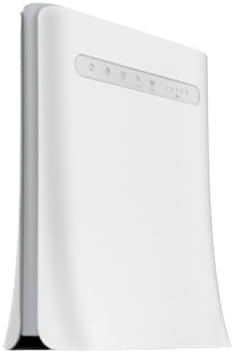
Figura 3.1: lato view of the ZTE MF286C router, showing its sleek white design and ventilation.

Figura 3.2: Fronte view of the ZTE MF286C router, displaying the power, Wi-Fi, phone, 5G/4G, and signal strength indicator lights, along with the ZTE logo.
3.1 Spie luminose
- Indicatore di alimentazione: Indica lo stato di alimentazione del dispositivo.
- Indicatore Wi-Fi: Mostra lo stato della rete Wi-Fi.
- Indicatore del telefono: (If applicable) Indicates voice call status.
- Indicatore 5G/4G: Displays the current network type (5G or 4G) and connection status.
- Indicatori di potenza del segnale: Multiple bars indicating the strength of the cellular signal.
4. Impostazione
Follow these steps to set up your ZTE MF286C router for the first time.
- Inserire la carta SIM: Locate the SIM card slot (usually on the bottom or side). Insert a standard Nano-SIM card into the slot with the gold contacts facing down and the notched corner oriented correctly. Ensure it clicks into place.
- Connetti alimentazione: Connect the power adapter to the router's power port and then plug it into a wall outlet. The Power indicator light should turn on.
- Accensione: Press the Power button (if available) or wait for the router to automatically power on. The indicator lights will cycle as the device starts up and connects to the cellular network.
- Connessione di rete: Wait for the 5G/4G indicator to show a stable connection (e.g., solid blue or green) and for the signal strength indicators to light up, indicating a good cellular signal.
- Connetti dispositivi:
- Tramite Wi-Fi: On your computer or mobile device, search for available Wi-Fi networks. Select the network name (SSID) printed on the label on the bottom of your router. Enter the Wi-Fi password (Key) also found on the label.
- Tramite cavo Ethernet: Connect one end of the Ethernet cable to a LAN port on the router and the other end to the Ethernet port on your computer or other network device.
- Accesso Web Interfaccia: Aprire un web browser e inserisci l'indirizzo IP predefinito (ad esempio, 192.168.0.1 or 192.168.1.1) into the address bar. Log in using the default username and password (usually "admin" for both, or as specified on the router label).
5. Istruzioni per l'uso
5.1 Connessione al Wi-Fi
To connect a device to the router's Wi-Fi network:
- Assicurarsi che il router sia acceso e che l'indicatore Wi-Fi sia attivo.
- On your device, enable Wi-Fi and scan for networks.
- Select the SSID (network name) of your ZTE MF286C router.
- Enter the Wi-Fi password (Key) when prompted. This information is typically found on a sticker on the router.
5.2 Gestione delle impostazioni di rete
You can customize your router settings through the web interfaccia:
- Accedi al web interface using the IP address and login credentials (refer to Section 4.5).
- Navigate to the Wi-Fi settings section to change the SSID or password.
- Explore other settings such as parental controls, guest networks, or advanced network configurations as needed.
6. Manutenzione
Una corretta manutenzione garantisce prestazioni ottimali e longevità del router.
- Posizionamento: Posizionare il router in un'area aperta, lontano da ostacoli, oggetti metallici di grandi dimensioni e altri dispositivi elettronici che potrebbero causare interferenze. Evitare di posizionarlo in spazi chiusi.
- Pulizia: Mantenere il router pulito e privo di polvere. Utilizzare un panno morbido e asciutto per pulire l'esterno. Non utilizzare detergenti liquidi o spray.
- Aggiornamenti del firmware: Controllare periodicamente le istruzioni del produttore websito per gli aggiornamenti del firmware. Mantenere aggiornato il firmware del router può migliorare le prestazioni, la sicurezza e aggiungere nuove funzionalità.
- Ventilazione: Assicurarsi che i fori di ventilazione non siano ostruiti per evitare il surriscaldamento.
7. Risoluzione Dei Problemi
Se riscontri problemi con il router, prova a seguire i seguenti passaggi per la risoluzione dei problemi:
- Nessuna connessione internet:
- Verificare che la scheda SIM sia inserita correttamente.
- Verify that the 5G/4G indicator is stable and not blinking rapidly.
- Ensure you have an active data plan with your mobile network operator.
- Riavviare il router scollegando l'adattatore di alimentazione, attendendo 10 secondi e ricollegandolo.
- Bassa velocità di Internet:
- Check the signal strength indicators. A weak signal can lead to slow speeds. Try repositioning the router.
- Ensure there are not too many devices connected simultaneously, exceeding the router's capacity.
- Perform a speed test to confirm the actual speed.
- Impossibile connettersi al Wi-Fi:
- Controlla attentamente la password del Wi-Fi.
- Assicurati che il Wi-Fi del tuo dispositivo sia abilitato.
- Riavviare sia il router sia il dispositivo di connessione.
- Router Reset: If problems persist, you may need to perform a factory reset. Locate the reset button (often a small pinhole) on the router. With the router powered on, use a paperclip to press and hold the reset button for about 5-10 seconds until the lights flash. This will restore the router to its factory default settings, including Wi-Fi name and password.
8. Specifiche
| Caratteristica | Descrizione |
|---|---|
| Modello | MF286C |
| Tecnologia di connettività | 5G, 4G, Wi-Fi 6 |
| Max Wireless Data Rate | Fino a 3.8 Gbps (Wi-Fi 6) |
| Max LAN Data Rate | 300 Mbps |
| Utenti simultanei | Fino a 64 |
| Dimensioni (L x P x A) | 60 x 25 x 25 centimetri |
| Componenti inclusi | Power Adapter, Ethernet Cable |
9. Garanzia e supporto
This ZTE MF286C router comes with a Garanzia di 6 mesi dalla data di acquisto. Conservare la prova d'acquisto per eventuali reclami in garanzia.
For technical support, troubleshooting assistance, or warranty inquiries, please contact your retailer or the manufacturer's official support channels. Refer to the packaging or the manufacturer's websito per informazioni di contatto specifiche.