
1. Introduzione
This manual provides detailed instructions for the Headwolf WPad5 Android 14 Tablet. Please read this guide thoroughly before using your device to ensure proper operation and to maximize its features. Keep this manual for future reference.
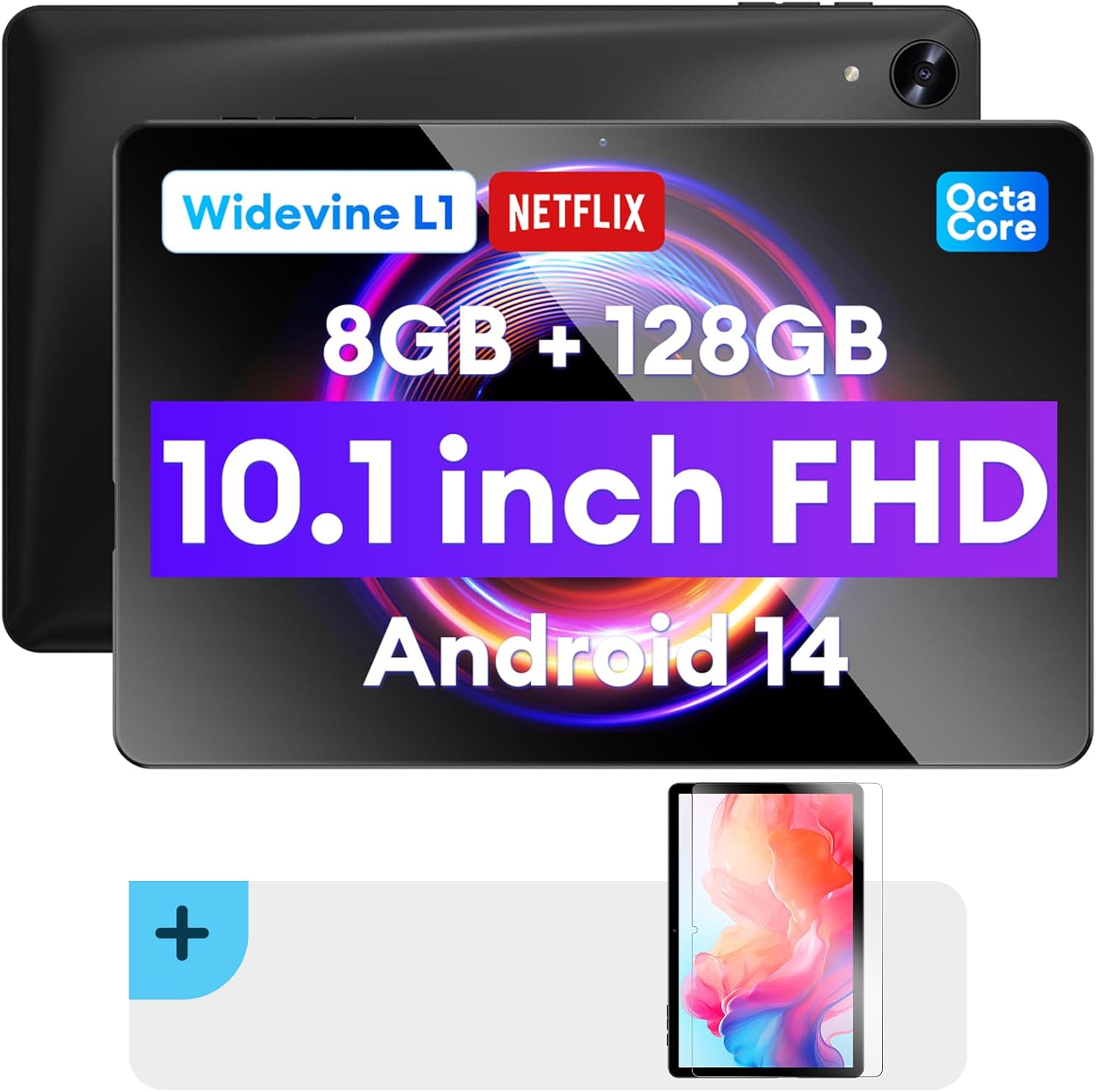
Immagine: Fronte e retro view of the Headwolf WPad5 tablet, showcasing its 10.1-inch FHD display, 8GB RAM + 128GB ROM, Widevine L1 support, Octa-Core processor, and Android 14 operating system.

Immagine: Un overview of the Headwolf WPad5 tablet's main features, including its 10.1-inch 1920x1200 IPS FHD display, Unisoc T606 Octa-Core CPU, 8GB RAM + 128GB ROM, 5500mAh battery, 2.4G/5G WiFi, Android 14, dual stereo speakers, dual camera, and Widevine L1 support for Netflix.
2. Impostazione
2.1 Cosa c'è nella scatola
Upon unboxing your Headwolf WPad5 tablet, please verify that all the following items are included:
- Headwolf WPad5 Tablet
- Cavo di tipo C
- Adattatore CA
- Manuale d'uso
- 2-pack Screen Protector

Image: A visual representation of the Headwolf WPad5 tablet and its accessories (manual, Type-C cable, AC adapter). It also highlights the tablet's physical features such as the 3.5mm headphone jack, rear camera, power button, volume buttons, TF card slot, and Type-C port.
2.2 Ricarica del tablet
Before initial use, fully charge your tablet. Connect the Type-C cable to the tablet's Type-C port and the other end to the AC adapter. Plug the AC adapter into a power outlet. The battery indicator on the screen will show charging status.
2.3 Accensione/Spegnimento
- Per accendere: Press and hold the Power button located on the side of the tablet until the Headwolf logo appears on the screen.
- Per spegnere: Tieni premuto il pulsante di accensione finché non viene visualizzato il menu di accensione. Seleziona "Spegni" dalle opzioni.
- Ricominciare: Dal menu di accensione, selezionare "Riavvia".
2.4 Installazione della pellicola protettiva per lo schermo
Your tablet comes with two screen protectors. Follow these steps for installation:
- Clean the tablet screen thoroughly with a microfiber cloth to remove dust and smudges.
- Staccare la pellicola protettiva dal lato adesivo della pellicola protettiva per lo schermo.
- Carefully align the screen protector with the tablet's screen, ensuring the cutouts for the camera and sensors match.
- Gently lay the protector onto the screen, starting from one edge and slowly lowering it.
- Use a soft card (e.g., a credit card wrapped in cloth) to smooth out any air bubbles, pushing them towards the edges.
- Remove the top protective film (if present).

Image: The Headwolf WPad5 tablet with an "Ultra Clear" advanced HD clarity tempered glass screen protector being shown, indicating its protective function and clear display.
3. Utilizzo del tablet
Sistema operativo Android 14 3.1
The Headwolf WPad5 runs on the latest Android 14 operating system, offering enhanced performance, improved privacy features, and a customizable user interface.
- GMS Free App Download: Access millions of applications through the Google Play Store.
- Funzione schermo diviso: Aumenta la produttività utilizzando due app contemporaneamente.
- Personalizzazione dell'interfaccia utente: Personalize your interface with various themes, widgets, and settings.
- Tutela della privacy: Advanced features to ensure your personal data remains secure and confidential.
- Personalized Screen Settings: Empower all users with enhanced usability options.

Image: A graphic illustrating the key features of the Android 14 system on the Headwolf WPad5, such as GMS free app download, UI customization, personalized screen settings, and privacy protection, enhancing user experience.
3.2 Display and Widevine L1 Certification
The tablet features a 10.1-inch FHD 1920x1200 IPS display, providing clear and vibrant visuals. With Widevine L1 certification, you can stream high-definition content from popular platforms like Netflix, Amazon Prime Video, Disney+, and YouTube without interruptions or quality degradation.

Image: A visual demonstrating the Widevine L1 certification on the Headwolf WPad5 tablet, showing high-quality streaming from services like YouTube, Netflix, Amazon Prime Video, Disney+, and Hulu, ensuring a premium viewesperienza di acquisizione.
3.3 Prestazioni e archiviazione
Powered by an octa-core Unisoc T606 CPU, the WPad5 ensures smooth multitasking and gaming. It comes with 8GB RAM (achieved via 4GB physical RAM + 4GB expansion) and 128GB of internal storage. The storage can be expanded up to 2TB using a microSD card (not included).

Image: A diagram detailing the Unisoc T606 Octa-Core CPU with 2.0 GHz peak frequency and Mali-G57 GPU, highlighting its high performance, efficient processing, and low heat generation for gaming and high-quality display.

Image: A graphic illustrating the generous storage capacity of the Headwolf WPad5, featuring 8GB RAM (4+4GB) and 128GB ROM, expandable up to 2TB via TF card, suitable for storing software, photos, music, videos, and e-books.
3.4 Connettività
The WPad5 offers versatile connectivity options:
- Wifi: Dual-band (2.4GHz/5GHz) 802.11ac for fast and stable internet connection.
- Bluetooth: Versione 5.0 per la connessione di accessori wireless.
- Jack per cuffie da 3.5 mm: Per uscita audio cablata.
- Posizione GPS: 4-mode satellite positioning for precise location services. For offline navigation, download maps via Wi-Fi before traveling to areas without internet access.

Image: The Headwolf WPad5 tablet displaying a navigation map, illustrating its 4-mode satellite positioning capability for precise location services and route guidance.
3.5 Telecamere
Il tablet è dotato di doppia fotocamera:
- Telecamera posteriore: 8 MP per scattare foto e registrare video.
- Fotocamera frontale: 5MP, ideal for video calls and online meetings.

Immagine: Un collage mostraasing the capabilities of the Headwolf WPad5's 8MP rear camera for capturing landscapes and moments, and the 5MP front camera for video conferencing and meetings, demonstrating its versatility.
3.6 Durata della batteria
The WPad5 is powered by a 5500mAh battery, providing approximately 6-8 hours of playtime per charge, depending on usage.
3.7 funzioni aggiuntive
- Schermo diviso: Esegui due applicazioni contemporaneamente per una maggiore produttività.
- Sblocco facciale: Sblocca in modo sicuro il tuo tablet tramite il riconoscimento facciale.
- Clonazione schermo: Cast your tablet's display to a larger screen wirelessly.
- Dual Box Stereo Speakers: Enjoy immersive audio with enhanced sound quality.
Immagine: Un grafico mostraasing various features of the Headwolf WPad5 tablet, including Split Screen functionality for multitasking, 2.4G/5G Dual Band WiFi for connectivity, Face Unlock for security, and Screen Mirroring for casting content to external displays.
4. Manutenzione
4.1 Cura della batteria
- Evitare di scaricare completamente la batteria frequentemente.
- Non esporre il tablet a temperature estreme.
- Utilizzare solo il caricabatterie fornito o un caricabatterie compatibile certificato.
- The 5500mAh battery includes overcurrent, short circuit, over-discharge, and output protection for safety.

Image: A visual highlighting the 5500mAh battery of the Headwolf WPad5 and its built-in protection features: overcurrent protection, short circuit protection, over-discharge protection, and output protection, ensuring safe and reliable power.
4.2 Pulizia del tablet
- Utilizzare un panno morbido e privo di lanugine per pulire lo schermo e il corpo del tablet.
- Per macchie ostinate, leggermente dampPulisci il panno con acqua o con un detergente per schermi specifico per dispositivi elettronici.
- Evitare l'uso di prodotti chimici aggressivi, materiali abrasivi o spray aerosol.
4.3 Aggiornamenti software
Controlla e installa regolarmente gli aggiornamenti software per assicurarti che il tuo tablet disponga delle funzionalità più recenti, delle patch di sicurezza e dei miglioramenti delle prestazioni. Di solito, questa opzione si trova nel menu Impostazioni del tablet, alla voce "Sistema" o "Informazioni sul tablet".
5. Risoluzione Dei Problemi
5.1 Problemi comuni e soluzioni
| Problema | Possibile soluzione |
|---|---|
| Il tablet non si accende | Assicurarsi che la batteria sia carica. Collegare il caricabatterie e attendere qualche minuto prima di riprovare ad accendere il dispositivo. Se il dispositivo non risponde, tenere premuto il pulsante di accensione per 10-15 secondi per forzare il riavvio. |
| Problemi di connessione Wi-Fi | Riavvia il router Wi-Fi e il tablet. Elimina la rete Wi-Fi dal tablet e riconnettiti. Assicurati di essere nel raggio d'azione del segnale Wi-Fi. |
| Le app si bloccano o si bloccano | Cancella la cache e i dati dell'app in Impostazioni > App. Aggiorna l'app all'ultima versione. Se il problema persiste, disinstalla e reinstalla l'app. |
| Prestazioni lente | Close unnecessary background apps. Clear cache data regularly. Consider uninstalling unused apps. Ensure sufficient free storage space. |
| Lo schermo non risponde | Riavvia il tablet. Se il problema persiste, esegui un ripristino delle impostazioni di fabbrica (i dati andranno persi). |
5.2 Ripristino delle impostazioni di fabbrica
Un ripristino delle impostazioni di fabbrica cancellerà tutti i dati dal tablet e ripristinerà le impostazioni di fabbrica originali. Eseguire il backup di tutti i dati importanti prima di procedere.
- Vai a Impostazioni.
- Vai a Sistema > Reimposta opzioni.
- Selezionare Cancella tutti i dati (ripristino delle impostazioni di fabbrica).
- Conferma la tua scelta e segui le istruzioni sullo schermo.
6. Specifiche
| Caratteristica | Dettaglio |
|---|---|
| Nome del modello | WPad5 |
| Sistema operativo | Androide 14 |
| Dimensioni dello schermo | 10.1 pollici |
| Risoluzione dello schermo | Risoluzione 1920 x 1200 (Full HD) |
| Processore | Unisoc T606 Octa-Core |
| Memoria RAM | 8 GB (espansione 4 GB + 4 GB) |
| Memoria interna | 128 GB |
| Archiviazione espandibile | Fino a 2 TB tramite scheda microSD |
| Telecamera posteriore | 8 MP |
| Fotocamera frontale | 5 MP |
| Capacità della batteria | 5500mAh |
| Connettività wireless | 802.11ac (Dual-band 2.4GHz/5GHz) |
| Bluetooth | Bluetooth 5.0 |
| Porti | Tipo C, jack per cuffie da 3.5 mm |
| Colore | Nero |
| Caratteristiche speciali | Widevine L1, GPS, Face Unlock, Dual Stereo Speakers, Split Screen, Screen Mirroring |
7. Garanzia e supporto
Headwolf provides a one-year repair and replacement warranty for your WPad5 tablet. For any technical assistance, product inquiries, or warranty claims, please contact our dedicated customer service and technical support team.
- Assistenza clienti: Available 24 hours. Please refer to the contact information provided with your purchase or on the official Headwolf websito.
- Supporto tecnico: Available for assistance with setup, troubleshooting, and feature usage.
- Risorse online: Visitare il Headwolf Store on Amazon per ulteriori informazioni e supporto sul prodotto.