
1. Introduzione
This manual provides essential information for setting up, operating, and maintaining your HP Series 5 27-inch FHD Monitor. Please read these instructions carefully before using your monitor to ensure optimal performance and safety.
The HP Series 5 27-inch FHD Monitor is designed for comfortable viewing with features like Eye Safe certification, 99% sRGB color accuracy, IPS technology for wide viewing angles, a 100 Hz refresh rate, and an anti-glare screen. Its micro-edge design offers an immersive visual experience.
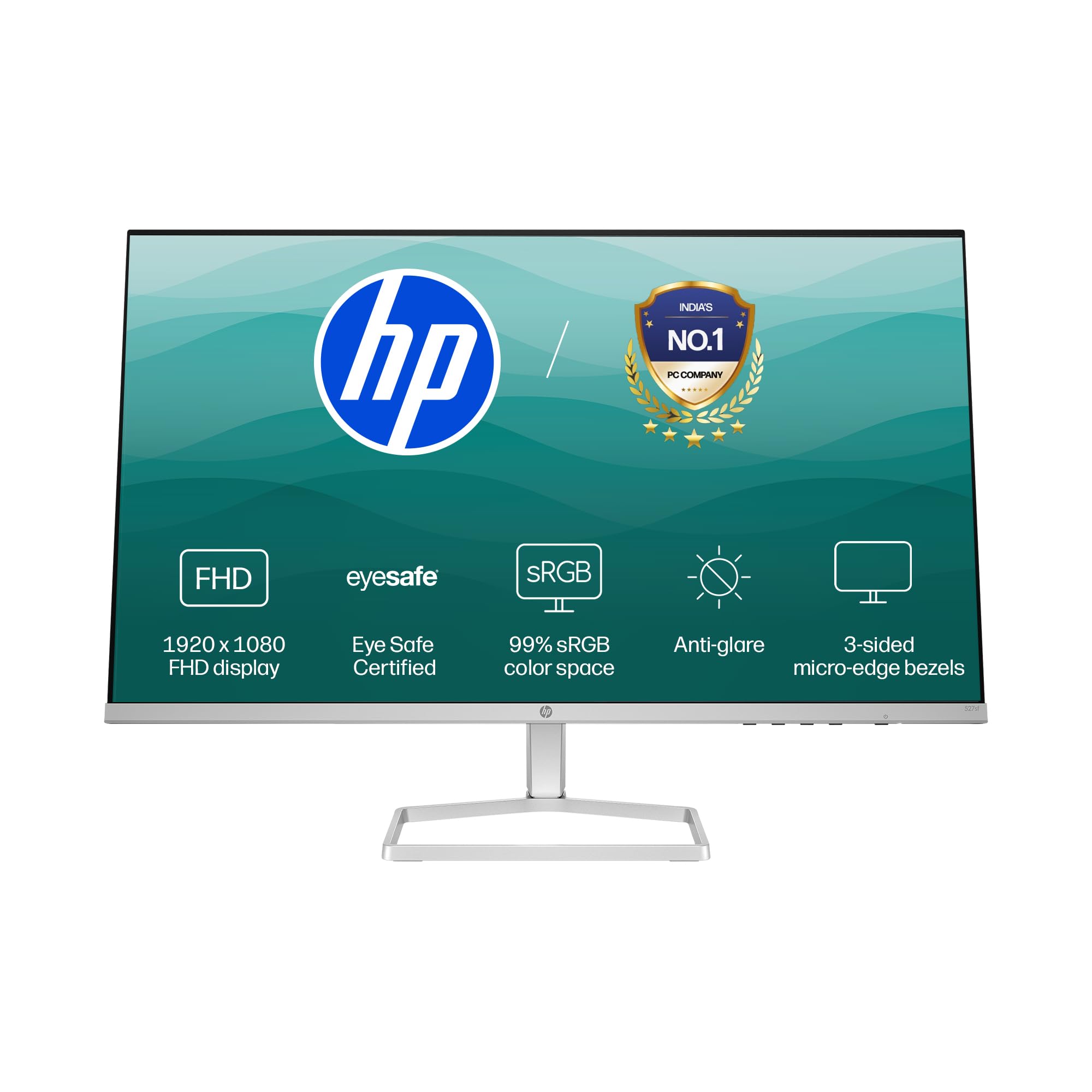
Image: HP Series 5 27-inch FHD Monitor, showcasing its sleek design on a desk.
2. Cosa c'è nella scatola
Verificare che tutti i componenti siano presenti nella confezione:
- HP Series 5 27-inch FHD Monitor
- Supporto per monitor (base e collo)
- Cavo HDMI
- Adattatore di alimentazione
- Cavo di alimentazione CA
- Documentazione (Guida di installazione rapida, Scheda di garanzia)

Image: Illustration of the monitor and its included accessories: monitor, HDMI cable, power adapter, and AC power cord.
3. Istruzioni per l'installazione
3.1 Montaggio del supporto del monitor
- Estrarre con cautela il monitor e i componenti del supporto dalla confezione.
- Fissare il collo del supporto al pannello del monitor. Assicurarsi che scatti saldamente in posizione.
- Fissare la base del supporto al collo del supporto. Serrare le viti, se presenti, solitamente situate sul lato inferiore della base.
- Posizionare il monitor assemblato su una superficie stabile e piana.
3.2 Collegamento del monitor
The monitor supports both HDMI and VGA connections.
- Collegamento elettrico: Connect the power adapter to the monitor's power input port, then plug the AC power cord into the adapter and a wall outlet.
- Collegamento video:
- For HDMI: Connect one end of the HDMI cable to an HDMI port on your computer and the other end to one of the two HDMI 1.4 ports on the monitor.
- For VGA: Connect one end of the VGA cable to the VGA port on your computer and the other end to the VGA port on the monitor.
- Assicurarsi che tutti i cavi siano collegati saldamente.

Immagine: Posteriore view of the HP Series 5 monitor, highlighting the VGA port and two HDMI 1.4 ports for device connectivity.
4. Funzionamento del monitor
4.1 Accensione/spegnimento
Premere il pulsante di accensione, solitamente situato sulla cornice inferiore destra o sul retro del monitor, per accendere o spegnere il monitor. La spia di accensione si accende quando il monitor è acceso.
4.2 Navigazione nel menu OSD (On-Screen Display)
Use the physical buttons on the monitor (typically on the bottom right or rear) to access and navigate the On-Screen Display (OSD) menu. This menu allows you to adjust various display settings.
- Selezione input: Use the OSD or a dedicated input button to switch between connected devices (e.g., HDMI 1, HDMI 2, VGA). The monitor may also auto-detect active inputs.
- Luminosità/Contrasto: Adatta queste impostazioni alle tue esigenze viewing environment. The monitor offers 300 nits brightness for clear visuals.
- Impostazioni colore: Fine-tune color temperature, gamma, and other color parameters. The monitor provides 99% sRGB color accuracy for vivid and realistic colors.
- Modalità immagine: Select from preset picture modes optimized for different content types (e.g., Standard, Gaming, Movie).

Image: The HP Series 5 monitor showcasing its bright display, emphasizing 300 nits brightness for clear visuals.

Image: The HP Series 5 monitor displaying rich and realistic colors, highlighting its 99% sRGB color accuracy.
4.3 Caratteristiche per il comfort degli occhi
The monitor is equipped with HP Eye Ease and Eyesafe certification, which limits blue light emissions to reduce eye strain without compromising color accuracy. This feature is always-on and does not require OSD adjustments.

Image: The HP Series 5 monitor displaying a dynamic scene, demonstrating its low blue light feature for comfortable extended viewing.
4.4 IPS Technology and Refresh Rate
IPS (In-Plane Switching) technology ensures consistent image accuracy and vivid colors across wide 178-degree horizontal and vertical viewing angles. The 100 Hz refresh rate provides smooth scrolling and fluid motion, enhancing your viewesperienza di acquisizione.

Image: The HP Series 5 monitor displaying a colorful jungle scene, highlighting the vivid colors and crystal-clear viewing from all angles due to IPS technology.
5. Manutenzione
5.1 Pulizia del monitor
- Prima di procedere alla pulizia, spegnere sempre il monitor e scollegare il cavo di alimentazione.
- Utilizzare leggermente un panno morbido e privo di lanugine dampcon acqua o con un detergente per schermi non abrasivo.
- Pulire delicatamente lo schermo e le superfici esterne. Evitare di esercitare una pressione eccessiva.
- Do not use alcohol, ammonia-based cleaners, or abrasive materials, as these can damage the anti-glare coating and plastic surfaces.
5.2 Cura generale
- Evitare di posizionare oggetti pesanti sul monitor o sui suoi cavi.
- Tenere il monitor lontano dalla luce solare diretta, da fonti di calore e da umidità eccessiva.
- Garantire un'adeguata ventilazione attorno al monitor per evitare il surriscaldamento.
- Utilize the integrated cable containment features to manage wires and reduce clutter.

Immagine: Posteriore view of the HP Series 5 monitor, illustrating its design for less clutter around the workspace with integrated cable management.
6. Risoluzione Dei Problemi
Se riscontri problemi con il monitor, fai riferimento alle seguenti soluzioni comuni:
- Nessun potere: Ensure the power cord is securely connected to the monitor and a working power outlet. Check the power adapter connection.
- Nessuna immagine/segnale: Verify that the video cable (HDMI or VGA) is correctly connected to both the monitor and your computer. Ensure the correct input source is selected via the OSD menu. Try restarting your computer.
- Immagine tremolante o distorta: Check the video cable for damage or loose connections. Ensure your computer's display resolution and refresh rate are compatible with the monitor's specifications.
- Display Anomalies (e.g., light bleeding): While minor variations can occur, if you notice significant or distracting light bleeding, especially from the edges, ensure the monitor is properly seated on its stand and that no external pressure is being applied to the screen. If the issue persists, contact HP support.
- I pulsanti non rispondono: Scollegare il cavo di alimentazione del monitor, attendere 15 secondi, quindi ricollegarlo e riprovare.
7. Specifiche
| Caratteristica | Specificazione |
|---|---|
| Marca | HP |
| Numero di modello | 94F45AA |
| Dimensioni dello schermo | 27 pollici (68.6 cm) |
| Risoluzione | Risoluzione Full HD 1080p (1920 x 1080) |
| Proporzioni | 16:9 |
| Descrizione della superficie dello schermo | Antiriflesso |
| Rapporto di contrasto | 1500:1 |
| Frequenza di aggiornamento | Frequenza 100 Hz |
| Tipo di visualizzazione | LCD (pannello IPS) |
| Viewangolo di ing | 178 gradi (orizzontale/verticale) |
| Luminosità dell'immagine | 300 nidi |
| Tempo di risposta | 5 millisecondi |
| Connettività | 2 x HDMI 1.4, 1 x VGA |
| Sincronizzazione adattiva | Sincronizzazione gratuita |
| Caratteristiche del prodotto | Flicker-Free, HP Eye Ease with Eyesafe certification |
| Dimensioni dell'articolo (P x L x A) | 18.8D x 60.8W x 43.7H centimetri |
| Peso dell'articolo | 3.2 chilogrammi |
| Codice UPC | 197498944876 |
8. Informazioni sulla garanzia
This HP Series 5 27-inch FHD Monitor comes with a 3 anno di garanzia in loco. Please retain your proof of purchase for warranty claims. For detailed terms and conditions, refer to the warranty card included in your product packaging or visit the official HP support websito.
9. Supporto
For further assistance, technical support, or service inquiries, please contact HP Customer Support. You can find contact information on the official HP websito o nella documentazione fornita con il monitor.
For ergonomic setup guidance, refer to the HP Display Center software, which can help you customize your comfort settings.
Produttore: HP, HP India Sales Pvt. Ltd.
Informazioni di contatto dell'importatore: HP India Sales Private Limited, No. 24, Kothari Arena, Hosur Main Road, Adugodi, Bangalore, Karnataka, India, 560030
10. Informazioni ambientali
The HP Series 5 monitor is designed with sustainability in mind:
- Designed from recycled materials and ocean-bound plastics.
- EPEAT® registered.
- Certificazione ENERGY STAR®.

Image: The HP Series 5 monitor displayed with environmental elements, emphasizing its construction from recycled materials and ocean-bound plastics, EPEAT registration, and ENERGY STAR certification.