
UGEE UE16-BK
UGEE Liquid Tab UE16 LCD Pen Tablet
Manuale d'uso
Model: UE16-BK
Introduzione
This manual provides detailed instructions for the setup, operation, maintenance, and troubleshooting of your UGEE Liquid Tab UE16 LCD Pen Tablet. Please read this manual thoroughly before using the device to ensure proper functionality and to maximize your creative experience.

Image: The UGEE Liquid Tab UE16 LCD Pen Tablet, showcasing its sleek design and a colorful digital illustration on its display. A stylus pen is positioned to the right of the tablet.
Cosa c'è nella scatola
Verifica che tutti gli articoli elencati di seguito siano inclusi nel tuo pacchetto:
- UGEE UE16 Liquid Pen Tablet x 1
- U-Pencil PH22 Stylus Pen x 1
- Cavo 3 in 1 x 1
- Punte di ricambio x 20
- Pen Nib Extractor x 1
- Panno per pulizia x 1
- USB-A to C Cable x 1
- Cavo da USB-C a C x 1
- Scheda di garanzia x 1
- Guida rapida x 1

Image: A visual representation of all components included in the UGEE UE16 product package, neatly arranged for inspection.
Impostare
1. Collegamento del tablet
The UE16 supports both 3-in-1 cable connection and single USB-C cable connection for a clean workspace.
- Using 3-in-1 Cable: Connect the HDMI, USB-A, and power cables from the 3-in-1 cable to your computer and a power source, then connect the single end to the tablet's designated port.
- Using Single USB-C Cable: For compatible devices, connect a single full-featured USB-C to USB-C cable from your computer to the tablet's USB-C port. This provides both video and power.

Image: Illustration demonstrating the two primary ways to connect the UGEE UE16 tablet to a computer: via a 3-in-1 cable setup and a simplified single USB-C cable connection.
2. Installazione del driver
For optimal performance and full functionality, it is essential to install the latest drivers for your UGEE Liquid Tab UE16.
- Visita il sito ufficiale dell'UGEE websito: www.ugee.com
- Vai alla sezione "Supporto" o "Download".
- Locate the drivers for the UE16 model.
- Scarica il driver appropriato per il tuo sistema operativo (Windows, macOS, Chrome OS, Android, Linux).
- Before installation, uninstall any existing tablet drivers from your computer to avoid conflicts.
- Eseguire il programma di installazione scaricato e seguire le istruzioni visualizzate sullo schermo.
- Riavvia il computer al termine dell'installazione.
After installation, you can access the UGEE driver software to customize pen settings, shortcut keys, and display calibration.
Istruzioni per l'uso
Using the U-Pencil Stylus
The U-Pencil PH22 is a battery-free stylus designed for natural drawing and precise control.
- Sensibilità alla pressione: The U-Pencil supports 16384 levels of pressure sensitivity, allowing for varied line thickness and opacity based on pressure applied.
- Rilevamento dell'inclinazione: With ±60° tilt detection, the pen can simulate brush strokes and shading effects, similar to traditional art tools.
- Tasti di scelta rapida personalizzabili: The stylus features two customizable buttons. These can be configured in the driver software for functions like right-click, undo, or zoom.
- Tail Switch Eraser: The tail end of the U-Pencil functions as an eraser, providing a natural and intuitive way to correct mistakes.

Immagine: Un dettaglio view of the UGEE U-Pencil PH22 stylus, highlighting its key specifications such as 16K pressure sensitivity, tilt support, and its battery-free design.
Tasti di scelta rapida e rotellina di scorrimento
The UE16 tablet is equipped with 8 physical shortcut keys and a scroll wheel to streamline your workflow.
- Tasti di scelta rapida: These 8 keys can be programmed via the driver software to perform various functions, such as opening applications, executing keyboard shortcuts, or switching tools.
- Rotella di scorrimento: The scroll wheel offers four preset functions that can be cycled by pressing the central button. Common functions include zooming in/out, adjusting brush size, or scrolling.
Color Space Switching
The UE16 offers multiple color space options to suit different creative needs and ensure color accuracy.
- Available Color Spaces: sRGB, Adobe RGB, DCI-P3, and Black & White mode.
- Modalità di commutazione: These modes can typically be selected through the tablet's on-screen display menu or the UGEE driver software. Refer to the driver software interface for specific instructions.

Image: A visual comparison of the same artwork rendered in four distinct color spaces: Black & White, DCI-P3, sRGB, and Adobe RGB, illustrating the range of color reproduction capabilities.
Regolazione del supporto
The foldable aluminum alloy stand provides ergonomic support and can be adjusted to 10 different angles (from 21° to 64°) to reduce fatigue during long creative sessions.
- Gently pull out the stand from the back of the tablet.
- Adjust the stand to your desired angle until it clicks into place.
- Ensure the tablet is stable before use.
Manutenzione
- Pulizia dello schermo: Use the provided cleaning cloth or a soft, lint-free cloth to gently wipe the screen. For stubborn smudges, slightly dampPulisci il panno con acqua o un detergente per schermi. Evita prodotti chimici aggressivi o materiali abrasivi.
- Pennini: If the stylus nib wears down, use the nib extractor tool to carefully remove the old nib and insert a new one. Replacement nibs are included in the package.
- Magazzinaggio: When not in use, store the tablet in a cool, dry place, away from direct sunlight and extreme temperatures.
- Cura del cavo: Per evitare danni, evitare di piegare bruscamente i cavi o di appoggiarvi sopra oggetti pesanti.
Risoluzione dei problemi
| Problema | Possibile causa | Soluzione |
|---|---|---|
| Nessuna visualizzazione sullo schermo del tablet. | Incorrect cable connection, power issue, or driver problem. |
|
| Pen not responding or no pressure sensitivity. | Driver not installed correctly, conflicting drivers, or pen nib issue. |
|
| Cursor offset or inaccurate. | Screen calibration needed. |
|
| Shortcut keys or scroll wheel not working. | Driver issue or incorrect settings. |
|
Specifiche
| Caratteristica | Dettaglio |
|---|---|
| Modello | UE16-BK |
| Dimensioni dello schermo | 15.4 pollici |
| Risoluzione | Risoluzione 1920 x 1080P |
| Gamma di colori | 143% sRGB (tipico) |
| Pen Pressure Sensitivity | 16384 livelli |
| Rilevamento dell'inclinazione | ±60° |
| Tasso di segnalazione | 5080 LPI (linee per pollice) |
| Stilo | U-Pencil PH22 (Battery-free) |
| Tasti di scelta rapida | 8 customizable keys + 1 scroll wheel |
| Connettività | USB-C (full-featured), 3-in-1 cable |
| Compatibilità del sistema operativo | Windows 7 or later, macOS 10.12 or later, Chrome OS 88 or later, Android 9.0 or later, Linux |
| Dimensioni | Circa 437.6 x 259.2 mm |
| Peso | Circa 1.3 kg (2.6 libbre) |
| Supporto regolabile | 21° to 64° (10 levels) |

Image: A graphic highlighting the UGEE UE16's portability, indicating its light weight of 1.28 kg and slim profile di 13 mm.
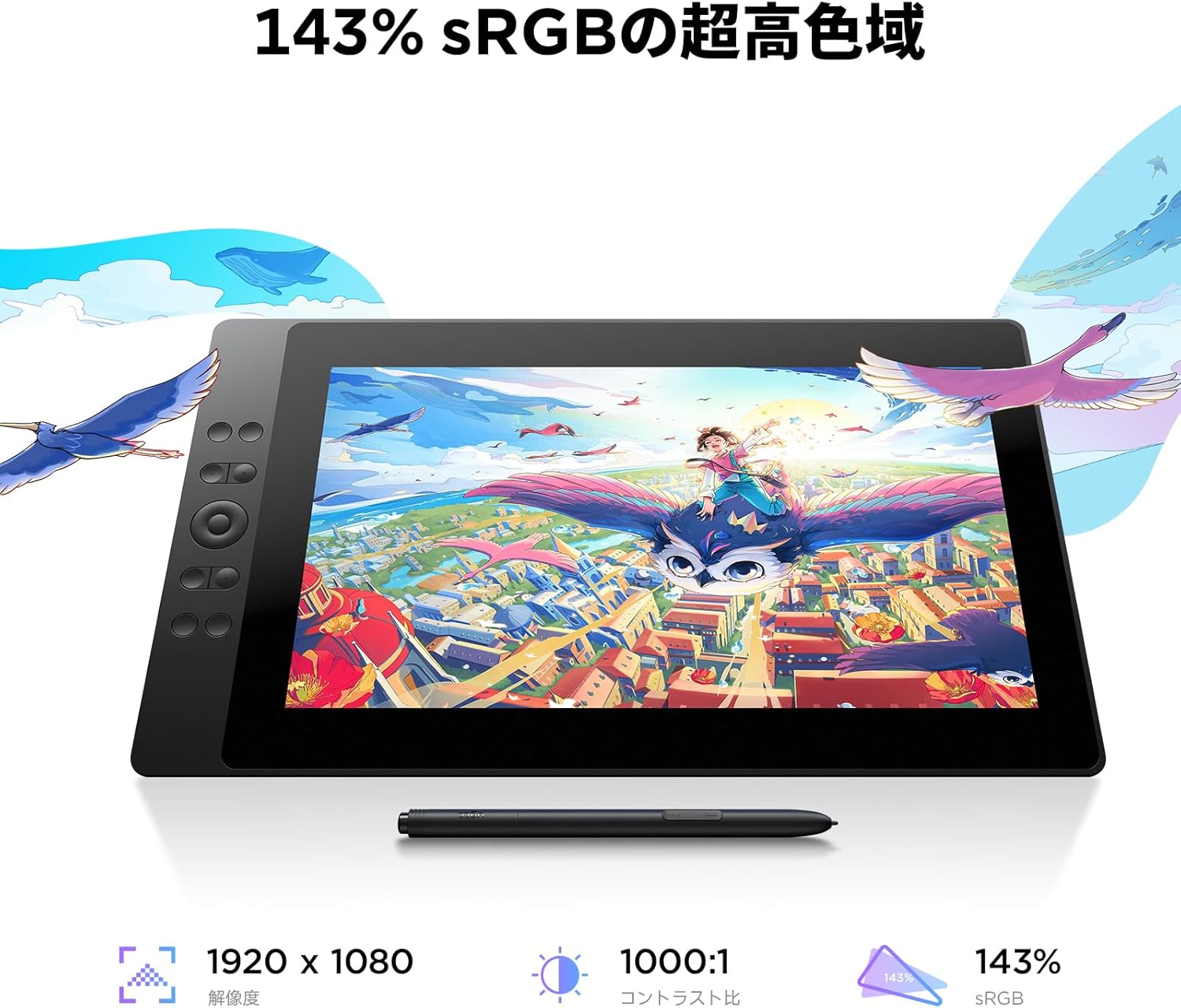
Image: The UGEE UE16 tablet showcasing its display quality, emphasizing its 143% sRGB color gamut, 1920x1080 resolution, and 1000:1 contrast ratio for accurate color reproduction.

Image: A visual comparison illustrating the benefits of the UGEE UE16's 15.4-inch full lamination anti-glare screen, demonstrating how it minimizes parallax compared to traditional screens.
Garanzia e supporto
UGEE provides a warranty for the Liquid Tab UE16 LCD Pen Tablet. Please refer to the included Warranty Card for specific terms and conditions, including warranty period and coverage details.
Assistenza clienti
If you encounter any issues or have questions not covered in this manual, please contact UGEE customer support:
- Ufficiale Websito: Visita www.ugee.com per domande frequenti, download di driver e informazioni di contatto per l'assistenza.
- Supporto via e-mail: Check the UGEE websito per l'indirizzo email di supporto più aggiornato.
- Risorse online: Explore UGEE's online community forums or social media channels for additional tips and assistance.
When contacting support, please have your product model (UE16-BK) and purchase information ready.
Ask a question about this manual
Ask about setup, troubleshooting, compatibility, parts, safety, or missing instructions. Manuals+ will review the question and use this page’s manual context to help answer it.