
1. Introduzione
This manual provides comprehensive instructions for the setup, operation, maintenance, and troubleshooting of your Logitech Ergo M575S Wireless Trackball Mouse. Designed for comfort and precision, the ERGO M575S minimizes movement and maximizes comfort with its sculpted ergonomic shape and thumb control. It offers smooth, precise tracking and is compatible with both PC and Mac systems.
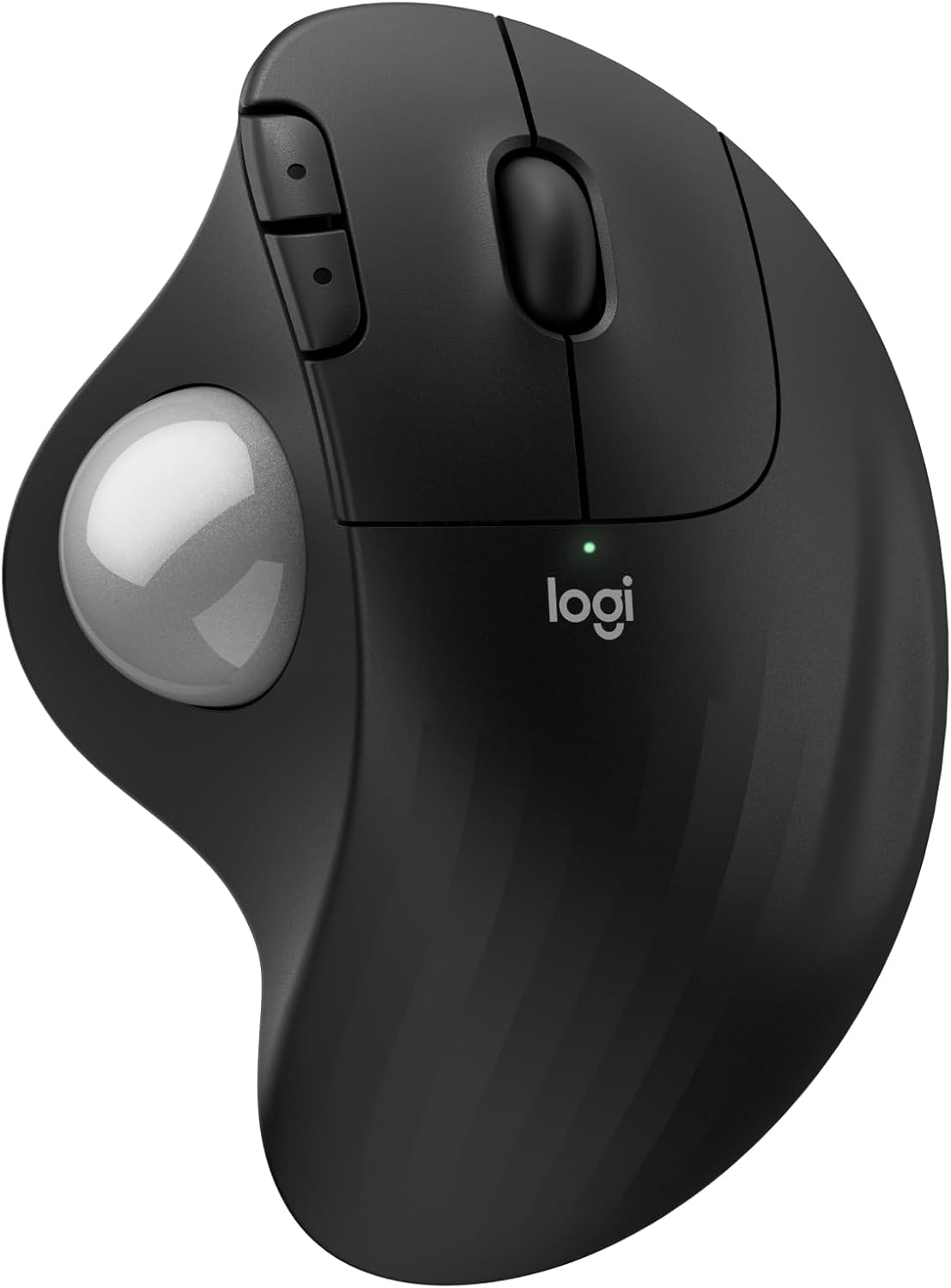
Immagine: in alto view of the Logitech Ergo M575S Wireless Trackball Mouse, highlighting its ergonomic design and trackball.
Key features include 25% less muscle strain in the forearm compared to traditional mice, an improved forearm posture, customizable buttons via the Logi Options+ App, and long battery life. The mouse is also made with certified post-consumer recycled plastic, contributing to a lighter environmental footprint.
2. Impostazione
2.1. Installazione della batteria
The Logitech Ergo M575S uses one AA battery. To install or replace the battery:
- Individuare il vano batteria sul lato inferiore del mouse.
- Aprire il coperchio della batteria.
- Inserire la batteria AA, assicurandosi della corretta polarità (+/-).
- Chiudere bene il coperchio della batteria.

Immagine: Lato inferiore view of the mouse, illustrating the battery compartment and the slot for the Logi Bolt USB receiver.
2.2. Opzioni di connettività
The ERGO M575S offers two ways to connect to your computer:
- Ricevitore USB Logi Bolt: Plug the included Logi Bolt USB receiver into an available USB port on your computer. The mouse should connect automatically.
- Bluetooth:
- Accendere il mouse utilizzando l'interruttore di alimentazione posto nella parte inferiore.
- Tenere premuto il pulsante Easy-Switch (solitamente nella parte inferiore o laterale) finché l'indicatore LED non inizia a lampeggiare rapidamente, indicando la modalità di associazione.
- On your computer, go to Bluetooth settings and select "Logitech ERGO M575S" from the list of available devices to pair.
For optimal performance and customization, download and install the Logi Options+ App from the official Logitech website. This software allows you to personalize button functions, adjust cursor speed, and create application-specific settings.
3. Utilizzo del mouse
3.1. Funzioni di base
- Clic sinistro: Pulsante principale per selezionare gli elementi e interagire con il software.
- Clic destro: Pulsante secondario per menu contestuali e opzioni aggiuntive.
- Rotella di scorrimento: Scorrere verso l'alto e verso il basso i documenti e web pagine. La rotellina di scorrimento funziona anche come pulsante centrale.
- Sfera rotante: Use your thumb to control the cursor movement on the screen. This eliminates the need to move the entire mouse, reducing arm and wrist strain.

Image: A hand demonstrating the smooth, effortless thumb control of the trackball for precise tracking.
3.2. Pulsanti personalizzabili
The ERGO M575S features additional buttons that can be customized using the Logi Options+ App. These typically include forward and back buttons located near the thumb trackball.
- Pulsanti Avanti/Indietro: By default, these navigate forward and backward in web browser o file esploratori.
- Personalizzazione: Through the Logi Options+ App, you can reassign these buttons to perform various functions, such as media controls, application switching, or custom keystrokes, enhancing your workflow efficiency.

Image: A laptop displaying the Logi Options+ App interface, demonstrating how to customize the mouse buttons for personalized use.
4. Manutenzione
4.1. Pulizia del trackball
Over time, dust and debris can accumulate around the trackball, affecting its smooth operation. Regular cleaning is recommended.
- Spingere delicatamente il trackball dalla parte inferiore del mouse per estrarlo.
- Per pulire il trackball, utilizzare un panno morbido e privo di lanugine.
- Use a cotton swab or compressed air to clean the three small support bearings inside the trackball cavity. Ensure no debris remains.
- Place the trackball back into its socket, ensuring it clicks into place.
Nota: Avoid using harsh chemicals or abrasive materials, as these can damage the trackball or the mouse surface.
4.2. Pulizia generale
Wipe the exterior of the mouse with a soft, damp cloth as needed to keep it clean.
5. Risoluzione Dei Problemi
5.1. Problemi di connettività
- Il mouse non risponde:
- Controllare che il mouse sia acceso.
- Assicurarsi che la batteria sia installata correttamente e abbia una carica sufficiente. Sostituirla se necessario.
- Se si utilizza il ricevitore USB, provare a collegarlo a una porta USB diversa.
- If using Bluetooth, ensure Bluetooth is enabled on your computer and the mouse is paired. Try re-pairing the device.
- Connessione intermittente:
- Move the mouse closer to the USB receiver or your computer (for Bluetooth) to reduce interference.
- Avoid placing the receiver near other electrical devices that might cause interference.
5.2. Problemi di tracciamento
- Erratic or no cursor movement:
- Clean the trackball and its internal support bearings as described in the Maintenance section.
- Ensure the trackball is properly seated in its socket.
- Check the surface the mouse is on; while trackballs are less sensitive to surfaces, extreme conditions might affect performance.
5.3. Button/Scroll Wheel Issues
- I pulsanti non rispondono:
- Verify that the Logi Options+ App is not causing conflicts with custom settings. Try resetting button assignments to default.
- Reinstall the Logi Options+ App if issues persist.
- La rotellina di scorrimento non funziona:
- Ensure no debris is lodged around the scroll wheel.
6. Specifiche
| Caratteristica | Dettaglio |
|---|---|
| Marca | Logitech |
| Numero di modello | 910-007392 |
| Tecnologia di connettività | Bluetooth, USB (ricevitore Logi Bolt) |
| Tecnologia di rilevamento del movimento | Ottico |
| Gamma DPI | 400-2000 DPI (Adjustable via Logi Options+ App) |
| Durata della batteria | Up to 18 months (with AA battery) |
| Compatibilità del sistema operativo | Windows, macOS |
| Peso dell'articolo | 7.4 once |
| Dimensioni | 5.51 x 4.17 x 1.93 pollici (dimensioni imballo) |
| Materiale | Plastic parts made with certified post-consumer recycled plastic (Graphite: 52%, Off-White: 21%) |
7. Garanzia e supporto
For detailed warranty information regarding your Logitech Ergo M575S Wireless Trackball Mouse, please refer to the warranty card included with your product or visit the official Logitech support websito.
Logitech provides customer support for product inquiries, technical assistance, and warranty claims.
- Supporto online: Visita support.logi.com for FAQs, troubleshooting guides, and driver downloads.
- Contatta l'assistenza: Information on contacting Logitech customer service via phone or chat can be found on their support websito.