
1. Introduzione
Thank you for choosing the Dghrti TAB30 10-inch Android 14 Tablet. This manual provides essential information for setting up, operating, and maintaining your device. Please read it carefully to ensure optimal performance and longevity of your tablet.
The Dghrti TAB30 is designed for versatile use, featuring a powerful Octa-Core processor, ample memory, a high-capacity battery, and a vibrant display with Widevine L1 support for an enhanced viewing experience. It comes equipped with a keyboard and mouse, transforming your tablet into a portable workstation.
2. Cosa c'è nella scatola
Dopo aver disimballato il prodotto, verificare che siano presenti tutti i seguenti elementi:
- 1* Dghrti TAB30 Smart Tablet
- Tastiera
- Mouse senza fili
- Tastiera Bluetooth
- Adattatore OTG
- Custodia protettiva
- Adattatore di alimentazione
- Cavo USB di tipo C.
- Screen Protector (one pre-applied)
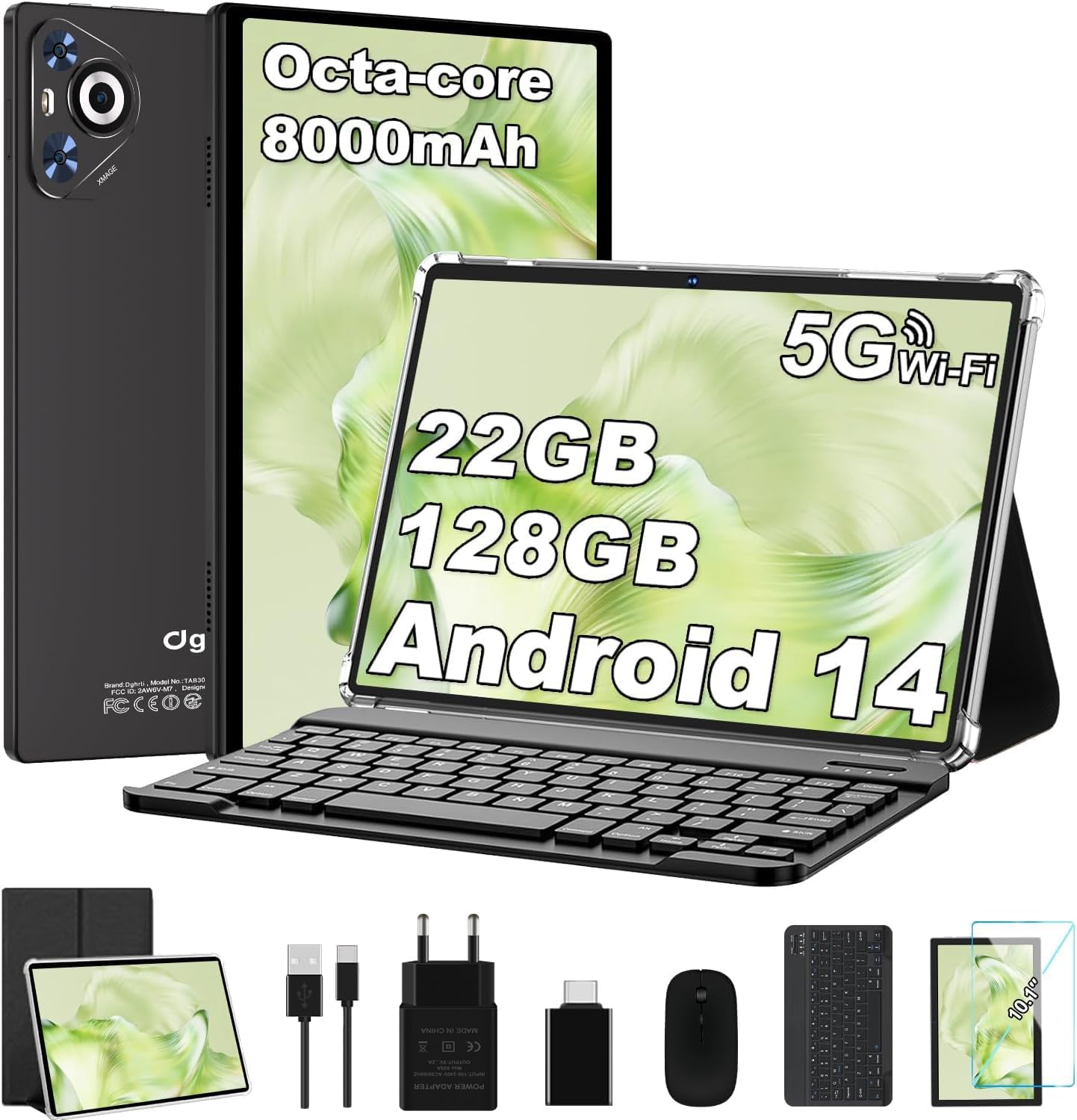
Image: Dghrti TAB30 Tablet with its full set of accessories, including the keyboard, mouse, charging cables, and protective case.
3. Caratteristiche del prodotto oltreview
The Dghrti TAB30 tablet is equipped with advanced features for a seamless user experience:
- Sistema operativo: Latest Android 14 for enhanced privacy, smarter notification management, and smoother performance.
- Processore: Powerful Unisoc T606 Octa-Core processor (A75 Performance-cores at 2.0 GHz and A55 Efficient-cores) with Mali-G57 GPU for efficient multitasking and improved graphics.
- Memoria e archiviazione: Impressive 22GB RAM (6GB physical + 16GB virtual) and 128GB ROM, expandable up to 1TB via microSD card.
- Display: 10.1-inch FHD display with 1280x800 resolution, full viewing angle, and Widevine L1 certification for high-quality streaming on platforms like Prime Video, Disney+, and YouTube.
- Batteria: Robust 8000mAh battery with energy-saving technology for extended usage.
- Connettività: Dual-band 5G/2.4G WiFi and Bluetooth 5.0 for fast and stable connections.
- Telecamere: Fotocamera posteriore da 8 MP e fotocamera anteriore da 5 MP per foto e videochiamate.
- Caratteristiche aggiuntive: Split-screen function, casting support, advanced Face ID recognition, and stereo dual speakers.

Image: Visual summary of the Dghrti TAB30's core features, highlighting its Android 14 OS, Octa-core CPU, 8000mAh battery, Widevine L1 support, and camera specifications.

Image: Android 14 features on the Dghrti TAB30, illustrating improvements in productivity, user interface, new functionalities, and system security.

Immagine: dettagliata view of the Unisoc T606 Octa-Core processor, emphasizing its A75 and A55 cores for performance and energy efficiency.

Image: Illustration of the Dghrti TAB30's storage capacity, showing 22GB RAM, 128GB internal storage, and support for up to 1TB microSD expansion.
4. Guida all'installazione
4.1 Accensione iniziale
- Ensure the tablet is sufficiently charged. Connect the provided USB Type-C cable to the tablet's charging port and the power adapter to a wall outlet.
- Press and hold the Power button (usually located on the side or top edge) for a few seconds until the Dghrti logo appears on the screen.
- Segui le istruzioni sullo schermo per selezionare la lingua, la regione e connetterti a una rete Wi-Fi.
- Accedi con il tuo account Google o creane uno nuovo per accedere al Google Play Store e ad altri servizi.
4.2 Collegamento degli accessori
The Dghrti TAB30 comes with a keyboard and mouse for enhanced productivity.
4.2.1 Bluetooth Keyboard & Mouse
- Turn on the Bluetooth keyboard and mouse. Refer to their individual manuals for specific power-on instructions.
- Sul tuo tablet, vai a Impostazioni > Dispositivi connessi > Bluetooth.
- Toggle Bluetooth to 'On'.
- The tablet will scan for available devices. Select the keyboard or mouse from the list of found devices.
- Follow any on-screen pairing instructions, such as entering a PIN.
Custodia protettiva 4.2.2
Carefully insert your tablet into the provided protective case to safeguard it from scratches and minor impacts. The case is designed to allow access to all ports and buttons.
5. Utilizzo del tablet
5.1 Funzionalità di Android 14
Your Dghrti TAB30 runs on Android 14, offering several enhancements:
- Controlli sulla privacy: Manage app permissions more granularly, including revoking full-screen permissions for apps.
- Gestione delle notifiche: Smarter and more intuitive notification handling.
- Opzioni di progettazione: More customization options for a personalized user interface.
- Funzione schermo diviso: To use two apps simultaneously, open one app, then swipe up from the bottom of the screen to reveal the recent apps. Drag the first app's icon to the top of the screen and select 'Split screen'. Then choose the second app from your recent apps or app drawer.
- Identificazione facciale: Set up Face ID for quick and secure unlocking. Go to Impostazioni > Sicurezza e privacy > Sblocco facciale e segui le istruzioni.

Image: The Dghrti TAB30's 10-inch IPS screen and its WiFi Screencasting capability, demonstrating how to mirror content to a larger display.
5.2 Media Playback and Casting
With Widevine L1 certification, your tablet supports high-definition streaming from popular platforms.
- Widevine L1: Enjoy crisp, vibrant visuals when streaming content from services like Netflix, Prime Video, and Disney+.
- Casting: Project your tablet's screen directly to a compatible TV or display for a larger viewing experience. Ensure both devices are connected to the same Wi-Fi network. Access casting options from the Quick Settings panel (swipe down from the top of the screen) or in Impostazioni > Dispositivi connessi > Preferenze di connessione > Lancio.

Image: The Dghrti TAB30's 10-inch display, emphasizing its comfortable viewing experience and eye protection features.
5.3 Utilizzo della fotocamera
Il tablet è dotato di una fotocamera posteriore da 8 MP e di una fotocamera anteriore da 5 MP.
- Apri l'app Fotocamera dalla schermata iniziale o dal menu delle applicazioni.
- Passa dalla fotocamera anteriore a quella posteriore tramite l'icona della fotocamera.
- Tocca il pulsante di scatto per scattare foto o registrare video.
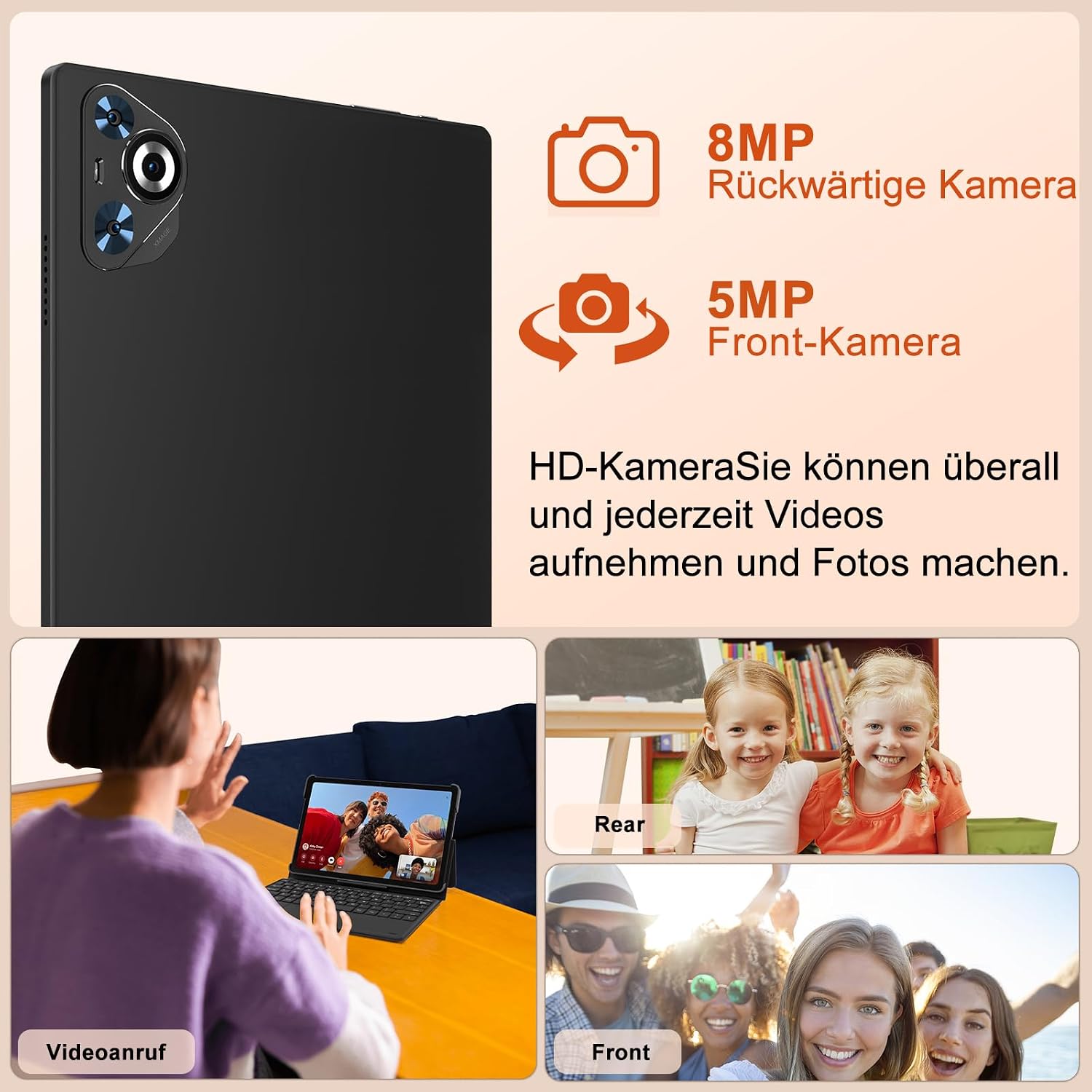
Immagine: Oltreview of the Dghrti TAB30's camera capabilities, featuring an 8MP rear camera and a 5MP front camera, ideal for video calls and capturing moments.
5.4 Audio
The Dghrti TAB30 is equipped with stereo dual speakers for an immersive audio experience.

Image: The Dghrti TAB30 highlighting its stereo dual speakers, designed to provide a rich and clear sound experience.
6. Manutenzione
6.1 Cura della batteria
La batteria da 8000 mAh garantisce un'autonomia di lunga durata. Per massimizzare la durata della batteria:
- Evitare temperature estreme.
- Utilizzare il caricabatterie e il cavo originali.
- Evitare di scaricare completamente la batteria frequentemente.
- Chiudi le app inutilizzate in esecuzione in background.

Image: The Dghrti TAB30's 8000mAh battery, illustrating its long endurance and convenient Type-C charging port.
6.2 Gestione dell'archiviazione
With 128GB ROM and 1TB microSD expansion, you have ample space. To manage storage:
- Cancellare regolarmente la cache e i dati temporanei files from apps.
- Spostati in grande files (foto, video) sulla scheda microSD.
- Disinstallare le applicazioni non utilizzate.
7. Risoluzione Dei Problemi
| Problema | Possibile soluzione |
|---|---|
| Il tablet non si accende | Ensure battery is charged. Press and hold the power button for 10-15 seconds. |
| Problemi di connessione Wi-Fi | Restart the tablet and router. Forget and reconnect to the Wi-Fi network. Ensure you are within range. |
| Le app sono lente o si bloccano | Close background apps. Clear app cache. Restart the tablet. Ensure sufficient storage space. |
| Gli accessori Bluetooth non si connettono | Ensure accessories are in pairing mode and charged. Toggle tablet's Bluetooth off/on. Remove previous pairings and try again. |
| Lo schermo non risponde | Restart the tablet by holding the power button. If unresponsive, force restart (refer to device specific instructions, usually power + volume down). |
8. Specifiche
| Caratteristica | Dettaglio |
|---|---|
| Marca | Dghrti |
| Nome del modello | TAB30 |
| Sistema operativo | Androide 14 |
| Dimensioni dello schermo | 10.1 pollici |
| Risoluzione dello schermo | 1280 x 800 pixel |
| Marca del processore | MediaTek (Unisoc T606) |
| Velocità del processore | 2 GHz |
| Dimensioni RAM | 22 GB (6 GB fisici + 16 GB virtuali) |
| Capacità di archiviazione | 128 GB (espandibile fino a 1 TB tramite microSD) |
| Coprocessore grafico | Mali-G57 |
| Tipo di connettività | Bluetooth, WLAN (802.11ac) |
| Posteriore WebRisoluzione della camma | 8 MP |
| Davanti WebRisoluzione della camma | 5 MP |
| Capacità della batteria | 8000 milioneamperes (mAh) |
| Peso dell'articolo | 1.33 chilogrammi |
| Dimensioni del prodotto | Dimensioni: 24.21 x 16.1 x 0.79 cm |
9. Garanzia e supporto
Dghrti is committed to providing reliable products and professional customer service. Our dedicated technical team is available to assist you with any post-purchase issues. Please contact us if you need support.
For further assistance, please refer to the contact information provided with your product packaging or visit the official Dghrti support websito.