
1. Introduzione
This manual provides comprehensive instructions for the installation, operation, maintenance, and troubleshooting of your EIMSOAH 7in HD Carplay Screen. Please read this manual thoroughly before using the product to ensure proper function and safety.
The EIMSOAH Carplay Screen is an advanced in-dash navigation and multimedia system designed to enhance your driving experience with features such as wireless CarPlay/Android Auto, GPS navigation, and a high-definition touch screen display.
2. Informazioni sulla sicurezza
Always prioritize safety. Improper installation or operation can lead to damage to the device, vehicle, or personal injury. Observe the following safety guidelines:
- Prima dell'installazione, assicurarsi che l'accensione del veicolo sia spenta e che la batteria sia scollegata per evitare cortocircuiti.
- Se non si è sicuri di alcuni passaggi, consultare un professionista per l'installazione.
- Non utilizzare il dispositivo in modo da distrarti dalla guida. Tieni sempre gli occhi sulla strada.
- Evitare di esporre il dispositivo a temperature estreme, alla luce solare diretta per periodi prolungati o a umidità eccessiva.
- Non tentare di smontare o modificare l'unità. Ciò invaliderà la garanzia e potrebbe causare danni.
- Assicurarsi che tutti i cavi siano adeguatamente isolati e fissati per evitare cortocircuiti o interferenze.
3. Contenuto della confezione
Verifica che tutti gli articoli elencati di seguito siano presenti nel tuo pacco:
- 1 x Car Multimedia Player Display
- 7 x Wiring Harnesses (various types for power, audio, video, etc.)
- 1 x GPS Box/Antenna
- 1 x Manuale di istruzioni (questo documento)
- 1 x Wiring Instruction Diagram

Figure 3.1: Complete package contents including the main display unit, wiring harnesses, and GPS antenna.
4. Configurazione e installazione
This section outlines the general steps for installing the EIMSOAH Carplay Screen. Specific wiring details are provided in the separate Wiring Instruction Diagram included in your package. Professional installation is recommended.
- Preparare il veicolo:
- Turn off the vehicle's ignition and remove the key.
- Disconnect the negative terminal of the car battery to prevent electrical hazards.
- Carefully remove the existing car stereo or dashboard panel to access the wiring harness and mounting area.
- Collegare i cablaggi:
- Refer to the provided Wiring Instruction Diagram for detailed connections.
- Connect the main power harness, speaker wires, and other necessary connections (e.g., AUX, USB, reverse camera input if applicable) to the corresponding ports on the car multimedia player.
- Assicurarsi che tutti i collegamenti siano sicuri e adeguatamente isolati.
- Installa l'antenna GPS:
- Montare l'antenna GPS in una posizione con una vista libera view del cielo, in genere sul cruscotto o sotto il parabrezza, lontano da ostacoli metallici.
- Route the GPS antenna cable to the back of the head unit and connect it to the designated GPS input.
- Montare l'unità:
- Carefully slide the car multimedia player into the dashboard opening.
- Secure the unit using the provided mounting brackets or screws, ensuring it is firmly in place.
- Ricollegare la batteria e testare:
- Ricollegare il terminale negativo della batteria dell'auto.
- Turn on the vehicle's ignition and power on the car multimedia player.
- Test all functions, including audio, touch screen response, GPS signal, Bluetooth connectivity, and any connected accessories (e.g., reverse camera).
- Riassemblare il cruscotto:
- Una volta verificate tutte le funzioni, rimontare con cura i pannelli del cruscotto.

Figure 4.1: The Carplay screen integrated into a vehicle's dashboard.
5. Istruzioni per l'uso
The EIMSOAH Carplay Screen operates on Android 12, providing a user-friendly interface. Below are common operations:
5.1 Navigazione di base
- Accensione/spegnimento: Tieni premuto il pulsante di accensione (solitamente sul lato sinistro dell'unità) per accendere o spegnere il dispositivo. Una breve pressione in genere disattiva/riattiva l'audio.
- Controllo del volume: Use the volume buttons on the unit or steering wheel controls (if configured) to adjust audio levels.
- Schermata iniziale: Tap the "Home" icon to return to the main application screen.
- Pulsante Indietro: Tap the "Back" icon to return to the previous screen or menu.
- Applicazioni recenti: Tap the "Recent Apps" icon to view e passare da un'applicazione aperta di recente all'altra.
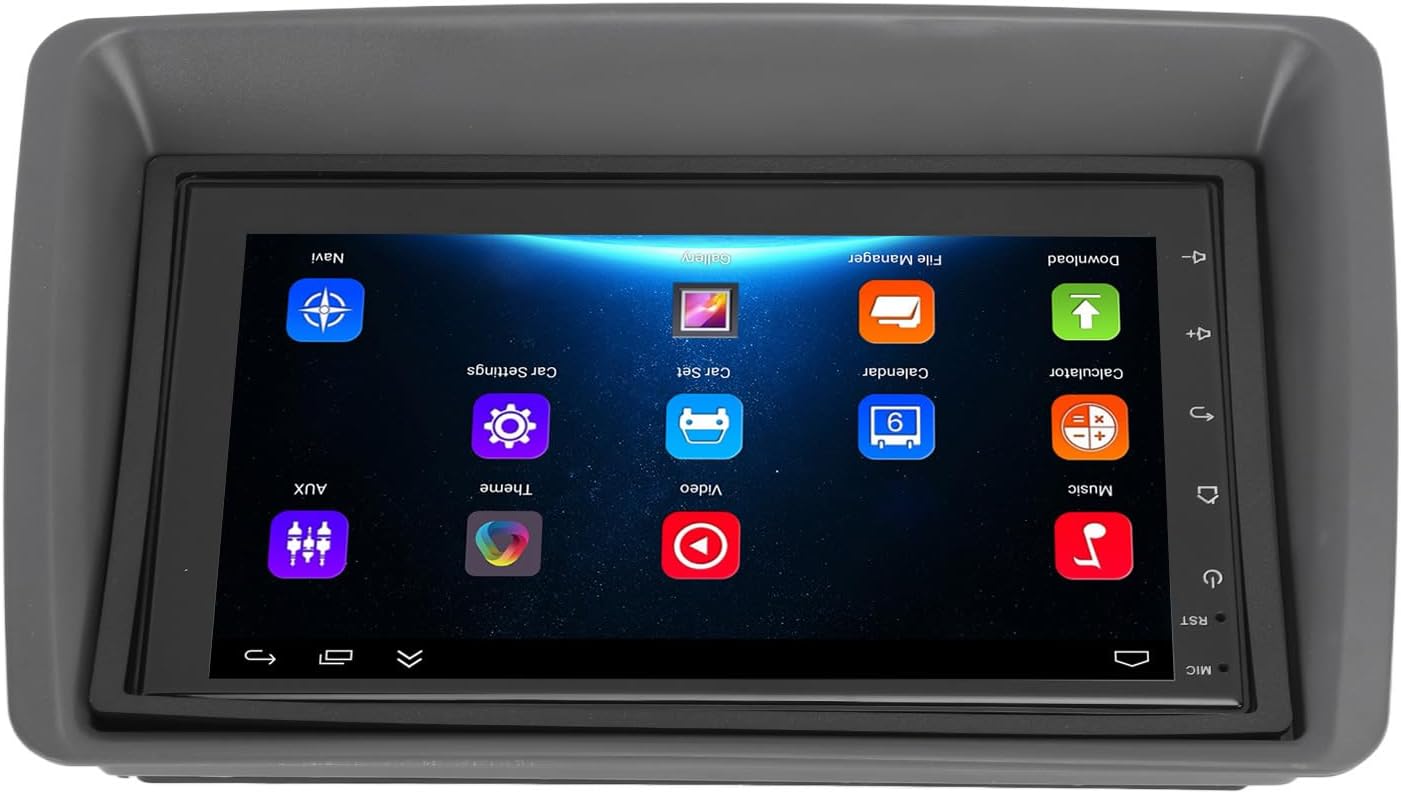
Figure 5.1: Main user interface of the Carplay screen.
5.2 CarPlay wireless / Android Auto
L'unità supporta Apple CarPlay e Android Auto wireless per un'integrazione perfetta con gli smartphone.
- Assicurati che Bluetooth e Wi-Fi siano abilitati sul tuo smartphone.
- On the Carplay screen, navigate to the "CarPlay" or "Android Auto" application.
- Segui le istruzioni sullo schermo per associare il telefono tramite Bluetooth. Una volta associato, il sistema stabilirà automaticamente una connessione Wi-Fi per la funzionalità CarPlay/Android Auto.
- Your phone's compatible apps (navigation, music, messaging) will be displayed on the Carplay screen.
5.3 Navigazione GPS
L'unità supporta la navigazione GPS sia online che offline.
- Navigazione online: Connect the unit to Wi-Fi (via a mobile hotspot or vehicle Wi-Fi) to use online mapping services. Download navigation apps from the pre-installed app store.
- Navigazione offline: Download map data for offline use within your preferred navigation application. This allows navigation without an active internet connection.
5.4 Connettività Bluetooth
Collega il tuo smartphone tramite Bluetooth per effettuare chiamate in vivavoce e riprodurre contenuti audio in streaming.
- Go to the "Settings" menu on the Carplay screen and select "Bluetooth".
- Abilita il Bluetooth e rendi il dispositivo rilevabile.
- On your smartphone, search for available Bluetooth devices and select "EIMSOAH Carplay" (or similar name).
- Confermare il codice di associazione su entrambi i dispositivi.
- Once connected, you can make/receive calls and play audio through the car's speakers.
5.5 Visualizzazione a schermo diviso
The unit supports split-screen functionality, allowing two applications to be viewed simultaneamente.
- Apri la prima applicazione che desideri utilizzare.
- Press and hold the "Recent Apps" button (or swipe up and hold from the bottom of the screen, depending on the Android version).
- Trascina la prima app su un lato dello schermo.
- Seleziona la seconda applicazione dall'elenco delle app recenti o dal cassetto delle app per riempire l'altra metà dello schermo.
5.6 Funzione immagine inversa
If a compatible reverse camera is connected (not included), the screen will automatically display the reverse view quando il veicolo è innestato in retromarcia.
- Ensure the reverse camera is properly installed and connected to the designated video input.
- The system will automatically switch to the camera view quando è inserita la retromarcia.
6. Manutenzione
Proper maintenance ensures the longevity and optimal performance of your EIMSOAH Carplay Screen.
- Pulizia dello schermo: Utilizzare un panno morbido e privo di lanugine per pulire delicatamente lo schermo. Per macchie ostinate, leggermente dampPulisci il panno con acqua o un detergente per schermi. Evita materiali abrasivi o sostanze chimiche aggressive.
- Aggiornamenti software: Controlla periodicamente la presenza di aggiornamenti software tramite le impostazioni di sistema (se disponibili) per assicurarti di disporre delle funzionalità e delle correzioni di bug più recenti.
- Condizioni ambientali: Avoid exposing the unit to extreme temperatures, high humidity, or direct sunlight for extended periods.
- Gestione dei cavi: Assicurarsi che tutti i cavi siano collegati saldamente e non siano schiacciati o esposti a usura eccessiva.
7. Risoluzione Dei Problemi
If you encounter issues with your EIMSOAH Carplay Screen, refer to the following common problems and solutions:
| Problema | Possibile causa | Soluzione |
|---|---|---|
| L'unità non si accende. | No power supply; loose wiring; blown fuse. | Check power connections and vehicle fuse box. Ensure battery is connected. |
| Nessuna uscita audio. | Volume muted; speaker wires disconnected; incorrect audio settings. | Check volume level and mute status. Verify speaker wire connections. Adjust audio output settings. |
| Il touch screen non risponde. | Problema software; interferenza con la protezione dello schermo; danni fisici. | Restart the unit. Remove any screen protectors to test. If problem persists, contact support. |
| Segnale GPS debole o perso. | GPS antenna obstructed or disconnected; poor satellite coverage. | Assicurarsi che l'antenna GPS abbia una visuale libera view del cielo e sia saldamente collegato. Spostarsi in un'area aperta. |
| Problemi di connessione Bluetooth. | Bluetooth off on device/phone; pairing error; interference. | Assicurati che il Bluetooth sia abilitato su entrambi i dispositivi. Elimina gli abbinamenti precedenti e ripeti l'abbinamento. Avvicina il telefono all'unità. |
| CarPlay/Android Auto non si connette. | Wi-Fi/Bluetooth issues; phone compatibility; app issues. | Verify Wi-Fi and Bluetooth are active. Restart phone and unit. Ensure phone OS is up to date. |
If the problem persists after trying these solutions, please contact EIMSOAH customer support for further assistance.
8. Specifiche
Detailed technical specifications for the EIMSOAH 7in HD Carplay Screen:
| Caratteristica | Descrizione |
|---|---|
| Dimensioni dello schermo | 7 pollici |
| Sistema operativo | Androide 12 |
| processore | 4 Nucleo |
| Risoluzione dello schermo | 1024x600 |
| Versione Bluetooth | 4.0 |
| Radio | FM/RDS |
| Potenza di uscita | 4 x 45W |
| Image Connection | For Android / For iOS (Wireless Apple CarPlay, Wired/Wireless Android Auto) |
| Navigazione GPS | Support Online/Offline Navigation |
| Tipo di schermo tattile | HD Capacitive Multi-Point Touch |
| Wireless WI-FI | Support 3G/4G/5G wireless signal reception |
| Schermo diviso | Supported (left and right split screen) |
| Controllo del volante | Supportato |
| Reverse Image Input | Supported (HD reverse video input, camera not included) |
| USB Function | Two USB ports (media playback, file transfer, DVR) |
| Funzione AUX | Audio/Video input from external devices |
| Circuiti di protezione | Sovraccarico, Overvoltage, cortocircuito |
| Spegnimento della memoria | Supportato |
| Ingresso / uscita video | Two video inputs, one video output |
| Uscita audio | Left Audio Output, Right Audio Output |
| Formati di immagine supportati | JPEG, GIF, PNG, BMP, JPG |
| Formati video supportati | MP4 / MP5 / MKV / AVI / RMVB / 1080P |
| Formati audio supportati | MP3 / WMA / WAV / FLAC |
| Lingua | Built-in Multiple Languages (Simplified Chinese, Traditional Chinese, English, German, Russian, Spanish, Italian, etc.) |
| Montaggio | Replacement for Fiat Panda 2003-2012 |
| Peso dell'articolo | 2.57 libbre |
| Dimensioni del pacco | 14.17 x 8.27 x 4.72 pollici |
9. Garanzia e supporto
EIMSOAH products are designed for reliability and performance. For warranty information and technical support, please refer to the following:
- Garanzia: Specific warranty terms and conditions may vary. Please refer to the warranty card included with your product or contact the seller/manufacturer directly for details regarding coverage period and claims process.
- Supporto tecnico: For technical assistance, troubleshooting beyond this manual, or inquiries about parts and service, please contact EIMSOAH customer support through the retailer where you purchased the product or visit the official EIMSOAH brand store on Amazon: EIMSOAH Store.