
1. Introduzione
This manual provides detailed instructions for the setup, operation, and maintenance of your ZEBRONICS PIXAPLAY 54 Smart LED Projector. Please read this manual thoroughly before using the product to ensure proper functionality and to prevent damage.
The ZEBRONICS PIXAPLAY 54 is a smart LED projector designed for versatile entertainment and presentation needs. It features 3800 lumens brightness, 1080p support, up to 140-inch screen size projection, a Quad-Core processor, and automatic keystone adaptation. Connectivity options include Bluetooth, Wi-Fi, HDMI, USB, and AUX.
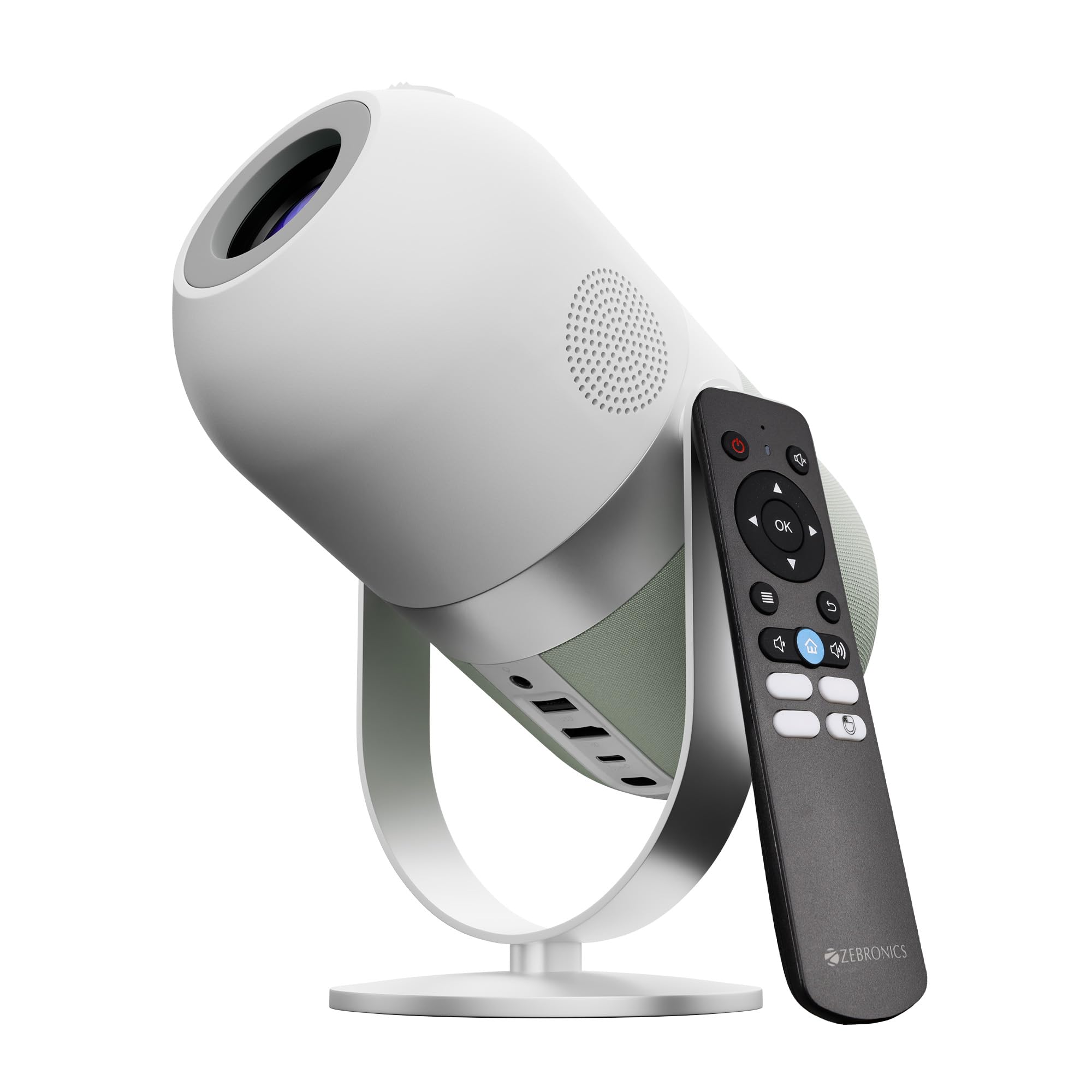
Image 1: The ZEBRONICS PIXAPLAY 54 Smart LED Projector in its upright and tilted positions.
2. Contenuto della confezione
Verificare che tutti gli articoli siano presenti nel pacco:
- ZEBRONICS PIXAPLAY 54 Projector
- Telecomando
- Adattatore di alimentazione
- Manuale d'uso
3. Impostazione
3.1 Posizionamento
Place the projector on a stable, flat surface. Ensure there is adequate ventilation around the device. The projector can project an image up to 140 inches diagonally. Adjust the distance from the projection surface to achieve the desired screen size.
3.2 Collegamento di alimentazione
Connect the provided power adapter to the projector's Type-C power input and then to a power outlet. The projector is Type-C powered.
3.3 Accensione iniziale
Press the power button on the projector or the remote control to turn on the device. Allow a few moments for the system to boot up.
3.4 Regolazione della messa a fuoco
Use the adjustable lens wheel located on the top of the projector to sharpen the image focus. Rotate the wheel until the projected image appears clear and crisp.

Image 2: The adjustable lens wheel for focus control, along with the remote control and built-in speaker.
3.5 Auto Keystone Adaptation
The projector features automatic keystone adaptation for vertical adjustment. This function automatically corrects the image distortion when the projector is not perfectly perpendicular to the screen, ensuring a rectangular image. Manual adjustments may be available in the settings for fine-tuning.

Image 3: A projected image demonstrating the automatic keystone adaptation feature, correcting vertical distortion.
4. Istruzioni per l'uso
4.1 Utilizzo del telecomando
The included remote control allows for convenient operation of the projector. Point the remote directly at the IR remote sensor located on the projector for optimal response.
4.2 Smart Projector Features & App Support
The PIXAPLAY 54 is a smart projector with built-in app support. Navigate through the user interface using the remote control to access pre-installed applications or download new ones from the app store. This allows for direct streaming of content without needing an external device.

Image 4: The projector displaying a smart interface with various streaming and utility applications.
4.3 Multi-Connectivity Options
Il proiettore offre diversi modi per collegare i tuoi dispositivi:
- HDMI: Connect laptops, gaming consoles, Blu-ray players, or other HDMI-enabled devices.
- USB: Riproduci contenuti multimediali files direttamente da un'unità USB.
- Uscita AUX: Collega altoparlanti o cuffie esterni per un audio migliorato.
- Bluetooth v5.1: Wirelessly connect Bluetooth-enabled audio devices like speakers or headphones.
- Wi-Fi (2.4GHz & 5GHz Dual Band): Connect to your home network for internet access, app downloads, and online streaming.
- Miracast: Wirelessly mirror the screen of compatible smartphones and tablets.
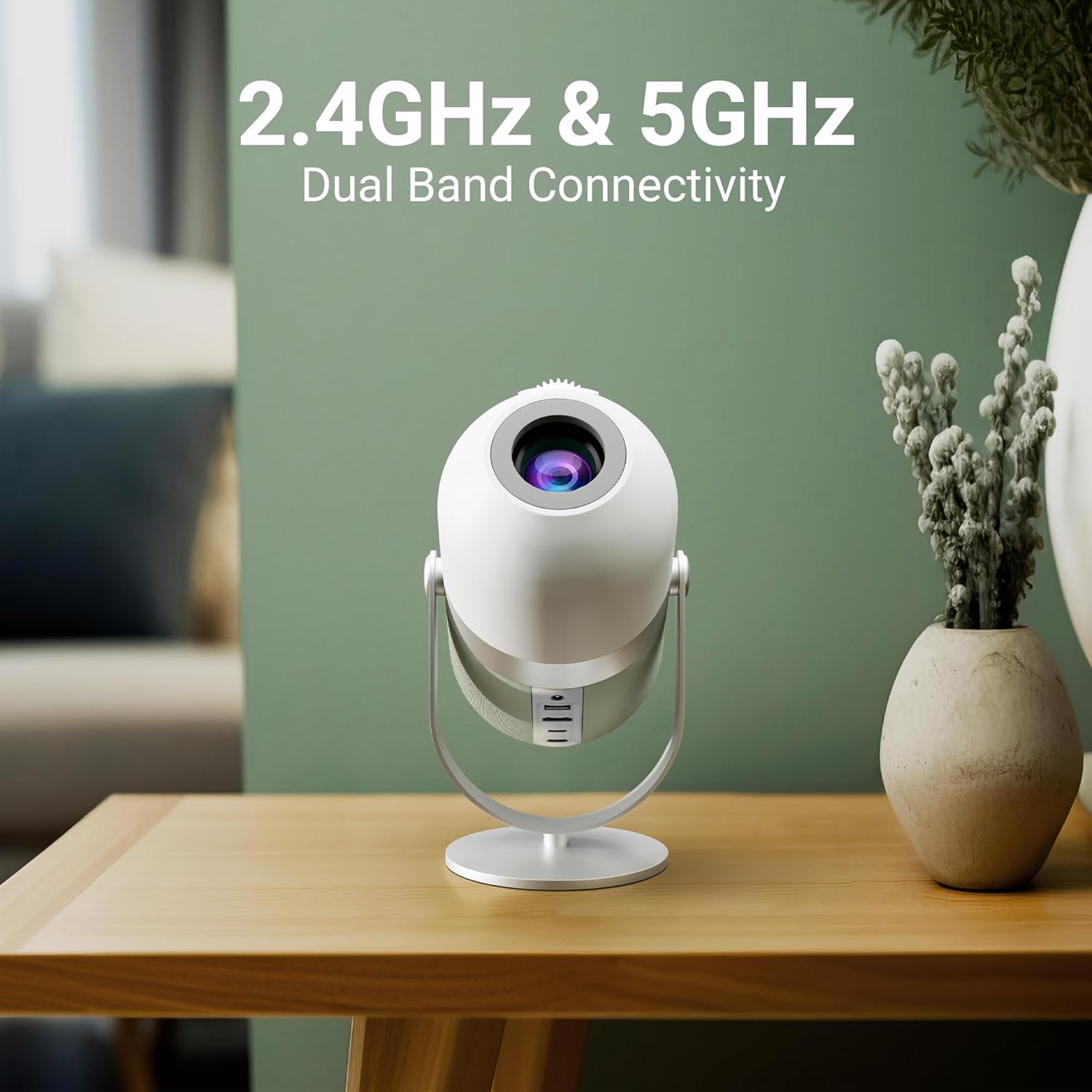
Image 5: The projector highlighting its 2.4GHz & 5GHz Dual Band Wi-Fi connectivity.
5. Manutenzione
5.1 Pulizia della lente
Gently wipe the projector lens with a soft, lint-free cloth specifically designed for optical surfaces. Avoid using abrasive materials or harsh chemicals, as these can scratch or damage the lens.
5.2 Cura generale
Keep the projector in a clean, dust-free environment. Ensure proper ventilation to prevent overheating. The LED lamp has a lifespan of approximately 50,000 hours, providing long-term usage without frequent lamp sostituzione.
6. Risoluzione Dei Problemi
- Nessuna immagine: Check power connections. Ensure the correct input source is selected. Verify that the lens cap is removed.
- Immagine sfocata: Adjust the focus wheel. Ensure the projector is at an appropriate distance from the screen. Use keystone correction if the image is distorted.
- Nessun suono: Controllare le impostazioni del volume sia sul proiettore che sul dispositivo sorgente collegato. Assicurarsi che gli altoparlanti esterni, se utilizzati, siano collegati correttamente.
- Il telecomando non risponde: Check the batteries in the remote. Ensure there are no obstructions between the remote and the projector's IR sensor.
- Surriscaldamento: Assicurarsi che le prese d'aria del proiettore non siano ostruite. Utilizzare il proiettore in un'area ben ventilata.
Per ulteriore assistenza, consultare la sezione di supporto.
7. Specifiche
| Caratteristica | Specificazione |
|---|---|
| Marca | ZEBRONICI |
| Modello | Zeb-Pixaplay 54 |
| Tipo di visualizzazione | GUIDATO |
| Luminosità | 3800 lumen |
| Risoluzione | 1920 x 1080 Pixels (1080p Support) |
| Rapporto di contrasto dell'immagine | 1000:1 |
| Proporzioni | 16:9 |
| Dimensione massima dello schermo | Fino a 356 cm (140 pollici) |
| Processore | Quad-core |
| Lamp Vita | 50,000 ore |
| Connettività | Bluetooth v5.1, HDMI, USB, AUX Out, Wi-Fi (2.4GHz & 5GHz) |
| Caratteristiche speciali | Built-In Wi-Fi, Portable, Wireless, Auto Keystone Adaptation |
| Dimensioni del prodotto | Dimensioni: 21 x 13.5 x 19.5 cm |
| Peso dell'articolo | 1 grammi |
8. Garanzia e supporto
Your ZEBRONICS PIXAPLAY 54 Projector comes with a standard manufacturer's warranty. Please retain your purchase receipt for warranty claims. For technical queries, support, or service, please use the contact information below.

Image 6: Contact details for technical support.
Informazioni sui contatti:
- Telefono: +91 - 9363453681
- E-mail: support@zebronics.com