
Genius NX-7000
Manuale utente del mouse wireless Genius NX-7000
Model: NX-7000 (P/N: 31030027402)
Introduzione
The Genius NX-7000 is a 2.4 GHz wireless mouse designed for comfort and versatility. Featuring BlueEye technology, it offers precise tracking on various surfaces. Its ambidextrous design ensures comfortable use for both left and right-handed users. This manual provides essential information for setting up, operating, maintaining, and troubleshooting your NX-7000 wireless mouse.
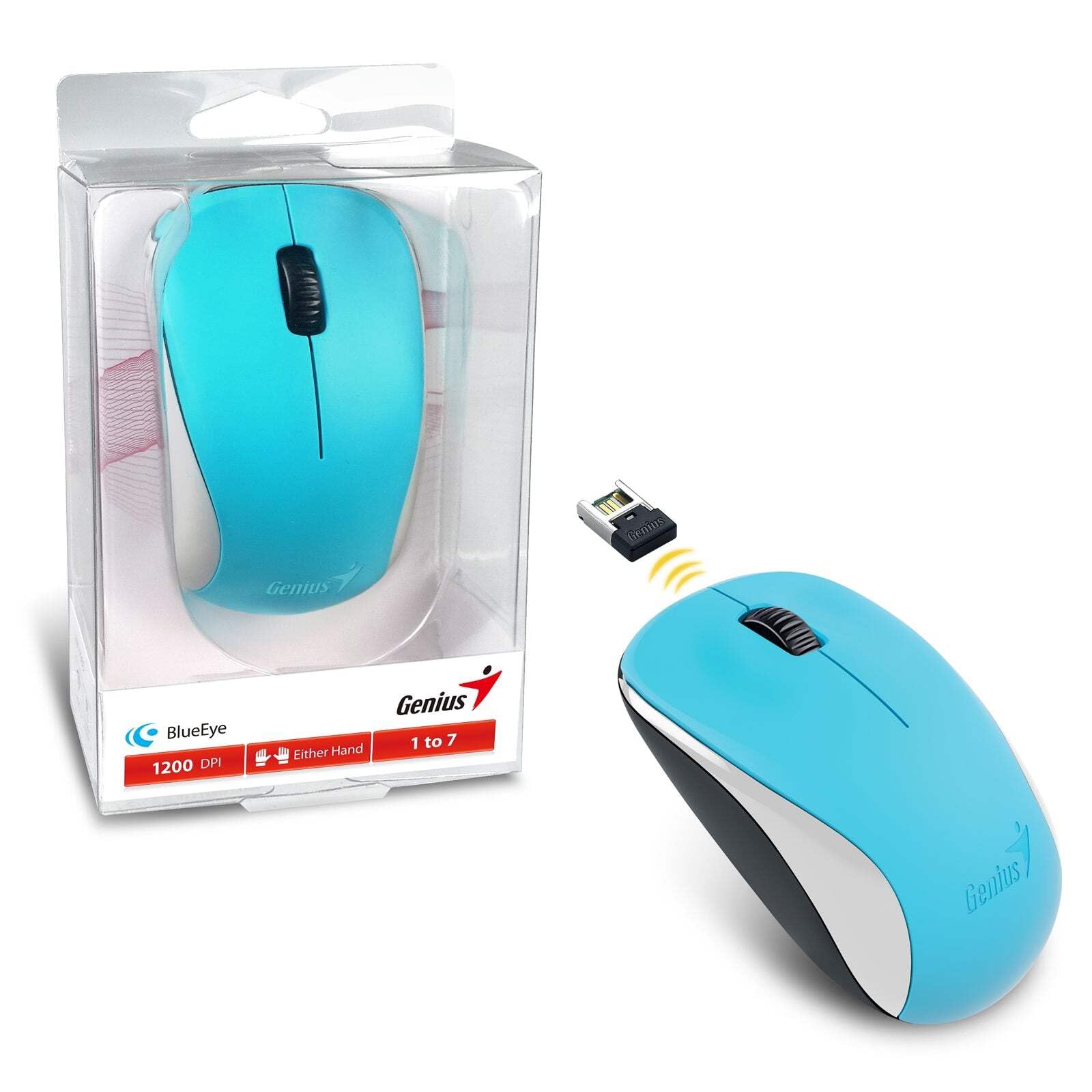
Image: The Genius NX-7000 wireless mouse in blue, shown alongside its compact USB pico receiver. The mouse features a contoured, ambidextrous design with a scroll wheel and two main buttons. The packaging is visible on the left.
Impostare
1. Requisiti di sistema
- Operating System: Windows 7, 8, 8.1, 10 or Mac OS X 10.8 or later.
- Porta USB disponibile.
- One AA battery (for mouse power).
2. Installazione della batteria
- Individuare il coperchio del vano batteria sul lato inferiore del mouse.
- Per aprire il vano, far scorrere o sollevare il coperchio.
- Inserire una batteria AA, assicurandosi che i terminali positivo (+) e negativo (-) siano allineati correttamente con le marcature all'interno del vano.
- Chiudere saldamente il coperchio del vano batterie.
3. Connecting the USB Pico Receiver
- Remove the USB pico receiver from its storage slot on the bottom of the mouse.
- Plug the USB pico receiver into an available USB port on your computer.
- Your computer should automatically detect and install the necessary drivers for the mouse. This may take a few moments.
- Una volta installati i driver, il mouse è pronto per l'uso.
Istruzioni per l'uso
Funzionamento di base
- Pulsante sinistro: Funzione di clic primaria, in genere utilizzata per selezionare elementi, aprire files, or activating links.
- Pulsante destro: Funzione di clic secondario, solitamente utilizzata per aprire i menu contestuali.
- Rotellina di scorrimento (pulsante centrale): Utilizzato per scorrere i documenti o web pages. Pressing the scroll wheel can also act as a middle click button, often used for opening links in new tabs.
Tecnologia BlueEye
The NX-7000 utilizes 1000dpi BlueEye technology, which provides enhanced tracking accuracy. This technology allows the mouse to function reliably on a wide variety of surfaces, including those that are typically challenging for optical mice, such as dusted glass, marble, sofas, or carpets.
SmartGenius Software (Optional)
For advanced customization, you can download and install the SmartGenius software from the official Genius website. This software allows you to adjust DPI levels and other performance settings to suit your personal preferences, enhancing your user experience.
Pico Receiver Storage
When traveling or not using the mouse, the USB pico receiver can be conveniently stored inside a dedicated slot on the bottom of the mouse. This prevents loss and protects the receiver.
Unifying Genius Mice
The NX-7000 receiver is designed to work with other compatible Genius wireless mice. This feature allows you to use a single receiver for multiple Genius wireless devices, reducing the number of USB ports required and offering greater mobility if you own several Genius wireless products.
Manutenzione
- Pulizia: Utilizzare un panno morbido e asciutto per pulire il mouse. Per lo sporco ostinato, leggermente dampLavare il panno con acqua. Evitare l'uso di prodotti chimici aggressivi o detergenti abrasivi.
- Sostituzione della batteria: Replace the AA battery when the mouse performance degrades or it stops responding. Always dispose of used batteries responsibly according to local regulations.
- Magazzinaggio: When not in use for extended periods, remove the battery to prevent leakage. Store the mouse and receiver in a cool, dry place.
- Evitare condizioni estreme: Non esporre il mouse a temperature estreme, alla luce solare diretta o a umidità eccessiva.
Risoluzione dei problemi
| Problema | Possibile causa/soluzione |
|---|---|
| Il mouse non risponde. |
|
| Il movimento del cursore è irregolare o saltellante. |
|
| Mouse buttons or scroll wheel not working. |
|
Specifiche
| Caratteristica | Dettaglio |
|---|---|
| Numero di modello | 31030027402 |
| Tipo di connessione | Senza fili (2.4 GHz) |
| Sensor Engine | Occhio Blu |
| Risoluzione (DPI) | 1200 DPI (Adjustable via SmartGenius software) |
| Numero di pulsanti | 3 (Left, Right, Middle button with scroll wheel) |
| Progetto | Ambidextrous, Contoured |
| Fonte di alimentazione | 1 batteria AA |
| Dimensioni (L x A x P) | 60 x 105 x 37 mm (2.36 x 4.13 x 1.46 pollici) |
| Peso | 85 g (0.19 libbre) |
| Colori disponibili | Ocean Blue, Spring Green, Elegant White, Passion Red, Calm Black |
Garanzia e supporto
For information regarding warranty coverage, technical support, or service, please refer to the warranty card included with your product or visit the official Genius websito. In genere, lì puoi trovare risorse di supporto, FAQ e informazioni di contatto per il servizio clienti.
Genio ufficiale Websito: www.geniusnet.com
Ask a question about this manual
Ask about setup, troubleshooting, compatibility, parts, safety, or missing instructions. Manuals+ will review the question and use this page’s manual context to help answer it.