
1. Introduzione
Thank you for choosing the wegear MW2 Wireless Bluetooth Mouse. This compact and portable mouse is designed for comfort and precision, offering seamless connectivity and adjustable sensitivity for various tasks. Please read this manual carefully to ensure proper setup and optimal performance.
2. Informazioni sulla sicurezza
- Tenere il dispositivo lontano dall'acqua e da altri liquidi per evitare scosse elettriche o danni.
- Evitare di esporre il mouse a temperature estreme o alla luce solare diretta.
- Non tentare di smontare o riparare il dispositivo da soli. Contattare personale qualificato per assistenza.
- Smaltire le batterie secondo le normative locali. Non incenerire.
3. Contenuto della confezione
- wegear MW2 Wireless Bluetooth Mouse
- 1 x AA Battery (pre-installed or included)
- USB Receiver (stored in battery compartment)
- Manuale d'uso
4. Prodotto finitoview
Familiarize yourself with the components of your wegear MW2 Wireless Bluetooth Mouse:

Immagine: In basso view of the wegear MW2 mouse, highlighting the power on/off switch, Bluetooth pairing button, DPI button, battery compartment, and the storage slot for the USB receiver.
- Pulsanti clic sinistro/destro: Standard mouse buttons for interaction.
- Rotella di scorrimento: Per lo scorrimento verticale.
- Pulsante DPI: Located on the bottom, cycles through 800, 1200, and 1600 DPI settings.
- Interruttore di accensione/spegnimento: Located on the bottom, to conserve battery life.
- Pulsante di associazione Bluetooth: Located on the bottom, used to initiate Bluetooth pairing.
- Slot per ricevitore USB: Located inside the battery compartment for convenient storage.
5. Impostazione
5.1. Inserire la batteria
- Remove the battery compartment cover from the bottom of the mouse.
- Inserire una batteria AA, assicurandosi della corretta polarità (+/-).
- Riposizionare il coperchio del vano batterie.
For a visual guide on battery insertion and initial setup, please refer to the video below:
Video: Demonstrates the process of inserting the AA battery and initial power-on for the wegear Wireless Mouse.
5.2. Accensione
Slide the Power On/Off switch on the bottom of the mouse to the 'ON' position. A light indicator will illuminate.
5.3. Connettiti tramite Bluetooth
- Assicurarsi che il mouse sia acceso.
- Long press the Bluetooth Pairing Button on the bottom of the mouse for 3 seconds. The LED indicator will flash green, indicating it's in pairing mode.
- On your computer (PC, Mac, etc.), open your Bluetooth settings.
- Cercare new devices and select "Bluetooth MS" (or similar name) from the list to connect.
- Once connected, the LED indicator will stop flashing.
For a visual guide on Bluetooth pairing, please refer to the image below:
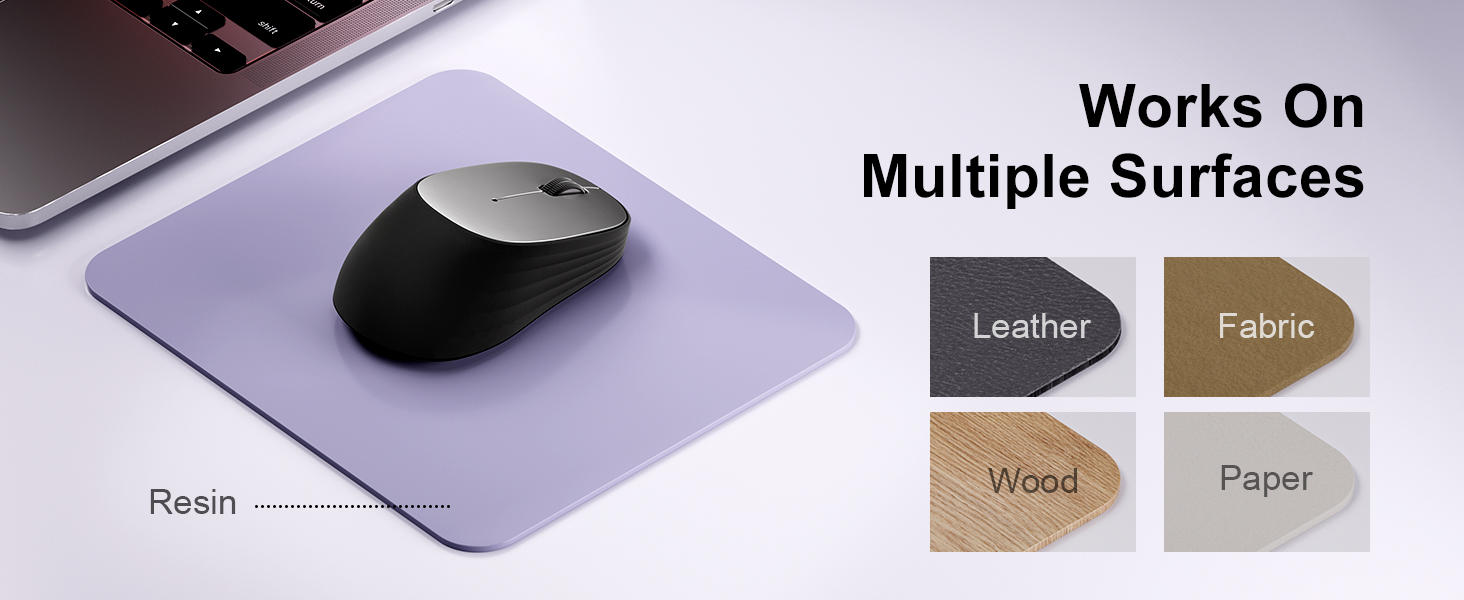
Image: A laptop screen displays a Bluetooth pairing prompt, indicating a new device (Bluetooth mouse) is found. The wegear mouse is shown nearby with a '10M' range indicator, illustrating its Bluetooth 5.0 connectivity.
5.4. Connect via USB Receiver (2.4G Wireless)
If your device does not support Bluetooth or you prefer a 2.4G wireless connection:
- Locate the USB receiver inside the battery compartment of the mouse.
- Collega il ricevitore USB a una porta USB disponibile sul tuo computer.
- The mouse should automatically connect to your device. No additional pairing is required.
6. Utilizzo del mouse
6.1. Regolazione DPI
The wegear MW2 mouse features 3 adjustable DPI levels (800, 1200, 1600) for customized cursor sensitivity. To change the DPI:
- Press the DPI button on the bottom of the mouse.
- Each press will cycle through the DPI settings. The cursor speed will change accordingly.
For a visual representation of DPI levels, please refer to the image below:
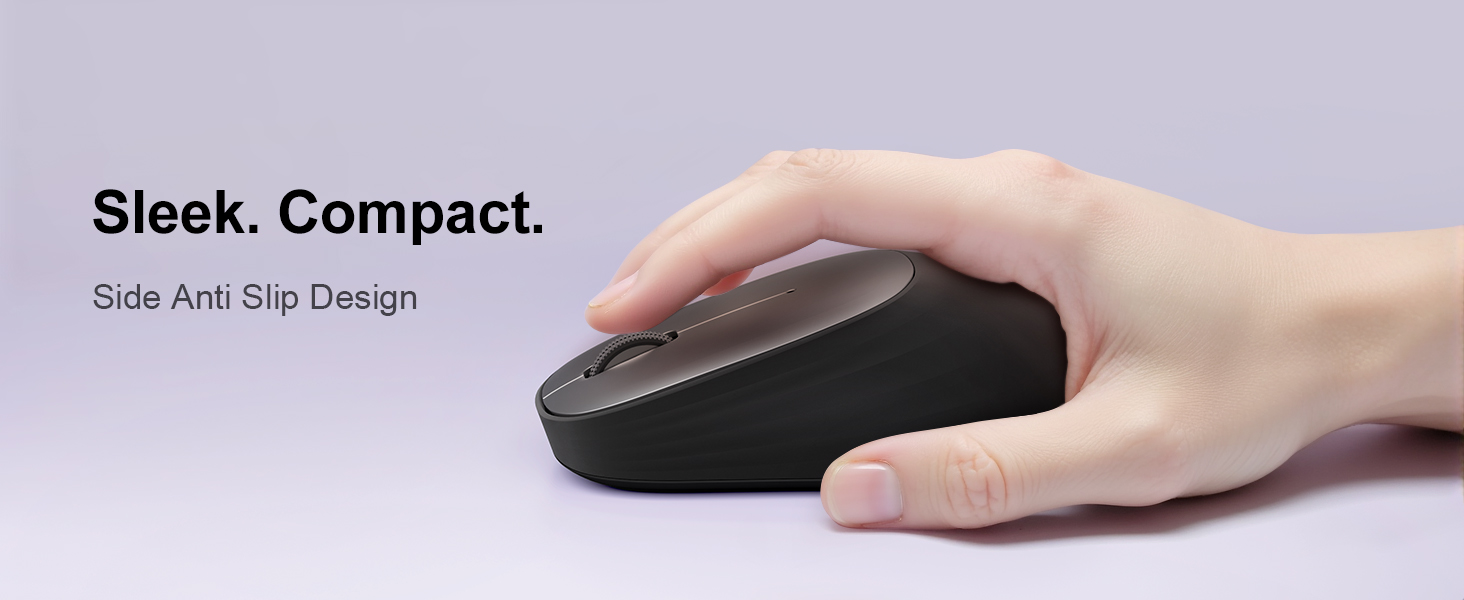
Image: The wegear MW2 mouse is depicted with three distinct visual arcs, each labeled with a DPI setting (800, 1200, 1600), illustrating the adjustable sensitivity levels for smooth navigation.
6.2. Clic silenziosi
The mouse is designed with silent click buttons, providing a quiet user experience suitable for various environments without disturbing others.
6.3. Modalità di risparmio energetico
To conserve battery life, the mouse automatically enters a sleep mode after 10 seconds of inactivity. Simply move the mouse to wake it up and resume operation.
For more details on power saving, please refer to the image below:
Image: A user is shown working on a laptop with the wegear MW2 mouse. An overlay text explains that the mouse enters power-saving mode after 10 seconds of inactivity and can be woken by moving it.
7. Manutenzione
7.1. Durata della batteria
The wegear MW2 mouse is designed for long-lasting performance, offering up to 12 months of battery life with a single AA battery, especially when utilizing the automatic sleep mode and manually turning off the mouse when not in use.
7.2. Pulizia
To clean your mouse, gently wipe its surface with a soft, dry cloth. Avoid using harsh chemicals or abrasive materials that could damage the finish.
8. Risoluzione Dei Problemi
- Il mouse non si connette:
- Ensure the mouse is powered on.
- Check if the battery is inserted correctly and has sufficient charge.
- For Bluetooth connection, ensure your device's Bluetooth is enabled and the mouse is in pairing mode.
- For USB receiver connection, ensure the receiver is securely plugged into a USB port. - Cursore irregolare o non reattivo:
- Pulisci il sensore ottico nella parte inferiore del mouse.
- Assicurarsi di utilizzare il mouse su una superficie adatta (non riflettente, non trasparente). - Breve durata della batteria:
- Make sure to turn off the mouse using the Power On/Off switch when not in use for extended periods.
9. Specifiche
| Caratteristica | Dettaglio |
|---|---|
| Numero di modello | MW2 |
| Tecnologia di connettività | Bluetooth 5.0, 2.4G Wireless (via USB receiver) |
| Tecnologia di rilevamento del movimento | Ottico |
| DPI regolabile | 800, 1200, 1600 |
| Tipo di batteria | 1 batteria AA |
| Durata stimata della batteria | Fino a 12 mesi |
| Caratteristica speciale | Portable, Compact Design, Silent Clicks, Automatic Sleep Mode |
| Peso dell'articolo | 4.2 once |
| Dimensioni del pacco | 4.25 x 3.27 x 1.73 pollici |
10. Garanzia e supporto
The wegear MW2 Wireless Bluetooth Mouse comes with a standard manufacturer's warranty. For detailed warranty information, product support, or technical assistance, please refer to the contact information provided on the product packaging or visit the official wegear websito.
We are committed to providing high-quality products and excellent customer service. If you encounter any issues or have questions, please do not hesitate to reach out to our support team.