
1. Introduzione
The Logitech H570e USB Headset is a reliable wired headset designed for clear audio communication on PC and Mac, certified for Microsoft Teams. It features dual noise-canceling microphones and a 30 mm audio driver, providing enhanced sound quality for professional use. This manual provides detailed instructions for setting up, operating, maintaining, and troubleshooting your H570e headset.

Image: Logitech H570e USB Headset with its retail packaging, showcasing the mono headset with USB-C connector and inline controls.
2. Impostazione
The Logitech H570e headset offers simple plug-and-play connectivity, requiring no additional software for basic functionality.
2.1 Collegamento dell'auricolare
- Locate an available USB-C port on your PC or Mac.
- Plug the USB-C connector of the H570e headset into the USB-C port on your computer.
- Il sistema operativo rileverà e installerà automaticamente i driver necessari. Questo processo potrebbe richiedere alcuni istanti.
- Once installed, the headset will be ready for use. You may need to select the H570e as your default audio input and output device in your computer's sound settings or communication application (e.g., Microsoft Teams).

Image: Close-up of the Logitech H570e's USB-C connector, highlighting its plug-and-play design.
2.2 Configurazione iniziale (facoltativa)
For advanced customization and management, consider installing Logitech's software:
- Sintonia Logi: For individual users, Logi Tune allows you to customize audio settings, adjust sidetone and microphone levels, and enable features like anti-startle protection.
- Logitech Sync: For IT administrators, Logitech Sync provides a secure and scalable approach to remotely manage and update multiple H570e headsets within an organization.
3. Utilizzo dell'auricolare
The H570e headset is designed for ease of use with intuitive inline controls and a flexible microphone.
3.1 Controlli in linea
The inline controller provides convenient access to essential call functions:
- Volume su/giù: Utilizzare i pulsanti '+' e '-' per regolare il volume di ascolto.
- Disattiva/Attiva audio: Press the microphone icon button to mute or unmute your microphone. An LED indicator on the controller provides visual confirmation of the mute status.
- Risposta/Fine chiamata: Press the phone icon button to answer or end calls in supported applications.
- Pulsante Microsoft Teams: A dedicated button provides quick access to Microsoft Teams activities, including joining meetings or bringing the Teams application to the foreground.
Image: Close-up of the Logitech H570e's inline controls, showing the volume, mute, call, and Teams buttons with LED indicators.
3.2 Utilizzo del microfono
The H570e features a flexible boom microphone with noise-canceling capabilities to ensure clear voice pickup while minimizing background noise.
- Posizionamento: Adjust the microphone boom so that the microphone is approximately two fingers' width from your mouth.
- Cancellazione del rumore: The dual noise-canceling microphones are designed to filter out ambient sounds, focusing on your voice.
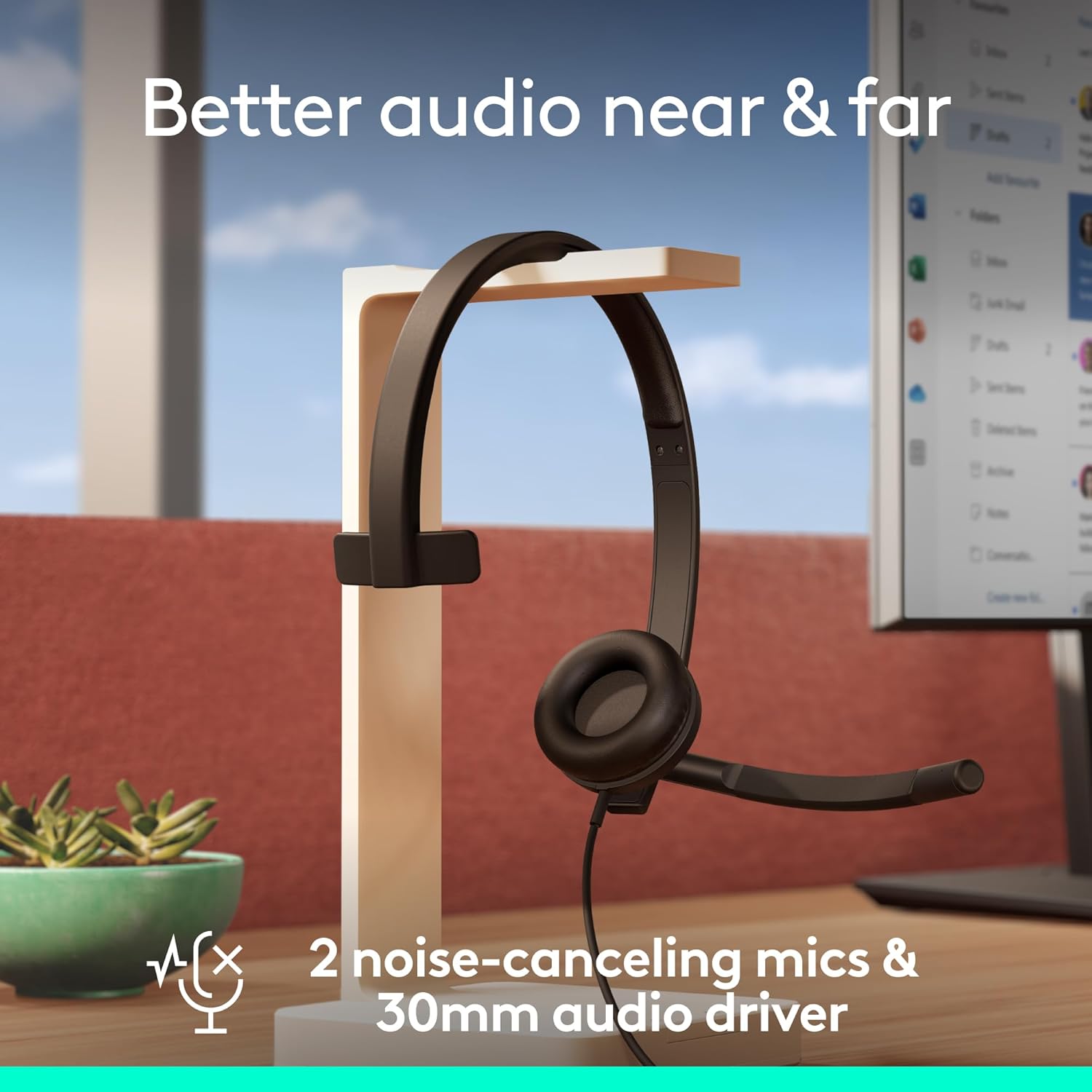
Image: The Logitech H570e headset on a stand, illustrating its mono design with a flexible microphone boom, emphasizing clear audio.
3.3 Comfort e vestibilità
The headset is designed for extended wear with a lightweight build and comfortable padding.
- Fascia regolabile: Extend or retract the headband to achieve a comfortable and secure fit on your head.
- Padded Headband and Earpad: The padded headband and leatherette earpad provide cushioning for comfort during long calls.
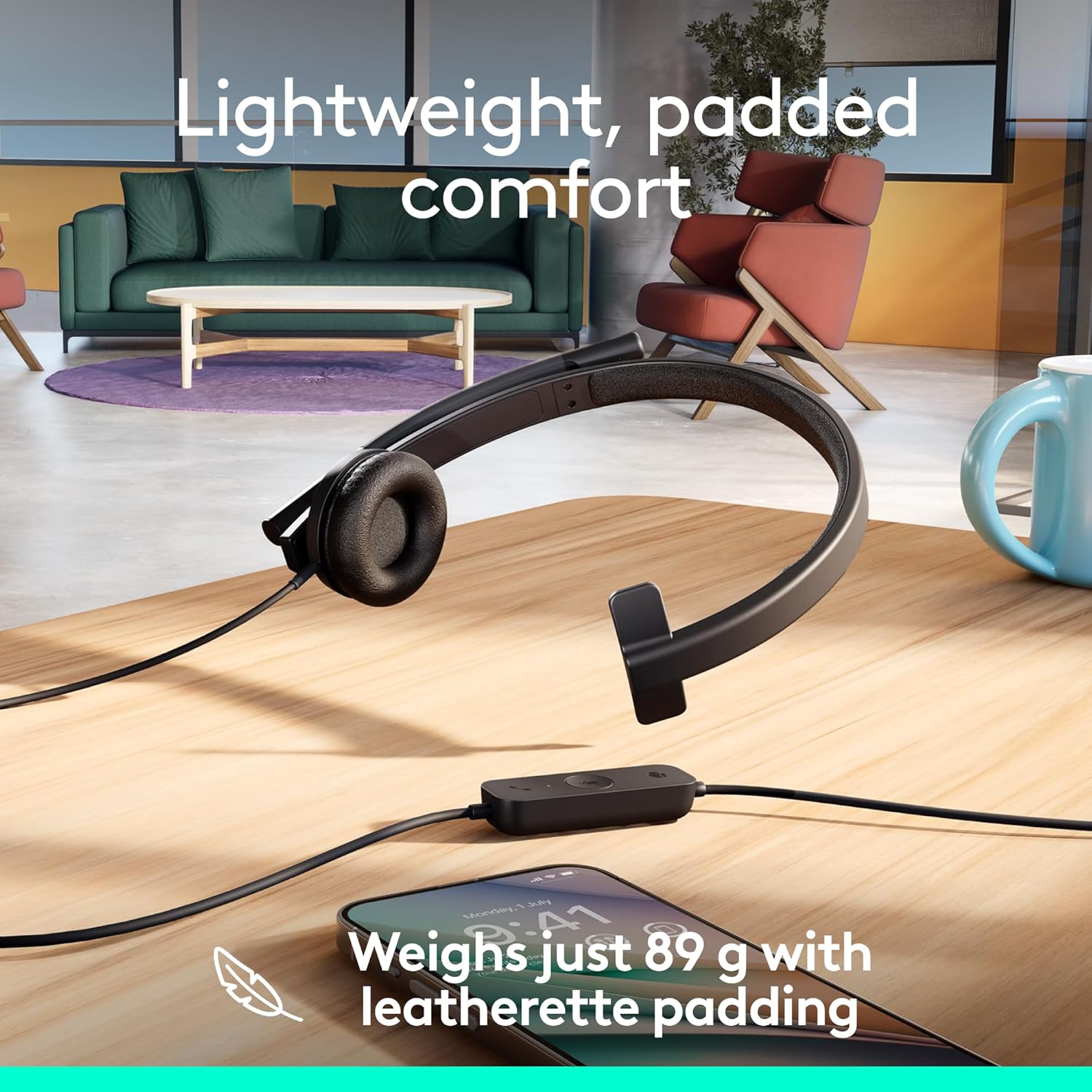
Image: The Logitech H570e headset resting on a wooden desk next to a smartphone, illustrating its lightweight design and comfortable padding.
4. Manutenzione
Proper care and maintenance will extend the lifespan of your Logitech H570e headset.
4.1 Pulizia
- Gently wipe the headset surfaces with a soft, damp stoffa.
- Evitare l'uso di prodotti chimici aggressivi o detergenti abrasivi, poiché potrebbero danneggiare i materiali.
- Assicurarsi che non penetri umidità nelle griglie degli altoparlanti o nell'apertura del microfono.
4.2 Sostituzione dei cuscinetti auricolari
The H570e features replaceable earpads, contributing to the product's sustainability and longevity.
- If earpads become worn or damaged, contact Logitech support or an authorized reseller for replacement parts.
- Follow the instructions provided with the replacement earpads for proper installation.
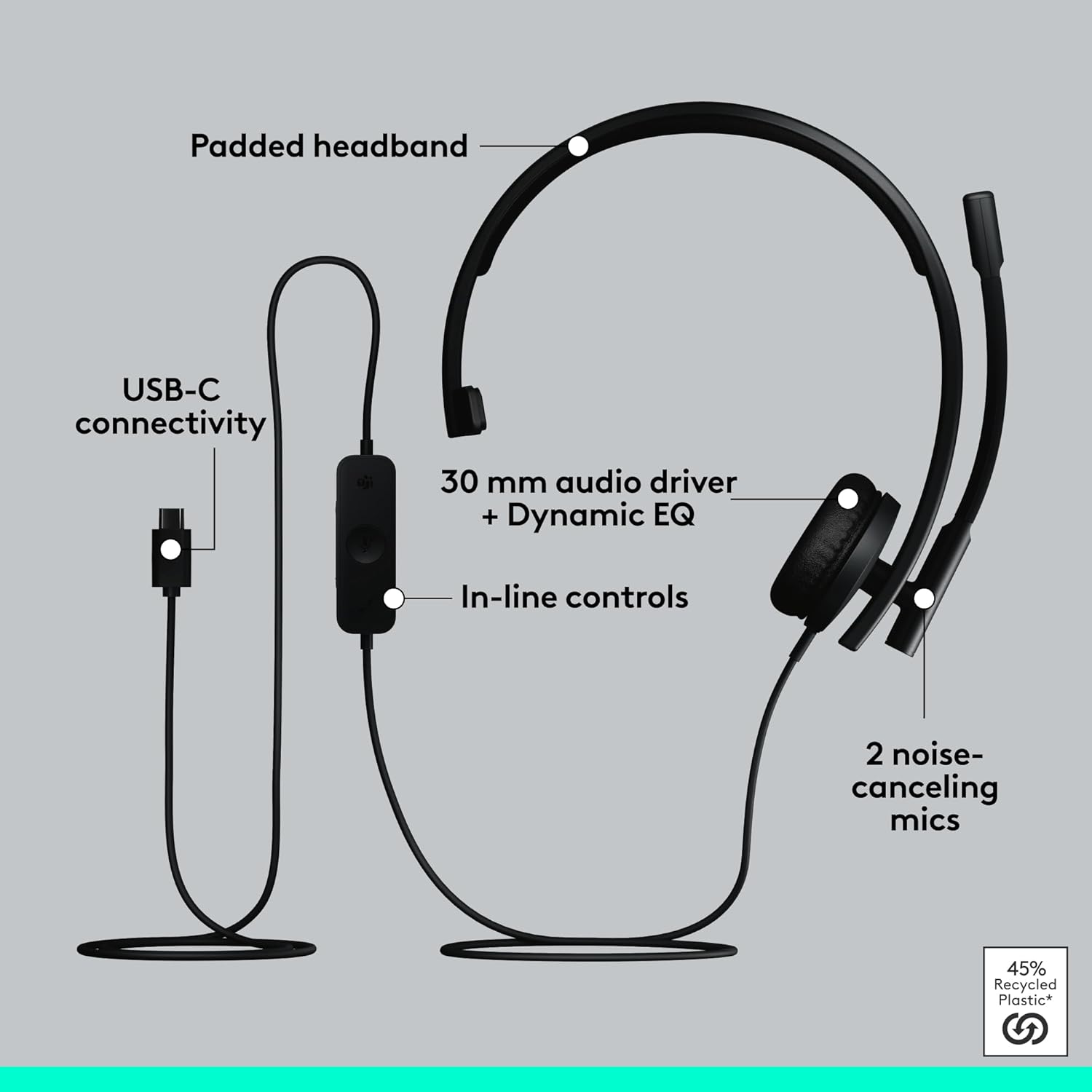
Image: Infographic highlighting the sustainable design of the Logitech H570e, including USB-C connectivity, 30mm audio driver, in-line controls, 2 noise-canceling mics, and replaceable earpads, made with 45% recycled plastic.
5. Risoluzione Dei Problemi
If you encounter issues with your Logitech H570e headset, try the following troubleshooting steps:
5.1 Nessun suono o scarsa qualità audio
- Verifica connessione: Ensure the USB-C connector is fully inserted into the computer's port.
- Livelli del volume: Verify that the volume on the inline controller is turned up and that your computer's system volume is not muted or set too low.
- Dispositivo predefinito: Confirm that the Logitech H570e is selected as the default playback device in your operating system's sound settings and within your communication application (e.g., Microsoft Teams, Zoom).
- Test Another Port: Try plugging the headset into a different USB-C port on your computer.
- Riavviare l'applicazione/computer: Close and reopen your communication application, or restart your computer.
5.2 Il microfono non funziona
- Seleziona il pulsante Disattiva audio: Ensure the microphone is not muted using the inline controller's mute button. The LED indicator should confirm its status.
- Posizione del microfono: Adjust the microphone boom to ensure it is properly positioned near your mouth.
- Dispositivo predefinito: Confirm that the Logitech H570e is selected as the default recording device in your operating system's sound settings and within your communication application.
- Impostazioni sulla privacy: On some operating systems (e.g., Windows 10/11, macOS), you may need to grant applications permission to access your microphone in privacy settings.
5.3 Inline Controls Not Responding
- Re-plug Headset: Disconnect and reconnect the headset to your computer.
- Compatibilità dell'applicazione: Ensure the application you are using fully supports HID (Human Interface Device) controls for headsets.
- Aggiornamento software: If using Logi Tune or Logitech Sync, ensure the software and headset firmware are up to date.
6. Specifiche
| Caratteristica | Descrizione |
|---|---|
| Nome del modello | 981-001425 |
| Tecnologia di connettività | Cablato (USB tipo C) |
| Componenti inclusi | Headset with inline controller and USB-C connector, User Manual |
| Dispositivi compatibili | Desktops, Laptops (PC and Mac) |
| Tipo di controllo | Volume Control, Mute, Call Answer/End, Microsoft Teams |
| Peso dell'articolo | 89 grammi (3.14 once) |
| Gamma di frequenza | 20 Hz - 20,000 Hz |
| Dimensioni del driver audio | 30 millimetri |
| Microfono | Dual Noise-Canceling Mics |
| Forma dell'auricolare | On-Ear (Mono) |
| Materiale | Plastic (minimum 45% post-consumer recycled plastic in plastic parts) |
| Caratteristiche speciali | Adjustable Headband, Lightweight, Microphone Included, Noise Cancellation, Volume Control, Replaceable Earpads |
| Dimensioni del prodotto | 1.97 x 6.18 x 6.73 pollici |
7. Garanzia e supporto
Logitech products are designed for durability and reliability. For specific warranty information regarding your H570e USB Headset, please refer to the warranty card included in your product packaging or visit the official Logitech support websito.
7.1 Assistenza clienti
For technical assistance, troubleshooting, or to inquire about replacement parts (such as earpads), please visit the Logitech Support websito:
7.2 Remote Management for IT Admins
IT administrators can leverage Logitech Sync for centralized management and updates of Logitech devices, including the H570e headset. This platform allows for remote monitoring, firmware updates, and configuration management across multiple devices.