
Prodotto finitoview
The TP-Link Archer MR505 is a 4G+ Cat6 AC1200 Wireless Dual Band Gigabit Router designed to provide reliable internet connectivity. This router supports dual-band Wi-Fi (2.4 GHz and 5 GHz) and features Gigabit Ethernet ports for high-speed wired connections. It is compatible with 4G+ Cat6 networks, offering mobile broadband access.

Figura 1: Fronte view of the Archer MR505 router.
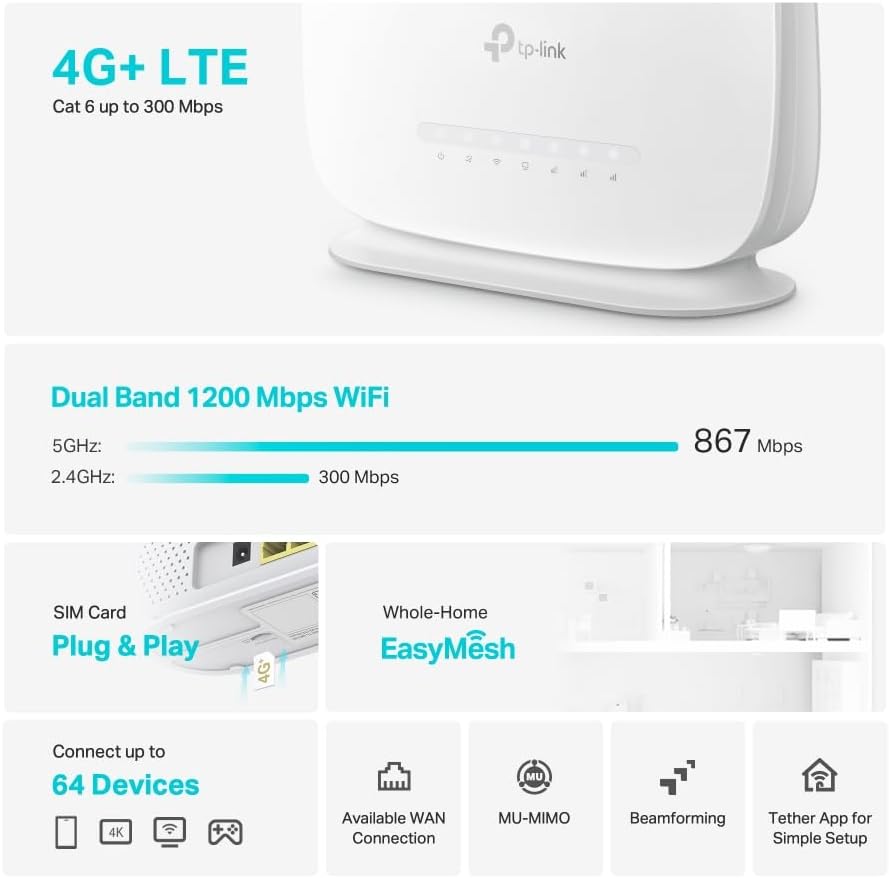
Figura 2: lato view of the Archer MR505 router.
Contenuto della confezione
Verifica che tutti gli articoli siano presenti nel tuo pacco:
- TP-Link Archer MR505 Router
- Adattatore di alimentazione
- Guida di installazione rapida
- Cavo Ethernet RJ45

Figure 3: Key features and components of the Archer MR505.
Istruzioni di installazione
Follow these steps to set up your Archer MR505 router:
- Inserire la carta SIM: Locate the SIM card slot on the router. Insert your 4G/LTE SIM card into the slot until it clicks into place. Ensure the SIM card is a normal data SIM for optimal compatibility. Some data-only SIM cards may require specific configurations or may not be fully compatible.
- Connetti alimentazione: Collegare l'adattatore di alimentazione in dotazione alla porta di alimentazione del router e quindi collegarlo a una presa di corrente. Il router si accenderà automaticamente.
- Attendi l'inizializzazione: Allow a few minutes for the router to boot up and establish a connection to the 4G/LTE network. The LED indicators on the front panel will show the connection status.
- Connessione Wi-Fi iniziale:
- Find the default Wi-Fi network name (SSID) and password printed on the label at the bottom of the router.
- Collega il tuo computer o dispositivo mobile a questa rete Wi-Fi.
- Gestione del router di accesso:
- Aprire un web browser e immettere l'indirizzo di gestione predefinito (ad esempio, http://tplinkwifi.net or http://192.168.1.1).
- Accedi utilizzando il nome utente e la password predefiniti (solitamente amministratore/amministratore or specified on the label).
- Configurare le impostazioni di rete: Follow the on-screen Quick Setup wizard to configure your internet connection, change the Wi-Fi network name (SSID), and set a strong, unique password for both your Wi-Fi and router management interface.
- Tether App Setup (Optional): Download the TP-Link Tether app from your device's app store. The app provides an intuitive way to manage your router settings from your smartphone or tablet.
- Antenna esterna (opzionale): If using external antennas (not included), connect them to the designated ports on the back of the router. You may need to manually enable external antenna usage through the router's web interfaccia o app Tether.
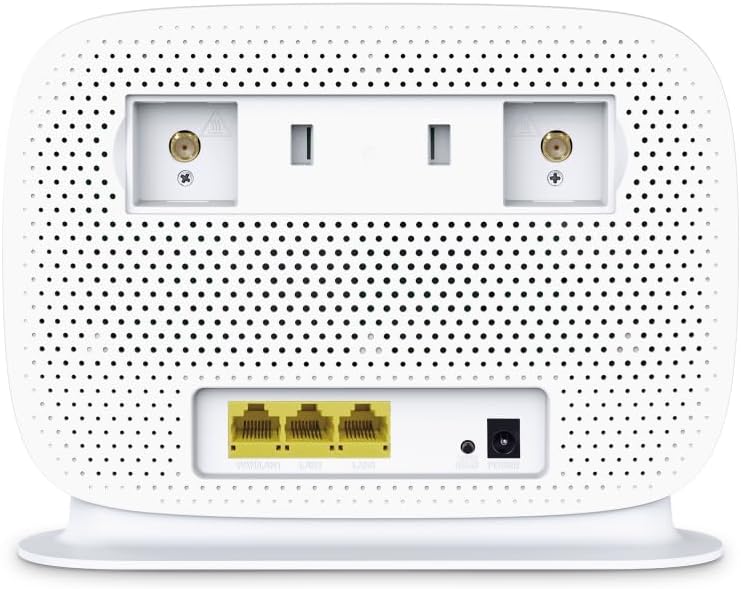
Figure 4: Rear panel of the Archer MR505 with ports and SIM slot.

Figure 5: Archer MR505 in various usage scenarios.
Istruzioni per l'uso
The Archer MR505 provides robust wireless and wired connectivity:
- Wi-Fi dual-band: The router operates on both 2.4 GHz and 5 GHz bands, offering speeds up to 300 Mbps and 867 Mbps respectively, for a total of AC1200 Wi-Fi.
- 4G+ Cat6 Connectivity: Enjoy mobile broadband speeds up to 300 Mbps download and 300 Mbps upload (maximum upstream data transfer rate).
- Porte Ethernet Gigabit: Four Gigabit LAN ports (1000 Mbps) are available for high-speed wired connections to devices like computers, gaming consoles, or smart TVs. One port can also function as a WAN port for traditional broadband connections.
- Capacità del dispositivo: The router can support connectivity for up to 64 devices simultaneously.
- Smart Connect: This feature automatically assigns devices to the best available Wi-Fi band (2.4 GHz or 5 GHz) for optimized performance.
- Compatibilità EasyMesh: The Archer MR505 is compatible with TP-Link EasyMesh, allowing you to create a seamless whole-home mesh Wi-Fi network by adding compatible range extenders.
- Tecnologie avanzate: Features like MU-MIMO and Beamforming enhance Wi-Fi efficiency and range, especially for multiple connected devices.
- Sicurezza: The router supports WPA3 encryption for enhanced network security.

Figure 6: Versatile connectivity and speed capabilities.

Figure 7: Whole-Home EasyMesh integration.
Manutenzione
To ensure optimal performance and security of your router:
- Aggiornamenti del firmware: Controllare regolarmente e installare gli ultimi aggiornamenti del firmware dal sito ufficiale TP-Link website or via the Tether app. Firmware updates often include security patches and performance improvements.
- Password sicure: Use strong, unique passwords for your Wi-Fi network and router management interface. Change them periodically.
- Posizionamento fisico: Posizionare il router in una posizione centrale, lontano da ostacoli e fonti di interferenza (ad esempio forni a microonde, telefoni cordless) per massimizzare la copertura Wi-Fi.
- Pulizia: Keep the router clean and free from dust. Ensure ventilation holes are not blocked.
- Riavviare periodicamente: Restarting the router occasionally can help resolve minor network issues and improve performance.
Risoluzione dei problemi
If you encounter issues with your Archer MR505 router, consider the following:
- No Internet Connection via 4G/LTE:
- Assicurati che la tua scheda SIM sia inserita e attivata correttamente.
- Verify that your SIM card is a normal data SIM. Some data-only SIM cards may require specific APN settings or might not be fully compatible. Contact your mobile service provider for details.
- Check the 4G/LTE signal strength indicated by the router's LEDs. If the signal is weak, try repositioning the router or consider using external antennas (if supported and configured).
- Riavvia il router e i dispositivi collegati.
- Problemi di connessione Wi-Fi:
- Assicurati che il tuo dispositivo si trovi nel raggio di azione del Wi-Fi del router.
- Verifica di utilizzare la password Wi-Fi corretta.
- If a device frequently connects and disconnects, try restarting that specific device.
- Verificare la presenza di interferenze da altri dispositivi elettronici.
- Bassa velocità di Internet:
- Check your 4G/LTE signal strength. Weak signal can significantly reduce speed.
- Assicurarsi che nessun'altra applicazione o dispositivo stia consumando una larghezza di banda eccessiva.
- If using Wi-Fi, try connecting to the 5 GHz band for faster speeds, if your device supports it.
- Esegui un test di velocità per confermare la velocità effettiva che stai ricevendo.
- Impossibile accedere alla pagina di gestione del router:
- Assicurati che il tuo dispositivo sia connesso alla rete del router (tramite Wi-Fi o cavo Ethernet).
- Verify you are entering the correct management address (e.g., http://tplinkwifi.net).
- Prova a svuotare la cache del browser o a utilizzare un browser diverso.
Specifiche
| Marca | TP-Link |
| Nome del modello | Arciere MR505 |
| standard wireless | 802.11ac (Wi-Fi 5) |
| Classe di banda di frequenza | Doppia banda (2.4 GHz e 5 GHz) |
| Velocità dati Wi-Fi | Up to 300 Mbps (2.4 GHz), Up to 867 Mbps (5 GHz) - AC1200 Total |
| Velocità 4G+ Cat6 | Up to 300 Mbps Download, Up to 300 Mbps Upload |
| Porte Ethernet | 4 x Gigabit LAN Ports (1000 Mbps), 1 x WAN/LAN Port |
| Tipo di antenna | Internal (External antenna support available) |
| Protocollo di sicurezza | WPA3 |
| Metodo di controllo | App (TP-Link Tether) |
| Dispositivi compatibili | Computer portatile, computer personale, smart TV, smartphone, tablet |
| Potenza in ingresso | 12 Volt |
| Peso dell'articolo | 0.93 chilogrammi |
| Componenti inclusi | Archer MR505, Power Adapter, Quick Installation Guide, RJ45 Ethernet Cable |
Garanzia e supporto
Per informazioni sulla garanzia, fare riferimento alla scheda di garanzia inclusa con il prodotto o visitare il sito ufficiale TP-Link website for your region. Support resources, including FAQs, firmware downloads, and contact information, are available on the TP-Link support website and through the TP-Link Tether app.
TP-Link ufficiale Websito: https://www.tp-link.com
App TP-Link Tether: Disponibile su iOS App Store e Google Play Store.