1. Introduzione
This manual provides essential information for the proper setup, operation, and maintenance of your FUNYET 2-in-1 Laptop Tablet. Please read this manual thoroughly before using the device to ensure optimal performance and longevity. Keep this manual for future reference.
2. Prodotto finitoview
2.1 Contenuto della confezione
- FUNYET 2-in-1 Laptop Tablet
- Tastiera rimovibile
- Adattatore di alimentazione CA.
- Manuale dell'utente (questo documento)
2.2 Layout del dispositivo e porte
Familiarize yourself with the various ports and buttons on your device.

Immagine: Lato view of the FUNYET 2-in-1 Laptop Tablet illustrating the location of the power button, volume control, two Type-C ports, and Micro HDMI port.
- Pulsante di accensione: Press and hold to power on/off or sleep/wake the device.
- Controllo del volume: Regola il volume del sistema.
- Type-C (Full-featured): Supporta il trasferimento dati, l'uscita video e l'erogazione di energia.
- Type-C (Charging and Data Transfer): Primarily for charging the device and data transfer.
- MicroHDMI: Si collega a display esterni.
2.3 Caratteristiche principali
- Processore: Intel 12th Gen Celeron N100 (up to 3.4 GHz, 4 cores, 4 threads).
- Memoria: 16 GB di RAM DDR5 per un multitasking efficiente.
- Magazzinaggio: 512GB SSD for fast boot times and amplo stoccaggio.
- Display: 14-inch 1920 x 1200 IPS Touchscreen.
- Connettività: Wi-Fi 6 (802.11ax) e Bluetooth 5.2.
- Telecamere: 2MP Front Camera and 5MP Rear Camera.
- Tastiera: Detachable, backlit keyboard.
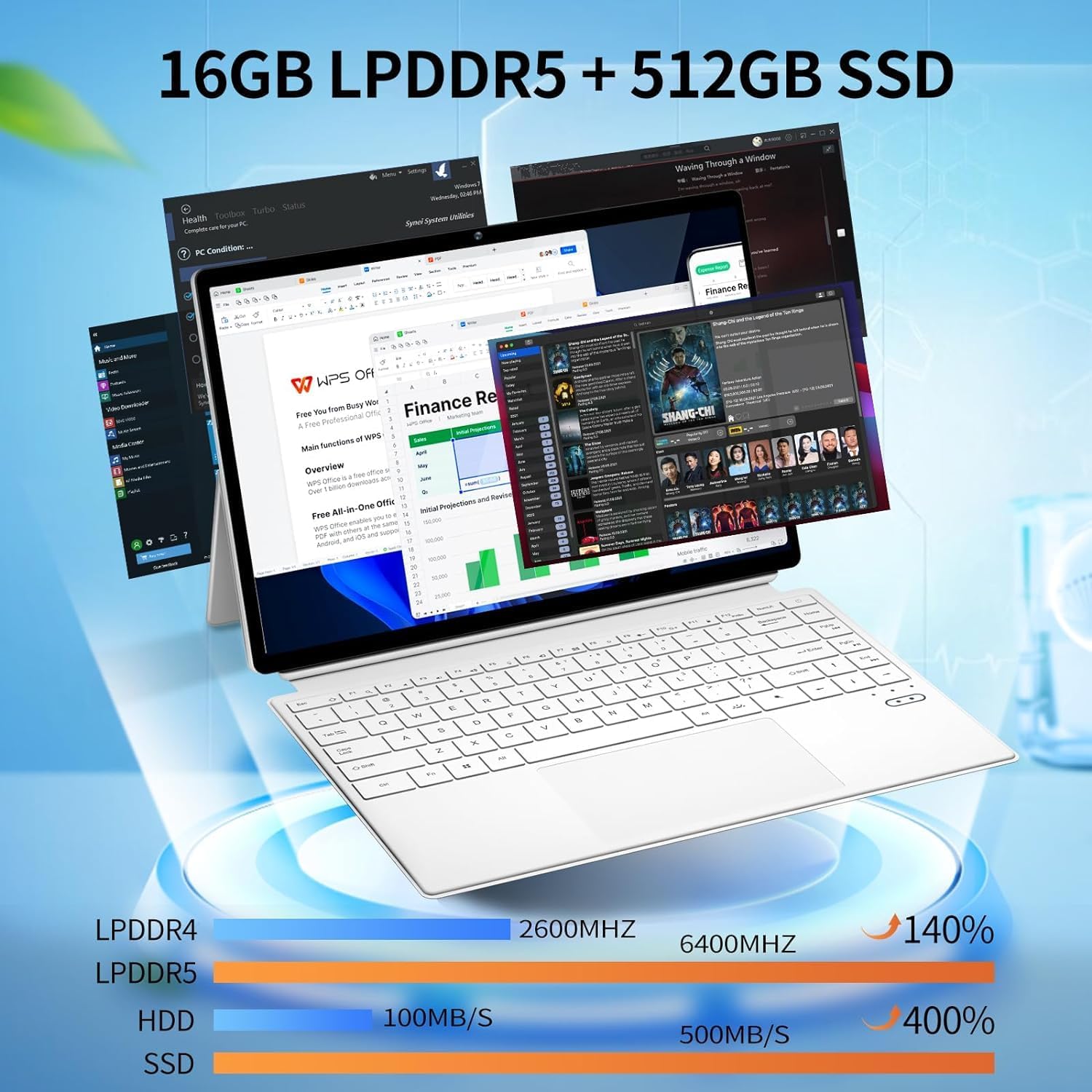
Immagine: The device displaying multiple open applications, illustrating its multitasking capabilities with 16GB LPDDR5 RAM and 512GB SSD.
3. Impostazione
3.1 Carica iniziale
Before first use, connect the AC power adapter to the device's charging Type-C port and a power outlet. Charge the device until the battery is full. The battery indicator will show charging status.
3.2 Collegamento e scollegamento della tastiera
The keyboard connects magnetically to the tablet. Align the magnetic connectors on the tablet and keyboard until they snap into place. To detach, gently pull the tablet away from the keyboard.
3.3 Regolazione del cavalletto
The integrated kickstand allows for various viewing angles. Extend the kickstand from the back of the tablet and adjust it to your desired position. Ensure the kickstand is fully extended and stable to prevent the device from tipping.

Immagine: Visual guide demonstrating the correct method for deploying the device's kickstand for stable use, alongside examples of incorrect positioning.
3.4 Primo avvio e configurazione di Windows
Press and hold the Power Button until the screen turns on. Follow the on-screen instructions to complete the Windows 11 Pro setup, including language selection, network connection, and user account creation.
4. Istruzioni per l'uso
4.1 Accensione/spegnimento e modalità di sospensione
- Accensione: Premere e tenere premuto il pulsante di accensione per alcuni secondi.
- Spegni: From Windows, go to Start > Power > Shut down. Alternatively, press and hold the Power Button, then select 'Shut down' from the options.
- Modalità risparmio: Briefly press the Power Button to enter or exit sleep mode.
4.2 Utilizzo del touchscreen
The 14-inch display supports multi-touch gestures. Use your fingers to navigate, tap, swipe, pinch-to-zoom, and interact with applications.
4.3 Utilizzo della tastiera e del touchpad
When the keyboard is attached, it functions as a standard laptop keyboard. The integrated touchpad supports multi-touch gestures for navigation. The keyboard features backlighting for use in low-light conditions.

Immagine: Un primo piano view of the detachable backlit keyboard, showing the key layout and touchpad.
4.4 Collegamento delle periferiche
- Dispositivi USB-C: Connect compatible USB-C devices to the Type-C ports for data transfer or external display output (if full-featured).
- Display esterno: Use the Micro HDMI port to connect to an external monitor or TV. An appropriate adapter may be required.
4.5 Connettività wireless
- Wifi: Access network settings in Windows to connect to available Wi-Fi 6 networks.
- Bluetooth: Pair Bluetooth devices such as headphones, mice, or keyboards through Windows Bluetooth settings.

Immagine: The device in use, highlighting its wireless capabilities (Wi-Fi 6, Bluetooth 5.2) and integrated cameras (2MP front, 5MP rear).
4.6 Utilizzo della fotocamera
The device includes a 2MP front camera and a 5MP rear camera. Use the built-in Camera application in Windows to take photos, record videos, or participate in video calls.
5. Manutenzione
5.1 Pulizia
Utilizzare un panno morbido e privo di lanugine per pulire lo schermo e le superfici esterne. Per macchie ostinate, dampInumidire leggermente il panno con acqua o un detergente per schermi. Evitare prodotti chimici aggressivi o materiali abrasivi.
5.2 Cura della batteria
Per prolungare la durata della batteria:
- Evitare temperature estreme.
- Non scaricare completamente la batteria frequentemente.
- If storing the device for an extended period, charge it to about 50-70%.

Immagine: An illustration of the 38Wh battery capacity and estimated usage times: 10 hours for daily use, 6-8 hours for video playback (Wi-Fi off), and 4 hours for video playback (Wi-Fi on).
5.3 Aggiornamenti software
Regularly check for and install Windows updates to ensure system stability, security, and access to the latest features. Go to Start > Settings > Windows Update.
5.4 Gestione dell'archiviazione
Periodicamente riview and manage your storage space. Delete unnecessary files, disinstallare le applicazioni non utilizzate e prendere in considerazione l'archiviazione cloud per grandi fileper mantenere prestazioni ottimali.
6. Risoluzione Dei Problemi
- Il dispositivo non si accende: Ensure the device is charged. Connect the AC adapter and try again. If unresponsive, press and hold the power button for 15-20 seconds to perform a hard reset.
- La tastiera non risponde: Ensure the keyboard is securely attached. Check if the keyboard's power is on (if it has a separate power switch or indicator). Re-attach the keyboard.
- Problemi di connettività Wi-Fi: Controlla se il Wi-Fi è abilitato nelle impostazioni di Windows. Riavvia il router e il dispositivo. Assicurati di essere nel raggio di copertura di una rete Wi-Fi.
- Prestazioni lente: Close unnecessary applications. Check for background processes consuming resources. Ensure sufficient free storage space. Run a system scan for malware.
- Lo schermo non ruota: Ensure auto-rotation is enabled in Windows settings (Action Center).
7. Specifiche
| Caratteristica | Specificazione |
|---|---|
| Nome del modello | FUNYET-2-IN-1-LAPTOP-TABLET-1 |
| Processore | Intel Celeron N100 (12th Gen) |
| Memoria RAM | 16 GB DDR5 |
| Magazzinaggio | SSD da 512 GB |
| Dimensioni dello schermo | 14 pollici |
| Risoluzione dello schermo | 1920 x 1200 pixel |
| Sistema operativo | Windows 11 Pro |
| Tipo senza fili | 802.11ax (Wi-Fi 6) |
| Bluetooth | Bluetooth 5.2 |
| Fotocamera frontale | 2 MP |
| Telecamera posteriore | 5 MP |
| Peso dell'articolo | 5.37 libbre |
| Dimensioni del prodotto | 12.5 x 8.4 x 0.4 pollici |
| Colore | Bianco |
8. Garanzia e supporto
FUNYET offers a Cambio gratuito entro 30 giorni e un Riparazione gratuita per 1 anno service for all its products. For any questions or assistance regarding your FUNYET 2-in-1 Laptop Tablet, please contact FUNYET support. We aim to respond within 24 hours.
For support, please visit the official FUNYET store or contact customer service through your purchase platform.