
1. Prodotto finitoview
The ENDGAME GEAR OP1w 4k Wireless Gaming Mouse is engineered for high-performance gaming, offering precision and speed for competitive play. It features a 4000Hz wireless polling rate, a PixArt PAW3395 optical sensor, and Kailh GX switches for responsive and accurate control.

Immagine: dall'alto verso il basso view of the ENDGAME GEAR OP1w 4k Wireless Gaming Mouse in black, showcasinla sua forma ergonomica e i pulsanti principali.
- Frequenza di polling 4000Hz: Provides real-time precision for demanding gaming scenarios.
- Sensore PixArt PAW3395: Offers up to 26,000 CPI, 650 IPS, and 50G acceleration for ultra-smooth and precise tracking.
- Kailh GX Switches: Ensures lightning-fast accuracy and a crisp, tactile click response.
- Design leggero: Weighs approximately 58.5g, designed for comfort and control, especially for claw grip users.
- Customizable Power Settings: Allows optimization of battery life without compromising performance.
2. Guida all'installazione
2.1 Contenuto della confezione
Prima di procedere, assicurarsi che tutti i componenti siano presenti:
- Mouse da gioco wireless ENDGAME GEAR OP1w 4k
- Wireless Receiver (Dongle)
- Cavo di ricarica/dati USB-C
- Manuale dell'utente (questo documento)
2.2 Carica iniziale
- Connect the supplied USB-C cable to the mouse's charging port.
- Connect the other end of the USB-C cable to an available USB port on your computer or a USB wall adapter.
- Allow the mouse to charge fully before first use. The LED indicator on the mouse will typically change color or turn off when fully charged.
2.3 Collegamento del mouse
- Insert the wireless receiver (dongle) into an available USB port on your computer.
- Accendere il mouse utilizzando l'interruttore di alimentazione situato nella parte inferiore del mouse.
- Your computer should automatically detect and install the necessary drivers. If not, proceed to the software installation step.

Image: The underside of the OP1w 4k mouse, highlighting the PixArt PAW3395 sensor and the power/mode switch for wireless operation.
2.4 Installazione del software
For full customization and advanced features, download the official ENDGAME GEAR software:
- Visit the official ENDGAME GEAR websito: www.endgamegear.com/downloads
- Locate and download the software for the OP1w 4k Wireless Gaming Mouse.
- Seguire le istruzioni visualizzate sullo schermo per installare il software.
- Once installed, launch the software to configure DPI settings, polling rate, button assignments, and other performance parameters.
3. Funzionamento
3.1 Funzioni di base
- Clic sinistro (pulsante 1): Azione primaria.
- Clic destro (pulsante 2): Menu contestuale/azione secondaria.
- Rotellina di scorrimento (pulsante 3): Scorri verso l'alto/verso il basso, clicca con il tasto centrale.
- Pulsanti laterali (pulsanti 4 e 5): Tipicamente assegnato come Avanti/Indietro in web browser o personalizzabili nel software.
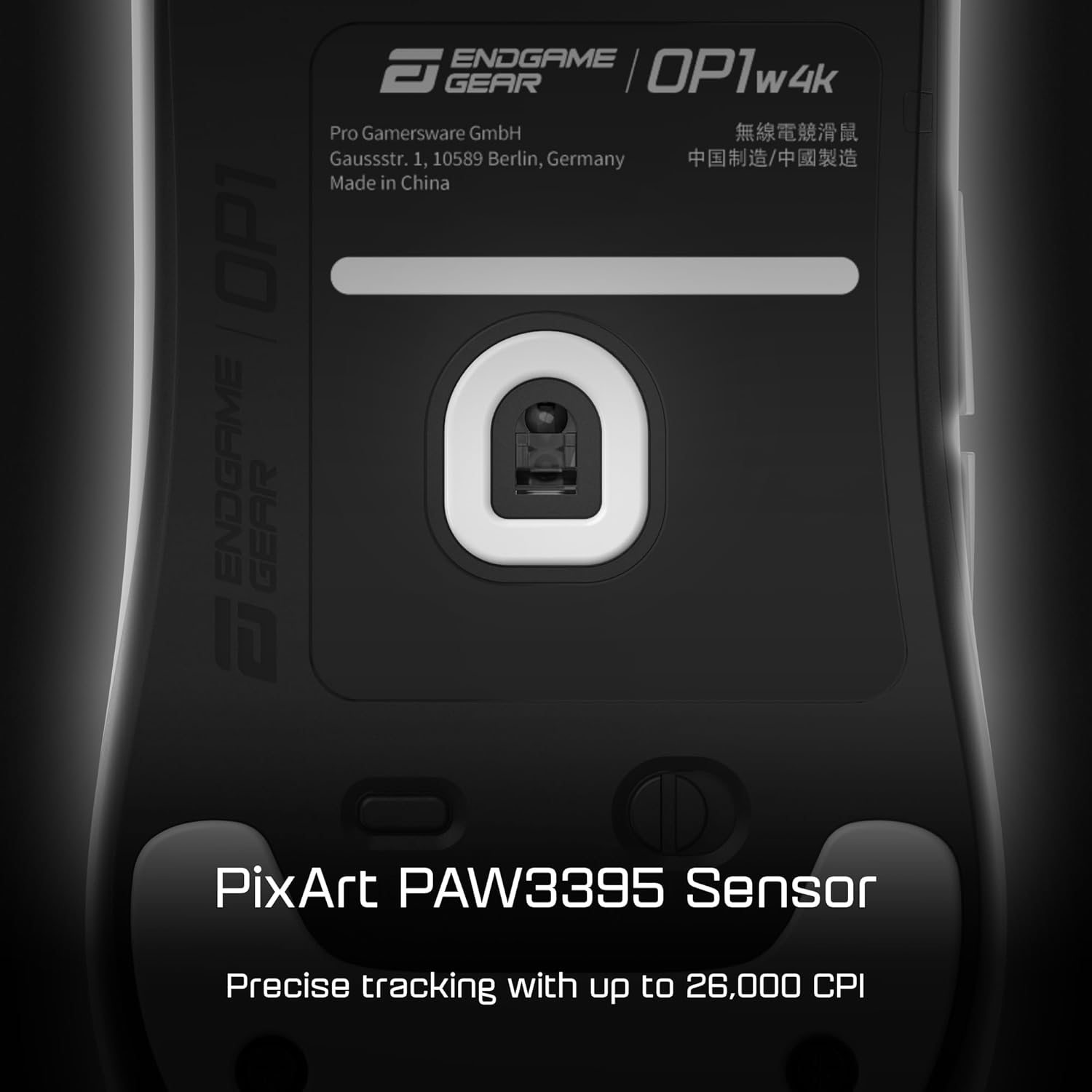
Immagine: un primo piano view of the mouse's primary buttons, highlighting the Kailh GX switches for precise clicks.
3.2 Regolazione DPI
The mouse features a dedicated DPI button (often on the underside or programmable via software) to cycle through preset DPI levels. Use the ENDGAME GEAR software to customize these levels to your preference.
3.3 Frequenza di polling
The OP1w 4k supports up to a 4000Hz wireless polling rate. This setting can be adjusted via the ENDGAME GEAR software. A higher polling rate provides more frequent updates to your computer, resulting in smoother and more responsive cursor movement, especially noticeable on high refresh rate monitors.

Image: The OP1w 4k mouse positioned next to its wireless dongle, emphasizing its 4000Hz wireless polling rate capability for rapid response times.
3.4 Gestione della batteria
The mouse is equipped with a rechargeable Lithium Ion battery. Monitor the battery level through the ENDGAME GEAR software or the mouse's LED indicator. Connect the USB-C cable to charge when the battery is low.
4. Manutenzione
4.1 Pulizia
- Ensure the mouse is turned off and disconnected from any power source.
- Utilizzare un panno morbido e privo di lanugine leggermente dampPulire la superficie del mouse con acqua o una soluzione detergente delicata.
- Per il sensore ottico, utilizzare un batuffolo di cotone leggermente dampened with isopropyl alcohol to gently clean the sensor lens. Avoid excessive moisture.
- Non utilizzare prodotti chimici aggressivi, abrasivi o solventi.
4.2 Cura della batteria
- Evitare di scaricare completamente la batteria frequentemente.
- Quando non si utilizza il mouse per lunghi periodi, conservarlo in un luogo fresco e asciutto.
- If storing for a long time, charge the battery to approximately 50% to prolong its lifespan.
5. Risoluzione Dei Problemi
| Problema | Possibile soluzione |
|---|---|
| Il mouse non risponde |
|
| Connessione intermittente/ritardo |
|
| I pulsanti non funzionano correttamente |
|
| Il software non rileva il mouse |
|
6. Specifiche tecniche
| Caratteristica | Dettaglio |
|---|---|
| Numero di modello | EGG-OP1W4K-BLK |
| Connettività | Wireless (Radio Frequency), USB (for charging/wired mode) |
| Sensore | Sensore ottico PixArt PAW3395 |
| Max CPI/DPI | 26,000 |
| IPS massimi | 650 |
| Accelerazione massima | 50G |
| Tasso di sondaggio | Fino a 4000Hz Wireless |
| Interruttori | Kailh GX Switches |
| Peso | Circa 58.5 g (2.06 once) |
| Dimensioni | 4.65 x 14.65 x 0.04 inches (Note: These dimensions appear to be for packaging, not the mouse itself.) |
| Tipo di batteria | 1 batteria agli ioni di litio (inclusa) |
| Caratteristiche speciali | 4k Polling, Lightweight, Low Click Latency |
Note: Product dimensions provided in source data (4.65 x 14.65 x 0.04 inches) appear to be incorrect for a mouse and may refer to packaging. Actual mouse dimensions are typically smaller.
7. Garanzia e supporto
7.1 Informazioni sulla garanzia
ENDGAME GEAR products are covered by a limited manufacturer's warranty. The specific terms and duration of the warranty may vary by region and product. Please retain your proof of purchase for warranty claims.
For detailed warranty information, please visit the official ENDGAME GEAR websito o contattare il servizio clienti.
7.2 Assistenza clienti
If you encounter any issues not covered in this manual or require further assistance, please contact ENDGAME GEAR customer support:
- Websito: www.endgamegear.com/support
- E-mail: Fare riferimento alla sezione di supporto sul sito ufficiale websito per email di contatto.
- Risorse online: Check the ENDGAME GEAR website for FAQs, driver updates, and community forums.