
1. Introduzione
Thank you for choosing the PeriPage PB20 Bluetooth Label Maker. This portable thermal printer is designed for convenient label creation for various applications, including small businesses, home organization, and custom stickers. This manual provides essential information for setting up, operating, maintaining, and troubleshooting your device to ensure optimal performance.
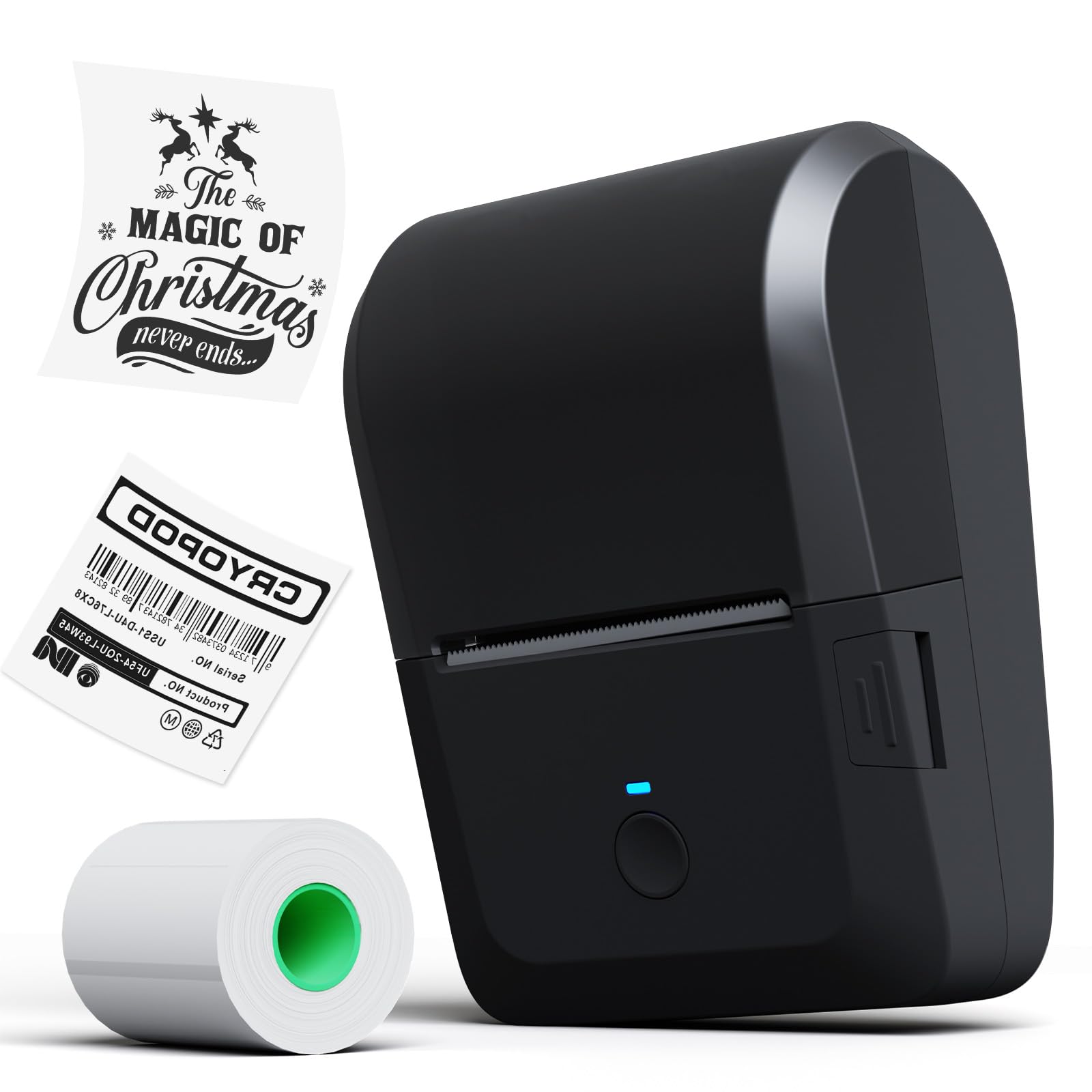
Image 1.1: The PeriPage PB20 Bluetooth Label Maker, a compact and portable thermal printer.
2. Guida all'installazione
2.1 Unboxing e carica iniziale
Upon unboxing, ensure all components are present: the PeriPage PB20 label maker, a roll of thermal label paper, and a USB-C charging cable. It is recommended to fully charge the device before first use.
- Connect the USB-C cable to the printer's charging port and the other end to a compatible USB power adapter (not included).
- Durante la ricarica si accenderà la spia rossa.
- The green indicator light will turn on when the battery is fully charged.

Image 2.1: Illustration of the internal rechargeable battery (2000mAh) and charging process.
2.2 Installazione dell'app PeriPage
The PeriPage PB20 operates via the dedicated "PeriPage" mobile application. This app is available for both Android and iOS devices.
- Scan the QR code located on the back of the printer or search for "PeriPage" in your device's app store (Google Play Store for Android, Apple App Store for iOS).
- Scarica e installa l'applicazione.
- Concedi le autorizzazioni necessarie quando richiesto.

Image 2.2: The PeriPage app interface shown on a smartphone, demonstrating Bluetooth wireless connection.
2.3 Connessione tramite Bluetooth
Assicurati che il Bluetooth sia abilitato sul tuo dispositivo mobile.
- Turn on the PeriPage PB20 by pressing and holding the power button.
- Apri l'app PeriPage.
- All'interno dell'app, vai alla sezione di connessione del dispositivo (solitamente indicata da un'icona Bluetooth o "Connetti dispositivo").
- Select "PB20" from the list of available devices. The blue indicator light on the printer will turn on when successfully connected.
3. Istruzioni per l'uso
3.1 Caricamento della carta per etichette
The PeriPage PB20 uses thermal label paper rolls. It supports label widths from 1/2 inch to 2 inches (approximately 12.7mm to 50.8mm).
- Locate the easy push button on the side of the printer. Press it to open the top cover.
- Insert the label roll into the paper compartment, ensuring the printing side of the paper faces upwards and feeds out towards the paper outlet.
- Adjust the built-in calipers to fit the width of your label roll, ensuring the roll is snug and centered.
- Close the top cover firmly until it clicks into place. Ensure a small portion of the label paper extends from the paper outlet.

Image 3.1: Key features of the PB20, including the transparent cover for paper status, adjustable calipers, easy-open button, and paper outlet with a cutting gate.
3.2 Creazione e stampa di etichette
Use the PeriPage app to design and print your labels.
- Open the PeriPage app and ensure your PB20 printer is connected via Bluetooth.
- Seleziona un modello o inizia a progettare una nuova etichetta.
- Utilize the app's features to add text, images, barcodes, QR codes, and icons. The app offers various fonts, frames, and languages.
- Preview il design della tua etichetta.
- Tocca il pulsante "Stampa" nell'app. La stampante alimenterà e stamperà automaticamente l'etichetta.
- Tear off the printed label using the integrated cutting edge at the paper outlet.
4. Manutenzione
4.1 Pulizia della testina di stampa
Regular cleaning of the print head ensures clear print quality and extends the printer's lifespan.
- Spegnere la stampante e scollegarla da qualsiasi fonte di alimentazione.
- Aprire il coperchio superiore per accedere alla testina di stampa.
- Pulire delicatamente la testina di stampa con un batuffolo di cotone leggermenteamparricchito con alcol isopropilico.
- Lasciare asciugare completamente la testina di stampa prima di chiudere il coperchio e accendere la stampante.
4.2 Conservazione della carta
Thermal paper is sensitive to heat, light, and humidity. Store label rolls in a cool, dry place away from direct sunlight and heat sources to prevent premature fading.
5. Risoluzione Dei Problemi
| Problema | Possibile causa | Soluzione |
|---|---|---|
| La stampante non si accende. | Batteria scarica o scarica. | Charge the printer using the provided USB-C cable. |
| Impossibile connettersi tramite Bluetooth. | Bluetooth is off on the mobile device, printer is off, or app connection issue. | Ensure Bluetooth is enabled on your phone. Turn on the printer. Restart the PeriPage app and try connecting again. Ensure the printer is within Bluetooth range. |
| No print or blank print. | Paper loaded incorrectly (upside down), out of paper, or print head issue. | Check if the thermal paper is loaded with the printing side facing up. Replace the paper roll if empty. Clean the print head as described in Section 4.1. |
| Faint or unclear print. | Dirty print head, low battery, or poor quality thermal paper. | Clean the print head. Ensure the printer is sufficiently charged. Use high-quality thermal label paper. |
| Red light is on or flashing. | scarto di cartatage, overheating, charging, or low power. |
|

Image 5.1: Explanation of the LED indicator lights: Green (normal/full charge), Blue (Bluetooth connected), Red (paper shortage/overheating/charging), Red flashing (low power).
6. Specifiche
| Caratteristica | Dettaglio |
|---|---|
| Nome del modello | PB20 |
| Marca | PeriPage |
| Tecnologia di connettività | Bluetooth |
| Tecnologia di stampa | Termico |
| Uscita della stampante | Monocromo |
| Velocità di stampa massima (monocromatica) | 40 ppm |
| Dimensioni del prodotto (P x L x A) | 10 x 7 x 6 centimetri |
| Caratteristica speciale | Portatile |
| Batteria | 1 batteria agli ioni di litio (inclusa) |

Image 6.1: The compact design of the PeriPage PB20, highlighting its dimensions for portability.
7. Garanzia e supporto
For detailed warranty information and technical support, please refer to the official PeriPage webo contattare direttamente il servizio clienti. Conservare la ricevuta d'acquisto come prova d'acquisto per eventuali reclami in garanzia.
Produttore: PeriPage