
1. Introduzione
This manual provides detailed instructions for the installation, operation, and maintenance of your Surakey 10-inch Android 13 Car Stereo. Please read this manual thoroughly before using the product to ensure proper function and safety. This car stereo is designed for Nissan Versa Sedan models from 2015 to 2019, offering advanced features such as Wireless Carplay, Android Auto, GPS Navigation, and a high-resolution IPS touch screen.
2. Cosa c'è nella scatola
Disimballare con cura la scatola e assicurarsi che tutti gli articoli elencati di seguito siano presenti e in buone condizioni. Se alcuni articoli risultano mancanti o danneggiati, contattare l'assistenza clienti.
- 1 unità stereo per auto
- 1 x cavo di alimentazione
- 1 cavo di ingresso/uscita RCA
- 2 x Cavi USB
- 1 cavo di ingresso della telecamera
- 1 antenna GPS
- 1 x Manuale di istruzioni (questo documento)

Image: Contents of the package, showing the car stereo unit and all included accessories for installation.
3. Configurazione e installazione
Professional installation is recommended for this car stereo. Ensure the vehicle's power is disconnected before beginning installation. Refer to your vehicle's specific wiring diagrams if necessary.
3.1 Collegamenti di cablaggio
- Collegare il cavo di alimentazione principale al cablaggio di alimentazione del veicolo.
- Attach the RCA input/output cables for external audio/video devices.
- Connect the USB cables for media playback and device charging.
- Installare l'antenna GPS in una posizione con una vista libera view del cielo per una ricezione ottimale del segnale.
- If using a backup camera (optional, not included), connect the camera input cable.

Image: Rear connections of the car stereo, illustrating where various cables like power, RCA, USB, and GPS antenna connect.
3.2 Montaggio dell'unità
The car stereo is designed to fit the dashboard of Nissan Versa Sedan models from 2015-2019. Carefully remove the original stereo and install the new unit, ensuring all connections are secure and the unit is properly seated in the dashboard.

Immagine: prima e dopo l'installazione view of the car stereo in a Nissan Versa Sedan dashboard, showing the seamless integration.
4. Istruzioni per l'uso
The Surakey car stereo features an intuitive Android 13 interface. Navigate through menus using the touch screen. Key functions are detailed below.
4.1 Carplay wireless e Android Auto
Connect your smartphone wirelessly via Bluetooth to access Apple CarPlay or Android Auto. This allows you to use your phone's navigation, music, messages, and other compatible apps directly on the car stereo's display.

Image: Display showing both Apple CarPlay and Android Auto interfaces, highlighting app integration.
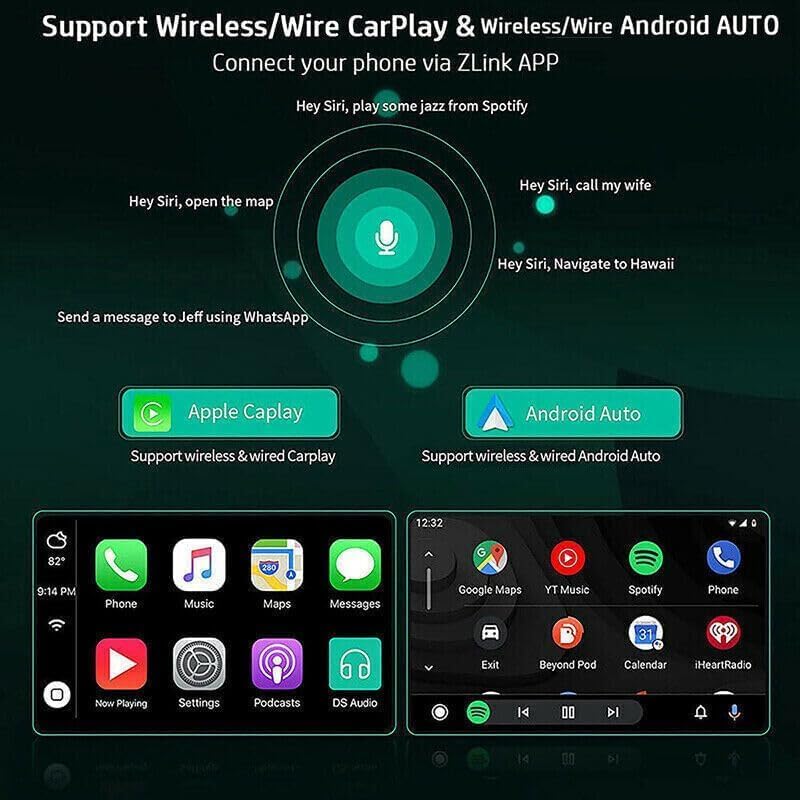
Image: Voice command functionality for CarPlay and Android Auto, demonstrating hands-free operation.
4.2 Navigazione GPS e connettività WiFi
The unit supports both online and offline GPS navigation. Download offline maps for use without an internet connection, or connect to a mobile hotspot via WiFi for real-time map updates and access to online services.

Image: GPS navigation interface and WiFi connection feature, showing how to access maps and internet.
Radio FM/RDS 4.3
Access FM radio stations with RDS (Radio Data System) support. Tune into your favorite stations for news, music, and traffic updates. The unit allows for easy station scanning and saving presets.

Image: FM/RDS radio interface on the car stereo screen, displaying current frequency and controls.
4.4 Funzionalità Bluetooth
Connect your phone via Bluetooth 5.0 for hands-free calling, music streaming (A2DP), and automatic phonebook loading. This enhances safety and convenience while driving.
4.5 Visualizzazione a schermo diviso
The split-screen feature allows you to run two applications simultaneously on the display, such as navigation and music playback, or a video and another app. Long-press an app icon to activate split-screen mode.
4.6 Regolazione EQ
Customize your audio experience with the built-in Equalizer (EQ) adjustment. Select from various preset sound modes (e.g., Jazz, Pop, Rock) or manually adjust frequency bands to suit your preferences.
4.7 Impostazioni di sistema
Access the system settings menu to configure various aspects of the stereo, including Wi-Fi, device settings, general preferences (like default volume, boot volume, lantern settings), and user profiles. The factory setting keyword is 8888, 3368, or 1234.
Video: Demonstration of key operating features including media playback, FM radio, EQ adjustment, system settings, map navigation selection, and split-screen display.
5. Specifiche
| Caratteristica | Specificazione |
|---|---|
| Sistema | Androide 13 |
| Dimensioni dello schermo | 10 pollici |
| Memoria (RAM+ROM) | 2 GB di RAM + 32 GB di ROM |
| Risoluzione dello schermo | 1024x600 |
| Tipo di schermo | IPS 2.5D HD Capacitive Touch Screen |
| Banda radiofonica | FM/RDS |
| Potenza in uscita | 4x45W |
| Versione Bluetooth | 5.0 |
| Connettività | Bluetooth, USB, Wi-Fi |
| Navigazione | GPS (Offline maps supported) |
| Temperatura di esercizio | -40℃ a 80℃ |
| Controllo del volante | Supportato |
| Uscita video | Supportato |
| Formati audio | APE/FLAC/WAV/MP3/WMA, ecc. |
| Formati video | MKV/RMVB/AVI/MP4/MDV, ecc. |
| Formati immagine | PNG/JPEG/JPG/GIF/WBMP/BNP, ecc. |
| Lingue | Multi-language support (Chinese, English, French, Italian, Korean, Japanese, Arabic, Spanish, Portuguese, Russian, Turkish, Vietnamese, Hebrew, Polish, German) |
| Veicolo compatibile | Nissan Versa Sedan 2015-2019 |

Image: Screen comparison highlighting color gamut and resolution differences between standard IPS and QLED displays.
6. Risoluzione Dei Problemi
Se riscontri problemi con l'autoradio, fai riferimento ai seguenti passaggi comuni per la risoluzione dei problemi:
- Nessun potere: Controllare tutti i collegamenti elettrici e assicurarsi che l'accensione del veicolo sia inserita. Verificare che il fusibile sia intatto.
- Nessun suono: Check speaker connections and volume settings. Ensure the mute function is not active.
- Problemi con il segnale GPS: Assicurarsi che l'antenna GPS sia installata in una posizione con una vista libera view del cielo. Controllare il collegamento dell'antenna.
- Problemi di connessione Bluetooth: Assicurati che il Bluetooth sia abilitato sia sullo stereo che sullo smartphone. Prova a disaccoppiare e riassociare i dispositivi.
- Touchscreen che non risponde: Try restarting the unit. If the issue persists, a factory reset may be necessary (refer to System Settings).
- Sistema lento/congelato: Close unnecessary applications. If the problem continues, consider a factory reset.
For persistent issues not resolved by these steps, please contact Surakey customer support.
7. Garanzia e supporto
Your Surakey car stereo comes with a standard manufacturer's warranty. Please retain your proof of purchase for warranty claims. For technical support, warranty inquiries, or service, please refer to the contact information provided with your purchase or visit the official Surakey websito.