
1. Prodotto finitoview
This RONGJI car radio is an advanced 9-inch IPS touch screen multimedia system designed for Opel Astra H models from 2004 to 2014. It operates on an Android OS with an Octa-Core CPU, 4GB RAM, and 32GB ROM, providing a responsive and smooth user experience. Key features include built-in Wireless/Wired Car-Play and Android Auto, Bluetooth for hands-free calling and music streaming, FM/AM radio with RDS, a powerful DSP for enhanced audio, integrated WiFi, and GPS navigation capabilities.
The unit features a 1280*720 high-resolution capacitive touch screen, supporting split-screen functionality for simultaneous display of two applications. It also supports steering wheel controls for convenient operation while driving.
2. Contenuto della confezione
Verifica che tutti i componenti elencati di seguito siano inclusi nella confezione. Se alcuni articoli risultano mancanti o danneggiati, contatta l'assistenza clienti.
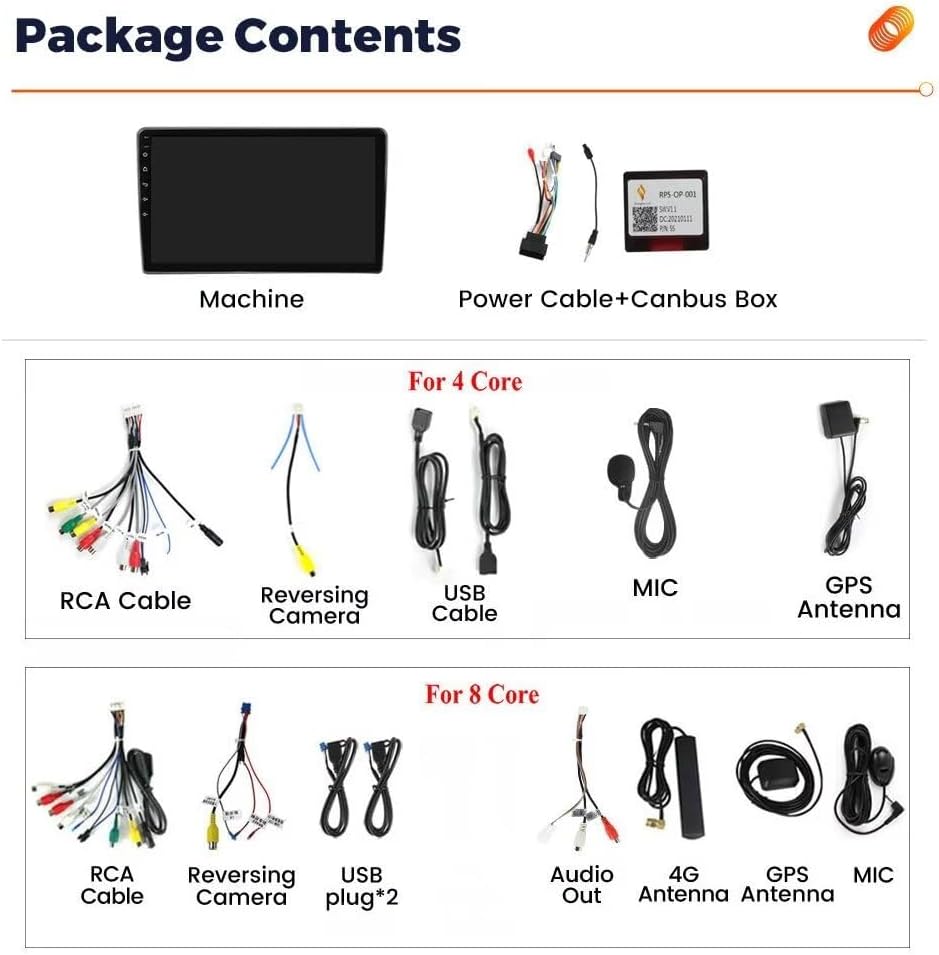
This image displays the various components included in the package. It shows the main head unit, power cable with Canbus box, RCA cables, reversing camera cable, USB cables, external microphone, GPS antenna, and for 8-core models, an additional 4G antenna and extra audio output cables.
- Main Head Unit (9-inch IPS Touch Screen)
- Cavo di alimentazione + scatola Canbus
- Set di cavi RCA
- Cavo di ingresso della telecamera di retromarcia
- USB Cables (x2 for 8-Core models)
- Microfono esterno
- Antenna GPS
- 4G Antenna (for 8-Core models)
3. Configurazione e installazione
Before beginning installation, ensure your vehicle is compatible with this unit. This car radio is specifically designed for Opel Astra H models manufactured between 2004 and 2014. It is recommended to compare your car's dashboard photo with the product images to confirm compatibility. If unsure, consult a professional installer or contact customer support with photos of your dashboard and the back of your OEM radio.
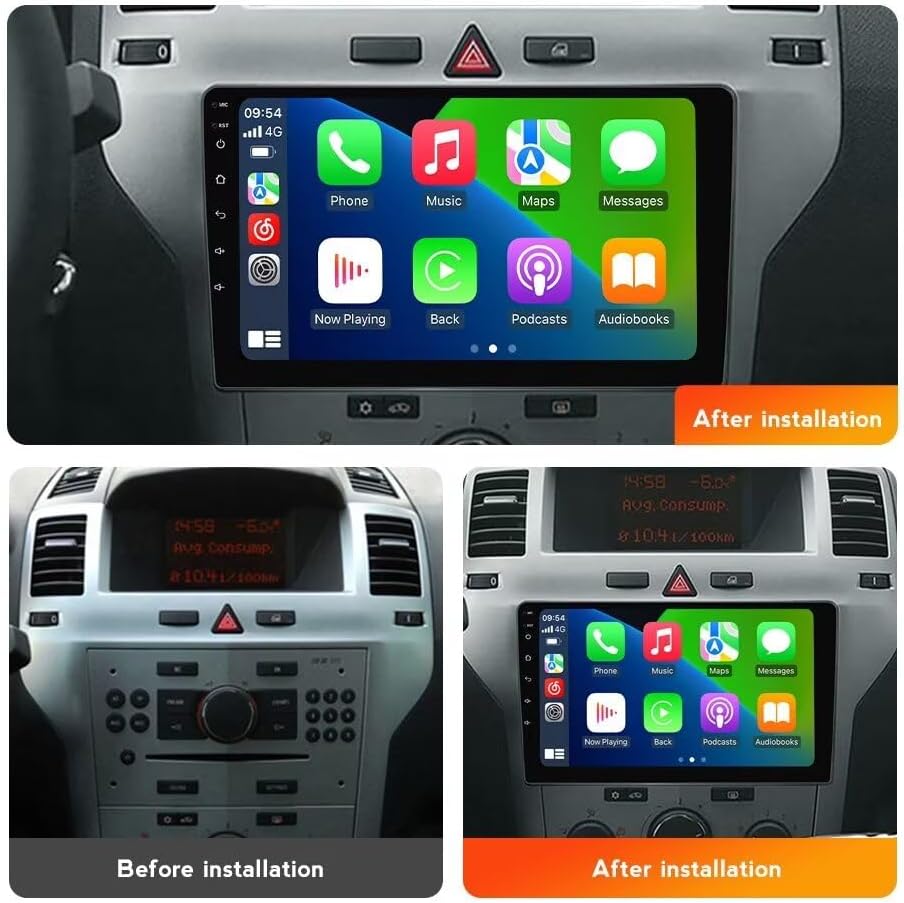
This image illustrates the visual transformation of the car's dashboard. The 'Before installation' view shows the original car radio, while the 'After installation' view displays the new 9-inch IPS touch screen car radio seamlessly integrated into the dashboard.
3.1 Basic Installation Steps:
- Scollegare la batteria: Prima di qualsiasi intervento elettrico, scollegare il terminale negativo della batteria del veicolo per evitare cortocircuiti.
- Rimuovere la radio OEM: Rimuovere con cautela l'autoradio e la modanatura del cruscotto. Consultare il manuale di manutenzione del veicolo per istruzioni specifiche.
- Collegare il cablaggio: Collegare il cavo di alimentazione e la scatola Canbus in dotazione al cablaggio del veicolo. Assicurarsi che tutti i collegamenti siano ben saldi.
- Connetti le periferiche: Attach the GPS antenna, external microphone, USB cables, and reversing camera cable (if applicable) to the corresponding ports on the new head unit. Position the GPS and 4G antennas in locations with clear signal reception.
- Funzionalità di prova: Before fully reassembling the dashboard, temporarily connect the battery and power on the unit to test basic functions like power, audio, and touch screen response.
- Unità sicura: Montare saldamente la nuova unità principale nell'apertura del cruscotto.
- Riassemblare il cruscotto: Reinstallare tutti i pezzi di rivestimento del cruscotto.
- Ricollegare la batteria: Ricollegare il terminale negativo della batteria del veicolo.
Controllo del volante (SWC): This unit supports digital steering wheel controls. After installation, you may need to configure the SWC settings in the unit's system menu to map the buttons correctly.
4. Istruzioni per l'uso
4.1 Car-Play e Android Auto
The unit features built-in Wireless and Wired Car-Play and Android Auto. This allows for intuitive access to calls, music, navigation, and other apps from your smartphone, enhancing driving safety and convenience.

This image illustrates the user interfaces for Car-Play and Android Auto as displayed on the car radio. It shows how both wired and wireless connections are supported for these smartphone integration features.
- Connessione cablata: Collega il tuo smartphone all'unità tramite un cavo USB.
- Connessione wireless: Enable Bluetooth and Wi-Fi on your smartphone and pair it with the car radio. Follow the on-screen prompts to initiate Car-Play or Android Auto.
4.2 Bluetooth (BT)
The integrated Bluetooth module supports hands-free calling, phone book synchronization, and audio streaming. The unit has a built-in microphone, and an external microphone is also provided for clearer call quality.
- Abbinamento: Go to the Bluetooth settings on the car radio, enable Bluetooth, and search for available devices on your smartphone. Select the car radio's name to pair.
- Chiamate in vivavoce: Una volta effettuato l'abbinamento, è possibile effettuare e ricevere chiamate direttamente dall'interfaccia dell'autoradio.
- Streaming di musica: Play audio from your smartphone through the car's speakers via Bluetooth.
Radio FM/AM 4.3 con RDS
Enjoy stable radio frequency reception with the built-in FM/AM tuner and RDS (Radio Data System) support. You can search for channels automatically or manually.

This image displays two main features: the FM/AM radio interface, showing frequency tuning and station presets, and the DSP Processor interface, which allows for detailed audio equalization and sound effect adjustments.
- Ricerca automatica: Access the radio application and select the automatic search function to scan and save available stations.
- Sintonizzazione manuale: Regola manualmente la frequenza per trovare stazioni specifiche.
- Preselezioni: Salva le tue stazioni preferite per un accesso rapido.
4.4 Navigazione GPS
The unit includes a built-in GPS module and an external GPS antenna for accurate navigation. You can use online maps (with internet connection) or download offline maps for navigation without mobile data.

This image highlights the GPS navigation capabilities, showing a map display with real-time traffic and positioning. It also illustrates the WiFi support, indicating how the unit can connect to the internet for online services and app downloads.
- Mappe online: Connect to Wi-Fi and use pre-installed or downloaded navigation apps.
- Mappe offline: Within the navigation app, download maps for your desired regions to use without an internet connection.
4.5 Connettività Wi-Fi
The built-in Wi-Fi receiver allows you to connect the car radio to your home Wi-Fi network or a mobile hotspot. This enables access to online content, app downloads, and real-time services.
- Connessione al Wi-Fi: Go to the system settings, select Wi-Fi, and choose your desired network. Enter the password if required.
- Download dell'app: Access the app store to download various applications.
4.6 Funzione schermo diviso
The unit supports split-screen functionality, allowing you to display two applications simultaneously on the 9-inch screen. This can be useful for navigation while listening to music or browsing.

This image demonstrates the split-screen feature, showing two applications (e.g., web browser and music player) running side-by-side. It also illustrates the steering wheel control interface, highlighting how physical buttons on the steering wheel can be used to control the unit.
- Attivazione dello schermo diviso: Typically, this can be done by long-pressing the recent apps button or dragging an app to one side of the screen.
4.7 DSP Processor (Equalizer)
The built-in DSP (Digital Signal Processor) allows for advanced audio customization. You can adjust various frequencies to achieve optimal sound quality tailored to your preferences.
- Accesso al DSP: Navigate to the audio settings or a dedicated DSP app on the unit.
- Regolazione delle impostazioni: Use the equalizer to fine-tune bass, treble, and mid-range frequencies. Pre-set sound modes may also be available.
5. Manutenzione
To ensure the longevity and optimal performance of your RONGJI car radio, follow these maintenance guidelines:
- Pulizia dello schermo: Utilizzare un panno morbido e privo di lanugine leggermente dampPulire con acqua o con un detergente per schermi specificamente progettato per dispositivi elettronici. Evitare prodotti chimici aggressivi o materiali abrasivi.
- Aggiornamenti software: Periodically check for available software updates through the unit's system settings. Updates can improve performance, add new features, and fix bugs.
- Evitare temperature estreme: Non esporre l'unità a temperature estreme per periodi prolungati, poiché ciò potrebbe danneggiarne i componenti elettronici.
- Connessioni via cavo: Assicurarsi che tutti i cavi siano collegati saldamente e non siano schiacciati o danneggiati.
6. Risoluzione Dei Problemi
Se riscontri problemi con l'autoradio, fai riferimento ai seguenti passaggi comuni per la risoluzione dei problemi:
- Nessun potere:
- Controllare tutti i collegamenti elettrici e i fusibili.
- Assicurarsi che la batteria del veicolo sia correttamente collegata e carica.
- Nessun suono:
- Verificare che il volume non sia disattivato o troppo basso.
- Controllare i collegamenti dei cavi degli altoparlanti.
- Assicurarsi che sia selezionata la sorgente audio corretta.
- Touchscreen che non risponde:
- Restart the unit (turn off the car ignition and restart).
- Perform a system reset if available in the settings (this may erase user data).
- Perdita del segnale GPS:
- Assicurarsi che l'antenna GPS sia collegata correttamente e abbia una visuale libera view del cielo.
- Controllare le impostazioni GPS all'interno dell'applicazione di navigazione.
- Problemi di connessione Bluetooth:
- Assicurati che il Bluetooth sia abilitato sia sull'autoradio che sullo smartphone.
- Eliminare gli abbinamenti precedenti e provare ad associare nuovamente i dispositivi.
- Riavvia entrambi i dispositivi.
- Car-Play/Android Auto Not Working:
- Per le connessioni cablate, prova un cavo USB diverso.
- Assicurati che il sistema operativo del tuo telefono sia aggiornato.
- Check Car-Play/Android Auto settings on both the unit and your phone.
Se questi passaggi non risolvono il problema, contattare l'assistenza clienti per ulteriore assistenza.
7. Specifiche
| Caratteristica | Specificazione |
|---|---|
| Dimensioni dello schermo | 9 pollici |
| Tipo di visualizzazione | Schermo LCD IPS |
| Tipo di schermo tattile | Capacitivo |
| Sistema operativo | Android |
| processore | Octa-core |
| Memoria (RAM) | 4 GB |
| Memoria (ROM) | 32 GB |
| Risoluzione | 1280*720 |
| Tecnologia di connettività | Wifi bluetooth |
| Caratteristiche speciali | Built-in Car-Play & Android Auto, GPS Navigation, FM/AM Radio with RDS, DSP Processor, Steering Wheel Control, Split Screen Function |
| Tipo di servizio del veicolo | Car (Opel Astra H 2004-2014) |
| Comando vocale | Microfono, Touchscreen |
| Tipo di mappa | In tutto il mondo (online/offline) |