
Introduzione
This manual provides detailed instructions for the setup, operation, and maintenance of your TECWARE Spectre 96 RGB Mechanical Gaming Keyboard. Designed for performance and customization, this keyboard features a 96% layout, customizable LCD screen, multi-function knob, gasket mount design, and hot-swappable switches. Please read this manual thoroughly to ensure optimal use of your device.
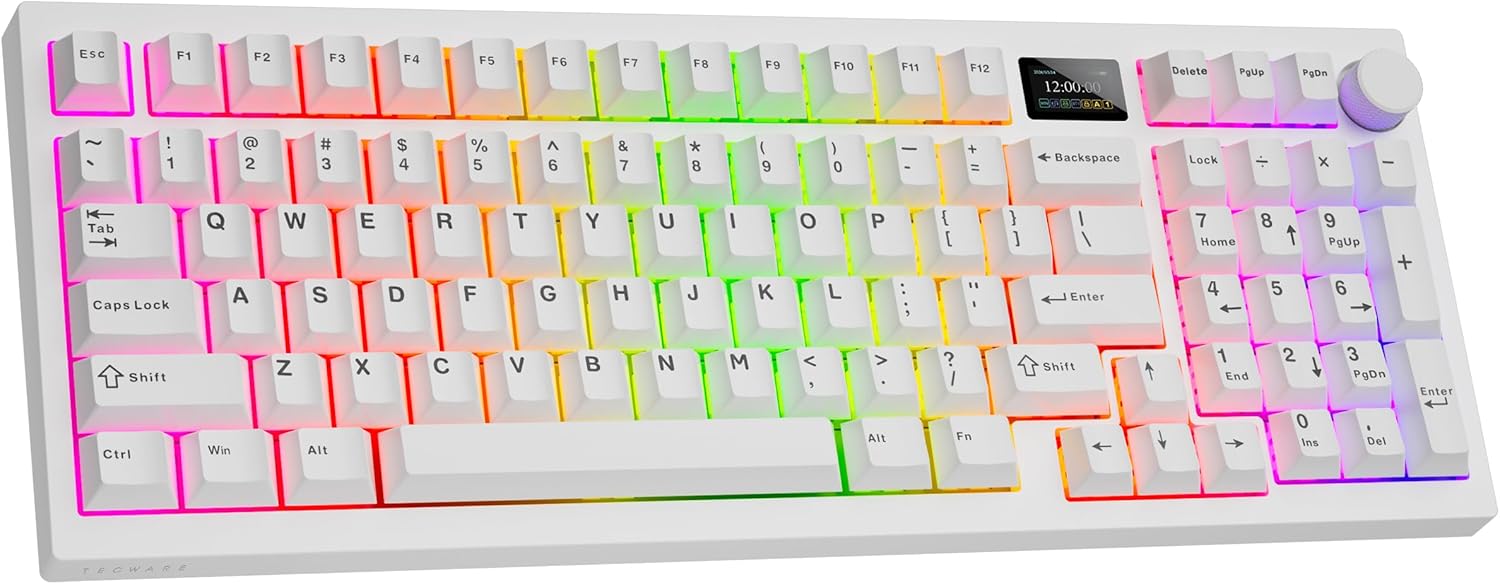
Image: The TECWARE Spectre 96 Mechanical Gaming Keyboard in white, showcasingrazie alla retroilluminazione RGB e al layout compatto.
Contenuto della confezione
Verifica che tutti gli articoli siano presenti nella confezione del prodotto:
- 1 x TECWARE Spectre 96 Mechanical Gaming Keyboard
- 1 x Switch & Keycap Remover Tool
- 1 x Spacebar Silencer Pad
- 1 x Spare LCD Screen Protector
- 4 interruttori di ricambio
- 1 x Braided 1.8m USB Cable (USB-C to USB-A)
Image: An illustration of the various components included with the keyboard, such as PBT keycaps, stabilizers, switches, and the keycap/switch remover tool.
Caratteristiche principali
- Schermo LCD personalizzabile: A 1.14" TFT-LCD smart screen allows for personalized displays, including GIFs, time, battery status, connection modes, and system information.
- 16.8 Million RGB Illumination: Features per-key RGB customization, a vibrant RGB LED side underglow, and 3-zone RGB lighting for keys, underglow, and the volume wheel.
- Connettività Tri-Mode: Offers versatile connection options including 2.4GHz Wireless (via USB dongle), Bluetooth 5.0, and wired USB-C.
- Batteria a lunga durata: Equipped with a 4000mAh battery, providing up to 400 hours of continuous usage on a single charge (without RGB).
- Progettazione del supporto della guarnizione: The gasket mount structure combined with multi-layered foam padding ensures a smooth and quiet typing experience by reducing vibrations and echoes.
- Socket sostituibili a caldo: Universal 5-pin hot-swappable sockets allow for easy replacement of mechanical switches without soldering. South-facing LEDs ensure broad switch compatibility.
- Tasti PBT Double-Shot: Durable Cherry profile PBT keycaps are designed for longevity and a premium feel.
- Manopola multifunzione: A dedicated knob for volume control and LCD screen navigation.

Immagine: Un overview of the Spectre 96 keyboard, detailing its customizable LCD screen, tri-mode connectivity, 4000mAh battery, and volume knob with RGB LEDs.
Impostare
1. Ricarica della tastiera
Before initial use, it is recommended to fully charge the keyboard. Connect the provided USB-C cable to the keyboard's USB-C port and the other end to a powered USB-A port on your computer or a wall adapter. The LCD screen will indicate charging status.
2. Collegamento della tastiera
The Spectre 96 supports three connectivity modes:
- Wireless a 2.4 GHz: Locate the USB dongle stored in the keyboard's underside. Plug the dongle into an available USB-A port on your computer. The keyboard should automatically connect.
- Bluetooth 5.0: Turn on Bluetooth on your computer. On the keyboard, switch to Bluetooth mode (refer to the operating instructions for mode switching). Cercare 'TECWARE Spectre 96' in your device's Bluetooth settings and pair.
- USB-C cablato: Connect the provided USB-C cable directly from the keyboard to your computer. This mode also charges the keyboard.

Image: A visual representation of the keyboard's three connectivity options: 2.4GHz wireless with dongle, Bluetooth 5.0, and wired USB-C connection.

Image: The bottom of the keyboard, illustrating the storage compartment for the 2.4GHz USB dongle and the adjustable kickstands.
3. Installazione del software
To unlock the full customization potential of your Spectre 96 keyboard, including macro recording, macro assignment, custom user profiles, and advanced LCD screen customization, download and install the dedicated software from the official TECWARE website. The software allows for detailed control over RGB lighting effects and LCD screen content.

Image: The keyboard displayed alongside icons representing its software support for macro recording, macro assignment, and custom user profiles.
Istruzioni per l'uso
1. Multi-Function Knob Operation
The dedicated knob located on the top right of the keyboard serves two primary functions: LCD screen navigation and volume control.
- Modalità di commutazione: Premere e tenere premuto il tasto FN chiave e la Manopola simultaneously for 3 seconds to toggle between LCD Mode and Volume Mode.
- Modalità LCD: Rotate the knob left or right to navigate through the LCD menu options. Press the knob down to confirm a selection.
- Modalità volume: Turn the knob to adjust the system volume. Press the knob down to mute or unmute audio.

Image: A detailed guide on how to use the multi-function knob, including switching between LCD and volume modes, and navigating options or adjusting sound.
2. Customizable LCD Screen
The 1.14" TFT-LCD screen can display various information and custom content:
- Schermata iniziale: Displays time, date, and connection status.
- Informazioni di sistema: Shows CPU and GPU usage.
- Custom Content: Upload your own GIFs or static images via the dedicated software for a personalized display.
- Impostazioni: Adjust brightness, speed, and color effects directly from the LCD menu.

Image: The customizable LCD screen on the keyboard, showing examples of a GIF, current time and date, and system information like CPU/GPU usage.
3. RGB Illumination Control
The keyboard features extensive RGB lighting options:
- Per-Key Customization: Adjust individual key lighting colors and effects using the software.
- Modalità preimpostate: Cycle through 18 pre-set lighting modes directly on the keyboard.
- 3-Zone RGB: Lighting can be customized independently for the keys, the side underglow, and the volume wheel.
- Luminosità e velocità: Adjust lighting brightness and animation speed via the LCD menu or software.

Image: The TECWARE Spectre 96 keyboard illuminated with vibrant RGB lighting, highlighting its 16.8 million color spectrum and various preset lighting modes.
4. Progettazione del supporto della guarnizione
The keyboard's gasket mount structure incorporates multiple layers of sound-dampening foam, including plate foam, switch pad, PCB foam, and a silicone layer. This design minimizes vibrations and acoustic resonance, resulting in a softer, more consistent typing sound and feel.

Image: An exploded diagram illustrating the internal layers of the keyboard, including keycaps, top case, PC switch plate, various foam layers, PCB, silicone layer, and bottom case, which contribute to the gasket mount design.
Manutenzione
1. Pulizia della tastiera
- Utilizzare un panno morbido e privo di lanugine leggermente dampPulire i tasti e la superficie della tastiera con acqua o una soluzione detergente delicata.
- Per rimuovere polvere e detriti tra i tasti, utilizzare aria compressa.
- Evitare prodotti chimici aggressivi o materiali abrasivi che potrebbero danneggiare la finitura o le legende dei tasti.
2. Replacing Switches and Keycaps
The Spectre 96 features hot-swappable sockets, allowing for easy switch replacement without soldering. The PBT double-shot keycaps are also removable.
- Rimozione dei tasti: Use the included keycap remover tool to gently pull keycaps straight up.
- Rimozione interruttore: After removing the keycap, use the switch remover tool to grasp the top and bottom clips of the switch and pull it straight out.
- Installazione dell'interruttore: Align the pins of the new 3-pin or 5-pin mechanical switch with the holes on the PCB. Gently push the switch down until it clicks into place. Ensure pins are not bent.
- Installazione dei tasti: Allineare il tasto sullo stelo dell'interruttore e premere con decisione finché non è in posizione.

Immagine: un primo piano view of the keyboard's hot-swappable PCB, showing a switch being removed, highlighting the south-facing LEDs and PBT keycaps.

Image: A table detailing the specifications of TECWARE's pre-lubed switches, including actuation force, bottom out force, total travel distance, and switch type (Tactile Cocoa Brown and Linear Candy Red).
Risoluzione dei problemi
- La tastiera non risponde: Ensure the keyboard is charged. Check the connection mode (2.4GHz, BT, USB-C) and ensure it matches your device's connection. For wireless modes, ensure the dongle is properly inserted or Bluetooth is paired. Try connecting via USB-C cable to rule out wireless issues.
- Keyboard Not Registering After Restart: If the keyboard does not register immediately after a computer restart, try unplugging and re-plugging the USB-C cable or the 2.4GHz dongle.
- Problemi relativi allo schermo LCD: If the LCD screen is not displaying correctly, ensure the protective film is removed. Navigate through the LCD menu using the knob to check display settings. If issues persist, try resetting the keyboard or reinstalling the software.
- Illuminazione RGB non funzionante: Check lighting settings via the LCD menu or the dedicated software. Ensure brightness is not set to zero.
- Funzionalità software: If the dedicated software is buggy or features are unclear, refer to the software's help documentation or the TECWARE support website for updates and guides.
Specifiche
| Caratteristica | Dettaglio |
|---|---|
| Dimensioni del prodotto | 15.15 x 5.71 x 1.51 pollici |
| Peso dell'articolo | 2.27 libbre |
| Produttore | Tecware |
| Batterie | È necessaria 1 batteria agli ioni di litio (inclusa) |
| Tecnologia di connettività | 2.4GHz Wireless, Bluetooth 5.0, USB-C |
| Descrizione della tastiera | Tastiera da gioco meccanica RGB |
| Usi consigliati | Gioco d'azzardo |
| Caratteristiche speciali | Customizable LCD Screen, Gasket Mount + Multi-layered Dampening, Hot-Swappable, South-facing LEDs, Volume Roller, Dedicated Software Support |
| Colore | White, Red Switch (Linear) |
| Retroilluminazione della tastiera | RGB (16.8 milioni di colori) |
| Stile | Spectre 96 White |
| Materiale | Metallo, Plastica |
Garanzia e supporto
For warranty information, technical support, or further assistance, please visit the official TECWARE webo contattare il servizio clienti. Conservare la prova d'acquisto per eventuali reclami in garanzia.