
TECWARE Spectre 75
Manuale utente della tastiera meccanica da gioco TECWARE Spectre 75
Model: Spectre 75
Introduzione
This manual provides detailed instructions for the setup, operation, and maintenance of your TECWARE Spectre 75% RGB Mechanical Gaming Keyboard. Designed for performance and customization, the Spectre 75 features a compact layout, customizable LCD screen, multi-function knob, gasket mount design, and hot-swappable switches. Please read this manual thoroughly to ensure proper use and to maximize your keyboard's potential.

Image: The TECWARE Spectre 75 mechanical gaming keyboard, showcasingrazie al suo layout compatto al 75% e alla vivace retroilluminazione RGB.
Impostare
Contenuto della confezione
- TECWARE Spectre 75 Mechanical Gaming Keyboard
- Cavo da USB-C a USB-A
- Dongle wireless da 2.4 GHz
- Strumento per estrarre tasti/interruttori
- Manuale dell'utente (questo documento)
Opzioni di connettività
The TECWARE Spectre 75 keyboard offers three modes of connectivity:
- Wireless a 2.4 GHz: For a stable, low-latency wireless connection.
- Bluetooth 5.0: Per la connessione wireless a più dispositivi.
- USB-C cablato: Per una connessione e una ricarica diretta e affidabile.

Image: The keyboard's connectivity options, including the 2.4GHz wireless dongle, USB-C port, and Bluetooth indicator.
Connessione iniziale
- Connessione cablata: Connect the provided USB-C cable to the keyboard's USB-C port and the other end to an available USB port on your computer. The keyboard will be recognized automatically.
- Connessione wireless a 2.4 GHz:
- Individuare il dongle wireless da 2.4 GHz.
- Collega il dongle a una porta USB disponibile sul tuo computer.
- Assicurati che l'interruttore della modalità della tastiera (solitamente sul retro o sul lato) sia impostato su 2.4G.
- La tastiera dovrebbe connettersi automaticamente.
- Connessione Bluetooth:
- Ensure the keyboard's mode switch is set to BT.
- Sul tuo computer o dispositivo, vai alle impostazioni Bluetooth.
- Cercare new devices and select "TECWARE Spectre 75" (or similar) from the list.
- Segui le istruzioni visualizzate sullo schermo per completare l'associazione.
The keyboard is equipped with a 4000mAh battery, providing up to 400 hours of continuous usage on a single charge. Charge the keyboard using the USB-C cable.
Operazione
Schermo LCD personalizzabile
The 1.14" TFT-LCD smart screen can display various information and custom content.
- Visualizzazione delle informazioni: View time, date, battery level, connection mode, and system information (e.g., CPU/GPU usage).
- Custom Content: Upload your own GIFs or static images for a personalized display. This feature is managed via the TECWARE software.

Immagine: Examples of content displayed on the customizable LCD screen, including animated GIFs, time and date, and system performance metrics.
Manopola multifunzione
The dedicated knob provides dual functionality for media control and LCD screen navigation.
- Modalità di commutazione: Premere e tenere premuto il tasto FN key and rotate the knob for 3 seconds to switch between LCD Mode and Volume Mode.
- Modalità LCD:
- Rotate Left/Right: Navigate through the LCD menu.
- Press Down: Confirm selection.
- Modalità volume:
- Turn: Adjust system volume.
- Premere: Disattiva/Riattiva l'audio.

Image: A user's hand adjusting the multi-function knob, which controls volume and LCD screen navigation.
Illuminazione RGB
The keyboard features 16.8 million color RGB illumination with per-key customization and an RGB LED side underglow.
- Modalità di illuminazione preimpostate: Access 18 preset lighting modes directly from the keyboard or customize further using the TECWARE software.
- 3-Zone RGB Illumination: Lighting can be customized for keys, underglow, and the volume wheel.

Image: The TECWARE Spectre 75 keyboard displaying its extensive RGB lighting capabilities, including per-key customization and underglow effects.
Supporto software
Download the official TECWARE software from the TECWARE website to unlock advanced customization options:
- Registrazione macro: Crea e assegna macro complesse ai tasti.
- Macro assegnazione: Easily assign recorded macros to any key.
- Utente personalizzato Profiles: Save and switch between different key layouts and lighting configurations.
- Personalizzazione dello schermo LCD: Upload GIFs and images to the LCD screen.
- Controllo RGB avanzato: Fine-tune lighting effects and colors.

Image: The TECWARE Spectre 75 keyboard, highlighting its compatibility with software for advanced customization features like macros and user profiles.
Manutenzione
Pulizia della tastiera
- Utilizzare un panno morbido e privo di lanugine leggermente dampPulire i tasti e il telaio con acqua o una soluzione detergente delicata.
- Per rimuovere polvere e detriti tra i tasti, utilizzare aria compressa.
- Evitare di spruzzare liquidi direttamente sulla tastiera.
- Non utilizzare prodotti chimici aggressivi o materiali abrasivi.
Interruttori sostituibili a caldo
The TECWARE Spectre 75 features 5-pin universal hot-swappable sockets, allowing for easy replacement of switches without soldering.
- Rimozione degli interruttori: Utilizzare l'estrattore per interruttori in dotazione. Afferrare delicatamente l'interruttore dall'alto e dal basso, quindi tirare verso l'alto con una pressione uniforme finché l'interruttore non si stacca dal PCB.
- Installazione degli interruttori: Align the pins of the new switch with the holes on the PCB. Press down firmly until the switch clicks into place. Ensure the pins are not bent before insertion.
- Compatibilità: South-facing LEDs ensure compatibility with most aftermarket switches.
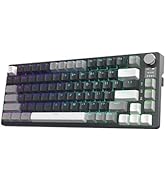
Image: The TECWARE Spectre 75 keyboard with keycaps and switches removed, showing the hot-swappable sockets and the tools required for switch replacement.
Risoluzione dei problemi
La tastiera non risponde
- Wired: Assicurati che il cavo USB-C sia collegato saldamente sia alla tastiera che al computer. Prova una porta USB o un cavo diverso.
- Wireless a 2.4 GHz:
- Verify the dongle is properly inserted into a USB port.
- Check that the keyboard's mode switch is set to 2.4G.
- Assicurarsi che la batteria della tastiera sia carica.
- Bluetooth:
- Confirm the keyboard's mode switch is set to BT.
- Check your device's Bluetooth settings to ensure the keyboard is paired and connected.
- Prova a disaccoppiare e riassociare la tastiera.
- Assicurarsi che la batteria della tastiera sia carica.
Problemi di illuminazione RGB
- If RGB lighting is not working or displaying incorrectly, check the TECWARE software for lighting settings.
- Assicurarsi che il firmware della tastiera sia aggiornato.
Lo schermo LCD non viene visualizzato
- Assicurarsi che la tastiera sia accesa e collegata.
- Check LCD settings within the TECWARE software.
- Try resetting the keyboard (refer to software or manufacturer websito per istruzioni specifiche).
Tasti non registrati o digitati due volte
- Ciò potrebbe indicare uno switch difettoso. Utilizzare la funzione hot-swap per sostituire lo switch difettoso.
- Assicurarsi che l'interruttore sia completamente inserito nella sua sede.
Specifiche
| Caratteristica | Dettaglio |
|---|---|
| Dimensioni del prodotto | 13.04 x 5.74 x 1.51 pollici |
| Peso dell'articolo | 2.03 libbre |
| Produttore | Tecware |
| Batterie | 1 batteria da 9 V (inclusa) |
| Marca | TECWARE |
| Dispositivi compatibili | Per PC, Mac |
| Tecnologia di connettività | Bluetooth (BT 5.0), USB-C, 2.4 GHz Wireless |
| Descrizione della tastiera | Tastiera da gioco meccanica RGB |
| Usi consigliati | Gioco d'azzardo |
| Caratteristica speciale | Backlit, Customizable LCD Screen, Multi-Function Knob, Gasket Mount, Hot-Swappable Sockets |
| Colore | Black, Candy Red Switch (Linear) |
| Stile | Spectre 75 |
| Tema | Arcobaleno |
| Fonte di alimentazione | Alimentato a batteria |
Switch Specifications (Candy Red Linear)
| Caratteristica | Valore |
|---|---|
| Forza di attuazione | 45±5gf |
| Bottom Out Force | 48±5gf |
| Distanza di viaggio totale | 3.5 ± 0.3mm |
| Tipo | Lineare |
Nota: le specifiche sono soggette a modifiche senza preavviso.
Informazioni sulla garanzia
TECWARE products typically come with a limited manufacturer's warranty. For specific warranty terms, duration, and conditions applicable to your region and product, please refer to the warranty card included with your product or visit the official TECWARE websito.
Conserva la prova d'acquisto per le richieste di garanzia.
Supporto
For technical assistance, driver downloads, firmware updates, or further inquiries, please visit the official TECWARE support page:
You may also contact TECWARE customer service through the contact information provided on their websito.
Ask a question about this manual
Ask about setup, troubleshooting, compatibility, parts, safety, or missing instructions. Manuals+ will review the question and use this page’s manual context to help answer it.