
ZYWELL ZY908
Manuale d'uso
ZYWELL ZY908 Thermal Receipt Printer
Model: ZY908 | Brand: ZYWELL
1. Prodotto finitoview
The ZYWELL ZY908 is an 80mm thermal receipt printer designed for various business environments, including small businesses, retail stores, and restaurants. It features an auto-cutter and supports multiple operating systems for versatile connectivity.

Figure 1: ZYWELL ZY908 Thermal Receipt Printer. This image displays the compact white thermal receipt printer with a receipt emerging from the top slot.
2. Contenuto della confezione
Verificare che tutti gli articoli siano presenti nel pacco:
- ZY908 Thermal Receipt Printer
- Cavo di alimentazione
- Rotolo di carta
- Rullo
- Manuale dell'utente (questo documento)
- Cavo USB
3. Istruzioni per l'installazione
3.1. Collegamento della stampante
The ZY908 printer supports both USB and LAN (Ethernet) connections. Choose the appropriate connection method based on your system requirements.

Figura 2: Posteriore view of the ZY908 printer showing the Power Supply Port, Ethernet Port, USB Port, Cash Drawer Port, and Power Switch.
- Connect the power cord to the printer's Power Supply Port (1) and plug it into a power outlet.
- For USB connection: Connect the USB cable from the printer's USB Port (3) to your computer.
- For LAN/Ethernet connection: Connect an Ethernet cable from the printer's Ethernet Port (2) to your network router or switch.
- If using a cash drawer, connect it to the Cash Drawer Port (4).
- Turn on the printer using the Power Switch (5).
3.2. Driver Installation and Compatibility
The printer comes with a USB flash drive containing the necessary drivers. Ensure you install the correct driver for your operating system.
Note sulla compatibilità:
- USB connection supports Android, Mac, Windows, and Linux.
- LAN (Ethernet) connection supports iOS (for Square Stand), Android, Mac, Windows, and Linux.
- This printer is not compatible with Ubereats, Grubhub, Doordash, Lightspeed, Postmates, Clover, or Shopify.
- Bluetooth and Wi-Fi connectivity are not supported.

Figure 3: Compatibility matrix showing supported POS systems and operating systems for USB and LAN connections. Note that iOS devices require a LAN connection for Square.
3.3. Mac Driver Installation via Ethernet
For Mac users connecting via Ethernet, follow these steps to install the driver and set up the printer:
Video 1: This video demonstrates the process of installing the receipt printer driver on a Mac operating system via an Ethernet connection. It covers downloading the driver, installing it, and adding the printer through System Preferences using its IP address.
- Locate the driver installation package on the provided USB flash drive or download it from the official ZYWELL support websito.
- Eseguire il programma di installazione e seguire le istruzioni visualizzate sullo schermo per completare l'installazione del driver.
- Apri "Preferenze di Sistema" sul tuo Mac.
- Navigate to "Printers & Scanners."
- Click the "+" button to add a new printer.
- Select the "IP" tab.
- Enter the printer's IP address (which can be found using the "Printer Tool" application, as shown in the video).
- Choose "HP Jetdirect - Socket" as the protocol.
- Select "POS-80" from the "Use" dropdown menu for the printer software.
- Click "Add" to complete the setup.
3.4. Cash Drawer Setup
To enable cash drawer functionality with Square, follow these steps:
- Collegare il computer alla stampante tramite USB.
- Download and install the appropriate system driver from the provided USB flash drive.
- After driver installation, open the "Printer Test V5.2C" tool.
- Click on "Advanced" within the tool.
- Locate "Cutter with Cash Drawer" and select "ON."
- A successful setup will be indicated by a printer beep.
4. Utilizzo della stampante
4.1. Basic Printing Operations
The ZY908 printer is designed for efficient thermal printing with a speed of up to 230mm/s and features an automatic cutter for clean receipt separation.
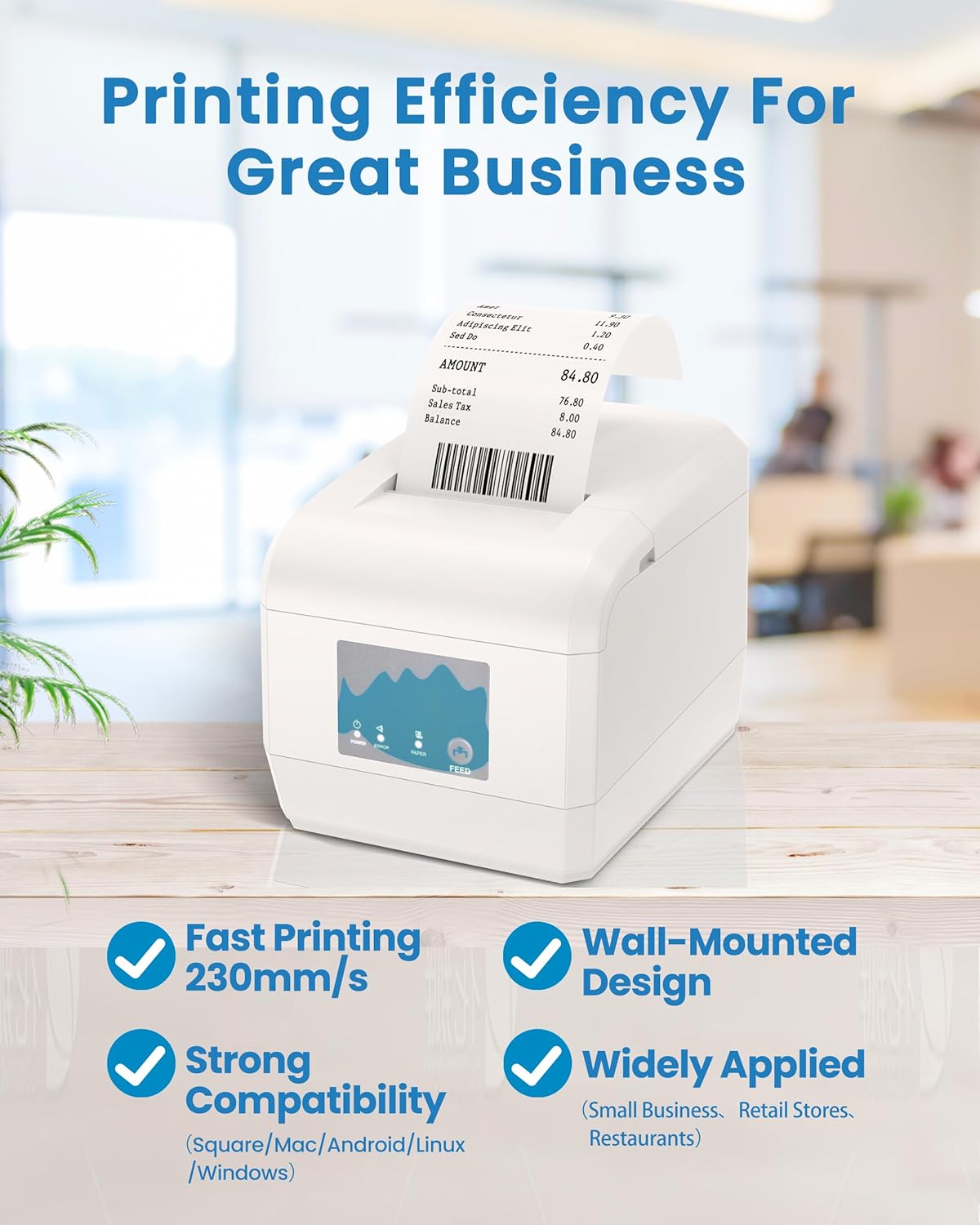
Figure 4: The ZY908 printer in operation, highlighting its fast printing speed and suitability for various business environments. It also mentions wall-mounted design and strong compatibility.
Componenti della stampante:

Figura 5: in alto view of the ZY908 printer, indicating the Paper Cutter, Feed Button, Paper LED Indicator, Error LED Indicator, Power LED Indicator, and Cover Button.
- Taglierina per carta: Automatically cuts receipts after printing.
- Pulsante di alimentazione: Premere per far avanzare manualmente la carta.
- Indicatori LED: Provide status updates for Power, Paper, and Error conditions.
- Pulsante di copertura: Used to open the paper compartment for loading or maintenance.
4.2. Loading Paper Rolls
The ZY908 printer is designed for use with 80mm wide thermal paper rolls.
- Press the Cover Button to open the paper compartment.
- Insert the 80mm thermal paper roll with the paper feeding from the bottom.
- Pull a small amount of paper out past the paper cutter.
- Chiudere saldamente il coperchio del vano carta finché non scatta in posizione.
4.3. Installazione a parete
The printer features two hanging holes at the bottom for optional wall-mounting, which can help save space and maintain a tidy workspace.

Figure 6: The ZY908 printer shown in a wall-mounted configuration, demonstrating its space-saving design.
To wall-mount the printer, use appropriate screws and anchors (not included) to secure it to a sturdy surface via the designated hanging holes on the base.
5. Manutenzione
Una manutenzione regolare garantisce prestazioni ottimali e longevità della stampante.
- Pulizia: Periodically clean the printer's exterior with a soft, damp panno. Evitare detergenti abrasivi o solventi.
- Pulizia della testina di stampa: If print quality degrades, clean the thermal print head using a specialized thermal printer cleaning pen or isopropyl alcohol on a cotton swab. Ensure the printer is off and cooled down before cleaning.
- Auto-Cutter Maintenance: Keep the auto-cutter area free from paper dust and debris to prevent jams and ensure smooth operation.
6. Risoluzione Dei Problemi
This section addresses common issues you might encounter with the ZY908 printer.
| Problema | Possibile causa | Soluzione |
|---|---|---|
| Printer not found by iOS device (e.g., Square on iPad/iPhone) | USB connection is not supported for iOS devices. | Connect the printer to your iOS device via the LAN (Ethernet) port. Ensure both devices are on the same network. |
| Printer stops working or is unresponsive | Problema temporaneo del software o problema di connessione. | Turn off the printer, unplug the power cord, wait 10 seconds, then plug it back in and turn it on. Recheck connections. |
| Il cassetto portavalori non si apre | Cash drawer function not enabled or driver issue. | Ensure the cash drawer is properly connected. Follow the "Cash Drawer Setup" instructions in Section 3.4 to enable the function using the "Printer Test V5.2C" tool. |
| Scarsa qualità di stampa (sbiadita, linee) | Dirty print head or low-quality paper. | Clean the thermal print head (refer to Section 5). Ensure you are using high-quality thermal paper. |
| Inceppamento della carta | Caricamento della carta non corretto o presenza di un oggetto estraneo. | Open the paper compartment, remove any jammed paper or obstructions, and reload the paper correctly. |
7. Specifiche
| Caratteristica | Dettaglio |
|---|---|
| Marca | ZYWELL |
| Nome del modello | 908-Bianco |
| Tecnologia di stampa | Termico |
| Tecnologia di connettività | Ethernet, USB |
| Uscita della stampante | Monocromo |
| Max Velocità di stampa | 230mm/secondo |
| Risoluzione massima di stampa in bianco e nero | 203 dpi |
| Dimensione massima del supporto | 80mm (3.15 inches) wide |
| Caratteristica speciale | Network-Ready, Auto-Cutter, Wall-Mountable |
| Dimensioni del prodotto | 7"P x 5.5"L x 5.3"A |
| Peso dell'articolo | 3.01 libbre |
8. Garanzia e supporto
The ZYWELL ZY908 Thermal Receipt Printer comes with a limited warranty. For specific warranty terms and conditions, please refer to the warranty card included in your product packaging or contact ZYWELL customer support.
For technical assistance, troubleshooting, or further inquiries, please visit the official ZYWELL website or contact their customer service department. Contact information can typically be found in the included user manual or on the manufacturer's websito.
Puoi anche visitare il ZYWELL Store on Amazon per ulteriori informazioni e risorse di supporto.
Ask a question about this manual
Ask about setup, troubleshooting, compatibility, parts, safety, or missing instructions. Manuals+ will review the question and use this page’s manual context to help answer it.