
1. Prodotto finitoview
The EWEADN G61 is a 60% compact wireless mechanical keyboard designed for versatility and ergonomic comfort. It features a retro typewriter style with round keycaps and offers three connection modes: Bluetooth 5.0, 2.4GHz wireless, and USB-C wired. The keyboard is equipped with red mechanical switches for a responsive typing experience and includes white backlighting with multiple effects.
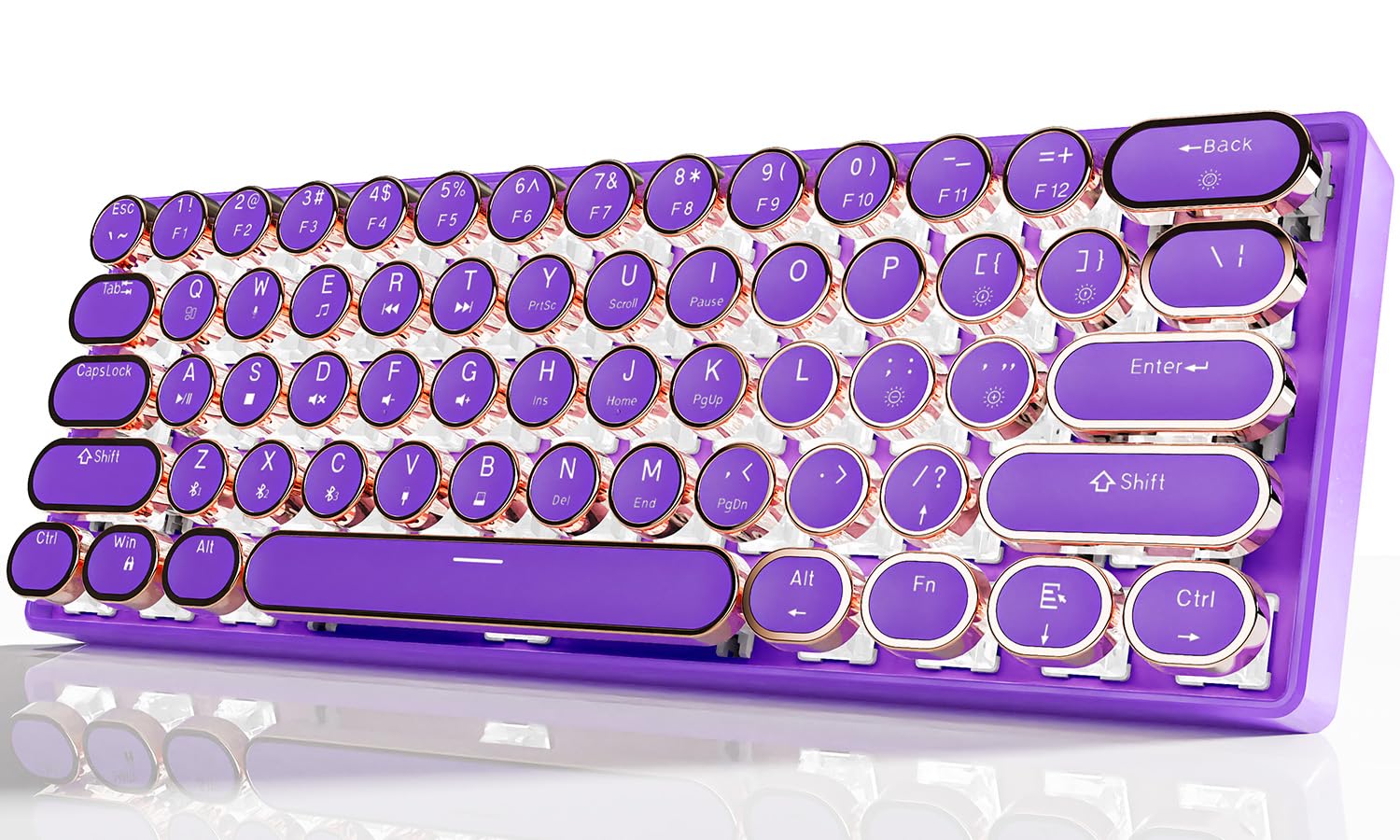
Image 1.1: EWEADN G61 Wireless Mechanical Typewriter Keyboard in purple, showcasing its compact design and round keycaps.
This keyboard supports connection to up to 5 devices simultaneously, allowing seamless switching between various platforms like tablets, laptops, and smartphones. Its metal panel construction ensures durability, while the anti-ghosting technology provides accurate input for both typing and gaming.
2. Cosa c'è nella scatola
- EWEADN G61 Wireless Mechanical Typewriter Keyboard
- Cavo USB (per connessione cablata e ricarica)
- 2.4GHz USB Receiver (typically stored in the keyboard)
- Manuale dell'utente (questo documento)
3. Specifiche
| Modello | G61 |
| Tecnologia di connettività | Bluetooth 5.0, wireless a 2.4 GHz, USB-C cablato |
| Tipo di interruttore a chiave | Red Mechanical Switches (Linear, 3-PIN, 45±10gf Operating Force, 2.0±0.6mm Pre-Travel) |
| Stile del tasto | Retro Typewriter Style Round Keycaps |
| Retroilluminazione | White Backlight with 19 effects, 5 brightness levels, 5 breathing speeds |
| Anti-ghosting | Full-key Anti-ghosting |
| Batteria | 1 batteria agli ioni di litio (inclusa), 2000 mAh |
| Dispositivi compatibili | PC, Mac laptops, Tablets, Desktop computers, Gaming Consoles, Smart TVs, Smartphones |
| Sistemi operativi | Windows 7/8/10/XP/Vista, Linux, sistema operativo Mac |
| Materiale | Aluminum Alloy (panel), Acrylonitrile Butadiene Styrene (ABS) |
| Peso dell'articolo | 1.6 libbre |
| Dimensioni | 13 x 5.8 x 2.3 pollici |

Immagine 3.1: Primo piano view of the G61 keyboard's red mechanical switch mechanism.
4. Istruzioni per l'installazione
4.1 Ricarica della tastiera
Prima del primo utilizzo, caricare completamente la tastiera utilizzando il cavo USB-C in dotazione. Collegare un'estremità alla porta USB-C della tastiera e l'altra estremità a una fonte di alimentazione USB (ad esempio, computer, adattatore da parete).

Image 4.1: The USB-C charging port located on the keyboard.
4.2 Modalità di connessione
The G61 keyboard supports three connection modes: Bluetooth, 2.4GHz wireless, and USB-C wired. You can connect up to 5 devices simultaneously and switch between them.

Image 4.2: Visual representation of the three connection modes: Bluetooth, 2.4G Wireless, and Type-C Wired.
4.2.1 Modalità wireless a 2.4 GHz
- Individuare il ricevitore USB da 2.4 GHz, solitamente conservato in uno scomparto sulla tastiera.
- Collegare il ricevitore USB a una porta USB disponibile sul computer o sul dispositivo.
- Premere Fn + SI on the keyboard to switch to 2.4GHz wireless mode. The keyboard should connect automatically.

Image 4.3: Illustration of plugging in the 2.4GHz USB receiver.
4.2.2 Bluetooth Mode (BT1, BT2, BT3)
- Assicurati che la tastiera sia accesa.
- Premere Fn+Z, F+X, O Fn+C to select one of the three Bluetooth channels (BT1, BT2, BT3). The corresponding key's backlight will flash, indicating pairing mode.
- On your device (computer, tablet, phone), go to Bluetooth settings and search for "G61 Keyboard" or a similar name.
- Seleziona la tastiera da associare. Una volta connessa, la retroilluminazione del tasto smetterà di lampeggiare.
- Per passare da un dispositivo Bluetooth associato all'altro, premere Fn + Z/X/C per il canale desiderato.
4.2.3 Modalità cablata USB-C
- Collegare il cavo USB-C in dotazione alla porta USB-C della tastiera.
- Collega l'altra estremità del cavo a una porta USB del computer.
- The keyboard will automatically switch to wired mode. Press Fn+V to ensure wired mode is active.
- No drivers or software installation is required for wired mode.
5. Istruzioni per l'uso
5.1 Controllo della retroilluminazione
The G61 keyboard features white backlighting with various effects and adjustable brightness.
- Fn + Elimina: Cycle through 19 different lighting effects.
- Fn + {[/: Decrease backlight brightness (5 levels).
- Fn + }/]: Aumenta la luminosità della retroilluminazione (5 livelli).
- Fn + ;/:: Decrease breathing speed (5 levels).
- Fn + '/": Increase breathing speed (5 levels).
- Fn + Spacebar (hold for 3 seconds): Reset lighting effects to default.

Image 5.1: Diagram showing key combinations for backlight control.
5.2 Tasti funzione (combinazioni Fn)
The keyboard utilizes Fn key combinations for various functions due to its compact 60% layout.
| Funzione | Combinazione di tasti |
| Switch Window | Fn + Q |
| Riproduci/Pausa | Fn + LA |
| Switch Window | Fn + W |
| Riproduci/Pausa | Fn+S |
| Multimedia | Fn + E |
| Muto | Fn + RE |
| Canzone precedente | Fn + R |
| Volume - | Tasto F |
| Prossima canzone | Fn + T |
| Volume + | Fn+G |
| Tasti freccia | Fn + Right Alt, Fn + /, Fn + Menu, Fn + Ctrl (Specific combinations may vary, refer to keyboard legends) |

Image 5.2: A visual guide to common Fn key combinations for multimedia and system control.
6. Manutenzione
- Pulizia: Utilizzare un panno morbido e asciutto per pulire la superficie della tastiera. Per una pulizia più profonda, utilizzare aria compressa per rimuovere polvere e detriti dagli spazi tra i tasti. Evitare l'uso di prodotti chimici aggressivi o materiali abrasivi.
- Rimozione dei tasti: Keycaps can be carefully removed for cleaning or replacement using a keycap puller (not included). Gently pull straight up to avoid damaging the switch.
- Magazzinaggio: Conservare la tastiera in un luogo fresco e asciutto, lontano dalla luce solare diretta e da temperature estreme.
- Cura della batteria: Per prolungare la durata della batteria, evitare di scaricare completamente la tastiera frequentemente. Ricaricarla quando l'indicatore della batteria è basso.
7. Risoluzione Dei Problemi
7.1 Problemi di connettività
- Keyboard not connecting (Wireless/Bluetooth):
- Assicurarsi che la tastiera sia carica.
- Verify the correct mode is selected (Fn + B for 2.4GHz, Fn + Z/X/C for Bluetooth).
- Per 2.4 GHz, assicurati che il ricevitore USB sia collegato saldamente. Prova una porta USB diversa.
- For Bluetooth, ensure your device's Bluetooth is enabled and the keyboard is in pairing mode. Remove previous pairings and re-pair if necessary.
- Prova a riavviare sia la tastiera che il dispositivo collegato.
- Disconnessioni frequenti:
- Ensure the keyboard is within the effective range of your device (typically up to 10 meters for Bluetooth/2.4GHz).
- Ridurre al minimo le interferenze provenienti da altri dispositivi wireless (router Wi-Fi, altri dispositivi Bluetooth).
- Assicurarsi che la batteria della tastiera abbia una carica sufficiente.
- If using 2.4GHz, try moving the USB receiver closer to the keyboard or using a USB extension cable.
7.2 Keys Not Responding / Input Lag
- Check if the keyboard is properly connected in your chosen mode.
- Assicurarsi che la batteria sia carica.
- Try switching to wired mode to rule out wireless interference.
- Pulisci eventuali detriti o polvere presenti sotto i tasti interessati.
7.3 Retroilluminazione non funzionante
- Assicurarsi che la tastiera sia accesa e carica.
- Regola la luminosità utilizzando Fn + }/].
- Try resetting the lighting effects by holding Fn + Barra spaziatrice per 3 secondi.
Video 7.1: A demonstration of the G61 keyboard's RGB lighting and mechanical switches. This video shows the keyboard's aesthetic features and responsiveness.
8. Garanzia e supporto
The EWEADN G61 keyboard comes with a manufacturer's warranty. For specific warranty details, please refer to the product packaging or contact the seller directly.
8.1 Contattare l'assistenza
If you encounter any issues or have questions not covered in this manual, please contact the seller or manufacturer for assistance. You can typically find contact information on the product's purchase page or through the seller's store on the platform where you purchased the item.

Image 8.1: Guide on how to contact customer support through the online marketplace.