
Headwolf Headwolf HPad5
Headwolf HPad5 Tablet User Manual
Model: Headwolf HPad5
1. Introduzione
Welcome to the Headwolf HPad5 Tablet User Manual. This guide provides detailed instructions on how to set up, operate, and maintain your new tablet. The Headwolf HPad5 is a high-performance Android 13 tablet designed for a seamless user experience, featuring a powerful processor, vibrant display, and long-lasting battery.

Figure 1.1: Headwolf HPad5 Tablet showcasing its sleek design and key features like 30W fast charging, Widevine L1, and Android 13.
2. Caratteristiche del prodotto
2.1 Caratteristiche principaliview
The Headwolf HPad5 tablet is equipped with advanced features to enhance your digital experience:
- Powerful MTK G99 CPU: Features an 8-core flagship chip with a maximum frequency of 2.2GHz, built on a 6nm process for improved performance and reduced power consumption.
- Supporto Widevine L1: Enjoy high-definition streaming from platforms like Netflix, Amazon Prime Video, Disney+, and Hulu in 1080P.
- Ampla Memoria e l'archiviazione: 16GB RAM (8GB physical + 8GB virtual expansion) and 128GB internal storage, expandable up to 2TB via SD card.
- Batteria a ricarica rapida: 8500mAh large capacity battery with 30W ultra-fast charging support, reaching 80% in 1 hour.
- Display ad alta risoluzione: 10.5-inch FHD IPS Incell screen with 1920x1200 resolution for vivid and clear visuals.
- Doppia fotocamera: Equipped with an 8MP front camera and a 20MP rear camera for versatile photography and video calls.
- Connettività versatile: Supports 4G LTE (SIM-free), 2.4/5GHz Wi-Fi, and Bluetooth 5.2 for stable communication and internet access.
- Sistema operativo Android 13: Runs on the latest Android 13, GMS certified, providing access to Google services and the Google Play Store.
2.2 Processore e prestazioni
The HPad5 is powered by the MediaTek G99 processor, ensuring smooth multitasking and efficient performance for various applications and games.

Figure 2.1: Illustration of the MTK G99 processor and its capabilities, demonstrating smooth gaming performance on the tablet.
2.3 Visualizzazione e immagini
Experience stunning visuals on the 10.51-inch FHD IPS Incell display, offering a resolution of 1920x1200 pixels and Widevine L1 support for high-quality streaming.

Figure 2.2: The tablet's 10.51-inch FHD display with Widevine L1 compatibility, ideal for streaming content from Netflix, Prime Video, Disney+, and Hulu.
2.4 Memoria e archiviazione
With 16GB of RAM and 128GB of internal storage, the HPad5 provides ampspazio per le tue app e files. Storage can be further expanded with a microSD card up to 2TB.
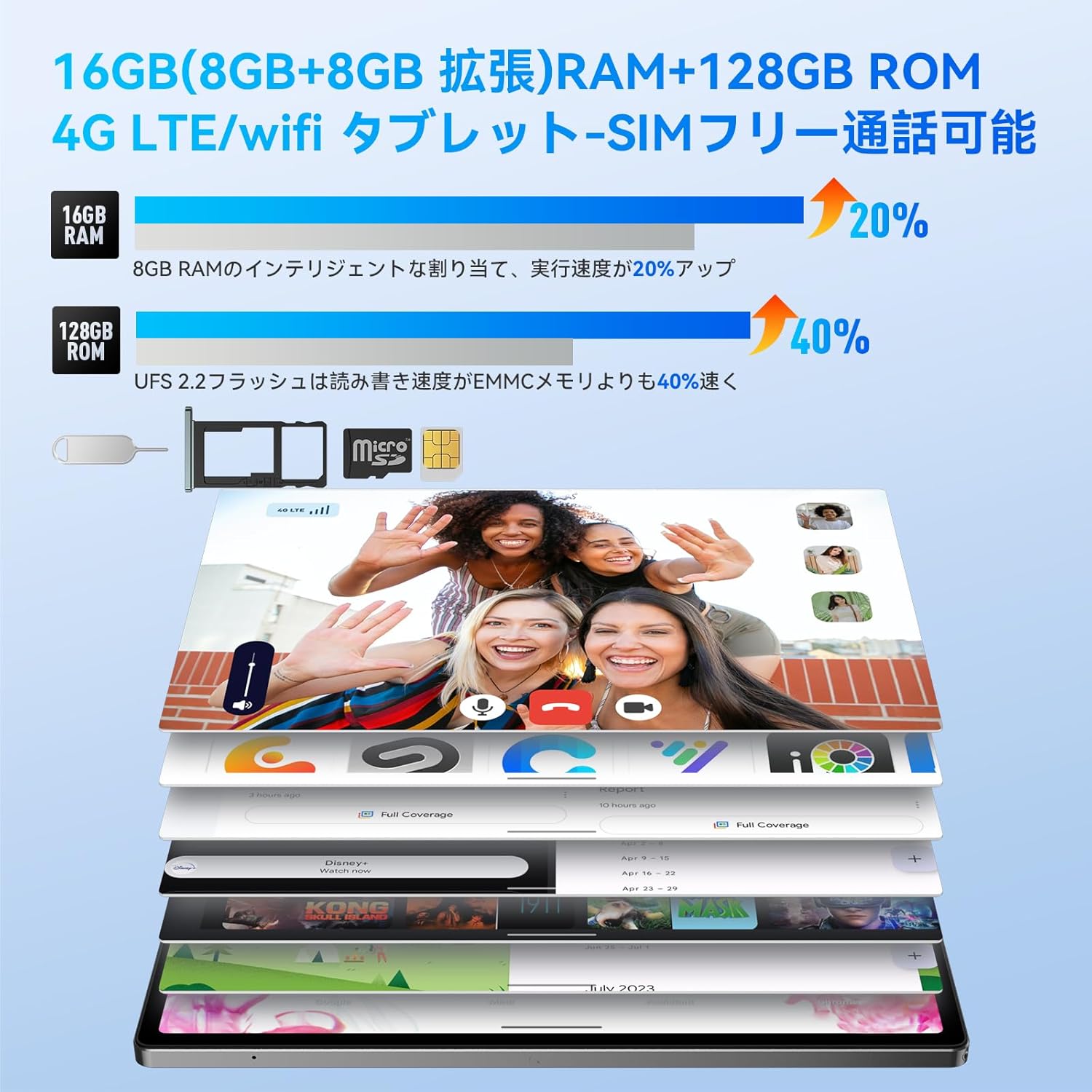
Figure 2.3: Visual representation of 16GB RAM (8GB physical + 8GB virtual) and 128GB ROM, highlighting the performance boost and microSD card slot.
2.5 Batteria e ricarica
The 8500mAh battery offers extended usage, and with 30W fast charging, you can quickly power up your device.

Figure 2.4: The 8500mAh battery and 30W fast charging capability, with illustrations of the included 20W charger and 3.5mm headphone jack.
2.6 Telecamere
Capture moments with the 8MP front camera and 20MP rear AI camera, supporting various shooting modes.

Figure 2.5: Details of the 8MP front and 20MP rear AI cameras, showing their placement and sample images captured by the tablet.
2.7 Connettività
Stay connected with 4G LTE, dual-band Wi-Fi (2.4G/5GHz), and Bluetooth 5.2. The tablet supports dual SIM cards for flexible communication.

Figure 2.6: The tablet's connectivity features, including dual SIM card support for 4G LTE, 2.4G/5GHz Wi-Fi, and Bluetooth 5.2.
2.8 Audio
The HPad5 features four stereo speakers, providing an immersive audio experience for movies, games, and music.

Figure 2.7: Diagram illustrating the four stereo speakers and their audio enhancement capabilities for an immersive experience.
2.9 Sistema Operativo
The tablet runs on Android 13, offering enhanced privacy features, improved UI customization, and a smoother user experience.

Figura 2.8: Oltreview of the Android 13 operating system, highlighting its privacy features and user interface improvements.
3. Guida all'installazione
3.1 Disimballaggio e contenuto della confezione
Upon opening the package, ensure all components are present. The standard package includes the Headwolf HPad5 tablet, a 30W charging adapter (note: 20W adapter is included, 30W adapter may be sold separately), a Type-C cable, and a SIM card pin.

Figure 3.1: The Headwolf HPad5 tablet and its included accessories, such as the charging adapter, Type-C cable, and SIM card pin.
3.2 Accensione iniziale
- Press and hold the Power button located on the side of the tablet until the Headwolf logo appears.
- Segui le istruzioni sullo schermo per selezionare la lingua, la regione e accettare i termini e le condizioni.
- Connect to a Wi-Fi network to complete the initial setup and download any available updates.
- Accedi con il tuo account Google o creane uno nuovo per accedere ai servizi Google e al Play Store.
3.3 Network Connection (Wi-Fi/SIM)
Per connettersi a Internet:
- Wifi: Vai a Impostazioni > Rete e Internet > WifiAttiva il Wi-Fi, seleziona la rete desiderata e inserisci la password se richiesta.
- Scheda SIM: Insert a nano-SIM card into the SIM card slot using the provided SIM pin. Ensure the tablet is powered off before inserting or removing the SIM card. Go to Impostazioni > Rete e Internet > Rete mobile to configure mobile data settings if necessary.
4. Istruzioni per l'uso
4.1 Operazioni di base
- Accensione/spegnimento: Tieni premuto il pulsante di accensione. Seleziona "Spegni" o "Riavvia".
- Controllo del volume: Use the Volume Up/Down buttons on the side of the tablet.
- Schermate: Premere contemporaneamente il pulsante di accensione e il pulsante di riduzione del volume.
- Navigazione: Use gestures (swipe up for home, swipe from sides for back) or the on-screen navigation bar.
4.2 Funzione schermo diviso
The split-screen feature allows you to use two applications simultaneously, enhancing productivity.

Figure 4.1: The tablet's split-screen functionality, allowing two apps to be displayed and operated concurrently.
To activate: Open an app, swipe up from the bottom of the screen and hold to reveal recent apps, then tap the app icon at the top of the window and select "Split screen". Choose a second app from the recent apps or app drawer.
4.3 Proiezione senza fili
Project your tablet's screen to a larger display, such as a TV or monitor, for a more immersive viewesperienza di acquisizione.

Figure 4.2: Demonstrating the wireless projection feature, allowing the tablet's display to be mirrored on a larger screen.
To activate: Go to Impostazioni > Dispositivi connessi > Preferenze di connessione > Lancio. Select your compatible display device.
4.4 Funzionalità GPS
The tablet includes GPS, Beidou, and Galileo 3-in-1 navigation systems, providing accurate location services for navigation and mapping applications.

Figure 4.3: The tablet's GPS functionality, showing its use for navigation in a vehicle.
4.5 Google Kids Space
Google Kids Space provides a safe and engaging environment for children to learn and play, with parental controls to manage screen time and content.

Figure 4.4: A child interacting with the tablet in Google Kids Space, illustrating the educational and entertainment features for kids.
5. Manutenzione
5.1 Cura e pulizia
- Utilizzare un panno morbido e privo di lanugine per pulire lo schermo e il corpo del tablet. Evitare materiali abrasivi o sostanze chimiche aggressive.
- Tenere la compressa lontana da temperature estreme, luce solare diretta e umidità elevata.
- Evitare di far cadere il tablet o di sottoporlo a forti urti.
5.2 Cura della batteria
- Per una durata ottimale della batteria, evitare di scaricarla completamente frequentemente.
- Utilizzare il caricabatterie e il cavo originali forniti con il tablet.
- Non esporre la batteria a temperature elevate.
5.3 Aggiornamenti software
Controlla regolarmente gli aggiornamenti di sistema per assicurarti che il tuo tablet abbia le ultime funzionalità e patch di sicurezza. Vai a Impostazioni > Sistema > Aggiornamento del sistema.
6. Risoluzione Dei Problemi
6.1 Problemi comuni e soluzioni
| Problema | Possibile causa/soluzione |
|---|---|
| Il tablet non si accende. | Battery might be drained. Connect to charger for at least 30 minutes. If still unresponsive, press and hold the Power button for 10-15 seconds to force restart. |
| Problemi di connessione Wi-Fi. | Ensure Wi-Fi is enabled. Restart your router. Forget the network in tablet settings and reconnect. Check if the Wi-Fi password is correct. |
| Le app si bloccano o si bloccano. | Close background apps. Clear app cache (Settings > Apps > [App Name] > Storage > Clear cache). Restart the tablet. Ensure apps are updated. |
| Prestazioni lente. | Close unused apps. Clear storage space. Perform a factory reset as a last resort (backup data first). |
| Scheda SIM non rilevata. | Ensure SIM card is correctly inserted. Restart the tablet. Check with your carrier for SIM card activation or issues. |
7. Specifiche
7.1 Specifiche tecniche
| Caratteristica | Dettaglio |
|---|---|
| Marca | Testa di lupo |
| Nome del modello | Headwolf HPad5 |
| Sistema operativo | Androide 13 |
| processore | MediaTek G99 (2.2 GHz) |
| Memoria RAM | 16 GB (8 GB fisici + 8 GB virtuali) |
| Memoria interna | 128 GB |
| Archiviazione espandibile | Fino a 2 TB tramite scheda microSD |
| Dimensioni dello schermo | 10.51 pollici |
| Risoluzione dello schermo | 1920x1200 pixels (FHD IPS Incell) |
| Supporto Widevine | Widevine L1 |
| Telecamera posteriore | 20 MP |
| Fotocamera frontale | 8 MP |
| Capacità della batteria | 8500 mAh |
| Ricarica | 30W Fast Charging (PD/PE protocol, USB Type-C) |
| Connettività | 4G LTE (SIM-free), Wi-Fi (2.4/5GHz), Bluetooth 5.2 |
| Audio | Four Stereo Speakers, 3.5mm Headphone Jack |
| Navigazione | GPS, Beidou, Galileo |
| Dimensioni | Dimensioni: 26 x 17.6 x 4.9 cm |
| Peso | 505 grammi |
8. Garanzia e supporto
8.1 Garanzia e garanzia di qualità
Your Headwolf HPad5 tablet comes with a Garanzia di qualità di 1 anni from the date of purchase. In the event of any product defects or malfunctions under normal use, Headwolf will provide free repair or replacement services. Our comprehensive support system is designed to ensure your long-term satisfaction with the product.
8.2 Dedicated Repair Center
Headwolf operates a dedicated repair center in Tokyo, Japan, to provide prompt and efficient after-sales service. This center is equipped to handle repairs and replacements as needed, addressing customer issues and inquiries directly.
8.3 Customer Support Channels
For any questions, technical assistance, or warranty claims, please contact our customer support through one of the following channels:
- Official LINE Account: Add us on LINE using the ID @283daaku.
- Pagina del prodotto Amazon: Navigate to the product page on Amazon, click on the "Headwolf Direct Store" link, and then select "Ask a Question" to send us a message.
- Amazon Account - Order History: Go to your Amazon account, find the relevant order in your "Order History", and select "Contact Seller".
Please provide your purchase details and a clear description of the issue to help us assist you more efficiently.
Ask a question about this manual
Ask about setup, troubleshooting, compatibility, parts, safety, or missing instructions. Manuals+ will review the question and use this page’s manual context to help answer it.