
1. Introduzione
Thank you for choosing the Cuifati Bluetooth Transparent Mouse. This device offers dual-mode connectivity (Bluetooth 5.0 and 2.4G USB receiver), RGB backlighting, and a rechargeable design for versatile use with PCs, laptops, and tablets. This manual provides detailed instructions for setup, operation, maintenance, and troubleshooting to ensure optimal performance.
2. Contenuto della confezione
Si prega di verificare che tutti gli articoli siano presenti nel pacco:
- 1 x Cuifati Bluetooth Transparent Mouse
- 1 x cavo di ricarica (tipo C)
- 1 ricevitore USB (2.4G)
- 1 x Manuale utente

Image: Contents of the Cuifati mouse package, including the mouse, Type-C charging cable, and 2.4G USB receiver.
3. Specifiche
| Caratteristica | Dettaglio |
|---|---|
| Impostazioni DPI | 800, 1200, 1600 |
| Modalità di trasmissione | Wireless 2.4G, Bluetooth 5.0 |
| Capacità della batteria | Batteria agli ioni di litio da 400 mAh |
| Dimensioni del mouse | Approx. 113.5 x 58 x 25mm (±2mm) |
| Metodo di ricarica | Tipo-C USB |
| Volume di eserciziotage | 3.3V-4.2V |
| Operating Current (Light mode) | ≤25mA |
| Operating Current (Non-lighting mode) | ≤8mA |
| Requisiti di sistema 2.4G | Windows XP/7/8/10+, Android 4.4+, OS X 10.5+, Linux Kernel 2.6+2, Chrome OS |
| Requisiti di sistema Bluetooth | Windows 8/10, Android 5.0+, OS X 10.10+ (Bluetooth 4.0 and above adapter required) |
| Materiale | PC |
4. Impostazione
4.1. Ricarica del mouse
Before first use, fully charge the mouse. Connect the provided Type-C charging cable to the mouse's charging port and the other end to a USB power source (e.g., computer USB port, USB wall adapter). A full charge typically takes 2-3 hours.

Image: The Cuifati mouse being charged via its Type-C port, indicating a 2-3 hour charging time.
4.2. Connessione tramite ricevitore USB 2.4G
- Locate the USB receiver, usually stored within the mouse's magnetic cover or packaging.
- Collegare il ricevitore USB a una porta USB disponibile sul computer o sul dispositivo.
- Turn on the mouse and switch it to 2.4G mode (refer to Section 5.1 for mode switching).
- Il mouse dovrebbe connettersi automaticamente al dispositivo.

Image: The transparent design of the Cuifati mouse, showing the internal components and the USB receiver slot.
4.3. Connessione tramite Bluetooth 5.0
- Turn on the mouse and switch it to Bluetooth mode (refer to Section 5.1 for mode switching).
- On your device (PC, laptop, tablet), navigate to the Bluetooth settings.
- Abilita il Bluetooth e cerca nuovi dispositivi.
- Select "Cuifati Mouse" or a similar name from the list of available devices to pair.
- Seguire le istruzioni visualizzate sullo schermo per completare il processo di associazione.
Note: You cannot use Bluetooth mode and 2.4G USB mode simultaneously. Ensure only one mode is active at a time.
5. Istruzioni per l'uso
5.1. Accensione/spegnimento e commutazione della modalità
The mouse features a switch on its underside to power it on/off and select the connection mode. Slide the switch to the desired position for 2.4G or Bluetooth connectivity, or to the 'Off' position to conserve battery.
5.2. Regolazione DPI
The mouse supports three DPI (Dots Per Inch) settings: 800, 1200, and 1600. Press the DPI button (usually located near the scroll wheel or on the underside) to cycle through these settings and adjust cursor sensitivity to your preference.
5.3. Controllo dell'illuminazione RGB
The mouse features various RGB lighting effects. A dedicated lighting switch key, typically on the underside or a side button, allows you to cycle through 11 different lighting modes or turn off the lights completely. This enhances the aesthetic appeal during use.
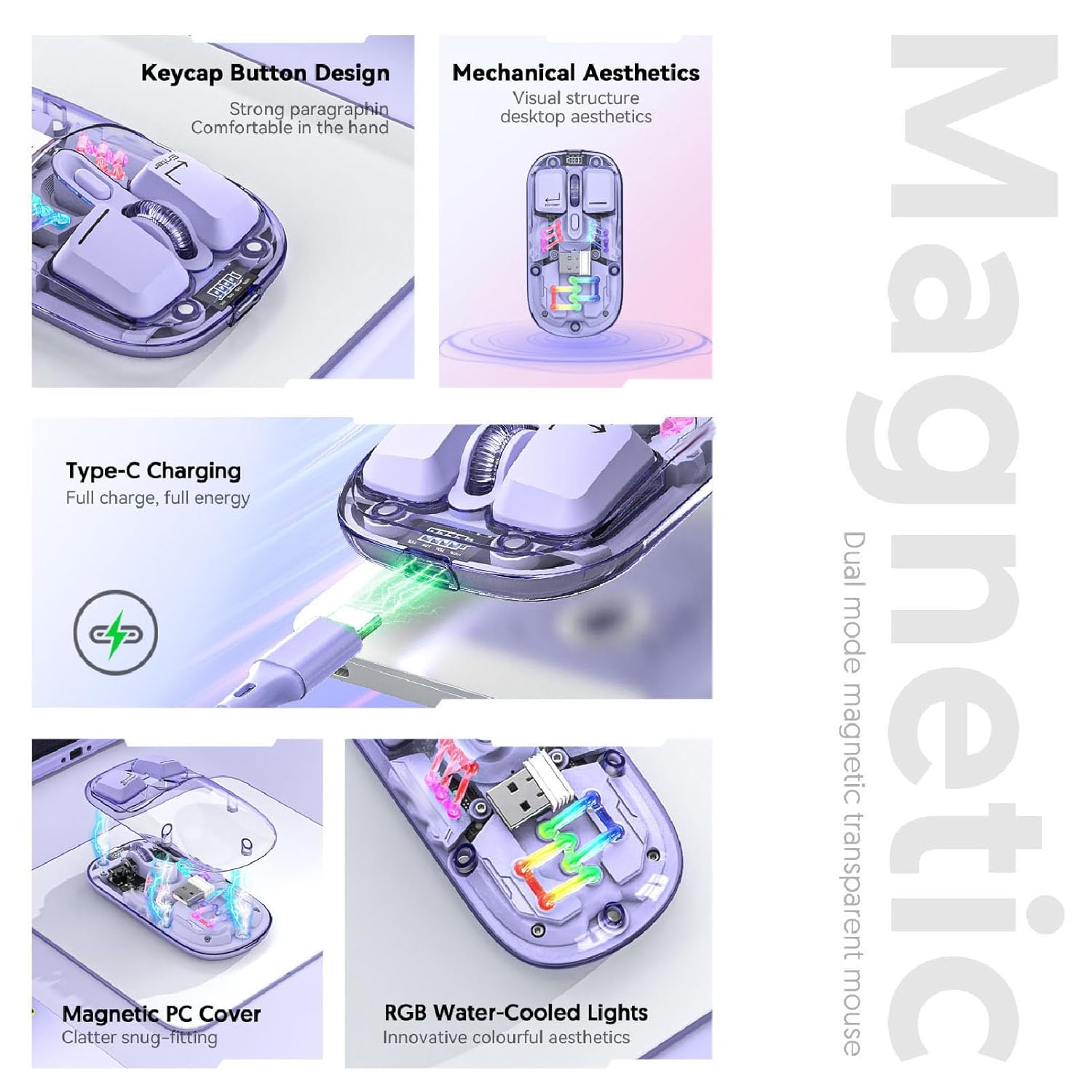
Image: A composite view highlighting the RGB lighting, Type-C charging, and magnetic cover design of the mouse.
5.4. Visualizzazione del livello della batteria
The mouse is equipped with a power display to check the remaining battery level at any time. This display typically uses indicator lights to show the charge status:
- 4 luci accese: Batteria al 100%
- 3 luci accese: Batteria al 75%
- 2 luci accese: Batteria al 50%
- 1 luce accesa: Batteria al 25%

Image: Close-up of the Cuifati mouse's battery level display, illustrating how indicator lights correspond to charge percentage.
5.5. Automatic Energy Saving
To conserve battery life, the mouse features an automatic sleep function:
- Sonno leggero: Dopo 60 secondi di inattività, il mouse entra in uno stato di sospensione leggera.
- Sonno profondo: If no operation occurs for 10 minutes, the mouse enters a deep sleep mode.
- Svegliati: To wake the mouse from sleep, simply move it or press any button.
Note: Actual power saving performance may vary based on usage habits.

Image: Visual representation of the mouse's power-saving states: light sleep after 60 seconds, deep sleep after 10 minutes, and how to wake it up.
6. Manutenzione
6.1. Pulizia
To maintain the mouse's appearance and functionality, regularly clean its surfaces. Use a soft, dry, lint-free cloth. For stubborn dirt, slightly dampen the cloth with water or a mild, non-abrasive cleaner. Avoid using harsh chemicals or abrasive materials that could damage the transparent shell or internal components.

Image: The Cuifati mouse with its magnetic top cover detached, revealing the internal structure for potential cleaning or maintenance.
6.2. Cura della batteria
The built-in Li-ion battery is designed for long-term use. To prolong battery life:
- Evitare di scaricare completamente la batteria frequentemente.
- Caricare il mouse utilizzando il cavo Type-C in dotazione.
- Quando non si utilizza il mouse per lunghi periodi, conservarlo in un luogo fresco e asciutto.
7. Risoluzione Dei Problemi
If you encounter issues with your Cuifati mouse, please refer to the following common solutions:
- Il mouse non risponde:
- Assicurarsi che il mouse sia acceso.
- Controllare il livello della batteria e caricarla se necessario.
- Verificare che sia selezionata la modalità di connessione corretta (2.4G o Bluetooth).
- Per 2.4G, assicurati che il ricevitore USB sia collegato saldamente. Prova una porta USB diversa.
- Per il Bluetooth, assicurati che il Bluetooth sia abilitato sul tuo dispositivo e che il mouse sia associato. Prova a ripetere l'associazione.
- Il movimento del cursore è irregolare o lento:
- Pulisci il sensore ottico sul lato inferiore del mouse.
- Assicurati di utilizzare il mouse su una superficie adatta (non molto riflettente o trasparente).
- Adjust the DPI setting (refer to Section 5.2).
- Le luci RGB non funzionano:
- Assicurarsi che il mouse sia acceso.
- Press the lighting switch key to cycle through modes or turn them on (refer to Section 5.3).
- Check battery level; low battery might disable lighting.
- Cannot connect via Bluetooth and 2.4G simultaneously:
- This is expected behavior. The mouse is designed to operate in one mode at a time. Switch to the desired mode using the selector switch.
8. Garanzia e supporto
The Cuifati Bluetooth Transparent Mouse comes with a standard manufacturer's warranty. Please refer to the warranty card included in your package or visit the official Cuifati websito per termini e condizioni di garanzia dettagliati.
For technical support, product inquiries, or warranty claims, please contact Cuifati customer service through their official channels. Contact information can typically be found on the product packaging or the manufacturer's websito.