
1. Introduzione
This manual provides essential information for the installation, operation, and maintenance of your NVIDIA RTX A1000 Professional Graphics Card. Please read this manual thoroughly before installing and using the product to ensure optimal performance and safety.
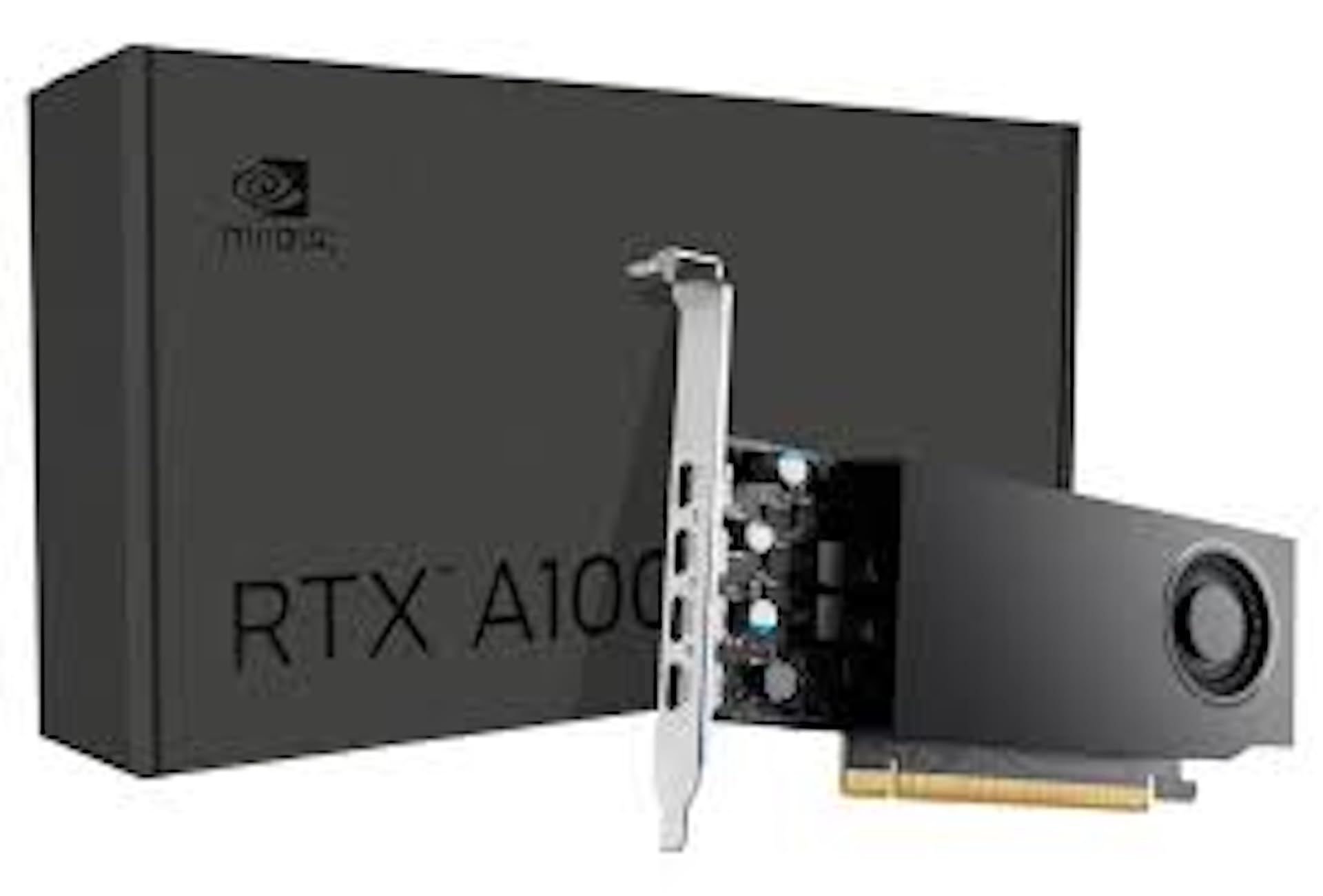
Figure 1: NVIDIA RTX A1000 Professional Graphics Card. This image shows the overall design of the graphics card, highlighting its compact form factor.
2. Prodotto finitoview
The NVIDIA RTX A1000 is a low-profile graphics processing unit (GPU) designed for professional workstations. It integrates NVIDIA's Ampere GPU architecture, featuring 2,304 CUDA Cores, 72 third-generation Tensor Cores, and 18 second-generation RT Cores, along with 8GB of GDDR6 graphics memory. This card is engineered to enhance visual creation, accelerate AI-powered workflows, and boost productivity within a small-form-factor solution.

Figura 2: Angolato view of the NVIDIA RTX A1000. This perspective showcases the cooling fan and the sleek design of the card.
3. Caratteristiche principali
- Advanced Core Architecture: Features 3rd generation Tensor Cores and 2nd generation RT Cores, providing enhanced graphic CAD performance and accelerated rendering and AI generation capabilities compared to previous models.
- Ray Tracing in tempo reale: Delivers up to twice the real-time ray-tracing performance of previous generations, facilitating complex 3D model processing and realistic image rendering.
- Prestazioni dell'IA: Offers up to 3.6 times higher generative AI performance, enabling rapid creation of high-quality images, videos, and 3D assets.
- Supporto multi-schermo: Equipped with four Mini DisplayPort connectors, supporting multi-application workflows and up to two 8K displays simultaneously for increased productivity.
- Memoria GDDR6 da 8 GB: Fornisce ample memory for demanding professional applications and complex datasets.
- Basso-Profile, Single-Slot Design: Optimizes space within workstations, making it suitable for a wide range of system configurations.
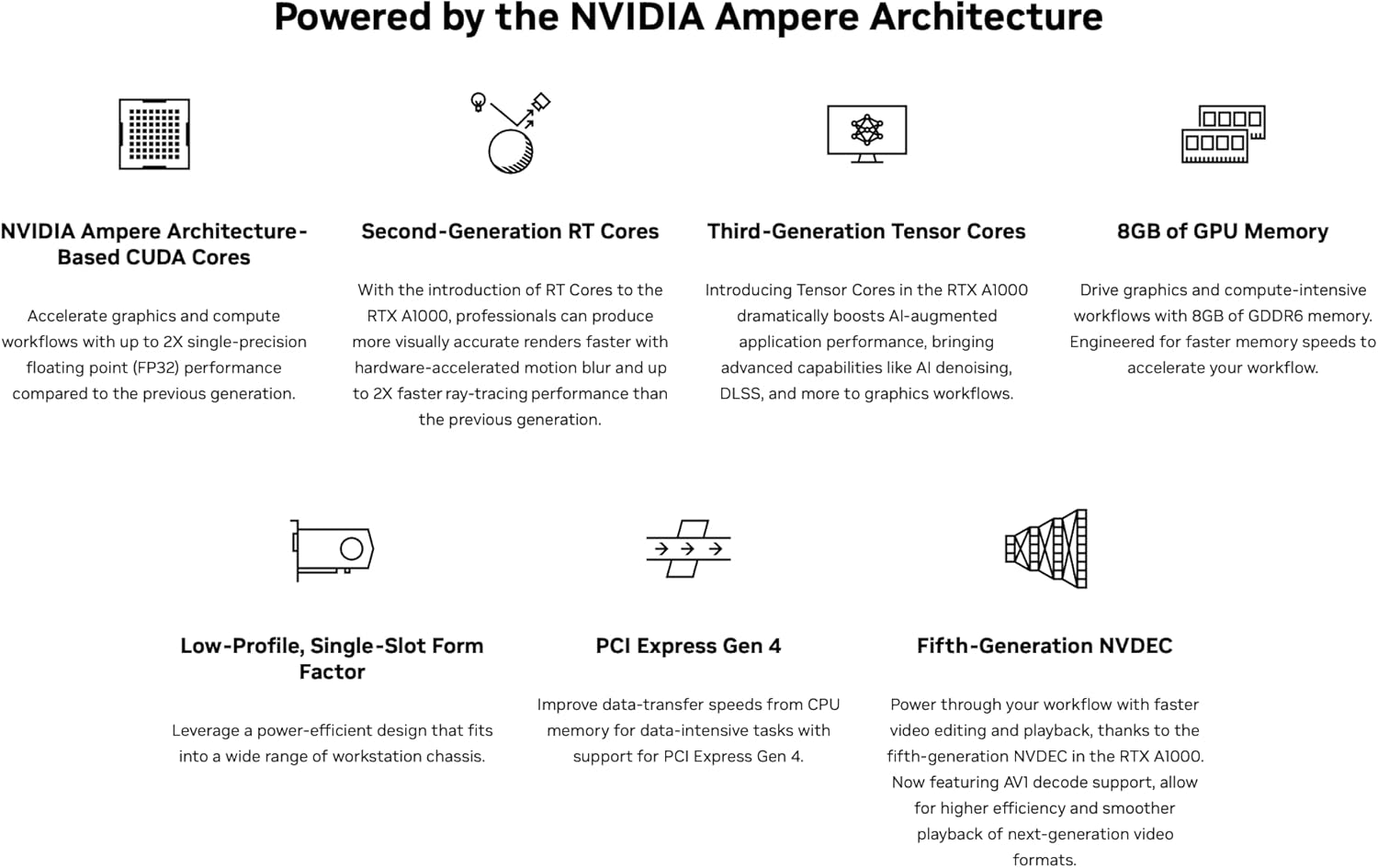
Figura 3: Oltreview of NVIDIA Ampere Architecture features. This graphic details the core components like CUDA Cores, RT Cores, Tensor Cores, and memory, which power the RTX A1000.

Figura 4: Esamples of professional workloads supported by the NVIDIA RTX A1000. This image illustrates applications in design, digital content creation, generative AI, productivity, edge computing, and multi-display environments.
4. Installazione e configurazione
4.1. Requisiti di sistema
- Available PCI-Express x8 or x16 slot.
- Sistema operativo compatibile (Windows 10/11 64 bit, Linux 64 bit).
- Sufficient power supply unit (PSU) with adequate wattage (typically 300W or higher recommended for system stability, as the card itself draws 50W).
- Minimum 8GB system RAM.
4.2. Installazione hardware
- Spegnimento e disconnessione: Assicurati che il computer sia completamente spento e scollegato dalla presa a muro.
- Aprire il case del computer: Rimuovere il pannello laterale del case del computer per accedere alla scheda madre.
- Individuare lo slot PCIe: Identify an available PCI-Express x8 or x16 slot on your motherboard. Remove any slot covers if necessary.
- Inserisci la scheda grafica: Carefully align the NVIDIA RTX A1000 card with the chosen PCIe slot and press down firmly until it is securely seated. Ensure the retention clip clicks into place.
- Carta sicura: Use a screw or the case's retention mechanism to secure the graphics card to the computer case.
- Chiudi caso e ricollega: Replace the computer case side panel, reconnect all cables, and plug the power cord back into the wall outlet.
4.3. Installazione del driver
- Accendere il computer: Turn on your computer. The operating system may automatically detect new hardware.
- Scarica i driver: Visita il sito ufficiale NVIDIA webposto (www.nvidia.com/drivers) to download the latest professional drivers for the RTX A1000. Select your operating system and product series.
- Installa i driver: Eseguire il programma di installazione del driver scaricato e seguire le istruzioni visualizzate sullo schermo. Potrebbe essere necessario riavviare il sistema per completare l'installazione.
- Verifica installazione: After restarting, open NVIDIA Control Panel or NVIDIA Settings to verify that the graphics card is recognized and drivers are correctly installed.
5. Funzionamento
5.1. Collegamento dei display
The NVIDIA RTX A1000 features four Mini DisplayPort (mDP) outputs. Use appropriate mDP to DisplayPort, HDMI, or DVI adapters/cables to connect your monitors. Ensure your displays are powered on and set to the correct input source.

Figura 5: primo piano view of the four Mini DisplayPort outputs on the NVIDIA RTX A1000. These ports allow connection to multiple high-resolution displays.
5.2. NVIDIA Control Panel / Settings
The NVIDIA Control Panel (Windows) or NVIDIA Settings (Linux) provides comprehensive options for configuring your graphics card. Here you can adjust display settings, manage 3D application profiles, set up multiple displays, and monitor GPU performance.
- Risoluzione dello schermo: Adjust screen resolution and refresh rates.
- Display multipli: Configure display modes (extended desktop, duplicate displays).
- Impostazioni 3D: Optimize graphics settings for specific applications or global performance.
- GPU Monitoring: View GPU temperature, clock speeds, and memory usage.
6. Manutenzione
- Mantieni aggiornati i driver: Controllare regolarmente NVIDIA website for the latest drivers to ensure optimal performance, stability, and access to new features.
- Rimozione della polvere: Pulire periodicamente la ventola e il dissipatore della scheda grafica dalla polvere utilizzando aria compressa. Assicurarsi che il computer sia spento e scollegato prima di procedere alla pulizia.
- Garantire un flusso d'aria adeguato: Mantieni un buon flusso d'aria all'interno del case del computer per evitare il surriscaldamento. Assicurati che le ventole del case funzionino correttamente e che i cavi siano ben disposti.
7. Risoluzione Dei Problemi
7.1. Nessuna uscita di visualizzazione
- Ensure the monitor is powered on and connected to the correct Mini DisplayPort on the graphics card.
- Verificare che la scheda grafica sia completamente inserita nello slot PCIe.
- Controlla che il monitor sia impostato sulla sorgente di input corretta.
- Try connecting to a different display output on the card or a different monitor.
7.2. Driver Installation Issues
- Download the latest drivers directly from the official NVIDIA websito.
- Disattivare temporaneamente il software antivirus durante l'installazione del driver.
- If upgrading from a different GPU brand or older NVIDIA drivers, consider using a display driver uninstaller (DDU) in safe mode to remove old drivers before installing new ones.
7.3. Performance Issues or Crashes
- Assicurati che i tuoi driver siano aggiornati.
- Monitor GPU temperature using software like NVIDIA Control Panel or third-party tools. Overheating can cause performance degradation or crashes.
- Verify your system meets the recommended power supply requirements.
- Check for conflicting software or background processes that might be consuming resources.
8. Specifiche tecniche

Figure 6: Detailed specifications for the NVIDIA RTX A1000. This table provides key technical data such as GPU memory, display ports, power consumption, and form factor.
| Caratteristica | Dettaglio |
|---|---|
| Coprocessore grafico | Scheda grafica NVIDIA RTX A1000 |
| Memoria GPU | 8 GB GDDR6 |
| Core CUDA | 2304 |
| Nuclei tensoriali | 72 (3a generazione) |
| Nuclei RT | 18 (2a generazione) |
| Interfaccia di uscita video | 4x Mini DisplayPort 1.4a |
| Graphics Bus | PCI-Express Gen 4 x8 |
| Consumo energetico massimo | 50 L |
| Fattore di forma | Basso-Profile, Single-Slot |
| Velocità di clock della memoria | 1200 MHz |
| Maximum Digital Resolution | 7680x4320 |
| Numero di modello | 900-5G172-2580-000 |
| Peso dell'articolo | 453 grammi |

Figure 7: Performance comparison of NVIDIA RTX A1000 against previous generation. This chart illustrates performance gains in graphics, rendering, and generative AI workloads.

Figure 8: Industry-leading performance highlights of the NVIDIA RTX A1000, including Single-Precision, RT Core, and Tensor Performance metrics.
9. Cosa c'è nella scatola
All'apertura della confezione del prodotto, dovresti trovare il seguente articolo:
- NVIDIA RTX A1000 Professional Graphics Card
Note: Additional accessories such as Mini DisplayPort adapters or documentation may be included depending on the specific retailer or bundle.
10. Garanzia e supporto
10.1. Garanzia del prodotto
NVIDIA products typically come with a limited manufacturer's warranty. The duration and terms of the warranty may vary by region and retailer. Please refer to the warranty information provided with your purchase or visit the official NVIDIA websito per informazioni dettagliate sulle politiche di garanzia.
10.2. Supporto tecnico
For technical assistance, driver downloads, and frequently asked questions, please visit the official NVIDIA support websito:
You may also contact your retailer or system integrator for support related to your specific purchase.