
Introduzione
This manual provides detailed instructions for the installation, operation, and maintenance of your Irishom 1080P Wireless Video Doorbell System. This system features a 10-inch touchscreen monitor, 1080P video resolution, two-way audio communication, and WiFi connectivity for enhanced home security and convenience. Please read this manual thoroughly before using the product to ensure proper function and safety.

Image: The Irishom 1080P Wireless Video Doorbell System, showing the outdoor doorbell unit and the indoor 10-inch touchscreen monitor.
Impostare
1. Contenuto della confezione
Prima di iniziare l'installazione, verificare che tutti i componenti siano presenti:
- 1 x Outdoor Unit (Doorbell Camera)
- 1 x Indoor Unit (10-inch Touchscreen Monitor)
- 1 x Indoor Unit Hanging Board
- 1 x Power Supply (EU, US, UK, or AU plug, depending on region)
- 1 x Test Line
- 2 x Pairs of Camera Adapters
- 4 x 4P Wire Clamps
- 1 x 3P Cable Connector
- 1 x 2P Cable Connector
- 1 x Screw Pack for mounting
- 1 x Manuale utente (questo documento)
2. Installazione
2.1 Installazione dell'unità esterna
Mount the outdoor unit at a suitable height near your door, ensuring a clear view of visitors. Use the provided screw pack to secure it firmly. Ensure the unit is protected from direct heavy rain if possible.

Image: The outdoor doorbell unit installed on a wall next to a door, with the indoor monitor and mobile app interface shown for context.
2.2 Installazione del monitor interno
Attach the hanging board to an indoor wall at a convenient viewing height. Connect the necessary wires to the indoor monitor as per the wiring diagram, then mount the monitor onto the hanging board.
3. Schema elettrico
Follow the diagram below for correct wiring connections between the outdoor unit, indoor monitor, power supply, and any optional CCTV cameras. Incorrect wiring may damage the device.
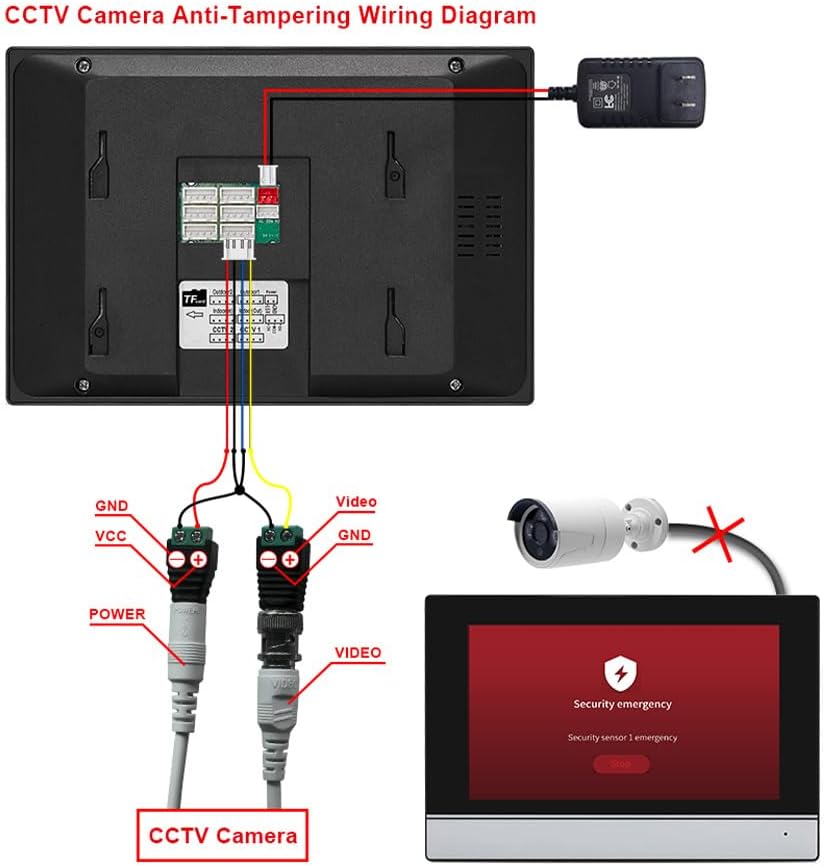
Image: A detailed wiring diagram showing connections for the indoor monitor, power adapter, and an optional CCTV camera. It illustrates connections for GND, VCC, POWER, and VIDEO lines.
- Collegamento elettrico: Connect the DC 15V 1.2A power supply to the indoor monitor.
- Outdoor Unit Connection: Use the provided 4P wire clamps and cable connectors to link the outdoor unit to the indoor monitor.
- Optional CCTV Camera: If integrating an external CCTV camera, connect its video and power lines to the designated ports on the indoor monitor as shown.
4. Configurazione dell'app e connessione Wi-Fi
To enable remote access and advanced features, connect your indoor monitor to your home Wi-Fi network and pair it with the mobile application.
- Accendere il monitor interno.
- Navigate to the Wi-Fi settings on the monitor and connect to your home network.
- Download the "TY APP" (or similar specified app) from your mobile device's app store.
- Open the app and follow the on-screen instructions to add a new device. This typically involves scanning a QR code displayed on the indoor monitor.
- Ensure your mobile device is connected to the same Wi-Fi network during the initial pairing process.

Image: Illustration of the easy setup process, showing a smartphone scanning a QR code displayed on the indoor monitor for quick pairing with the mobile application.
For app download and further instructions, visit: https://m.smart321.com/AYfWAKgjsa
Istruzioni per l'uso
1. Funzioni di base
1.1 Intercom a due voci
- Quando un visitatore preme il campanello, il monitor interno squilla e visualizza il video del visitatore.
- Tap the "Answer" icon on the monitor to initiate two-way audio communication with the visitor.
- To end the conversation, tap the "Hang Up" icon.
1.2 Monitoraggio in tempo reale
Puoi view il feed live dall'unità esterna in qualsiasi momento:
- On the indoor monitor, tap the "Monitor" icon to view the live video from the outdoor unit.
- Se sono collegate altre telecamere, è possibile passare da una telecamera all'altra views.
- Through the mobile app, select the doorbell device to access its live feed remotely.
2. Funzionalità avanzate
2.1 Rilevamento del movimento e registrazione
The system can detect motion near the outdoor unit and automatically record video.
- Attivazione: Access the settings menu on the indoor monitor or mobile app to enable motion detection.
- Sensibilità: Regola la sensibilità del rilevamento del movimento per ridurre al minimo i falsi allarmi.
- Magazzinaggio: Recordings are saved to a TF card (up to 128GB supported). Ensure a TF card is inserted for recording functionality.
- Riproduzione: View recorded events directly from the indoor monitor or through the mobile app.

Image: The indoor monitor displaying a motion detection alert, with an overlay illustrating a person triggering the motion sensor near the outdoor unit. This highlights the recording and security features.
2.2 Visione notturna
The outdoor unit is equipped with infrared night vision, providing clear video even in low-light conditions.
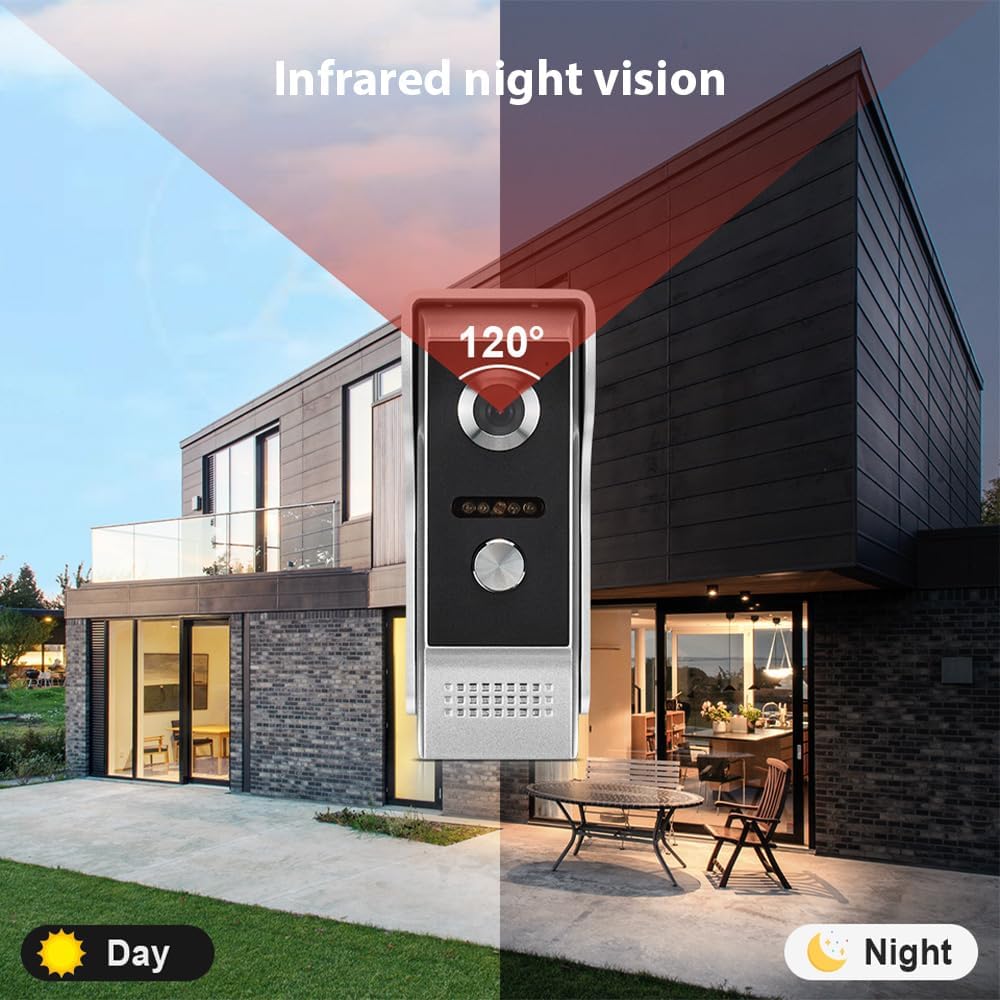
Image: A split image demonstrating the doorbell's 120-degree field of view during both day and night, highlighting the infrared night vision capability for clear visibility in darkness.
2.3 Opzioni di personalizzazione
The indoor monitor offers various customization settings:
- Logo dello stivale: Customize the startup image or logo displayed on the monitor.
- Impostazioni lingua: Select your preferred language from the available options (supports 8 languages).
- Electronic Photo Frame: Utilize the monitor to display photos when idle.
- Weather Forecast & Calendar: Access current weather information and a calendar directly on the monitor.
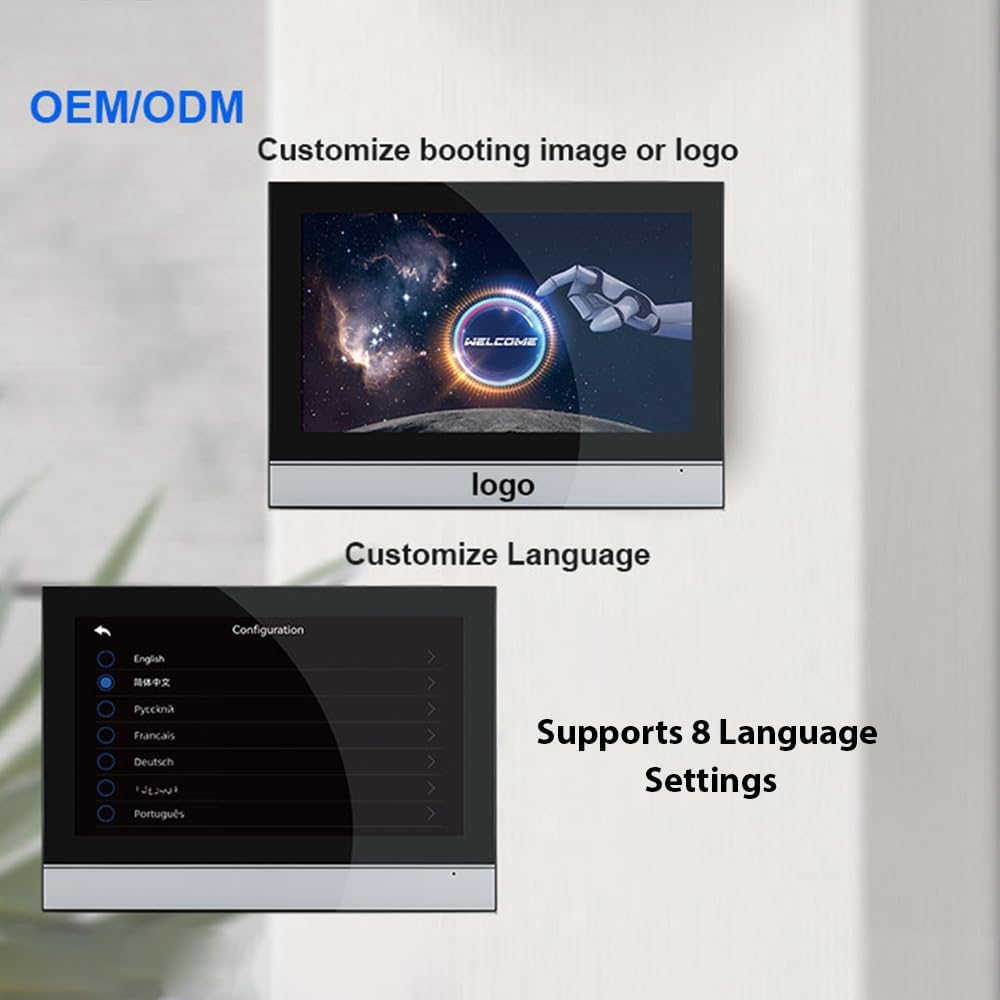
Image: Two screenshots from the indoor monitor, one showing a customizable boot logo with "WELCOME" text, and another showing the language selection menu with options like English, Russian, French, German, and Portuguese.
2.4 Home Modes
The system provides different modes to suit your daily routine:
- At Home Mode: Standard operation with doorbell ringtone available.
- Modalità Esci da casa: Allows visitors to record a message at the outdoor station.
- Sleep Home Mode: Disables the doorbell ringtone for undisturbed rest.

Image: The indoor monitor displaying various icons for different functions, including a clock, weather, and home modes. Below, three panels illustrate the "At Home," "Leave Home," and "Sleep Home" modes with corresponding actions and messages.
Manutenzione
- Pulizia: Use a soft, dry cloth to clean the indoor monitor and outdoor unit. Avoid abrasive cleaners or solvents.
- Aggiornamenti del firmware: Periodically check for firmware updates through the mobile app or monitor settings to ensure optimal performance and security.
- Ispezione dei cavi: Ispezionare regolarmente tutti i cavi e i collegamenti per verificare che non siano usurati o danneggiati.
- Gestione delle carte TF: Se si utilizza una scheda TF per la registrazione, ripetere periodicamenteview e cancella il vecchio footage to free up space, or ensure loop recording is enabled.
Risoluzione dei problemi
- Nessun potere:
- Ensure the power adapter is securely connected to the indoor monitor and a working power outlet.
- Verificare che la presa di corrente funzioni collegandovi un altro dispositivo.
- Nessun video/scarsa qualità video:
- Check all video cable connections between the outdoor unit and indoor monitor.
- Ensure the outdoor unit lens is clean and free from obstructions.
- If using Wi-Fi, check your network signal strength.
- Nessun audio/Qualità audio scarsa:
- Controllare i collegamenti dei cavi audio.
- Assicurarsi che il microfono e l'altoparlante di entrambe le unità non siano ostruiti.
- Regolare le impostazioni del volume sul monitor interno.
- Problemi di connessione Wi-Fi:
- Assicurati che il router Wi-Fi funzioni e sia nel raggio d'azione.
- Re-enter the Wi-Fi password on the indoor monitor.
- Restart both the indoor monitor and your Wi-Fi router.
- Confirm your mobile device is on the same Wi-Fi network during initial setup.
- Il rilevamento del movimento non funziona:
- Ensure motion detection is enabled in the settings.
- Regola le impostazioni di sensibilità.
- Verificare che la scheda TF sia inserita correttamente e che abbia spazio di archiviazione sufficiente.
Specifiche
| Marca | Irlandese |
| Numero di modello | DMU5971888364678JC |
| Indoor Unit Screen | Touchscreen IPS da 10 pollici |
| Risoluzione | 1080x600 |
| Alimentazione elettrica | Corrente continua 15V 1.2A |
| Consumo energetico (standby) | ≤ 3 W |
| Consumo energetico (in funzione) | ≤ 1 W |
| Distanza di visione notturna | 20 - 300 centimetri |
| Temperatura di esercizio | da -30 °C a 60 °C |
| Dimensioni unità esterna | Dimensioni: 12.7 x 5.4 x 4.5 cm |
| Peso unità esterna | 248 grammi |
| Supporto di archiviazione | Scheda TF fino a 128 GB |
| Connettività | Wifi |
| Espandibilità | Supports up to 2 outdoor units, 2 cameras, 4 display screens |
Informazioni sulla garanzia
Questo prodotto è coperto dalla garanzia standard del produttore. Per i termini e le condizioni di garanzia specifici, fare riferimento alla scheda di garanzia inclusa nella confezione o contattare il rivenditore. Conservare la ricevuta d'acquisto come prova d'acquisto.
Assistenza clienti
If you encounter any issues or have questions regarding your Irishom Video Doorbell System that are not covered in this manual, please contact customer support through your retailer or the official Irishom websito.
- For technical assistance, please have your model number (DMU5971888364678JC) and purchase date ready.
- Online resources and FAQs may also be available on the manufacturer's support page.