1. Introduzione
This manual provides detailed instructions for the operation and maintenance of your Vormooi V71 Digital Voice Recorder. Please read this manual thoroughly before using the device to ensure proper functionality and to maximize your user experience. Keep this manual for future reference.
2. Contenuto della confezione
Dopo aver aperto la confezione, verificare che siano presenti tutti gli elementi elencati di seguito:
- 1 x Vormooi V71 Digital Voice Recorder
- 1 cavo da USB-C a USB-C
- 1 x 3.5mm External Microphone
- 1 scheda di memoria TF da 64 GB
- 1 x USB-C Cable (USB-A to USB-C)
- 1 cavo di trascrizione da 3.5 mm
- 1 x tracolla
- 1 x Manuale utente (questo documento)

Image: The Vormooi V71 Digital Voice Recorder shown with its various accessories, including the external microphone, USB-C cables, and the 64GB TF memory card, alongside a diagram illustrating the device's dimensions.
3. Prodotto finitoview
Familiarizzare con i componenti e i comandi del dispositivo.

Immagine: Un fronte dettagliato view of the Vormooi V71 Digital Voice Recorder, highlighting its 2.15-inch color screen, control buttons (MENU, PREV, NEXT, DEL/BACK, POWER/PLAY), built-in speakers, and the included external microphone.
Componenti chiave:
- Schermo a colori da 2.15 pollici: Displays menus, recording status, and file informazioni.
- Microfoni integrati: For standard audio capture.
- Altoparlante incorporato: For direct playback of recordings.
- Cursore di registrazione: Located on the side for quick record/save actions.
- Porta USB-C: Per la ricarica e il trasferimento dei dati.
- Jack audio da 3.5 mm: For connecting external microphone or headphones.
- Slot per schede TF: Per l'espansione della memoria.
4. Impostazione
4.1 Ricarica del dispositivo
Prima del primo utilizzo, caricare completamente il dispositivo per circa 2 ore.
- Connect the provided USB-C cable to the recorder's USB-C port.
- Collegare l'altra estremità del cavo USB-C a un adattatore di alimentazione USB (non incluso) o alla porta USB di un computer.
- The screen will indicate charging status. The battery icon will show full when charging is complete.

Image: The Vormooi V71 Digital Voice Recorder displaying a full battery icon, indicating its 1100mAh battery capacity and 110 hours of continuous recording time after a 2-hour charge.
4.2 Inserting and Formatting the TF Memory Card
The device comes with 32GB internal memory and a 64GB TF card. For optimal performance, format the TF card using the device itself.
- Locate the TF card slot on the side of the recorder.
- Gently insert the 64GB TF memory card into the slot until it clicks into place.
- Accendere il dispositivo.
- Vai al menu "Impostazioni" sul dispositivo.
- Select 'Format Card' or a similar option.
- Confermare il processo di formattazione. Warning: Formatting will erase all data on the TF card.
Important: Do not format the voice recorder or memory cards on a computer. Always format within the device's menu for proper functionality. The device only supports exFAT format for SD cards from 8GB to 128GB.
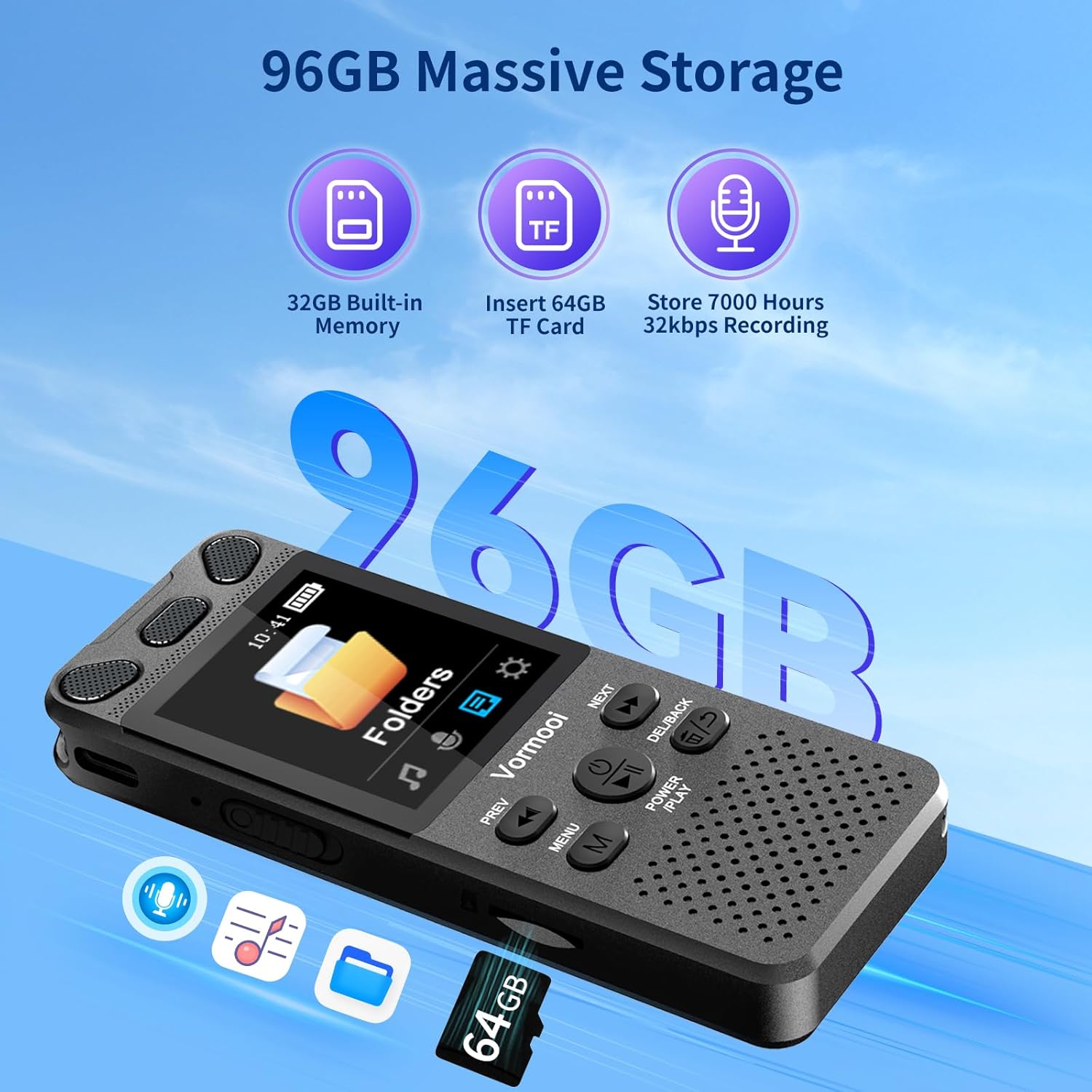
Image: The Vormooi V71 Digital Voice Recorder displaying its total 96GB storage capacity, composed of 32GB built-in memory and an inserted 64GB TF card, capable of storing up to 7000 hours of 32kbps recordings.
4.3 Connecting the External Microphone
The device supports an external 3.5mm 4-section microphone for enhanced recording quality.
- Locate the 3.5mm audio jack on the recorder.
- Plug the external microphone's 3.5mm connector into this jack.
- The device will automatically detect the external microphone.
5. Funzionamento di base
5.1 Accensione/spegnimento
- Accensione: Press and hold the 'POWER/PLAY' button until the screen illuminates.
- Spegni: Press and hold the 'POWER/PLAY' button until the screen turns off.
5.2 Registrazione
The V71 offers quick one-touch recording and voice-activated recording.
- Registrazione con un solo tocco: Slide the red button on the right side of the recorder up. Recording will start immediately, even if the device is off.
- Registrazione attivata dalla voce (VOR): Enable VOR in the 'Settings' menu. When enabled, the recorder will automatically start recording when sound is detected and pause when silence occurs, conserving memory and battery.

Image: The Vormooi V71 Digital Voice Recorder displaying its recording interface, highlighting the 1536Kbps clear sound quality, the 2159 intelligent noise cancellation chip, and the one-touch record/save slider on the side.
5.3 Saving Recordings
To save an active recording:
- Slide the red button on the right side of the recorder giùLa registrazione verrà salvata automaticamente.
5.4 Riproduzione
- From the main menu, navigate to 'Recordings' or 'Folders'.
- Use the 'PREV' and 'NEXT' buttons to select the desired recording.
- Press the 'POWER/PLAY' button to start playback.
5.5 Regolazione del volume
During playback, use the volume buttons (usually '+' and '-') on the side of the device to adjust the speaker or headphone volume (0-32 levels).
5.6 Eliminazione Files
- Vai a file you wish to delete in the 'Recordings' or 'Folders' menu.
- Press the 'DEL/BACK' button.
- Quando richiesto, confermare l'eliminazione.
6. Funzionalità avanzate

Image: The Vormooi V71 Digital Voice Recorder with icons representing its advanced features: Voice Activation, Variable Speed Playback, Line-in Mic Record, Password Protection, Built-in Speaker, and A-B Repeat function.
6.1 Protezione con password
Set a 6-digit password in the 'Settings' menu to protect your recordings and privacy. Only with the correct password can the device be accessed.
6.2 AB Ripeti
During playback, press the 'MENU' button to activate A-B repeat. Select your start point (A) and end point (B) to repeatedly play a specific segment of a recording. This is useful for language learning or transcribing.
6.3 Riproduzione a velocità variabile
Adjust the playback speed of your recordings in the playback options. This feature allows you to slow down or speed up audio for easier transcription or review.
6.4 Registrazione in linea
Use the provided 3.5mm transcription cable to connect the recorder to other audio sources like a mobile phone, PC, or MP3 player for direct recording.
6.5 Collegamento a un computer
Connect the recorder to your computer using the USB-C cable to transfer recording files. Il dispositivo apparirà come un'unità disco rimovibile.
7. Specifiche
| Caratteristica | Specificazione |
|---|---|
| Modello | V71 |
| Materiale | Lega di zinco |
| Dimensioni del prodotto | 10 x 3.9 x 1.26 cm (3.94 x 1.54 x 0.5 pollici) |
| Peso del prodotto | 98 g (3.46 once) |
| Dimensioni dello schermo | 2.15 pollici |
| Tipo di visualizzazione | 128 x 160 TFT Color Display |
| Memoria interna | 32 GB |
| Memoria esterna | 64GB TF Card (included), supports 8-128GB exFAT format |
| Capacità di archiviazione totale | 96 GB |
| Capacità della batteria | 1100mAh Ioni di litio |
| Tempo di ricarica | Circa 2 ore |
| Tempo di registrazione continuo | Fino a 110 ore (a 512 kbps) |
| Qualità di registrazione | 32-1536Kbps PCM |
| Formati di registrazione | MP3, WAV |
| Microfono | Built-in dual microphones, supports external 3.5mm 4-section microphone |
| Interfaccia | USB di tipo C |
| Dispositivi compatibili | Lettore MP3, Computer personale, Smartphone |
8. Risoluzione Dei Problemi
8.1 Il dispositivo non si accende
- Ensure the device is sufficiently charged. Connect it to a power source and charge for at least 30 minutes.
- Press and hold the 'POWER/PLAY' button for several seconds.
8.2 Cannot Record or Save Files
- Check if the memory (internal or TF card) is full. Delete unnecessary files.
- Ensure the TF card is properly inserted and formatted within the device. If not, format it via the device's settings menu.
- Verify that the recording slider is in the 'Record' position.
8.3 Scarsa qualità di registrazione
- Ensure the built-in microphones are not obstructed.
- If using an external microphone, ensure it is securely connected and functioning correctly.
- Check recording settings (e.g., bitrate) and adjust if necessary.
- Reduce background noise in the recording environment.
8.4 Dispositivo non rilevato dal computer
- Assicurarsi che il cavo USB-C sia collegato saldamente sia al registratore che al computer.
- Prova una porta USB diversa sul tuo computer.
- Prova un altro cavo USB-C.
- Riavviare sia il registratore che il computer.
9. Manutenzione
- Tenere il dispositivo asciutto e lontano da temperature estreme.
- Pulisci lo schermo e il corpo con un panno morbido e asciutto. Evita di usare prodotti chimici aggressivi.
- Evitare di far cadere o sottoporre il dispositivo a forti impatti.
- Eseguire regolarmente il backup delle registrazioni importanti su un computer per evitare la perdita di dati.
10. Garanzia e supporto
The Vormooi V71 Digital Voice Recorder comes with a Garanzia di 2 anno from the date of purchase. This warranty covers defects due to non-human factors.
If you encounter any issues with your device that are not resolved by the troubleshooting steps in this manual, or if the device fails due to non-human factors within the warranty period, please contact Vormooi customer support immediately. You can reach us via Amazon station letter or the after-sales email provided with your purchase documentation.
Please provide your purchase details (e.g., order number, date of purchase) when contacting support to facilitate a quicker resolution.