
1. Introduzione
Thank you for choosing the MEETION BTM011 Ergonomic Wireless Bluetooth Vertical Mouse. This device is designed to provide a comfortable and efficient computing experience by promoting a natural hand position, reducing wrist strain. It offers versatile connectivity options for multiple devices and adjustable precision to suit various tasks.

The ergonomic design of the MEETION vertical mouse helps maintain a natural hand and wrist posture, reducing discomfort compared to traditional mice.
2. Contenuto della confezione
- MEETION BTM011 Ergonomic Wireless Bluetooth Vertical Mouse
- USB 2.4G Receiver (stored in the mouse battery compartment)
- Adattatore da USB-A a USB-C
- Manuale d'uso
3. Prodotto finitoview
Familiarize yourself with the various components and buttons of your MEETION BTM011 mouse.

Dettagliato view of the mouse components, including the Mode Switching Button, Power Switch (ON/OFF), Low Battery Indicator, Charging Indicator, DPI Speed Switch Button, 2.4G Connection Indicator, Bluetooth 1 Connection Indicator, and Bluetooth 2 Connection Indicator.
- Pulsante sinistro: Funzione standard del clic sinistro.
- Pulsante destro: Funzione standard del clic destro.
- Rotella di scorrimento: Per scorrere verso l'alto e verso il basso.
- Pulsante Avanti: Naviga in avanti in web browser o file esploratori.
- Pulsante Indietro: Naviga indietro in web browser o file esploratori.
- Pulsante di commutazione DPI: Regola la sensibilità del cursore.
- Pulsante di commutazione della modalità: Switches between 2.4G, Bluetooth 1, and Bluetooth 2 modes.
- Interruttore di alimentazione (ON/OFF): Accende o spegne il mouse.
- Vano batteria: Located at the bottom, for 1x AA battery and USB receiver storage.
4. Istruzioni per l'installazione
4.1 Installazione della batteria
Il mouse richiede una batteria AA (non inclusa).
- Individuare il coperchio del vano batteria nella parte inferiore del mouse.
- Far scorrere il coperchio per aprirlo.
- Inserire una batteria AA, assicurandosi della corretta polarità (+/-).
- Chiudere saldamente il coperchio del vano batterie.

Insert one AA battery into the compartment. The USB receiver is also stored here.
4.2 Accensione/spegnimento
Slide the power switch located on the bottom of the mouse to the "ON" position to turn it on. Slide to "OFF" to conserve battery when not in use.
4.3 Modalità di connettività
The MEETION BTM011 mouse supports three connection modes: 2.4GHz wireless (via USB receiver) and two independent Bluetooth 5.3 channels (BT1 and BT2). You can connect to up to three devices simultaneously and switch between them.

The mouse supports 2.4G wireless and two Bluetooth 5.3 connections for seamless switching between devices.
4.4 2.4GHz USB Connection
- Estrarre il ricevitore USB dal vano batterie del mouse.
- Insert the USB receiver into an available USB-A port on your computer. If your computer only has USB-C ports, use the provided USB-A to USB-C adapter.
- Accendere il mouse utilizzando l'interruttore di alimentazione.
- Press the Mode Switching Button until the 2.4G Connection Indicator (green light) lights up. The mouse should now be connected.
4.5 Connessione Bluetooth (BT1 / BT2)
- Accendere il mouse utilizzando l'interruttore di alimentazione.
- Press the Mode Switching Button to select either Bluetooth 1 (BT1) or Bluetooth 2 (BT2). The corresponding blue indicator light will blink, indicating pairing mode.
- Sul tuo dispositivo (computer, laptop, tablet, smartphone), vai alle impostazioni Bluetooth.
- Cercare new devices. You should find "Meetion_MS_BT1" or "Meetion_MS_BT2".
- Select the device to pair. Once paired, the blue indicator light will stop blinking and remain solid for a few seconds.

Visual guide for connecting the mouse via 2.4G USB receiver and Bluetooth modes.
5. Istruzioni per l'uso
5.1 Regolazione DPI
The mouse features 4 adjustable DPI levels: 1200, 1600, 2400, and 3200. Press the DPI Switch Button (located behind the scroll wheel) to cycle through these settings. Each press changes the cursor speed, allowing you to select the precision suitable for your task.
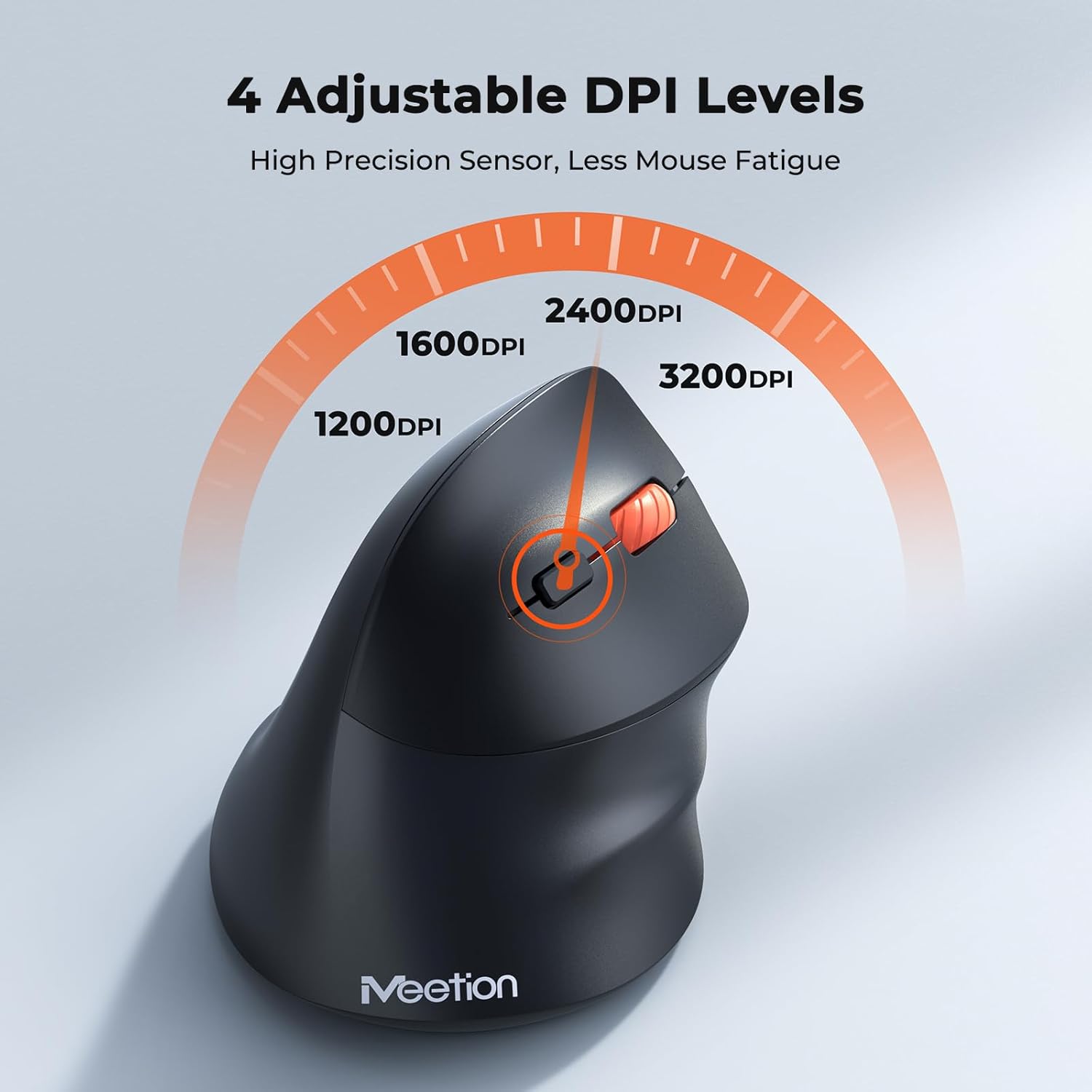
Adjust the DPI to match your preference for cursor speed and precision.
5.2 Commutazione multi-dispositivo
To switch between connected devices, simply press the Mode Switching Button located on the bottom of the mouse. The corresponding indicator light (green for 2.4G, blue for BT1/BT2) will illuminate to show the active connection.
5.3 Pulsanti Avanti/Indietro
Use the Forward and Back buttons, conveniently located on the side of the mouse, for quick navigation in web browser, file explorers, and other applications that support these functions.
6. Gestione energetica
6.1 Modalità di sospensione automatica
To conserve battery life, the mouse will automatically enter sleep mode after 20 minutes of inactivity. This intelligent feature helps extend the battery's operational time.
6.2 Waking the Mouse
To wake the mouse from sleep mode, simply press any button. It will instantly reconnect to the last active device.
6.3 Durata della batteria
With typical usage, a single AA battery can power the mouse for up to 3 months. Actual battery life may vary based on usage patterns and battery quality.
7. Manutenzione
To ensure optimal performance and longevity of your mouse, follow these maintenance guidelines:
- Pulizia: Utilizzare un panno morbido e asciutto per pulire la superficie del mouse. Per lo sporco ostinato, un panno leggermenteamp È possibile utilizzare un panno, ma assicurarsi che non penetri umidità nel dispositivo. Evitare prodotti chimici aggressivi o detergenti abrasivi.
- Sostituzione della batteria: Replace the AA battery when the low battery indicator lights up or when mouse performance degrades. Always dispose of used batteries responsibly.
- Magazzinaggio: Se non lo si utilizza per lunghi periodi, spegnerlo e riporlo in un luogo fresco e asciutto.
8. Risoluzione Dei Problemi
If you encounter issues with your MEETION BTM011 mouse, refer to the following solutions:
| Problema | Soluzione |
|---|---|
| Il mouse non risponde |
|
| Il movimento del cursore è irregolare o lento |
|
| Impossibile connettersi tramite Bluetooth |
|
| Forward/Back buttons not working |
|
9. Specifiche
| Caratteristica | Dettaglio |
|---|---|
| Modello | Modello BTM011 |
| Connettività | Wireless a 2.4 GHz, Bluetooth 5.3 (BT1, BT2) |
| Livelli DPI | 1200 / 1600 / 2400 / 3200 |
| Pulsanti | 7 (Left, Right, Scroll Wheel, Forward, Back, DPI Switch, Mode Switch) |
| Fonte di alimentazione | 1 batteria AA (non inclusa) |
| Sospensione automatica | Dopo 20 minuti di inattività |
| Compatibilità | Windows, Mac OS, Linux, Android, iOS (for iPad/iPhone) |
| Materiale | Plastica |
| Dimensioni (circa) | 4.4 x 3.29 x 2.74 pollici (11.18 x 8.36 x 6.96 cm) |
10. Garanzia e supporto
10.1 Informazioni sulla garanzia
MEETION products are designed and manufactured to the highest quality standards. This product is covered by a limited warranty against defects in materials and workmanship. Please retain your proof of purchase for warranty claims. Specific warranty terms may vary by region; refer to your local retailer or the official MEETION websito per i dettagli.
10.2 Assistenza clienti
For technical assistance, troubleshooting, or general inquiries, please contact MEETION customer support:
- E-mail: service@meetion.com
- Websito: Visit the official MEETION websito per FAQ e risorse aggiuntive.