
1. Introduzione
The Spedal CL798 is a 7-inch portable touchscreen designed to enhance your in-car experience by integrating wireless CarPlay and Android Auto. This device allows seamless access to navigation, music, and messaging applications directly from its IPS touchscreen. It features flexible display modes, a secure magnetic mount, advanced mirror link capabilities, and convenient over-the-air firmware updates. This manual provides detailed instructions for setup, operation, and maintenance to ensure optimal performance.
2. Cosa c'è nella scatola
- 1 x Spedal CL798 Car Play Screen
- 1 x Magnetic Suction Mount Bracket
- 1 x Digital Cigarette Lighter Power Adapter
- 1 x Manuale utente (questo documento)
- 1 x Cavo audio AUX
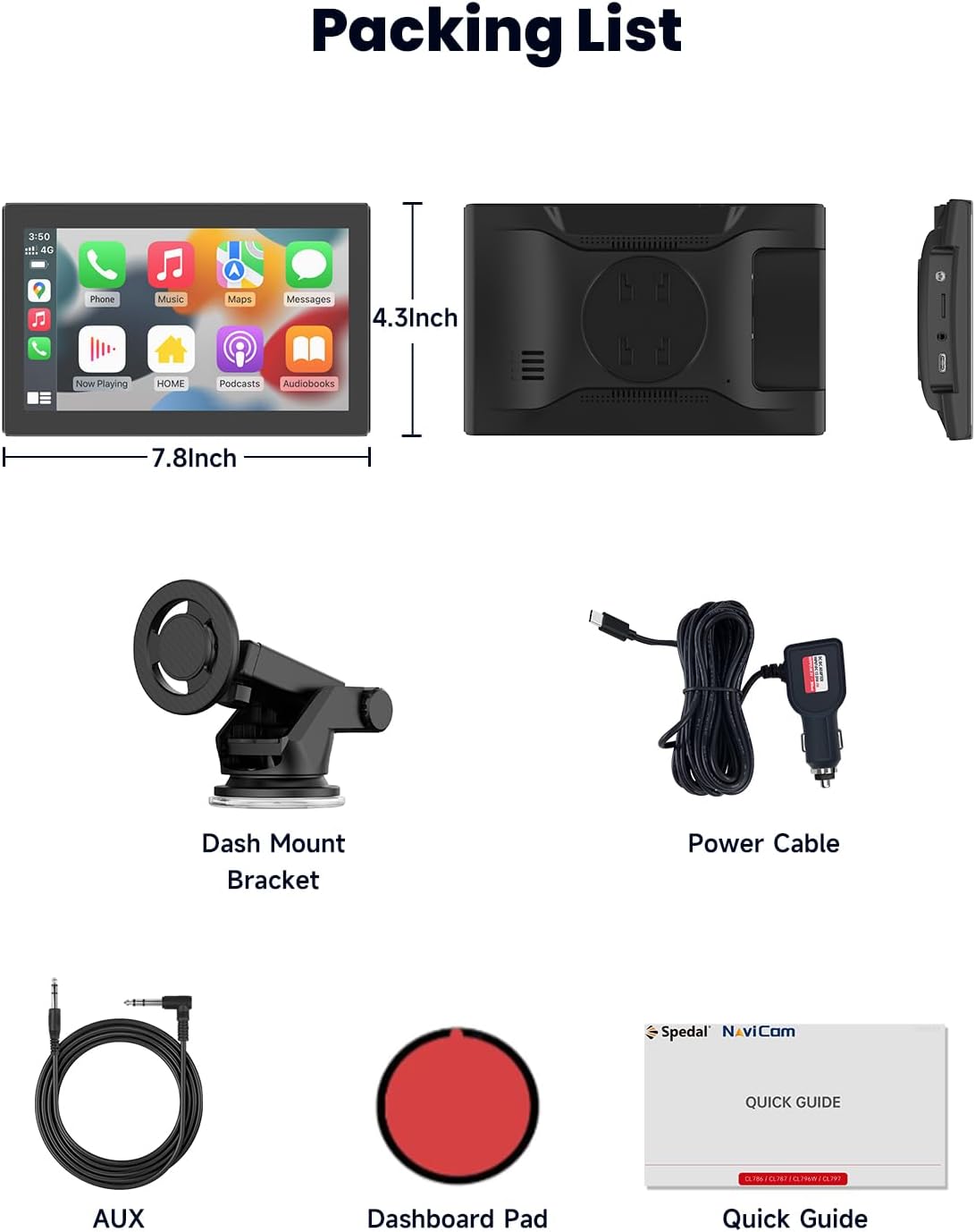
Image: All components included in the Spedal CL798 package.
3. Configurazione e installazione
3.1 Attaching the Magnetic Mount
The Spedal CL798 features an upgraded magnetic bracket for secure and flexible installation. The screen can be attached and detached in one second.
- Assemble the magnetic suction mount bracket.
- Choose a suitable location on your dashboard or windshield for the mount. Ensure the surface is clean and dry.
- Secure the mount using its suction cup mechanism.
- Align the back of the CL798 screen with the magnetic plate on the mount until it securely clicks into place.

Image: The magnetic suction mount bracket, showing its components and how it attaches to the device.
3.2 Collegamento di alimentazione
Connect the provided digital cigarette lighter power adapter to your vehicle's 12V power outlet and then to the Spedal CL798 unit. The device is designed for plug-and-play operation.
3.3 Multiple Installation Methods
The magnetic bracket allows for various installation angles and positions, including horizontal and vertical orientations, to optimize viewcomfort e accessibilità.
4. Istruzioni per l'uso
4.1 CarPlay wireless e Android Auto
The CL798 supports wireless Apple CarPlay and Android Auto for seamless smartphone integration.
4.1.1 Connessione wireless Apple CarPlay
- Switch the CL798 to CarPlay Mode.
- On your iPhone, go to Bluetooth settings and select the device starting with "T86B-B685".
- Wait for approximately 20-30 seconds, then select "Pair" on your iPhone when prompted.
- Confirm "Use CarPlay" on your iPhone.
- Connessione riuscita.

Image: Visual steps for establishing a wireless Apple CarPlay connection.
4.1.2 Connessione wireless Android Auto
(Note: Wireless Android Auto is compatible with Android 11+ devices.)
- Switch the CL798 to Android Auto Mode.
- Sul tuo telefono Android, attiva Wi-Fi e Bluetooth.
- Cercare new Bluetooth devices and select the device starting with "spedal-******".
- Wait for approximately 15 seconds, then click "Connect" on your Android phone.
- Connessione riuscita.

Image: Visual steps for establishing a wireless Android Auto connection.
4.2 Portrait & Landscape Modes
The CL798 supports both portrait and landscape display orientations. This allows for optimized viewing of navigation maps or vertical video content.
- Modalità orizzontale: Ideal for wide-screen applications like general CarPlay/Android Auto interfaces and horizontal videos.
- Modalità ritratto: Enhances navigation map detail and is suitable for vertical video apps.
(Screen mode adjustments may require configuration within the device settings.)

Image: The Spedal CL798 screen displaying applications in both landscape and portrait modes.

Image: A navigation map displayed on the Spedal CL798, illustrating the enhanced detail provided by portrait mode.
4.3 Funzionalità Mirror Link
The enhanced Mirror Link function supports iPhone AirPlay and Android Super Link, allowing you to mirror your phone's screen or directly access media apps.
4.3.1 Mirror Link for iOS AirPlay
- Switch the CL798 to AirPlay Mode.
- On your iPhone, connect to the Wi-Fi network displayed on the CL798 screen and enter the password.
- Open your iPhone's Control Center and tap "Screen Mirroring".
- Select "NaviCam" (or the device name shown) to complete screen mirroring.
- Connessione riuscita.

Image: Visual steps for setting up iOS AirPlay Mirror Link.
4.3.2 Mirror Link for Android Superlink
- Switch the CL798 to Super Link (Android) mode.
- Scan the QR code displayed on the CL798 screen to download the "Evelink" app on your Android phone.
- Attiva il Wi-Fi sul tuo telefono.
- Open the Evelink app and connect to the Wi-Fi network "EVELINK-XXXX".
- Connessione riuscita.

Image: Visual steps for setting up Android Superlink Mirror Link.
With Mirror Link, you can use your car display as a tablet to access apps or stream videos from platforms like YouTube and Netflix. Uninterrupted playback is supported even when your phone screen is off.

Image: The Mirror Link feature showing online video playback, screen casting, and Airdrop options.
4.4 Opzioni di uscita audio
The CL798 offers four methods for audio output:
- Altoparlante incorporato: L'audio viene riprodotto direttamente dal dispositivo.
- Bluetooth: Connect your phone to your car's Bluetooth system for the best sound quality through your car's speakers. This is the most recommended option.
- Trasmettitore FM: Sync the CL798 with your car radio to transmit audio wirelessly via an FM frequency.
- Uscita AUX: Connect the included AUX audio cable from the CL798 to your car's AUX input.

Image: Visual representation of the four audio output methods available on the Spedal CL798.
4.5 Controllo vocale (Siri e Google Assistant)
When connected via CarPlay or Android Auto, you can use voice commands through Siri or Google Assistant for hands-free operation. This includes accessing contacts, sending messages, navigating, and controlling music.

Image: The Spedal CL798 demonstrating voice control functionality with Siri and Google Assistant.
4.6 Chiamate in vivavoce
Make and receive calls, return missed calls, and listen to voicemail directly from the CL798 screen. You can also send audio messages and have incoming messages announced, allowing for safe, hands-free communication while driving.

Image: The Spedal CL798 showing a hands-free calling interface.
4.7 Online Music Playback
Access your entire music library and other audio apps through CarPlay or Android Auto. Play your favorite songs anytime and enjoy rich stereo sound through your car's audio system.

Image: The Spedal CL798 displaying an online music playback interface.
4.8 Video introduttivo alle funzionalità del prodotto
Video: An official product feature introduction video for the Spedal CL798, demonstrating its key functionalities and user interface.
5. Manutenzione
5.1 Aggiornamenti firmware OTA
The Spedal CL798 supports Over-The-Air (OTA) firmware updates. This allows you to upgrade your device's software effortlessly without needing apps or SD cards. Simply connect the device to a Wi-Fi network to check for and install updates, ensuring optimal performance and system stability.

Image: The OTA firmware update process on the Spedal CL798, showing Wi-Fi connection and update progress.
6. Risoluzione Dei Problemi
If you encounter issues with your Spedal CL798, please refer to the following common troubleshooting steps:
- Nessun potere: Ensure the digital cigarette lighter power adapter is securely plugged into both the vehicle's 12V outlet and the CL798. Check if the vehicle's power outlet is functioning.
- Problemi di connessione (CarPlay/Android Auto):
- Verifica che il Bluetooth e il Wi-Fi siano abilitati sul tuo smartphone.
- Ensure your phone's operating system is compatible (Android 11+ for wireless Android Auto).
- Elimina il dispositivo dalle impostazioni Bluetooth del telefono e riassocialo.
- Restart both the CL798 and your smartphone.
- Nessuna uscita audio:
- Check the selected audio output mode on the CL798 (Built-in Speaker, Bluetooth, FM Transmitter, AUX).
- If using Bluetooth, ensure your phone is connected to your car's Bluetooth system.
- If using FM Transmitter, ensure the frequency on the CL798 matches your car radio.
- If using AUX, ensure the cable is properly connected to both the CL798 and your car's AUX input.
- Schermo non reattivo: Prova a riavviare il dispositivo scollegando e ricollegando l'alimentazione.
- Errore di aggiornamento del firmware: Ensure a stable Wi-Fi connection during OTA updates. Do not power off the device during an update.
For further assistance, please contact Spedal technical support.
7. Specifiche
| Numero di modello | CL798 |
| Marca | Spedale |
| Dimensioni dello schermo | 7 pollici |
| Tecnologia di connettività | Ausiliario, Bluetooth, USB, Wi-Fi |
| Tipo di controllore | Google Assistant, iOS |
| Dispositivi compatibili | Smartphone |
| Tipo di connettore | Presa da 3.5 mm |
| Modalità di uscita audio | Stereo |
| Configurazione del canale audio surround | 2.0 |
| Codifica video | H.264, H.265/HEVC |
| Peso dell'articolo | 1.7 libbre |
| Dimensioni del pacco | 9.06 x 5.67 x 4.41 pollici |
| Caratteristiche speciali | Flexible Magnetic Suction Mount Bracket, OTA Firmware Update, Portrait & Landscape Modes, Wireless Carplay & Android Auto |
8. Garanzia e supporto
The Spedal CL798 comes with a Garanzia di 1 anno from the date of purchase, covering manufacturing defects. For any technical assistance, inquiries, or warranty claims, please contact our dedicated technical support team.
Email di supporto ufficiale: Support@spedaltech.com
Please provide your model number (CL798) and a detailed description of the issue when contacting support for faster service.