
Introduzione
Welcome to the user manual for your Cleer ARC 3 Sports Pro Open Ear Headphones. These headphones are designed for comfort and high-quality audio, featuring an open-ear design, advanced sound technologies, and health tracking capabilities. This manual provides essential information for setup, operation, maintenance, and troubleshooting to ensure optimal performance and longevity of your device.
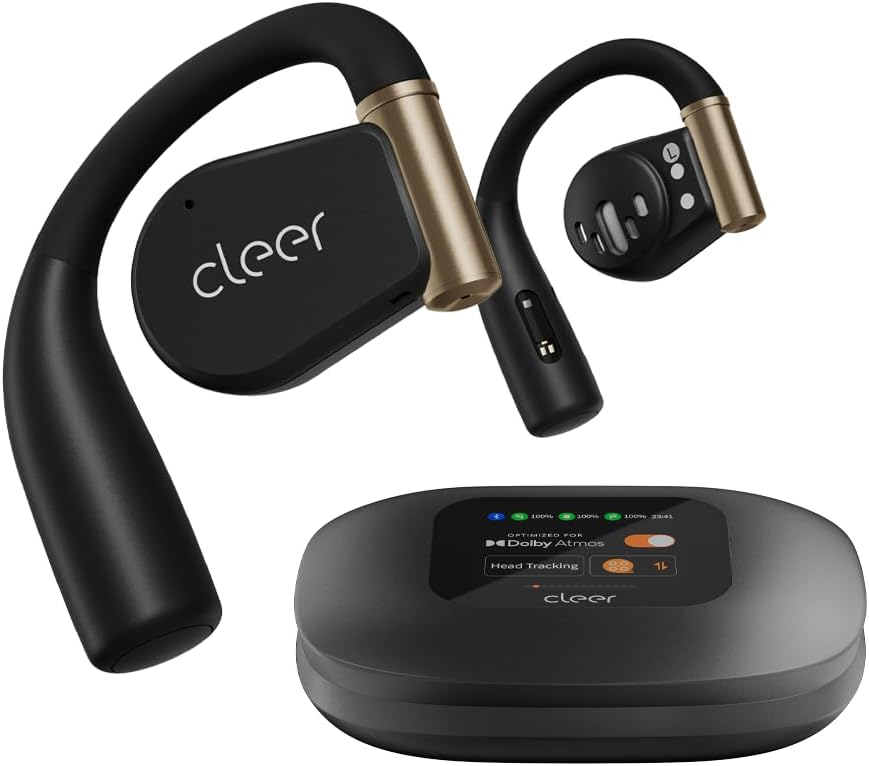
Image: Cleer ARC 3 Sports Pro headphones and their smart charging case.
Contenuto della confezione
Prima di iniziare, assicurati che tutti gli articoli siano presenti nel pacco:
- Cleer ARC 3 Sports Pro Open Ear Headphones
- Custodia di ricarica
- Cavo di ricarica (da USB-C a USB-A)
- Manuale d'uso
Impostare
1. Ricarica delle cuffie e della custodia
Before first use, fully charge your Cleer ARC 3 Sports Pro headphones and charging case. The charging case provides additional battery life for the headphones.
- Posiziona le cuffie nella custodia di ricarica.
- Connect the USB-C end of the charging cable to the charging case and the USB-A end to a power adapter (not included) or a computer's USB port.
- The case's display will indicate charging status. A full charge takes approximately 2 hours.

Image: Visual representation of the 40-hour total battery life, including 8 hours from headphones and 32 hours from the charging case.
2. Associazione iniziale con un dispositivo
The Cleer ARC 3 Sports Pro headphones support Bluetooth 5.4 for stable connectivity and multi-point connection, allowing pairing with two devices simultaneously.
Option 1: First Pairing (Recommended)
- Remove the protective film from the headphones.
- Press and hold the Multi-Function Button (MFB) on both headphones for 2 seconds to enter pairing mode.
- On your device (smartphone, tablet, laptop), go to Bluetooth settings and select "Cleer ARC 3 Sports Pro" from the list of available devices.
Option 2: Touch Pad Pairing
- Tap the touch pad on either headphone 5 times.
- Wait for the LED indicators to blink red and white, indicating pairing mode.
- On your device, select "Cleer ARC 3 Sports Pro" from the Bluetooth device list.
Option 3: Charging Case Pairing
- Place both headphones into the charging case and close the lid.
- Open the charging case. On the case's display, navigate to the "Auxiliary" page and select "Pairing Mode."
- On your device, select "Cleer ARC 3 Sports Pro" from the Bluetooth device list.

Image: Step-by-step visual guide for three different pairing methods: first pairing, touch pad pairing, and charging case pairing.
3. Installing the Cleer+ App
For full functionality, including EQ settings, Dolby Sound Effects, and health tracking, download the Cleer+ app from your device's app store.
- Cercare "Cleer+" in your app store.
- Scarica e installa l'app.
- Open the app and follow the on-screen instructions to connect your ARC 3 Sports Pro headphones.

Image: A user interacting with the Cleer+ app on a smartphone, demonstrating personalized workout plan creation based on real-time data.
Istruzioni per l'uso
1. Indossare le cuffie
The ARC 3 Sports Pro features an adjustable, soft ear hook design for a secure and comfortable fit during various activities.
- Posizionare delicatamente il gancio auricolare sull'orecchio.
- Adjust the earbud speaker to rest comfortably near your ear canal without entering it.
- Ensure a snug fit for optimal sound and heart rate tracking.

Image: A woman wearing the Cleer ARC 3 Sports Pro headphones, illustrating the open-ear design and comfortable, flexible ear hooks.
2. Controlli
The headphones offer multiple control methods for convenience.
Touch Controls (on headphones)
The touch pads on each earbud allow for various functions:
- Riproduci/Pausa: Tocco singolo.
- Traccia successiva: Tocca due volte l'auricolare destro.
- Traccia precedente: Tocca due volte l'auricolare sinistro.
- Rispondi/Termina chiamata: Tocco singolo durante una chiamata in arrivo.
- Rifiuta chiamata: Tenere premuto per 2 secondi durante una chiamata in arrivo.
- Attiva l'assistente vocale: Tocca tre volte.

Image: A diagram showing a finger tapping the earbud's touch surface, indicating touch control functionality.
Controllo del volume
Adjust volume using one of the following methods:
- Via telefono: Adjust volume directly on your connected mobile device.
- Tramite custodia di ricarica: Use the intuitive FHD display on the charging case to access volume controls.
- Via Touch Pad: Double tap and hold the second tap on the left earbud to decrease volume, or on the right earbud to increase volume.
- Tramite controllo vocale: Use voice commands like "Volume up" or "Volume down" when connected.

Image: Visual guide demonstrating four different methods for adjusting volume on the Cleer ARC 3 Sports Pro headphones.
Smart Motion Control (for Calls)
Enable motion controls via the Cleer+ App for hands-free call management.
- Open the Cleer+ App.
- Tap [Motion Control] on the ARC 3 main page.
- Toggle the button to turn on/off [Call Control].
- Rispondi alla chiamata: Nod head twice.
- Riaggancia/Rifiuta chiamata: Shake head twice.

Image: Instructions for activating and using smart motion controls for answering and rejecting calls through head gestures.
3. Caratteristiche audio
The ARC 3 Sports Pro headphones offer advanced audio technologies for an immersive listening experience.
- Dolby Atmos & Snapdragon Sound: Experience crystal clear spatial audio with 16.2mm drivers. Optimized for Dolby Atmos head tracking.
- Controllo automatico del volume: Automatically adjusts audio levels based on your surroundings for consistent listening.
- Qualità delle chiamate chiara: Features crystal clear voice capture and noise-cancelling microphones for calls.
Controlling Dolby Audio
You can enable or disable Dolby Audio through the following methods:
- Via Cleer+ App: Open the Cleer+ App and toggle the Dolby Audio setting on the main page.
- Tramite custodia di ricarica: On the charging case's touch screen, locate the Dolby Audio interface and toggle the [OPTIMIZED FOR Dolby Atmos] button.
- Via Touch Pad: Tap and hold the touch pad of either headphone for more than 2 seconds.

Image: Visual instructions for enabling or disabling Dolby Audio using the Cleer+ app, the charging case display, or the headphone touch pads.
4. Monitoraggio della salute
The ARC 3 Sports Pro headphones include heart rate and blood oxygen detection, which can be tracked in real-time during workouts or daily activities via the Cleer+ App.
- Ensure the headphones are properly worn for accurate readings.
- Open the Cleer+ App to view your health metrics and create personalized workout plans.

Image: A man outdoors, demonstrating the use of the Cleer+ app for accurate workout heart rate tracking.
Manutenzione
1. Pulizia
Una pulizia regolare aiuta a mantenere le prestazioni e l'igiene delle cuffie.
- Pulisci le cuffie e la custodia di ricarica con un panno morbido, asciutto e privo di lanugine.
- Avoid using abrasive materials, solvents, or cleaning sprays.
- The charging case features UV-C light sterilization for the earbuds when placed inside. Ensure the case is closed for this function.

Image: A diagram illustrating the UV-C sterilization process within the charging case for the earbuds.
2. Resistenza all'acqua (IPX7)
The ARC 3 Sports Pro headphones are IPX7 waterproof, meaning they can withstand immersion in up to 1 meter of water for 30 minutes. This makes them resistant to sweat, rain, and accidental splashes.
- Non immergere intenzionalmente la custodia di ricarica, poiché non è impermeabile.
- After exposure to water, ensure the headphones are completely dry before placing them back in the charging case to prevent damage.

Image: A woman exercising, demonstrating the IPX7 sweat-resistant capability of the headphones for uninterrupted use during intense workouts.
Risoluzione dei problemi
If you encounter issues with your Cleer ARC 3 Sports Pro headphones, refer to the following common solutions:
| Problema | Possibile soluzione |
|---|---|
| Le cuffie non si accoppiano |
|
| Nessun suono o volume basso |
|
| Scarsa qualità del suono |
|
| Le cuffie non si caricano |
|
| Heart rate tracking inaccurate |
|
Specifiche
| Caratteristica | Dettaglio |
|---|---|
| Nome del modello | Cleer Audio ARC 3 Sports Pro |
| Tecnologia di connettività | Bluetooth, senza fili |
| Versione Bluetooth | 5.4 |
| Posizionamento dell'orecchio | Orecchio aperto |
| Forma dell'auricolare | Gancio |
| Tipo di driver audio | Driver dinamico (16.2 mm) |
| Gamma di frequenza | 20 Hz - 20,000 Hz |
| Durata della batteria (cuffie) | 8 ore (carica singola) |
| Durata della batteria (con custodia) | Up to 40 Hours total (8 hrs + 32 hrs from case) |
| Tempo di ricarica | 2 ore |
| Livello di resistenza all'acqua | IPX7 (resistente all'acqua) |
| Tipo di controllo | Touch Control, Volume Control, App Control, Voice Control |
| Monitoraggio della salute | Heart Rate, Blood Oxygen Detection |
| Item Weight (Headphones) | 12 grammi (per auricolare) |
| Peso della custodia di ricarica | 130 grammi |
| Materiale | Metallo, Plastica, Silicone |
| Dispositivi compatibili | Cellulari, computer fissi, computer portatili, tablet |
Garanzia e supporto
Informazioni sulla garanzia
Cleer products are designed and manufactured to the highest quality standards. For specific warranty details, including coverage period and terms, please refer to the warranty card included with your product or visit the official Cleer websito. Conservare la prova d'acquisto per eventuali reclami in garanzia.
Assistenza clienti
If you require further assistance or have questions not covered in this manual, please contact Cleer customer support:
- Supporto online: Visit the official Cleer websito per FAQ, articoli di supporto e moduli di contatto.
- Supporto via e-mail: Refer to your product packaging or the Cleer websito per l'indirizzo email di supporto appropriato.
- Supporto telefonico: Check the Cleer websito per i numeri di assistenza telefonica regionale.
When contacting support, please have your product model number (ARC 3 Sports Pro) and proof of purchase readily available.