
1. Prodotto finitoview
The NEWFAST AX1800 WiFi 6 Range Extender is designed to expand your existing wireless network coverage, eliminate Wi-Fi dead zones, and provide reliable, high-speed internet access throughout your home or office. Utilizing WiFi 6 (802.11ax) technology, it supports dual-band operation (2.4GHz and 5.8GHz) for optimal performance across various devices.

Immagine 1.1: anteriore view of the NEWFAST AX1800 WiFi 6 Range Extender, showcasing its compact design and four external antennas.
Caratteristiche principali:
- AX1800 Dual Band WiFi 6: Supports speeds up to 1800 Mbps (574 Mbps on 2.4GHz and 1201 Mbps on 5.8GHz).
- Porta Gigabit: Provides a high-speed wired connection for devices like smart TVs, gaming consoles, or PCs.
- Molteplici modalità operative: Funziona come ripetitore, punto di accesso (AP) o router.
- 4 antenne ad alto guadagno: Enhances signal penetration and coverage.
- Sicurezza WPA3: Offers advanced network security protection.
- Schermo LCD: Provides clear working status and simplifies setup.
- WPS One-Click Setup: For quick and easy connection to your existing router.
2. Contenuto della confezione
Si prega di verificare che tutti gli articoli siano presenti nel pacco:
- 1 x NEWFAST AX1800 Dual Band WiFi Extender (NF-RE553)
- 1 x Manuale utente (questo documento)
- 1 cavo Ethernet RJ-45
3. Guida all'installazione
This section outlines the steps to set up your NEWFAST AX1800 WiFi 6 Range Extender.
3.1. Posizionamento iniziale
For the initial setup, it is recommended to plug the extender into a power outlet near your main router. Once configured, you can relocate it to an optimal position.
3.2. Accensione
Plug the extender into a standard electrical outlet. Wait for the device to power on and initialize. The LCD screen will display the current status.
3.3. Metodi di connessione
There are two primary methods to connect the extender to your existing Wi-Fi network: WPS (Wi-Fi Protected Setup) or Web Configurazione del browser.
3.3.1. WPS One-Click Setup (Recommended for quick setup)
- Collega l'extender a una presa di corrente vicino al router.
- Wait for the extender to boot up.
- Premi il pulsante WPS sul router principale.
- Within two minutes, press the WPS button on the NEWFAST AX1800 extender. The WPS indicator on the extender will flash during the connection process.
- Once the WPS indicator on the extender becomes solid, the connection is successful.
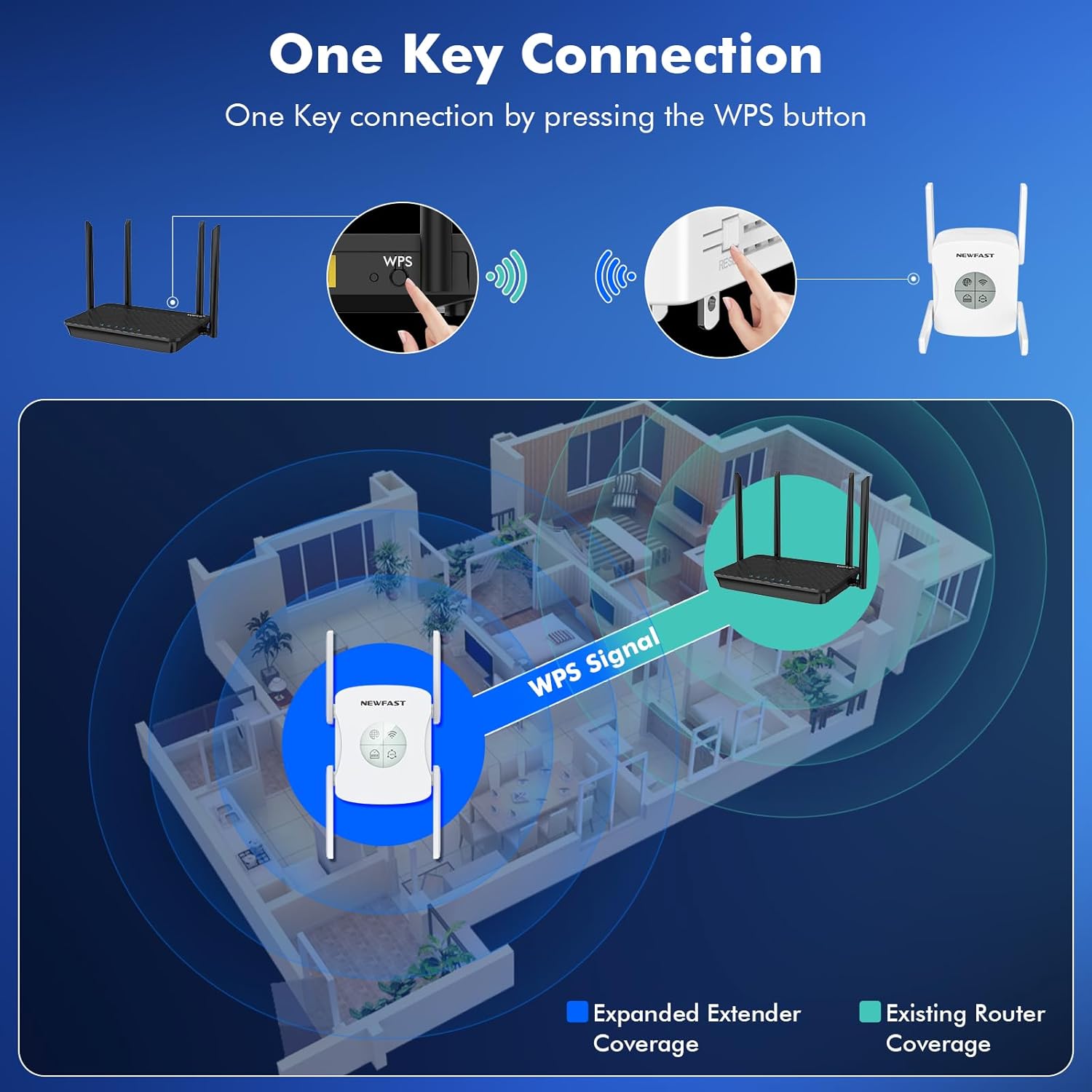
Image 3.1: Illustration of the WPS one-key connection process between a router and the NEWFAST AX1800 extender.
3.3.2. Web Impostazione del browser
- Collegare l'extender a una presa di corrente.
- Connect your computer or mobile device to the extender's default Wi-Fi network (e.g., "NEWFAST_EXT"). No password is required initially.
- Aprire un web browser and enter the default IP address or domain name (usually found on a label on the device or in the quick start guide, e.g., http://192.168.1.254 or http://re.newfast.com).
- Follow the on-screen instructions to create an administrator password and select your desired operating mode (Repeater, AP, or Router).
- If selecting Repeater mode, choose your existing Wi-Fi network from the list and enter its password.
- Complete the setup. The extender will restart, and its network name will change (e.g., your_network_name_EXT).
3.4. Posizionamento ottimale
After successful setup, unplug the extender and move it to a location between your router and the Wi-Fi dead zone. The smart signal indicator on the LCD screen will help you find the best spot for maximum coverage and signal strength. Aim for a location where the signal indicator shows a strong connection to your main router.

Image 3.2: An illustration demonstrating how the WiFi extender can be strategically placed to ensure wireless signal coverage throughout an entire home, including areas like the balcony, bathroom, kitchen, and living room.
4. Modalità operative
The NEWFAST AX1800 WiFi 6 Range Extender supports multiple operating modes to suit various networking needs.

Image 4.1: Visual representation of the three primary operating modes: Repeater, Router, and AP (Access Point) mode.
4.1. Modalità ripetitore (predefinita)
In Repeater mode, the extender wirelessly connects to your existing router and amplifies its signal, extending coverage to areas with weak or no Wi-Fi. This mode is ideal for eliminating dead zones.
4.2. Modalità punto di accesso (AP)
In AP mode, the extender connects to your router via an Ethernet cable and transforms your wired network connection into a wireless access point. This is useful for adding Wi-Fi capability to a wired-only network or creating a new Wi-Fi network in a specific area.
4.3. Modalità router
In Router mode, the extender acts as a primary router, connecting directly to your modem via an Ethernet cable to create a new private wireless network. This mode is suitable if you do not have an existing router.
4.4. Using the Gigabit Ethernet Port
The integrated Gigabit Ethernet port (WAN/LAN) allows you to connect a wired device (like a desktop computer, smart TV, or gaming console) to the extender, providing a stable and high-speed internet connection. This port can also be used for AP or Router mode connections.

Immagine 4.2: Un dettaglio view of the WAN/LAN Gigabit Ethernet port, demonstrating its use for wired connections.
5. Specifiche
Detailed technical specifications for the NEWFAST AX1800 WiFi 6 Range Extender (NF-RE553).
| Caratteristica | Descrizione |
|---|---|
| Modello | NF-RE553 |
| standard wireless | IEEE 802.11ax/ac/n/a (5.8GHz), IEEE 802.11n/g/b (2.4GHz) |
| Velocità di trasferimento dati | Fino a 1800 Mbps (1201 Mbps su 5.8 GHz, 574 Mbps su 2.4 GHz) |
| Banda di frequenza | Doppia banda (2.4 GHz e 5.8 GHz) |
| Antenne | 4 antenne esterne ad alto guadagno |
| Porta Ethernet | 1 x Gigabit WAN/LAN Port |
| Protocolli di sicurezza | WPA3, WPA2-PSK, WPA-PSK |
| Modalità operative | Ripetitore, Punto di accesso (AP), Router |
| Caratteristiche speciali | LCD Display Screen, WPS Button, MU-MIMO |
| Dimensioni (L x P x A) | 3.46 x 1.56 x 3.62 pollici |
| Peso | 15.4 once |

Immagine 5.1: Dettagliata view highlighting the LCD Intelligent Screen Display, Wired Gigabit port, and the four high-gain antennas of the extender.
6. Risoluzione Dei Problemi
This section provides solutions to common issues you might encounter with your NEWFAST AX1800 WiFi 6 Range Extender.
6.1. Nessun accesso a Internet dopo l'installazione
- Controllare la connessione del router: Assicurati che il router principale abbia una connessione Internet attiva.
- Posizionamento dell'estensore: Relocate the extender closer to your main router to ensure it receives a strong signal. The signal indicator on the LCD should show a good connection.
- Riconfigurare: Prova a rieseguire il processo di configurazione (WPS o Web Browser) to ensure the extender is correctly connected to your main Wi-Fi network.
- Conflitto di indirizzi IP: If using AP or Router mode, ensure there are no IP address conflicts with other devices on your network.
6.2. Weak Signal from Extender
- Posizionamento ottimale: Ensure the extender is placed in an optimal location, roughly halfway between your router and the desired coverage area. Avoid placing it near large metal objects, concrete walls, or other electronic devices that may cause interference.
- Regolazione dell'antenna: Adjust the four external antennas for better signal reception and transmission.
- Interferenza: Minimize interference from other devices operating on similar frequencies (e.g., microwaves, cordless phones).
6.3. Impossibile accedere Web Pagina di gestione
- IP/dominio corretto: Assicurati di utilizzare l'indirizzo IP o il nome di dominio corretto (ad esempio, http://192.168.1.254 or http://re.newfast.com).
- Connected to Extender: Verify that your device is connected to the extender's Wi-Fi network, not your main router's network.
- Cancella la cache del browser: Cancella il tuo web cache e cookie del browser oppure prova un browser diverso.
- Ricomincia: Restart both the extender and your computer/device.
6.4. Forgot Administrator Password
If you forget the administrator password for the web management page, you will need to perform a factory reset on the extender. Refer to Section 7.1 for instructions on how to reset the device.
7. Manutenzione
Proper maintenance ensures the longevity and optimal performance of your NEWFAST AX1800 WiFi 6 Range Extender.
7.1. Ripristino delle impostazioni di fabbrica
A factory reset will restore the extender to its default settings, erasing all custom configurations. This can be useful for troubleshooting persistent issues or if you forget your administrator password.
- Con l'extender acceso, individuare il pulsante di ripristino (solitamente un piccolo foro) sul dispositivo.
- Use a paperclip or a thin object to press and hold the Reset button for approximately 5-10 seconds until the LED indicators flash or the device restarts.
- Release the button. The extender will reboot with factory default settings. You will need to reconfigure it as per the setup guide.
7.2. Aggiornamenti del firmware
Controllare periodicamente il sito ufficiale NEWFAST website for firmware updates. Firmware updates can improve performance, add new features, and enhance security. Follow the instructions provided with the firmware update carefully.
7.3. Pulizia
Ensure the device is unplugged before cleaning. Use a soft, dry cloth to wipe the exterior of the extender. Do not use liquid cleaners or abrasive materials.
8. Garanzia e supporto
8.1. Informazioni sulla garanzia
The NEWFAST AX1800 WiFi 6 Range Extender comes with a standard manufacturer's warranty. Please refer to the warranty card included in your package or visit the official NEWFAST webPer i termini e le condizioni di garanzia dettagliati, consultare il sito. Conservare la ricevuta d'acquisto come prova d'acquisto per eventuali reclami in garanzia.
8.2. Supporto tecnico
For technical assistance, troubleshooting, or product inquiries, please contact NEWFAST customer support through the following channels:
- Ufficiale Websito: Visit the NEWFAST official websito per FAQ, risorse di supporto e informazioni di contatto.
- Supporto via e-mail: Fare riferimento alla confezione del prodotto o al sito ufficiale websito per l'indirizzo email dell'assistenza clienti.
When contacting support, please have your product model (NF-RE553) and a detailed description of your issue ready.

