
NIMO Nimo N153
NIMO 15.6" FHD IPS Business Gaming Laptop User Manual
Model: Nimo N153
Introduzione
This manual provides essential information for the setup, operation, and maintenance of your NIMO 15.6" FHD IPS Business Gaming Laptop. Designed for both productivity and light gaming, this laptop features an AMD Ryzen 5 6600H processor, 32GB DDR5 RAM, and a 1TB PCIe SSD, ensuring fast performance and ample storage. Please read this manual thoroughly to ensure proper use and longevity of your device.
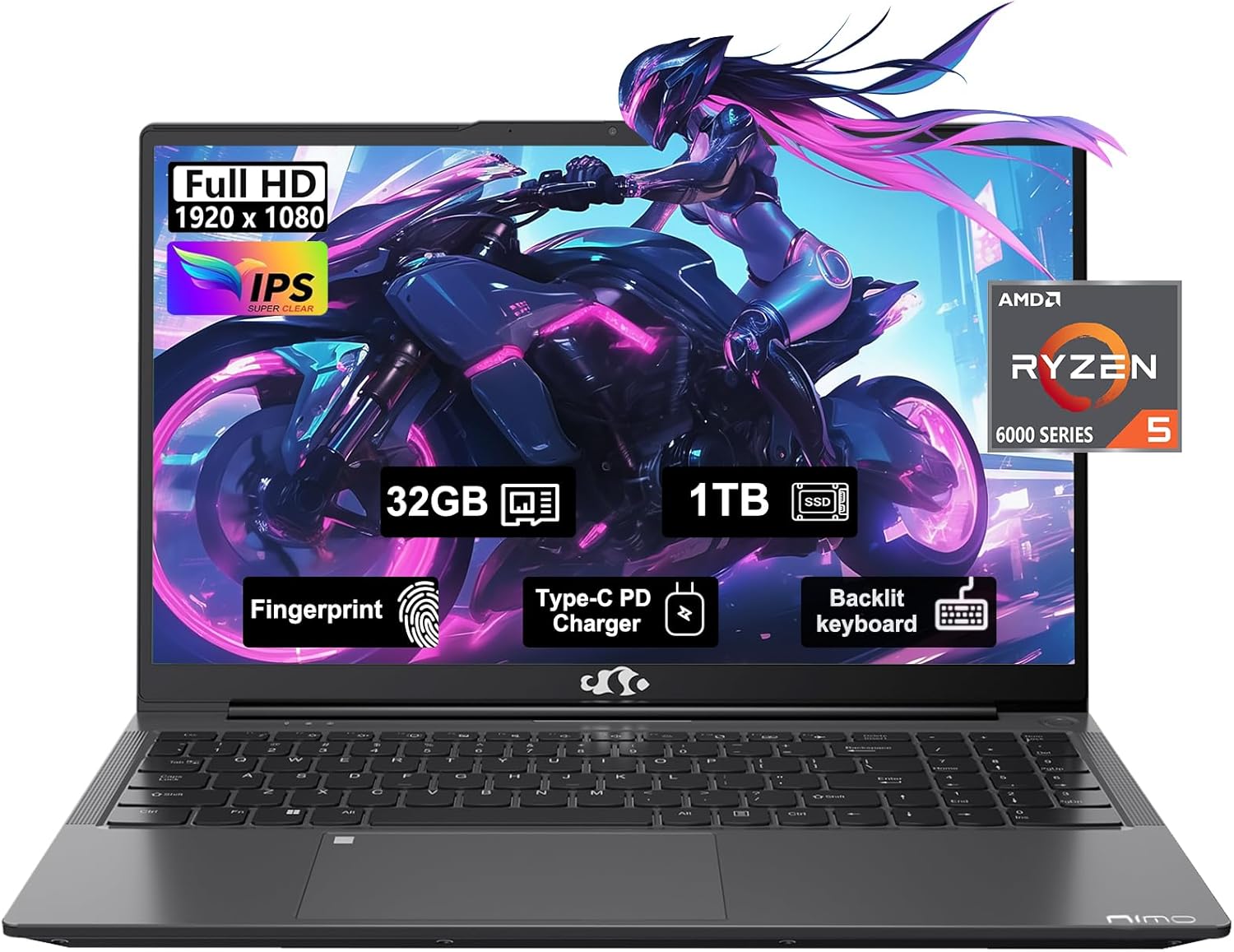
Figure 1: NIMO 15.6" FHD IPS Business Gaming Laptop overview.
Impostare
1. Disimballaggio e ispezione iniziale
Rimuovere con cautela tutti i componenti dalla confezione. La scatola dovrebbe contenere:
- 1 x Nimo N153 Laptop
- 1 x Type-C 100W PD Fast Charger
- 1 x Manuale utente
Ispezionare il laptop e gli accessori per verificare la presenza di eventuali danni. Se qualche componente risulta mancante o danneggiato, contattare immediatamente l'assistenza clienti.
2. Accensione iniziale e ricarica
Before first use, it is recommended to fully charge the laptop.
- Connect the Type-C 100W PD Fast Charger to the laptop's Type-C port (Multifunction) and to a power outlet.
- The charge LED indicator will illuminate. Allow the laptop to charge until the LED indicates a full charge.
- Premere il pulsante di accensione per accendere il laptop.

Figure 2: Connecting the Type-C 100W PD Fast Charger.
3. Configurazione del sistema operativo (Windows 11)
Follow the on-screen prompts to complete the initial setup of Windows 11. This typically includes:
- Selezione della regione e del layout della tastiera.
- Connessione a una rete Wi-Fi.
- Accedere con un account Microsoft o crearne uno.
- Impostazione di un PIN o di una password.
- Configurazione delle impostazioni sulla privacy.
Utilizzo del tuo laptop
1. Tastiera e touchpad
The NIMO laptop features a full-size backlit keyboard and a large touchpad for comfortable and efficient input.
- Tastiera retroilluminata: Use the function keys (Fn + F-key combination, typically F3 or F4) to adjust keyboard backlight brightness.
- Touchpad: Supporta i gesti multi-touch per la navigazione. Per la personalizzazione, consultare le impostazioni di Windows.
- Lettore di impronte digitali: Located on the touchpad, allows for secure login via Windows Hello.

Figure 3: Laptop keyboard layout with backlit keys and integrated fingerprint reader.
2. Porte e connettività
Your NIMO laptop is equipped with various ports for versatile connectivity:
- Porte USB: 2.0 1 porta per il collegamento delle periferiche.
- Porte USB: 3.0 2 porte per il trasferimento dati ad alta velocità.
- Type-C Ports (Multifunction): 2 ports supporting power delivery (PD) and data.
- Porta HDMI: Per il collegamento a display esterni.
- Jack per cuffie: Per l'uscita audio.
- Slot per scheda microSD: Per espandere la memoria o trasferire dati dalle schede di memoria.
- Slot per blocco Kensington: Per la sicurezza fisica.
- Connettività wireless: Supports Wi-Fi 802.11a/b/g/n/ac and Bluetooth 5.2.

Figura 4: Oltreview of laptop ports for various connections.
3. Visualizzazione
The laptop features a 15.6" FHD IPS (1920x1080) Anti-Glare Display with an 85% screen-to-body ratio. This display is designed to provide clear visuals and reduce eye strain during extended use.

Figure 5: The 15.6-inch Full HD IPS display.
4. Prestazioni
Powered by an AMD Ryzen 5 6600H processor (6 Cores, 12 Threads, up to 4.5 GHz) and 32GB DDR5 RAM, the laptop delivers robust performance for business tasks, content creation, and light gaming. The integrated AMD Radeon 660M GPU handles graphics processing efficiently.

Figure 6: AMD Ryzen 5 6600H processor, central to the laptop's performance.
The 1TB PCIe SSD provides fast boot times and rapid data access, enhancing overall system responsiveness.
Manutenzione
1. Pulizia del computer portatile
- Utilizzare un panno morbido e privo di lanugine leggermente dampcon acqua o un detergente per schermi per pulire il display.
- Per la tastiera e lo chassis, utilizzare un panno morbido. Evitare prodotti chimici aggressivi o materiali abrasivi.
- Use compressed air to clear dust from vents and ports periodically.
2. Aggiornamenti software
Controlla e installa regolarmente gli aggiornamenti di Windows e dei driver per garantire prestazioni e sicurezza ottimali.
- Vai a Impostazioni > Windows Update to check for OS updates.
- Visit the NIMO support websito per gli ultimi aggiornamenti dei driver.
3. Gestione dell'archiviazione
To maintain performance, regularly manage your 1TB SSD storage:
- Elimina non necessario filee applicazioni.
- Utilizza l'archiviazione cloud per grandi files.
- Periodically run Disk Cleanup (built-in Windows tool).
4. Cura della batteria
Per massimizzare la durata della batteria:
- Evitare temperature estreme.
- Non lasciare il portatile collegato alla presa di corrente con una carica al 100% per lunghi periodi se non lo si utilizza.
- Calibrate the battery occasionally by fully discharging and recharging it.
5. Aggiornamenti di memoria e archiviazione
The NIMO laptop supports dual-channel memory upgrades (up to 2 x 16GB DDR5 RAM) and features an upgradable PCIe SSD. Consult a qualified technician for hardware upgrades to avoid voiding your warranty.
Risoluzione dei problemi
Questa sezione affronta i problemi più comuni che potresti incontrare.
Il portatile non si accende
- Assicurarsi che il caricabatterie sia collegato saldamente sia al laptop sia a una presa di corrente funzionante.
- Verificare che la presa di corrente funzioni collegandovi un altro dispositivo.
- Prova a tenere premuto il pulsante di accensione per 15-20 secondi per eseguire un hard reset.
- Se la batteria è completamente scarica, lasciarla in carica per almeno 30 minuti prima di provare ad accenderla.
Screen Remains Blank
- Check if the laptop is powered on (listen for fan noise or look for indicator lights).
- Connect an external monitor via the HDMI port to check if the display output works.
- Riavviare il portatile.
Prestazioni lente
- Chiudere le applicazioni non necessarie in esecuzione in background.
- Controlla e installa eventuali aggiornamenti di Windows in sospeso.
- Assicurati che ci sia spazio libero sufficiente sul tuo SSD.
- Esegui una scansione antivirus.
Problemi di connettività Wi-Fi
- Assicurati che il Wi-Fi sia abilitato nelle impostazioni di Windows.
- Riavvia il router e il modem.
- Aggiorna i driver della scheda di rete wireless.
- Dimentica la rete e riconnettiti.
Per problemi non trattati qui, fare riferimento alla sezione Garanzia e supporto per le informazioni di contatto.
Specifiche
| Caratteristica | Dettaglio |
|---|---|
| Marca | NIMO |
| Nome del modello | Nimo N153G |
| Dimensioni dello schermo | 15.6 pollici |
| Risoluzione dello schermo | 1920 x 1080 pixels (FHD IPS Anti-Glare) |
| Processore | AMD Ryzen 5 6600H (6 core, 12 thread, fino a 4.5 GHz) |
| Memoria RAM | 32GB DDR5 (Dual-channel, upgradable to 2x16GB) |
| Disco rigido | SSD PCIe da 1 TB |
| Coprocessore grafico | AMD Integrated graphics (Radeon 660M GPU) |
| Sistema operativo | Finestre 11 |
| Tipo senza fili | 802.11a/b/g/n/ac (Wi-Fi 5), Bluetooth 5.2 |
| Porti | 1x USB 2.0, 2x USB 3.0, 2x Type-C (Multifunction), 1x HDMI, 1x Headphone Jack, 1x Micro SD Slot |
| Caratteristiche speciali | Fingerprint Reader, HD Audio, Backlit Keyboard, Numeric Keypad |
| Fonte di alimentazione | Battery Powered, Type-C 100W PD Fast Charger |
| Durata media della batteria | 5 ore |
| Peso dell'articolo | 6 libbre |
| Dimensioni del prodotto | 14.07 x 8.98 x 0.76 pollici |
| Colore | Grigio siderale |
Garanzia e supporto
Garanzia del produttore
Your NIMO laptop is covered by a comprehensive Garanzia del produttore di 2 anno offered by Nimo Direct Inc. This warranty covers defects in materials and workmanship under normal use.
Additionally, Nimo Direct Inc. offers 90-Day Hassle-Free Returns. If you encounter any concerns or issues with your product within this period, please contact customer support for assistance with resolution or replacement.
Contatta il supporto
For technical assistance, warranty claims, or return inquiries, please contact NIMO customer support. Refer to the contact information provided on the official NIMO websito o la documentazione inclusa nel prodotto.
Please have your product model number (Nimo N153) and purchase details ready when contacting support.
Ask a question about this manual
Ask about setup, troubleshooting, compatibility, parts, safety, or missing instructions. Manuals+ will review the question and use this page’s manual context to help answer it.