
Introduzione
This manual provides detailed instructions for the setup, operation, maintenance, and troubleshooting of your KOORUI S2721XO 27-inch QD-OLED Gaming Monitor. Please read this manual thoroughly before using the product to ensure proper functionality and to prevent damage.

Image: KOORUI S2721XO 27-inch QD-OLED Gaming Monitor showcasing its main features like 240Hz refresh rate, 0.03ms response time, QHD resolution, QD-OLED panel, VESA compatibility, 99% DCI-P3 color gamut, Eye Care, and Adaptive Sync.
Contenuto della confezione
Verificare che tutti i componenti siano presenti nella confezione:
- KOORUI S2721XO 27-inch QD-OLED Gaming Monitor
- Supporto per monitor (base e collo)
- Cavo di alimentazione
- Cavo HDMI
- Cavo DisplayPort
- Manuale dell'utente (questo documento)
- Scheda di garanzia (se applicabile)
Istruzioni di installazione
1. Assemblaggio del supporto
- Estrarre con cautela il monitor e i componenti del supporto dalla confezione.
- Fissare il collo del supporto al pannello del monitor. Assicurarsi che scatti saldamente in posizione o che sia fissato con le viti, come indicato nella guida rapida.
- Fissare la base del supporto al collo del supporto, fissandola con la vite in dotazione.
- Posizionare il monitor assemblato su una superficie stabile e piana.
Alternatively, the monitor supports VESA 75mm x 75mm mounting for wall mounts or monitor arms. Ensure the VESA mount is rated for the monitor's weight (3 kg).

Image: Illustrations showing the monitor's ergonomic adjustments including height adjustment (110mm), tilt (-20° to 20°), 90° pivot for vertical viewing, and swivel (-5° to 20°).
2. Cavi di collegamento
Identify the ports on the back of your monitor and connect the necessary cables.

Immagine: Posteriore view of the KOORUI S2721XO monitor showing the connectivity ports: 1. Power cable input, 2. HDMI 2.1, 3. HDMI 2.1, 4. DisplayPort 1.4, 5. Audio output interface. Also shows VESA 100x100mm mounting points.
- Cavo di alimentazione: Collegare un'estremità del cavo di alimentazione all'ingresso di alimentazione del monitor e l'altra estremità a una presa di corrente.
- Ingresso video:
- For HDMI connection, use the provided HDMI cable to connect your computer's HDMI output to one of the monitor's HDMI 2.1 ports.
- For DisplayPort connection, use the provided DisplayPort cable to connect your computer's DisplayPort output to the monitor's DisplayPort 1.4 port.
- Uscita audio: If desired, connect external speakers or headphones to the audio output jack.
3. Accensione iniziale
- Premi il pulsante di accensione sul monitor.
- Accendere il computer. Il monitor dovrebbe rilevare automaticamente il segnale in ingresso. In caso contrario, potrebbe essere necessario selezionare manualmente la sorgente in ingresso tramite il menu OSD.
Istruzioni per l'uso
Menu OSD (On-Screen Display)
The OSD menu allows you to adjust various monitor settings. Typically, a joystick or a set of buttons located on the back or bottom of the monitor is used to navigate the OSD.
- Press the OSD button/joystick to open the menu.
- Use the navigation controls to move through options.
- Premere il pulsante di selezione per confermare una selezione.
- Premere il pulsante Esci per chiudere il menu OSD.
Impostazioni immagine
- Luminosità/Contrasto: Adatta queste impostazioni alle tue esigenze viewambiente di lavoro.
- Temperatura del colore: Seleziona tra le modalità preimpostate (ad esempio, Caldo, Freddo, Utente) o personalizza i valori RGB.
- HDR (alta gamma dinamica): The monitor supports HDR 400. Enable HDR in your operating system and monitor settings for enhanced contrast and color detail.
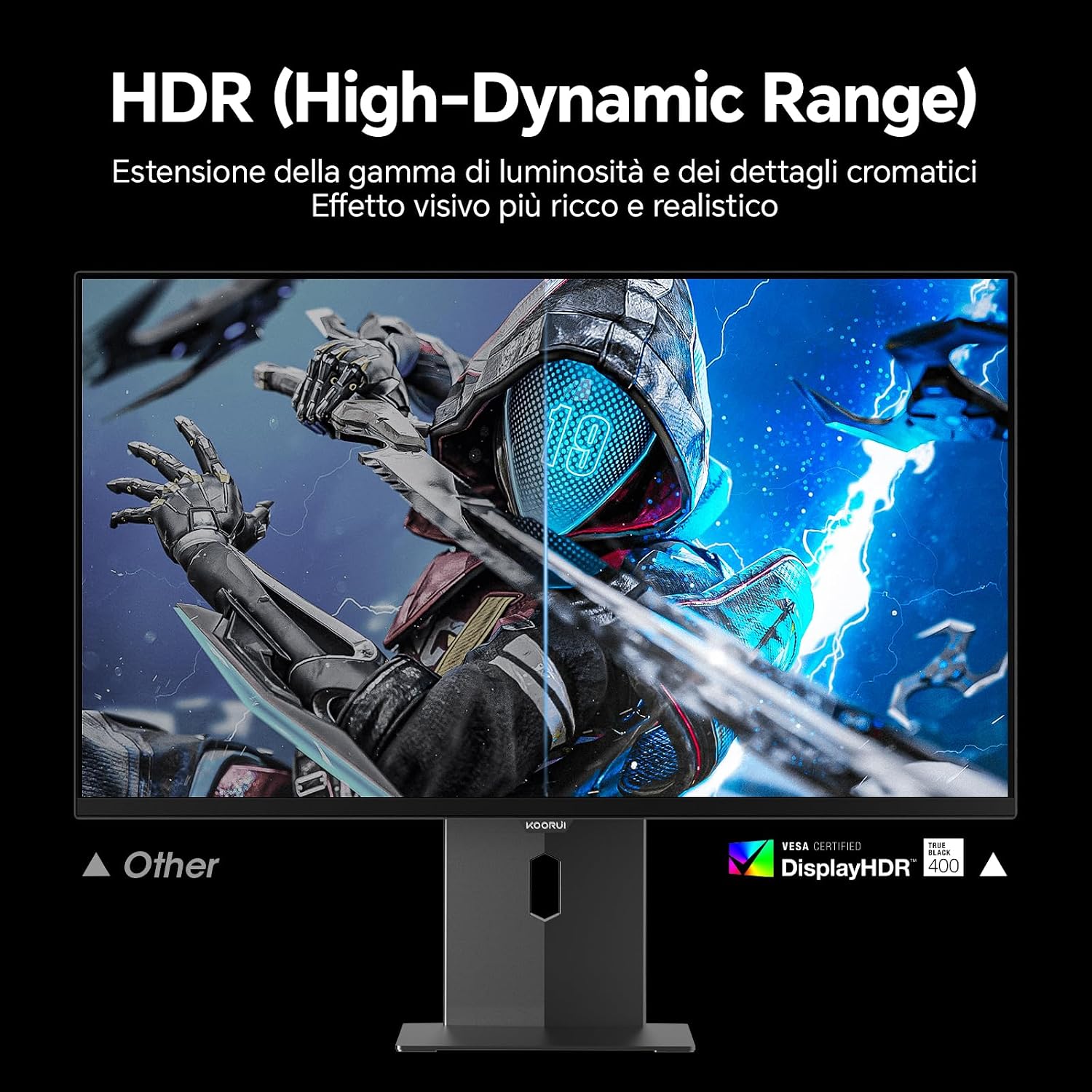
Image: Comparison of a standard display versus the KOORUI S2721XO monitor with HDR (High-Dynamic Range) enabled, showing richer visual effects and realistic details.
Caratteristiche di gioco
- Frequenza di aggiornamento: The monitor supports up to 240Hz. Ensure your graphics card and system settings are configured to utilize this refresh rate for smooth gameplay.
- Tempo di risposta: With a 0.03ms response time, motion blur is significantly reduced.
- Sincronizzazione adattiva: This technology synchronizes the monitor's refresh rate with your GPU's frame rate, eliminating screen tearing and stuttering. Enable Adaptive Sync in the OSD menu and your graphics card control panel.
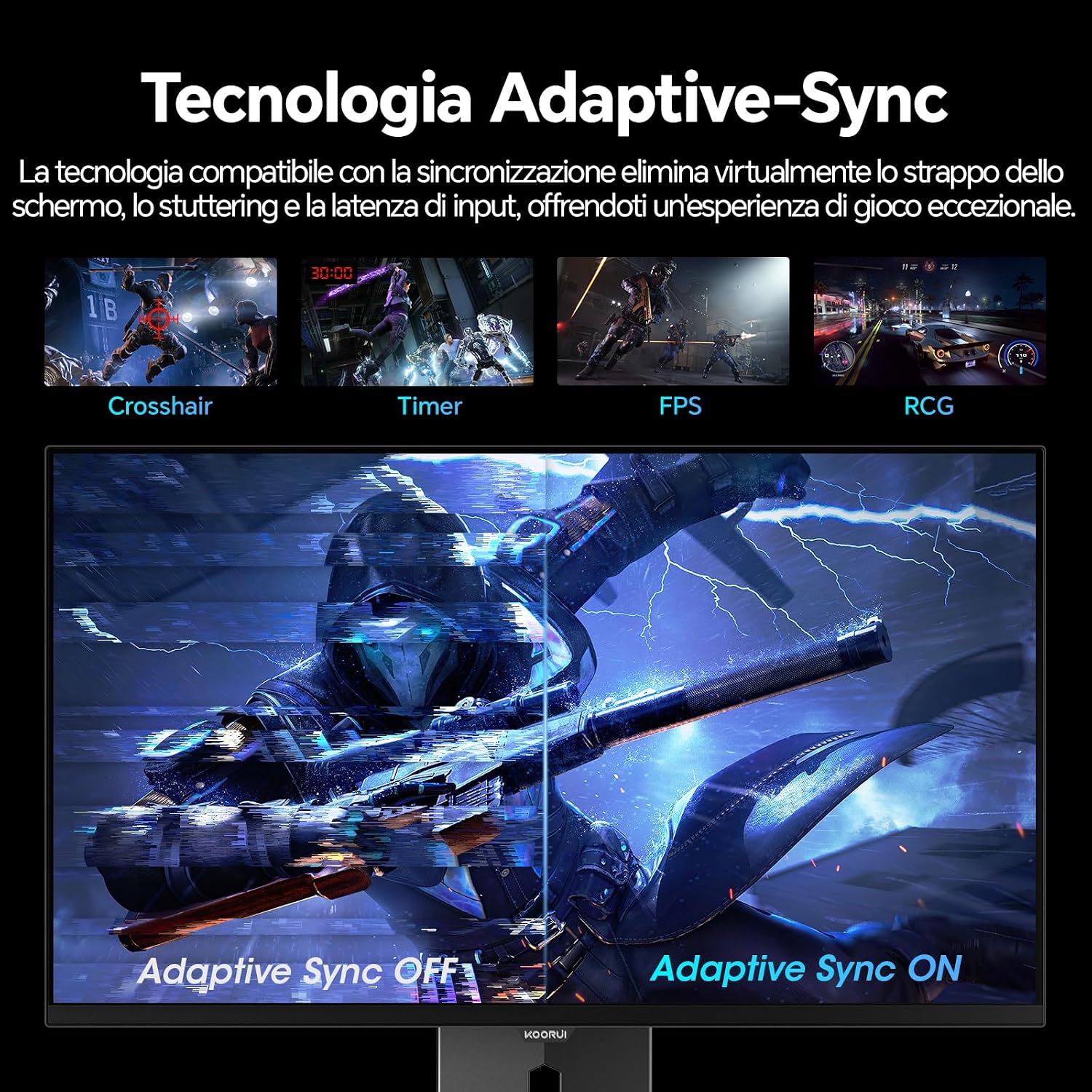
Image: A visual demonstration of Adaptive Sync technology, showing the difference between Adaptive Sync OFF (with screen tearing and stuttering) and Adaptive Sync ON (with smooth, tear-free visuals).

Image: A visual comparison illustrating the ultra-high refresh rate of 240Hz and 0.03ms response time, contrasting it with a 100Hz 5ms display to show the improved fluidity and reduced ghosting.
Modalità di cura degli occhi
The monitor includes features designed to reduce eye strain during extended use. Access the Eye Care settings in the OSD menu to enable modes that reduce blue light emission or adjust flicker-free settings.
Manutenzione
Pulizia del monitor
- Prima di procedere alla pulizia, spegnere sempre il monitor e scollegare il cavo di alimentazione.
- Utilizzare un panno morbido e privo di lanugine leggermente dampcon acqua o con un detergente specifico per schermi.
- Non spruzzare il detergente direttamente sullo schermo.
- Evitare l'uso di detergenti abrasivi, cere o solventi poiché potrebbero danneggiare la superficie dello schermo.
- Pulisci il monitor casing con un panno morbido e asciutto.
Magazzinaggio
When storing the monitor for an extended period, ensure it is powered off, unplugged, and stored in a cool, dry place away from direct sunlight and extreme temperatures. Use original packaging if available for best protection.
Risoluzione dei problemi
| Problema | Possibile causa | Soluzione |
|---|---|---|
| Nessun potere | Cavo di alimentazione non collegato; presa di corrente non funzionante; pulsante di accensione del monitor spento. | Ensure power cable is securely connected. Test power outlet with another device. Press the monitor's power button. |
| Nessun segnale | Cavo video non collegato; Sorgente di ingresso selezionata non corretta; Computer non acceso. | Check video cable connections (HDMI/DisplayPort). Select the correct input source via the OSD menu. Ensure your computer is powered on and outputting a signal. |
| Schermo tremolante | Incorrect refresh rate; Faulty cable; Graphics card driver issues. | Adjust refresh rate in display settings. Try a different video cable. Update graphics card drivers. |
| Scarsa qualità dell'immagine | Incorrect resolution; Picture settings misconfigured; Dirty screen. | Set display resolution to 2560x1440. Adjust brightness, contrast, and color settings in the OSD. Clean the screen as per maintenance instructions. |
Specifiche
| Marca | KOORUI |
| Numero di modello | S2721XO |
| Dimensioni dello schermo | 27 pollici |
| Tipo di pannello | QD-OLED |
| Risoluzione | QHD Wide 1440p (2560 x 1440) |
| Proporzioni | 16:9 |
| Frequenza di aggiornamento | Frequenza 240 Hz |
| Tempo di risposta | 0.03 millisecondi |
| Rapporto di contrasto | 1,500,000:1 |
| Luminosità | 280 cd/m² |
| Viewangolo di ing | 178 gradi |
| Valore gamma colore | 99% DCI-P3 (100% sRGB) |
| Connettività | 2x HDMI 2.1, 1x DisplayPort 1.4, uscita audio |
| Sincronizzazione adattiva | FreeSync compatible |
| Caratteristiche speciali | HDR 400, Eye Care, Height Adjustment, Tilt Adjustment, Swivel Adjustment, Pivot Adjustment |
| Compatibilità VESA | 75 mm x 75 mm |
| Dimensioni (L x A x P) | 610.11 mm x 521.84 mm x 215.82 mm (24.02 pollici x 20.54 pollici x 8.50 pollici) |
| Peso | 3 chilogrammi |
Informazioni sulla garanzia
The KOORUI S2721XO monitor comes with a Garanzia di 2 anno from the date of purchase. This warranty covers manufacturing defects and malfunctions under normal use. Please retain your proof of purchase for warranty claims. For detailed terms and conditions, refer to the warranty card included in your package or visit the official KOORUI websito.
Supporto e contatti
For further assistance, technical support, or customer service inquiries, please visit the official KOORUI website or contact their customer support team. You can also refer to the official PDF instructions for use: