
1. Introduzione
Thank you for choosing the KOORUI N07 27-inch 4K UHD Monitor. This monitor is designed to provide a superior visual experience with its 3840x2160 resolution, IPS panel, 60Hz refresh rate, HDR10 support, and Adaptive Sync technology. This manual provides essential information for setting up, operating, and maintaining your monitor to ensure optimal performance and longevity. Please read this manual thoroughly before using the product.
2. Informazioni sulla sicurezza
- Posizionare sempre il monitor su una superficie stabile e piana.
- Non ostruire le aperture di ventilazione.
- Utilizzare solo l'adattatore di alimentazione fornito dal produttore.
- Tenere il monitor lontano dall'acqua e dall'umidità eccessiva.
- Evitare di esporre il monitor alla luce solare diretta o a temperature elevate.
- Scollegare il cavo di alimentazione durante i temporali o quando non viene utilizzato per lunghi periodi.
3. Contenuto della confezione
Si prega di controllare il contenuto della confezione all'apertura. Se qualche articolo risulta mancante o danneggiato, contattare il rivenditore.
- KOORUI N07 27-inch 4K UHD Monitor
- Supporto per monitor (base e collo)
- Adattatore di alimentazione e cavo di alimentazione
- Cavo HDMI
- Cavo DisplayPort
- Manuale d'uso
4. Monitor Assembly and Setup
4.1 Fissaggio del supporto
- Posizionare con cura il monitor a faccia in giù su un panno morbido e pulito per evitare graffi.
- Attach the stand neck to the back of the monitor, aligning the mounting points.
- Secure the stand neck with the provided screws.
- Attach the stand base to the stand neck and tighten the thumb screw.

Figura 4.1: Posteriore view of the monitor showing VESA mount and tilt adjustment.
4.2 Cavi di collegamento
The KOORUI N07 monitor offers versatile connectivity options. Ensure your computer is turned off before making any connections.
- Collegamento elettrico: Connect the power adapter to the monitor's DC input port, then plug the power cable into a power outlet.
- Collegamento video: Connect one end of the HDMI or DisplayPort cable to the corresponding port on your computer's graphics card and the other end to an HDMI (HDMI1 or HDMI2) or DisplayPort (DP) input on the monitor.
- Uscita audio: If desired, connect external speakers or headphones to the 3.5mm audio output port on the monitor.

Figure 4.2: Connectivity options for the KOORUI N07 monitor.
4.3 Accensione
After connecting all necessary cables, press the power button on the monitor to turn it on. The monitor will automatically detect the active input source.
5. Istruzioni per l'uso
5.1 Menu di visualizzazione su schermo (OSD)
Il menu OSD consente di regolare diverse impostazioni del monitor. Utilizzare i pulsanti situati in basso a destra del monitor per navigare e selezionare le opzioni.
- Pulsante di accensione: Accende/spegne il monitor.
- Pulsante Menu: Apre il menu OSD.
- Pulsanti di navigazione: Utilizzato per spostarsi tra le opzioni del menu e regolare i valori.
- Pulsante di uscita: Esce dal menu OSD.
5.2 Impostazioni OSD chiave
- Impostazioni immagine: Regola luminosità, contrasto, nitidezza e temperatura del colore.
- Modalità colore: Select from various preset modes like Standard, Movie, Game, and Eye Care.
- Sorgente di input: Manually select between HDMI1, HDMI2, or DisplayPort inputs.
- Sincronizzazione adattiva: Abilita o disabilita Adaptive Sync per un gameplay più fluido.
- Tipo di HDR: Activate HDR10 for enhanced dynamic range with compatible content.
6. Funzionalità finiteview
6.1 4K UHD Resolution (3840x2160)
Experience incredible detail and clarity with a resolution four times higher than Full HD. This monitor provides 8.3 million pixels for a sharper and more colorful image.

Figure 6.1: 4K UHD resolution detail comparison.
6.2 IPS Panel Technology
The IPS panel offers a wide 178° viewing angle and vibrant color reproduction (90% DCI-P3, 99% sRGB), ensuring consistent image quality from almost any perspective. This is ideal for graphic designers, gamers, and movie enthusiasts.

Figure 6.2: IPS panel with 99% sRGB color accuracy.
6.3 Supporto HDR10
Enjoy content with enhanced dynamic range. HDR10 provides brighter whites, deeper blacks, and more vivid colors, bringing your favorite movies and games to life with greater realism.

Figure 6.3: HDR10 technology for improved image quality.
6.4 Adaptive Sync Technology
Adaptive Sync eliminates screen tearing and stuttering, providing a smoother and more fluid visual experience, especially during fast-paced gaming or video playback.

Figure 6.4: Adaptive Sync in action, preventing screen tearing.
6.5 Tecnologia per la cura degli occhi
The monitor features a Blue Light Filter and Flicker-Free technology to reduce eye strain during prolonged use. The Eye Care mode optimizes settings to minimize blue light emission, promoting visual comfort.
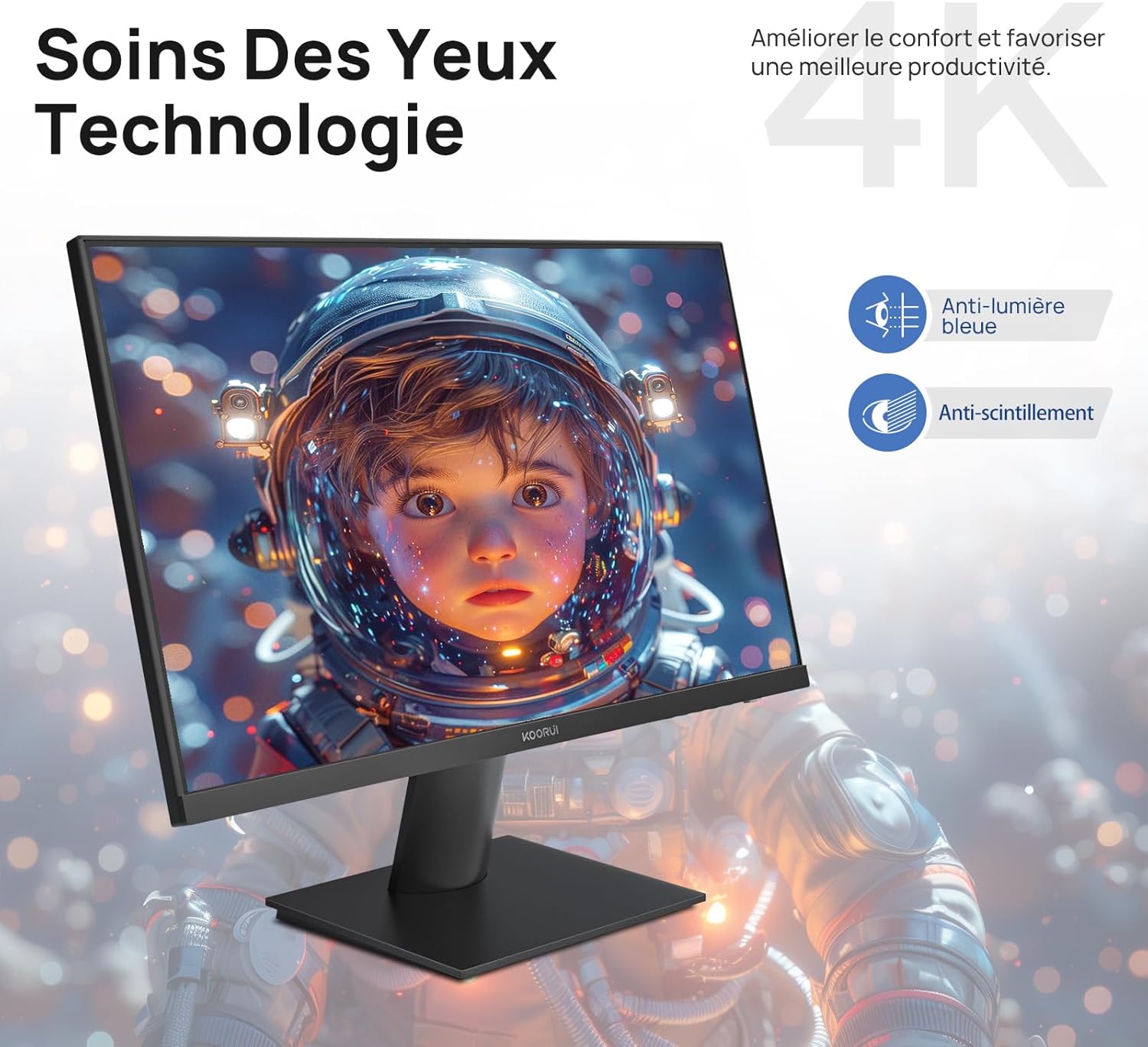
Figure 6.5: Eye Care technology for reduced eye strain.
6.6 Design ergonomico
The monitor stand allows for tilt adjustment from -5° to 20°, enabling you to find the most comfortable viewangolo di inclinazione per la tua postura.
6.7 Compatibilità con il montaggio VESA
The KOORUI N07 supports 100x100mm VESA mounting, allowing you to easily attach it to a wall mount or an articulated monitor arm for a flexible and clutter-free workspace.

Figure 6.6: VESA mount compatibility for flexible setup.
7. Video del prodotto finitoview
Video 7.1: Un overview of the KOORUI N07 27-inch 4K UHD monitor, highlighting its key features such as 4K resolution, DCI-P3 color gamut, HDR10 support, versatile usage for creation, viewing, and gaming, adjustable tilt, and VESA mounting capabilities.
8. Risoluzione Dei Problemi
Se riscontri problemi con il tuo monitor, fai riferimento ai seguenti problemi comuni e alle relative soluzioni:
| Problema | Possibile soluzione |
|---|---|
| Nessuna immagine sullo schermo | Ensure power cable is securely connected. Check video cable connection (HDMI/DP) to both monitor and computer. Verify correct input source is selected in OSD. |
| L'immagine è sfocata o distorta | Check display resolution settings on your computer. Ensure it is set to 3840x2160. Adjust sharpness in the OSD menu. |
| I colori sembrano errati | Adjust color temperature and color settings in the OSD menu. Try resetting picture settings to factory defaults. |
| Sfarfallio dello schermo | Ensure the video cable is securely connected. Disable Adaptive Sync if enabled, or update your graphics card drivers. |
9. Specifiche
| Caratteristica | Dettaglio |
|---|---|
| Marca | KOORUI |
| Numero di modello | N07 |
| Dimensioni dello schermo | 27 pollici |
| Risoluzione | 4K UHD (3840 x 2160 pixel) |
| Tipo di pannello | Informazione pubblica |
| Frequenza di aggiornamento | Frequenza 60 Hz |
| Tempo di risposta | 4 millisecondi |
| Proporzioni | 16:9 |
| Rapporto di contrasto | 1000:1 |
| Luminosità | 300 cd/m² |
| Viewangolo di ing | 178 gradi |
| Connettività | 2x HDMI 2.0, 1x DisplayPort 1.4, 1x uscita audio |
| Compatibilità VESA | 100x100mm |
| Caratteristiche speciali | Blue Light Filter, Tilt Adjustment, Frameless, Flicker-Free, Adaptive Sync, HDR10 |
| Dimensioni (P x L x A) | 20.5P x 61l x 45H centimetri |
| Peso | 3 chilogrammi |
10. Manutenzione
To ensure the longevity and optimal performance of your KOORUI N07 monitor, follow these maintenance guidelines:
- Pulizia dello schermo: Pulire delicatamente lo schermo con un panno morbido e privo di lanugine. Per macchie ostinate, dampInumidire leggermente il panno con acqua o con un detergente specifico per schermi. Non spruzzare mai il liquido direttamente sullo schermo.
- Pulizia del Casing: Utilizzare un panno morbido e asciutto per pulire il monitor casing. Evitare detergenti abrasivi o solventi.
- Ventilazione: Assicurarsi che le aperture di ventilazione sul monitor non siano ostruite per evitare il surriscaldamento.
- Spegni: Spegnere il monitor quando non lo si utilizza per lunghi periodi.
11. Garanzia e supporto
The KOORUI N07 monitor comes with a Garanzia del produttore di 2 anni. This warranty covers defects in materials and workmanship under normal use. For warranty claims or technical support, please contact KOORUI customer service or your retailer with your proof of purchase.
For additional support, troubleshooting guides, and driver downloads, please visit the official KOORUI websito.