
1. Prodotto finitoview
The KOORUI G2722P is a 27-inch QHD (2560x1440) gaming monitor designed for an immersive visual experience. It features a Fast IPS panel with a 200Hz refresh rate and a 1ms response time, ensuring smooth and responsive gameplay. The monitor supports HDR 400 for enhanced contrast and color depth, and Adaptive Sync technology to minimize screen tearing and stuttering. Its ergonomic stand allows for height, tilt, and pivot adjustments, and it is VESA 75x75mm compatible for flexible mounting options.

The KOORUI G2722P monitor integrated into a typical gaming environment.
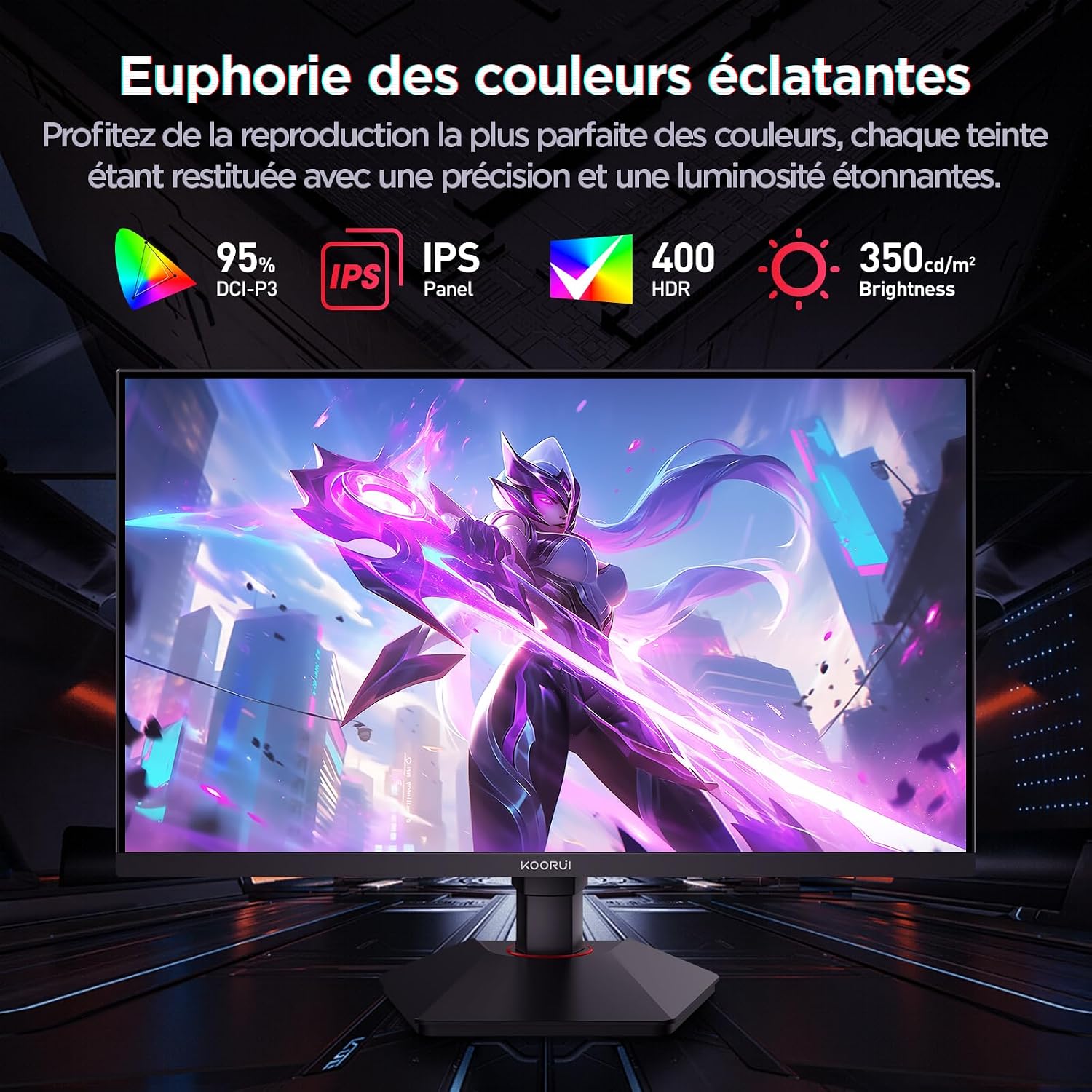
This image highlights the monitor's color capabilities, including 95% DCI-P3 color gamut, IPS panel technology, HDR 400 support, and 350 cd/m² brightness.
2. Informazioni sulla sicurezza
- Leggere attentamente tutte le istruzioni prima di utilizzare il monitor.
- Non esporre il monitor alla pioggia o all'umidità per evitare rischi di incendio o scosse elettriche.
- Non aprire il monitor casing. All'interno non sono presenti parti riparabili dall'utente. Per qualsiasi intervento di manutenzione, rivolgersi a personale qualificato.
- Posizionare il monitor su una superficie stabile e piana per evitare che cada.
- Tenere il monitor lontano dalla luce solare diretta, da fonti di calore e da temperature estreme.
- Assicurare una ventilazione adeguata attorno al monitor. Non ostruire le aperture di ventilazione.
- Utilizzare solo l'adattatore di alimentazione e i cavi forniti o consigliati dal produttore.
- Scollegare il monitor dalla presa di corrente durante i temporali o quando non viene utilizzato per lunghi periodi.
3. Contenuto della confezione
Verificare che tutti gli articoli siano presenti nel pacco:
- Monitor KOORUI G2722P
- Supporto per monitor (base e collo)
- Adattatore di alimentazione e cavo di alimentazione
- Cavo DisplayPort (DP)
- Manuale dell'utente (questo documento)
- Viti per il montaggio del supporto
4. Montaggio del monitor
4.1 Fissaggio del supporto
- Posizionare con cura il monitor a faccia in giù su un panno morbido e pulito per evitare graffi.
- Attach the stand neck to the back of the monitor until it clicks into place or is secured with screws (refer to specific instructions in the included quick start guide).
- Fissare la base del supporto al collo del supporto e fissarla con la vite in dotazione.
- Sollevare con cautela il monitor e posizionarlo su una scrivania stabile.
4.2 Montaggio VESA
The monitor supports VESA 75x75mm mounting. To use a VESA mount:
- Rimuovere il supporto se è già fissato.
- Attach your VESA-compatible mount (sold separately) to the 75x75mm screw holes on the back of the monitor using appropriate screws.
- Assicurarsi che il supporto sia fissato saldamente prima di riposizionarloasing il monitor.

This image demonstrates the monitor's ergonomic adjustments (height, tilt, pivot) and provides a visual reference for stand attachment points.
5. Collegamento del monitor
Connect the monitor to your computer or other devices using the available ports.
- Collegamento elettrico: Connect the power cable to the power adapter, then connect the adapter to the monitor's power input and a wall outlet.
- Collegamento video:
- For optimal performance (QHD @ 200Hz), use the provided DisplayPort (DP 1.4) cable to connect the monitor to your graphics card.
- Alternatively, use an HDMI 2.0 cable to connect to an HDMI port on your device.
- Uscita audio: Connect external speakers or headphones to the 3.5mm audio output jack on the monitor if you wish to use the monitor's audio passthrough.

This image displays the rear of the monitor, highlighting the available connectivity options: two HDMI 2.0 ports, one DisplayPort 1.4, an audio output jack, and the VESA 75x75mm mounting pattern.
6. Funzionamento del monitor
6.1 Accensione/spegnimento
- Premere il pulsante di accensione situato sul monitor per accenderlo o spegnerlo.
- La spia di alimentazione si illumina quando il monitor è acceso.
6.2 Menu di visualizzazione su schermo (OSD)
The OSD menu allows you to adjust various monitor settings. Typically, buttons are located on the back or bottom right of the monitor.
- Premere uno dei pulsanti OSD per attivare il menu.
- Use the navigation buttons (usually directional or a joystick) to browse through menu options.
- Premere il pulsante di selezione per accedere a un sottomenu o confermare un'impostazione.
- Premere il pulsante Esci per chiudere il menu OSD.
7. Impostazioni display
7.1 Risoluzione e frequenza di aggiornamento
The monitor supports a native resolution of 2560x1440 (QHD) and a maximum refresh rate of 200Hz. Ensure your graphics card and operating system are configured to use these settings for the best experience.

This image illustrates the difference in motion clarity between a 75Hz and a 200Hz refresh rate, emphasizing the 1ms response time for reduced blur and ghosting.
7.2 Adaptive Sync (FreeSync)
This monitor supports Adaptive Sync technology (compatible with AMD FreeSync) to synchronize the monitor's refresh rate with your graphics card's frame rate, eliminating screen tearing and reducing stuttering.
- Enable Adaptive Sync in the monitor's OSD menu.
- Ensure Adaptive Sync (or FreeSync) is enabled in your graphics card control panel.

This image visually compares the display with Adaptive Sync enabled versus disabled, demonstrating how Adaptive Sync eliminates screen tearing for a smoother visual experience.
7.3HDR 400
The monitor supports HDR 400, providing a wider dynamic range for brighter whites and deeper blacks, resulting in more vibrant and realistic images.
- Enable HDR in your operating system's display settings and in the monitor's OSD menu if available.
7.4 Impostazioni colore
The Fast IPS panel offers excellent color reproduction and wide viewangoli di inclinazione.
- Adjust color temperature, gamma, and saturation through the OSD menu to suit your preferences.
- The monitor features a 178-degree wide viewing angle, ensuring consistent color and image quality from various perspectives.
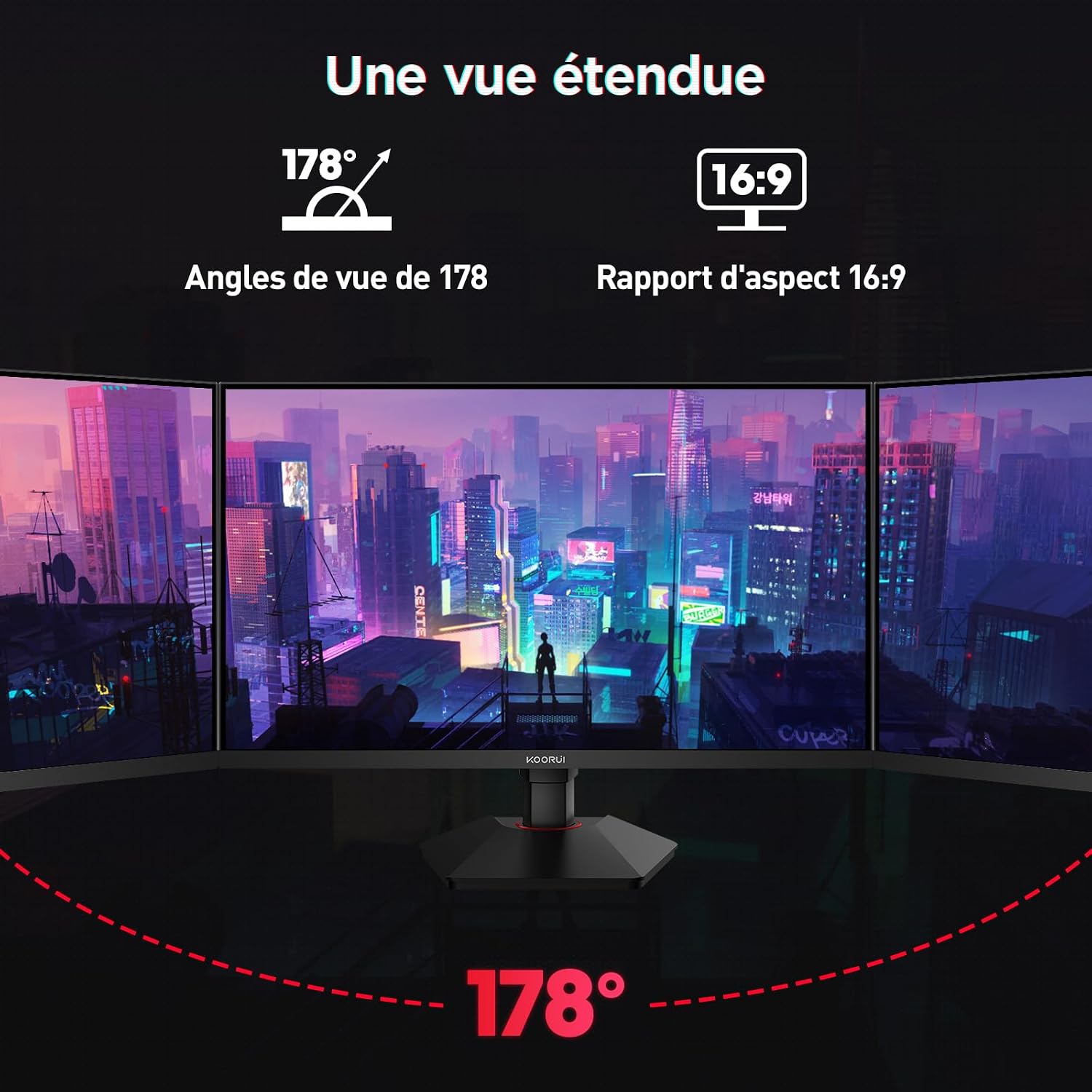
This image demonstrates the monitor's wide 178-degree viewing angle, illustrating how the display maintains clarity and color consistency even when viewed from extreme angles, ideal for multi-monitor setups.
8. Regolazioni ergonomiche
Il supporto del monitor consente varie regolazioni per ottimizzare il tuo viewcomfort:
- Regolazione dell'altezza: Adjust the monitor height by up to 100mm by gently pushing or pulling the monitor up or down.
- Regolazione dell'inclinazione: Tilt the screen from -5° (forward) to +20° (backward) to find your preferred viewangolo di ing.
- Perno (rotazione): Rotate the screen 90° to switch between landscape and portrait orientations.
This image illustrates the full range of ergonomic adjustments available: 100mm height adjustment, -5° to +20° tilt, and 90° pivot rotation for optimal viewcomfort.
9. Caratteristiche della cura degli occhi
The KOORUI G2722P monitor incorporates features designed to reduce eye strain during prolonged use:
- Tecnologia senza sfarfallio: Riduce lo sfarfallio dello schermo, che può causare affaticamento degli occhi.
- Filtro luce blu bassa: Minimizes harmful blue light emissions to protect your eyes. This feature can usually be adjusted or enabled/disabled in the OSD menu.
10. Manutenzione
Una corretta manutenzione garantisce la longevità e le prestazioni ottimali del monitor.
- Pulizia dello schermo: Pulisci delicatamente lo schermo con un panno morbido e privo di lanugine. Per le macchie ostinate, utilizza una soluzione detergente specifica per monitor, applicata sul panno e non direttamente sullo schermo.
- Pulizia del Casing: Utilizzare un panno morbido e asciutto per pulire il monitor casing. Evitare l'uso di detergenti abrasivi o solventi.
- Gestione: Avoid touching the screen directly with your fingers or sharp objects. Do not place heavy objects on the monitor.
11. Risoluzione Dei Problemi
Se riscontri problemi con il monitor, fai riferimento ai seguenti problemi comuni e alle relative soluzioni:
| Problema | Possibile soluzione |
|---|---|
| Nessuna immagine sullo schermo |
|
| Sfarfallio o strappo dell'immagine |
|
| Nessun suono dall'uscita audio |
|
| Il monitor non raggiunge i 200 Hz |
|
12. Specifiche
Key technical specifications for the KOORUI G2722P monitor:
| Caratteristica | Specificazione |
|---|---|
| Dimensioni dello schermo | 27 pollici |
| Tipo di pannello | Quasi IPS |
| Risoluzione | Risoluzione: 2560 x 1440 |
| Frequenza di aggiornamento | 200 Hz |
| Tempo di risposta | 1 millisecondo |
| Supporto HDR | Colore: HDR400 |
| Sincronizzazione adattiva | Sincronizzazione gratuita |
| Rapporto di contrasto | 1000:1 (statico) |
| Luminosità | 350 cd/m² |
| Viewangolo di ing | 178° (O/V) |
| Gamma di colori | 95% DCI-P3 |
| Ingressi video | 2x HDMI 2.0, 1x DisplayPort 1.4 |
| Uscita audio | 1x 3.5mm Audio Out |
| Compatibilità VESA | 75x75mm |
| Consumo energetico | 19 Watt (tipico) |
| Ergonomia | Height, Tilt, Pivot Adjustment |

This diagram provides the physical dimensions of the monitor, including width, height, and depth.
Per informazioni dettagliate sull'energia, consultare il database EPREL: https://eprel.ec.europa.eu/qr/2216313
13. Garanzia e supporto
Il monitor KOORUI G2722P è dotato di un Garanzia del produttore di 2 anniLa presente garanzia copre i difetti di materiali e di fabbricazione in normali condizioni di utilizzo.
For technical support, warranty claims, or further assistance, please contact KOORUI customer service through their official websito o rivenditore presso cui è stato acquistato il prodotto.