
Introduzione
Thank you for choosing the Phomemo M221 Bluetooth Thermal Label Printer. This manual provides essential information for the safe and efficient operation of your device. Please read it thoroughly before use and retain it for future reference. The Phomemo M221 is designed for fast, clear, and smart label printing, supporting various label types and applications for small businesses, home, and school use.
Informazioni sulla sicurezza
Per garantire un funzionamento sicuro ed evitare danni, osservare le seguenti precauzioni:
- Non smontare, riparare o modificare la stampante.
- Tenere la stampante lontana da acqua, umidità e luce solare diretta.
- Use only Phomemo-approved power adapters and accessories.
- Evitare di toccare la testina di stampa subito dopo la stampa, poiché potrebbe essere calda.
- Store the printer and labels in a cool, dry place.
Contenuto della confezione
Verifica che tutti gli articoli siano presenti nel tuo pacco:
- Stampante per etichette Phomemo M221
- Cavo di ricarica USB di tipo C.
- 1 roll of 40 x 30 mm thermal labels
- 1 roll of 50 x 80 mm thermal labels
- 1 roll of 70 x 80 mm thermal labels
- Custodia portatile
- Manuale dell'utente (questo documento)
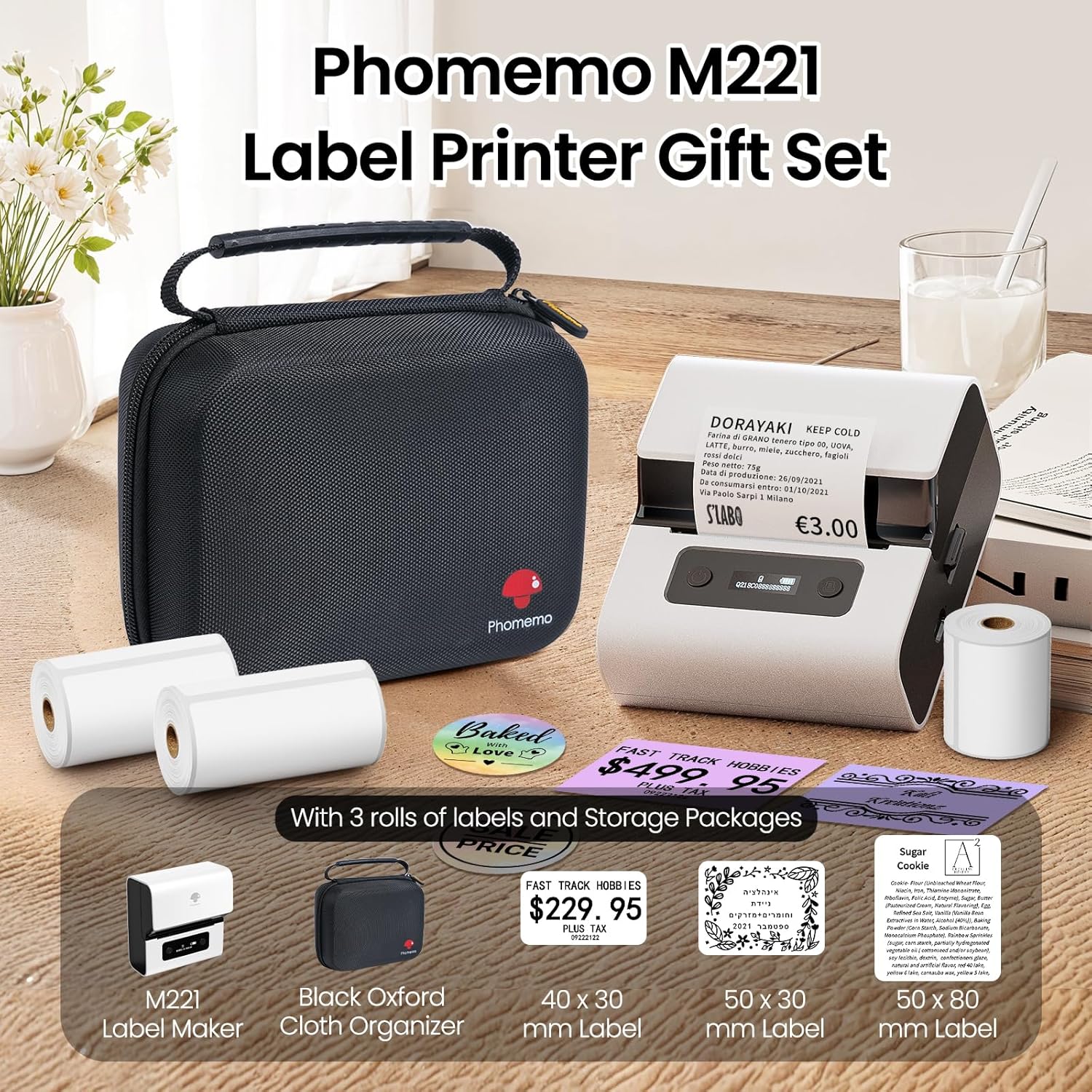
Image: Phomemo M221 Label Printer Gift Set, showing the printer, a black carrying case, and three rolls of white thermal labels.
Prodotto finitoview
The Phomemo M221 is a compact and efficient thermal label printer. Key features include:
- Tecnologia di stampa termica: Non necessita di inchiostro o toner.
- Ampia compatibilità con le etichette: Supports labels from 20mm to 80mm (0.78" to 3.14") wide, including rectangular, round, transparent, and colored types.
- Connettività: Bluetooth for iOS/Android smartphones and tablets, USB for Windows PCs.
- Batteria ad alta capacità: 2200 mAh battery with Type-C fast charging.
- Funzionamento rapido e silenzioso: Prints at 50 mm/s with reduced noise.
- Design intuitivo: Easy label loading and automatic gap detection.

Image: Phomemo M221 Label Maker Set, illustrating its features such as no ink requirement, large battery capacity, Bluetooth wireless printing, and its suitability as a gift.
Impostare
1. Caricamento della stampante
Before first use, fully charge the Phomemo M221 printer.
- Collegare il cavo USB Type-C in dotazione alla porta di ricarica della stampante.
- Connect the other end of the cable to a 5V USB power adapter (not included) or a computer's USB port.
- The indicator light will show charging status. A full charge typically takes several hours. The 2200 mAh battery supports extended use.
2. Caricamento delle etichette
The M221 features an integrated label fixing structure for easy loading.
- Aprire il coperchio della stampante.
- Insert the label roll into the compartment, ensuring the printing side faces upwards and the labels feed smoothly.
- Adjust the side guide plates to secure the label roll in place.
- Close the printer cover. The printer will automatically detect and calibrate the label gap.
3. Connessione al dispositivo
The Phomemo M221 supports both Bluetooth and USB connections.
Bluetooth Connection (Smartphones/Tablets)
- Assicurati che il Bluetooth sia abilitato sul tuo dispositivo iOS o Android.
- Download and install the "Print Master" application from your device's app store.
- Open the "Print Master" app and follow the on-screen instructions to search for and connect to your M221 printer.

Image: Phomemo M221 printer demonstrating Bluetooth wireless connection with a tablet and a smartphone.
USB Connection (Windows PC)
- Connect the USB Type-C cable from the printer to an available USB port on your Windows PC.
- Download and install the "Labelife" software and printer drivers from the official Phomemo websito.
- Follow the software installation prompts. Once installed, you can select the M221 as your printer.

Image: Phomemo M221 printer connected to a laptop using a USB cable, indicating wired connectivity.
Istruzioni per l'uso
1. Basic Printing with "Print Master" App (Mobile)
- Ensure your M221 printer is connected via Bluetooth to your mobile device.
- Open the "Print Master" app.
- Select a template or create a new label design. The app offers various templates for text, images, barcodes, QR codes, and more.
- Customize your label content.
- Tap the print icon. Confirm print settings such as quantity.
- The printer will begin printing your labels.
2. Printing with "Labelife" Software (PC)
- Ensure your M221 printer is connected via USB to your Windows PC.
- Open the "Labelife" software.
- Design your label using the software's features, including text, images, barcodes, and QR codes.
- Vai a "File" > "Stampa" oppure clicca sull'icona di stampa.
- Select the Phomemo M221 from the list of available printers and adjust any necessary print settings.
- Click "Print" to start printing.
3. Stampa in batch
Both "Print Master" and "Labelife" support batch printing for efficiency.
- In the print dialogue, specify the desired number of copies.
- The printer will automatically print multiple labels consecutively.

Image: Phomemo M221 printer demonstrating its versatility with examples of address labels, price tags, ingredient labels, and gift tags.

Image: Phomemo M221 printer showcasing its compatibility with over 50 types of thermal labels, including various shapes and designs.
Manutenzione
1. Pulizia della testina di stampa
La pulizia regolare della testina di stampa garantisce una qualità di stampa ottimale.
- Spegnere la stampante e scollegare il cavo di alimentazione.
- Aprire il coperchio della stampante.
- Pulire delicatamente la testina di stampa con un batuffolo di cotone leggermenteamparricchito con alcol isopropilico.
- Lasciare asciugare completamente la testina di stampa prima di chiudere il coperchio e accendere la stampante.
2. Conservazione
Store the printer in a clean, dry environment, away from extreme temperatures and direct sunlight. When not in use for extended periods, ensure the printer is fully charged and then powered off.

Image: A man holding the Phomemo M221 printer's carrying case, illustrating its portable design.
Risoluzione dei problemi
Printer Does Not Turn On or Charge
- Controllare la connessione di alimentazione: Ensure the USB Type-C cable is securely connected to both the printer and a working power source (5V adapter or PC USB port).
- Verifica adattatore di alimentazione: Use a reliable 5V USB power adapter.
- Durata della carica: Allow sufficient time for charging. The battery indicator should show charging status.
No Printing or Blank Output
- Controllare l'orientamento dell'etichetta: Ensure the thermal labels are loaded correctly with the printing side facing upwards.
- Tipo di etichetta: Confirm you are using thermal labels. The M221 does not use ink.
- Pulizia della testina di stampa: A dirty print head can cause blank lines or poor print quality. Refer to the Maintenance section for cleaning instructions.
- Allineamento etichetta: Ensure the label roll is properly seated and aligned by the side guide plates to prevent misalignment errors.
Problemi di connessione Bluetooth
- Stampante accesa: Assicurati che la stampante sia accesa e che si trovi nel raggio di azione del Bluetooth del tuo dispositivo.
- Bluetooth abilitato: Verify Bluetooth is active on your smartphone or tablet.
- Connessione all'app: Connect through the "Print Master" app, not directly through your device's Bluetooth settings.
- Riavvia i dispositivi: Try restarting both the printer and your mobile device.
Scarsa qualità di stampa
- Pulizia della testina di stampa: Pulire la testina di stampa come descritto nella sezione Manutenzione.
- Qualità dell'etichetta: Use high-quality thermal labels.
- Print Density Settings: Adjust print density settings within the "Print Master" app or "Labelife" software if available.
Specifiche
| Caratteristica | Dettaglio |
|---|---|
| Numero di modello | Numero di modello: M221 |
| Marca | Fomeo |
| Tecnologia di connettività | Bluetooth, USB tipo C |
| Tecnologia di stampa | Termico |
| Output di stampa | Monocromo |
| Velocità di stampa massima (monocromatica) | 15.0 pages per minute (50 mm/s) |
| Risoluzione di stampa massima (monocromatica) | 203 dpi |
| Larghezza etichetta supportata | 20 mm - 80 mm (0.78" - 3.14") |
| Batteria | 2200 mAh (1 D - included) |
| Peso dell'articolo | 820 grammi |
| Dimensioni del prodotto (L x P x A) | 12.9 x 6.7 x 11.9 centimetri |
| Control Device Type | Smartphone/PC |
| Tipo di supporto | Etichette |
Garanzia e supporto
Per informazioni sulla garanzia e supporto tecnico, fare riferimento al sito ufficiale Phomemo weboppure contatta direttamente il servizio clienti. Conserva la ricevuta d'acquisto come prova d'acquisto.
Risorse online: Visitare il Negozio Phomemo su Amazon for product updates and FAQs.